Designing an SAP-enabled Enterprise Cloud Cluster
SAP applications are highly performance-sensitive, and achieving predictable results depends on selecting a supported guest operating system and configuring the underlying virtual infrastructure appropriately. OpenNebula provides the flexibility required to fine-tune compute, memory, storage, and networking resources for SAP workloads while keeping the resulting configuration manageable and repeatable.
Although the initial setup may appear complex, the validated configuration can be captured in an OpenNebula VM template and reused consistently across deployments. This blueprint explains how to configure an OpenNebula virtualization environment to meet SAP requirements, optimize workload performance, and use infrastructure resources efficiently. These platform-awareness capabilities also apply to other workload types, as described in the OpenNebula Enhanced Platform Awareness white paper.
Relevant OpenNebula Functionality
Virtual Machines are instantiated based upon reusable VM Templates (similar to SAP flavors), while Host-level optimizations are managed as part of the hypervisor Cluster configuration. For the few libvirt options that are not exposed natively, OpenNebula allows controlled injection of custom libvirt XML through its RAW attribute.
| Requirement | OpenNebula support | Configuration location | Recommended implementation |
|---|---|---|---|
| VT-x/AMD-V and BIOS virtualization | Yes | Host HW | Configure and validate during Host provisioning |
| KVM/libvirt packages and modules | Yes | Host OS | Installed through the OpenNebula KVM node packages or Host automation |
| Host CPU/RAM headroom | Yes | OpenNebula scheduler | Cluster sizing, quotas, scheduler policies and conservative CPU allocation |
host-passthrough / host-model | Yes | VM Template (Capacity) | VM Template CPU model configuration; RAW XML if a very specific libvirt CPU definition is required |
| CPU topology | Yes, native | VM Template (Capacity) | TOPOLOGY: sockets, cores and threads |
| CPU pinning | Yes, native | VM Template (Capacity) | PIN_POLICY=CORE, THREAD, SHARED, or NONE |
| NUMA CPU and memory locality | Yes, native | VM Template (Capacity) | Virtual NUMA topology and NUMA-aware placement |
| Reserved Host CPUs | Yes | Host OS | Define isolated CPUs on each OpenNebula Host using ISOLCPUS; OS boot-level isolation can also be applied |
| 2 MB / 1 GB hugepages | Yes, native | Host OS / VM Template | HUGEPAGE_SIZE in the VM topology; hugepages must first be reserved on the Hosts |
| Disable memory overcommit | Yes | OpenNebula Host configuration | Set physical memory capacity and allocation policies conservatively |
| Disable ballooning | Configurable | VM Template (Capacity) | Avoid balloon devices/dynamic memory in the SAP template; RAW XML where necessary |
| Disable KSM | Yes, Host-side | Host OS | Host configuration, not a VM flavor |
| Virtio block | Yes, native | VM Template (Disks) | Select Virtio disk bus |
| Virtio-SCSI | Yes, native | VM Template (Disks) | Configure SCSI disk bus and Virtio-SCSI controller/queues |
cache=none | Yes, native | VM Template (Disks) | Per-disk cache setting |
io=native | Yes, native | VM Template (Disks) | Per-disk I/O policy |
| LVM/raw block devices | Yes | OpenNebula Datastore / VM Template (Disks) | Use an appropriate block/LVM/SAN datastore |
| Virtio-net | Yes, native | VM Template (Network) | VM NIC model |
| SR-IOV | Yes, native | VM Template (Network) | PCI/SR-IOV device assignment through the VM Template |
| Macvtap | Possible | VM Template (RAW) | Usually custom network configuration or RAW XML; not the preferred standard OpenNebula networking model |
tuned-adm virtual-host | Yes, Host-side | Host OS | Host provisioning/configuration management |
tuned-adm virtual-guest | Yes, guest-side | VM guest OS (Contextualization) | Include in the SAP golden image or contextualization scripts |
| C-state/P-state tuning | Yes, Host-side | Host OS | BIOS, kernel and tuned profile; ideally applied to a dedicated SAP Host Cluster |
| QEMU/libvirt lifecycle | Yes | Host OS | Managed as part of the certified SUSE/OpenNebula Host baseline |
VM template creation
Template creation is made easy thanks to the wizard presenting subsequent steps while building the profile. Not all fields need to be filled, as the features subset is chosen from a wide array of available items. Each step highlights only minimal required values set, however you may further tune the profile according to your needs and procedures. This guide assumes that you already have a VM disk prepared, with Linux OS of your choice and SAP installed that can be reused. However, if that’s a starting point, you can use this guide and insteadl= of a SAP VM disk you can attach a blank disk and deploy OS + SAP to fit your use case. After the OS and SAP installation process, you can power off the prepared VM and convert it to a template that will allow easy instantiation of its clones.
Step 1. Create a New VM Template
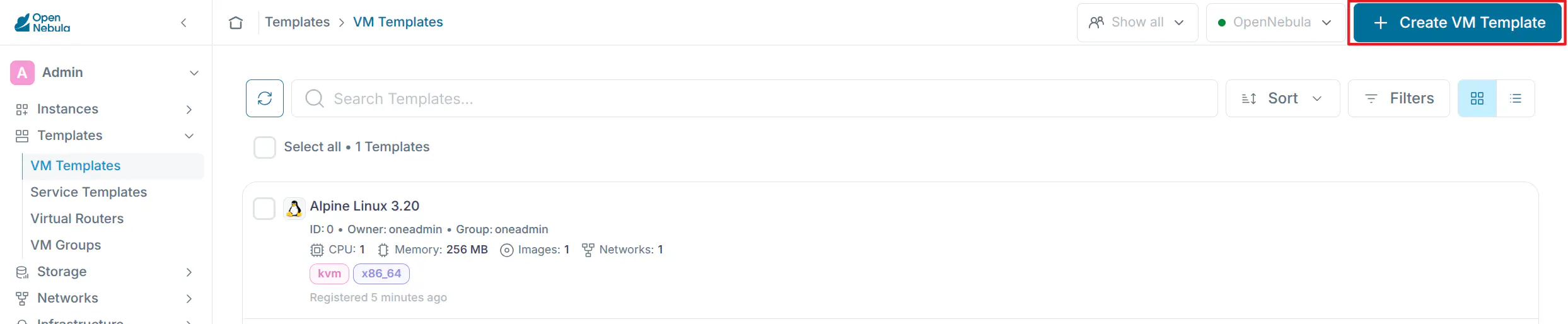
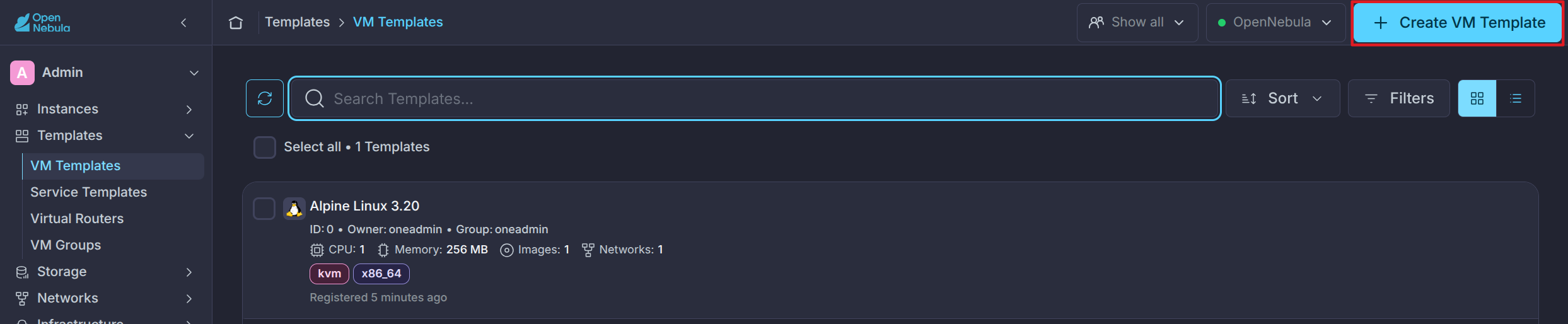
In the Templates -> VM Templates view select + Create VM Template
Step 2. Fill in the General Information
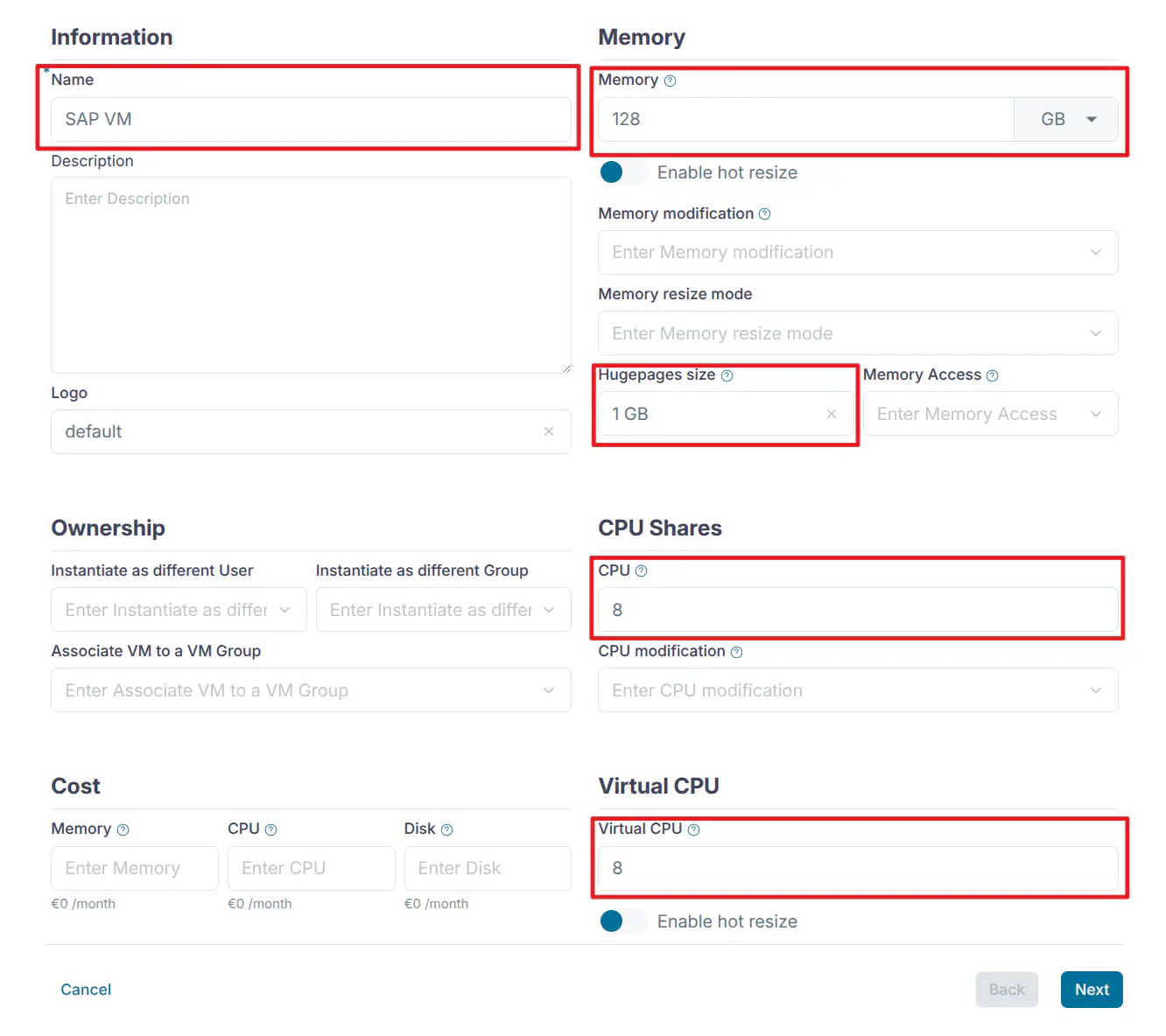
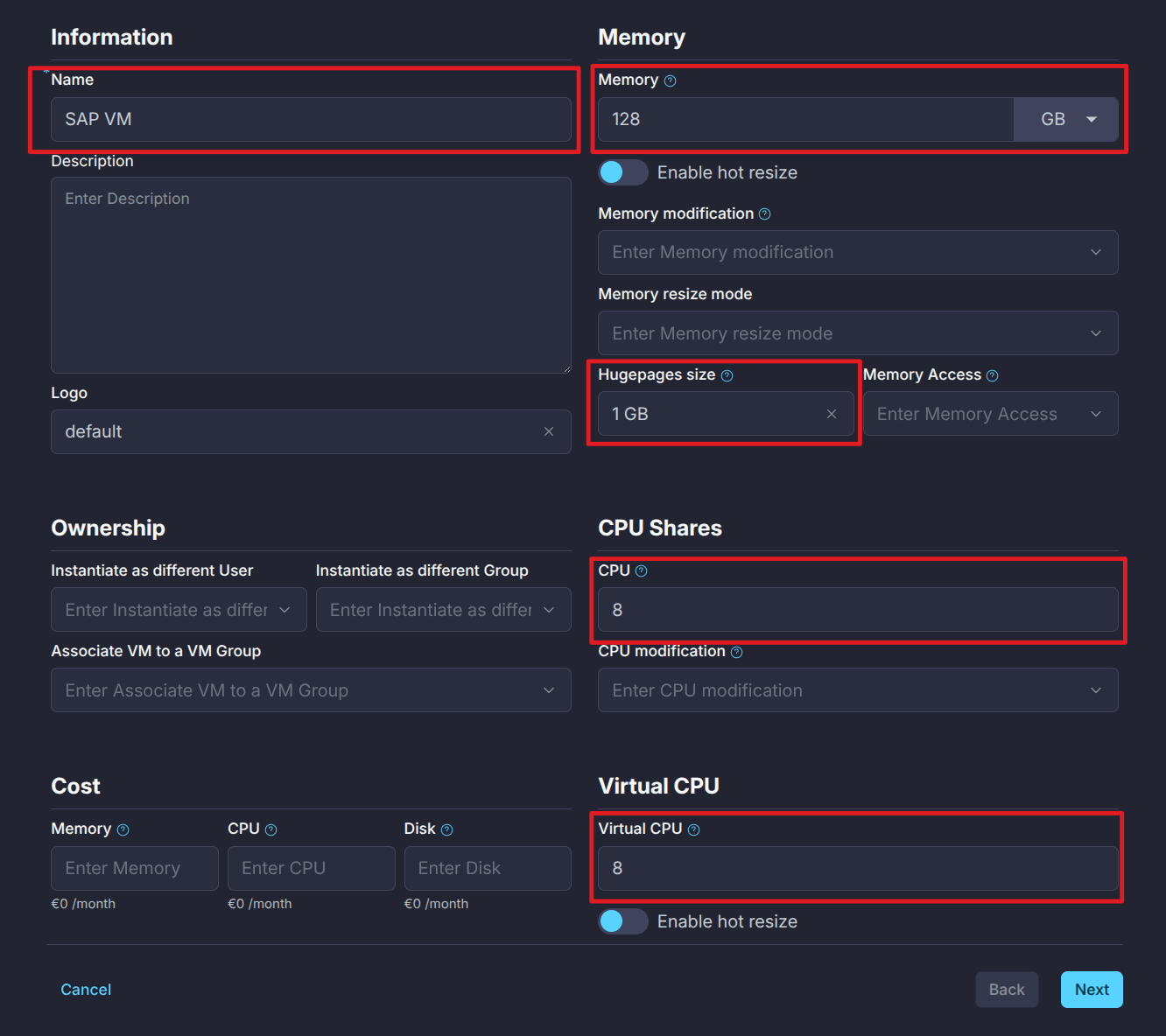
Populate values on the General step of the VM template wizard. The following parameters are highly recommended minimums for smooth performance for an SAP application, but you may also configure others according to your needs:
Memory:
- Memory - set “128” or more
- Unit memory - set “GB”
- Enable hot resize - leave disabled
- Memory resize mode - leave empty
- Hugepages size - set “1GB”
- Memory access - set “private"
- Memory slots - leave empty
CPU Shares:
- CPU - set “8” or more.
- CPU - set “8” or more.
Virtual CPU:
- Virtual CPU - set the same value as Physical CPU
- Enable hot resize - keep disabled
Step3. Fill in the Advanced Options
Click Next and then fill required information in the Advanced Options step, in respective tabs:
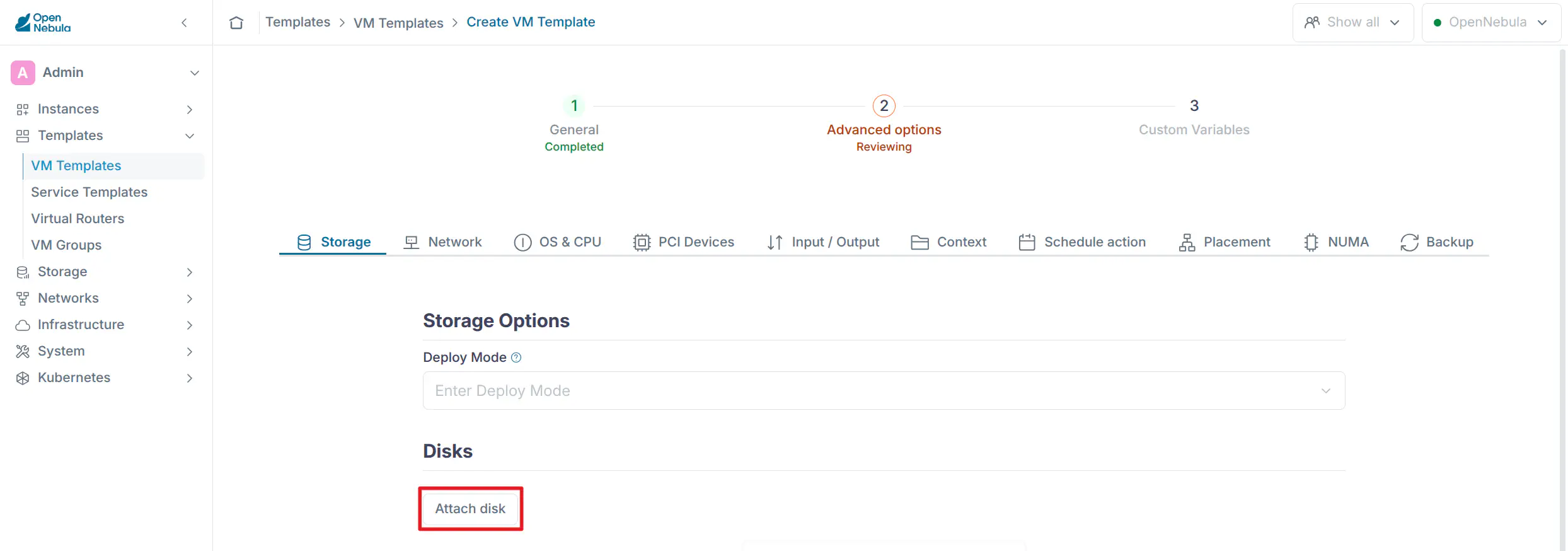
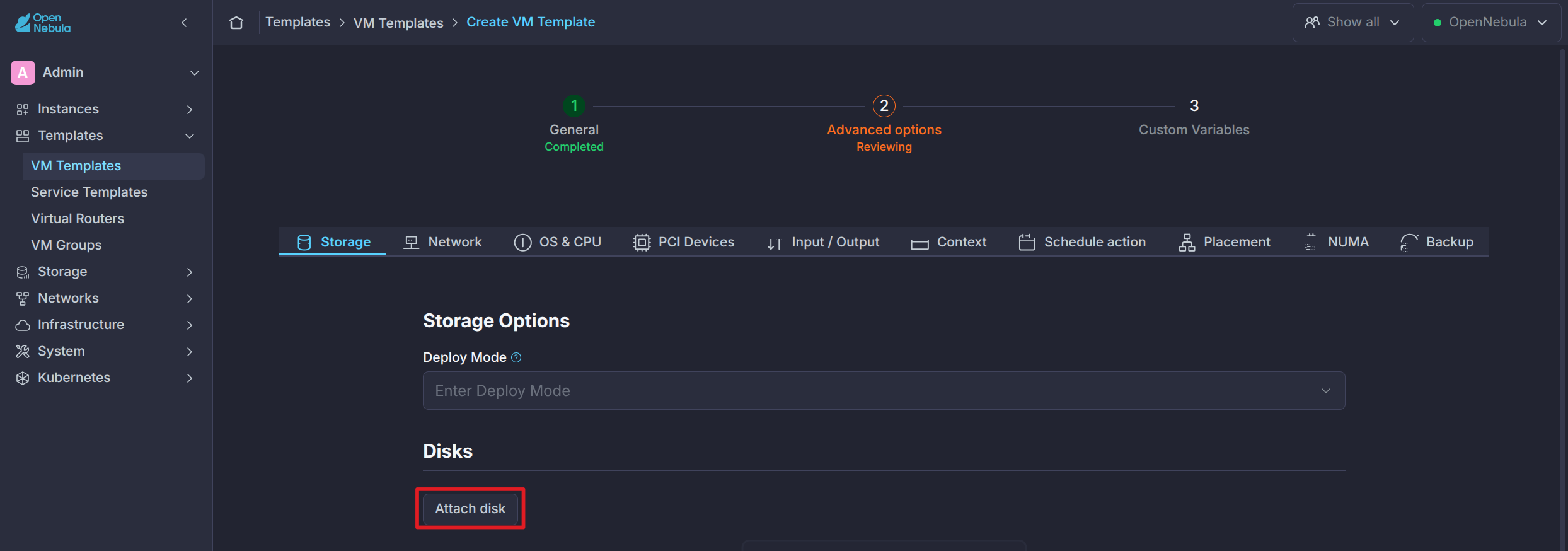
- Storage tab:
Click Attach disk and choose an image:
- If you have an existing disk image configured with SAP HANA already installed and configured, choose Image and choose the existing image from the menu.
- If you wish to use a fresh disk, choose Volatile and enter the Size, Disk type, Format, and Filesystem type parameters accordingly. Perform the OS and SAP HANA installation and configuration accordingly once the VM template is instantiated.
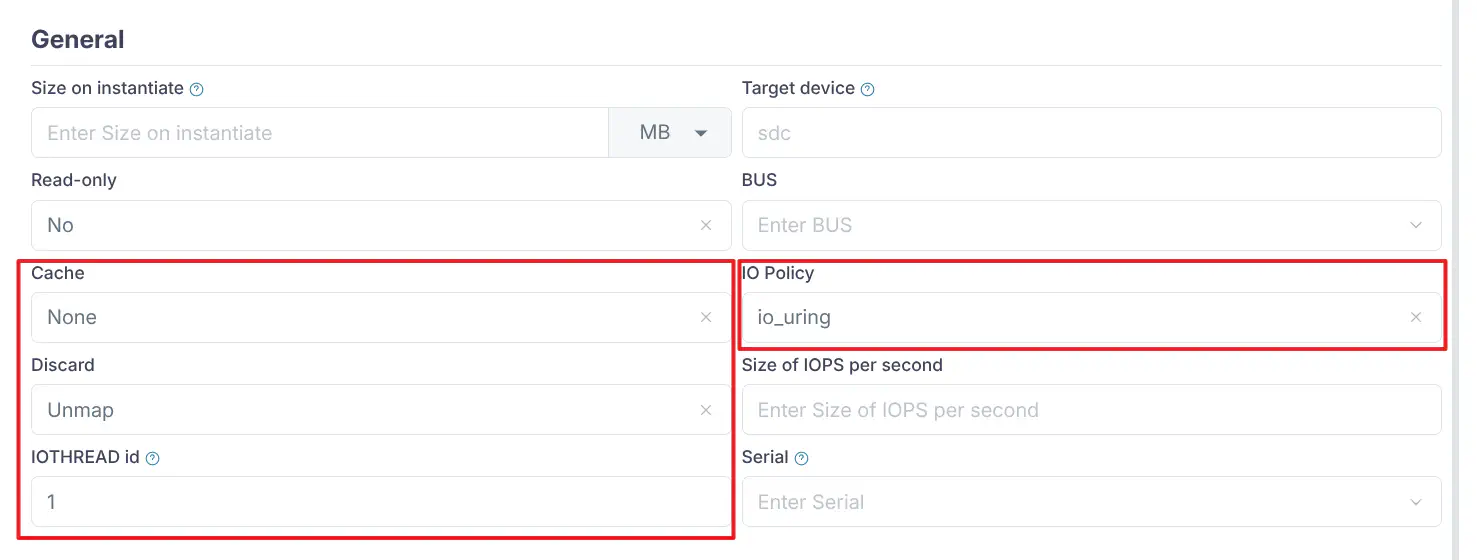
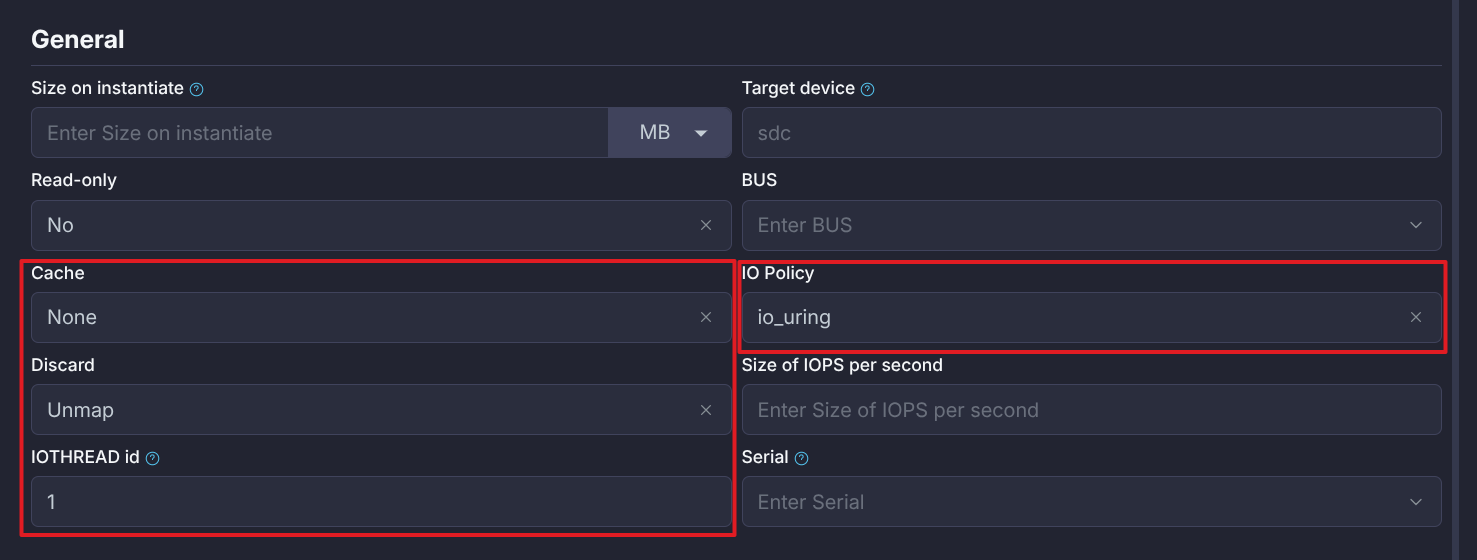
Click Finish in the Image step to move on to the Advanced Options step, populate the following fields:
- Cache = “none”
- IO policy = “io_uring” if using iSCSI/LVM backend supporting it, otherwise leave blank
- Discard = “unmap” if using iSCSI/LVM backend supporting it, otherwise leave blank
- IOTHREAD id - set accordingly to “OS&CPU tab”. For one disk = 1.
Network tab:
- Select appropriate preconfigured network(s) or SR-IOV device
- Select appropriate preconfigured network(s) or SR-IOV device
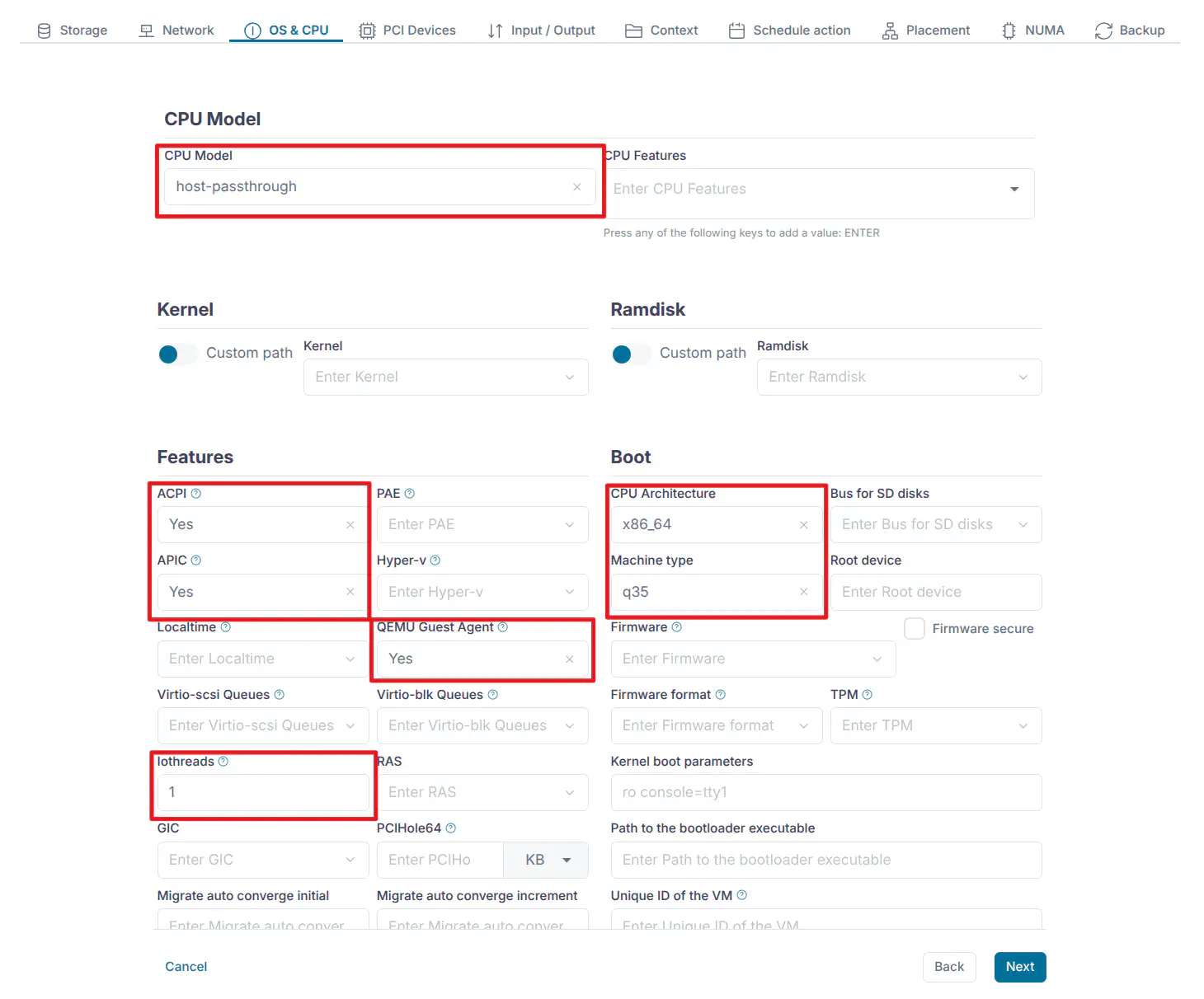
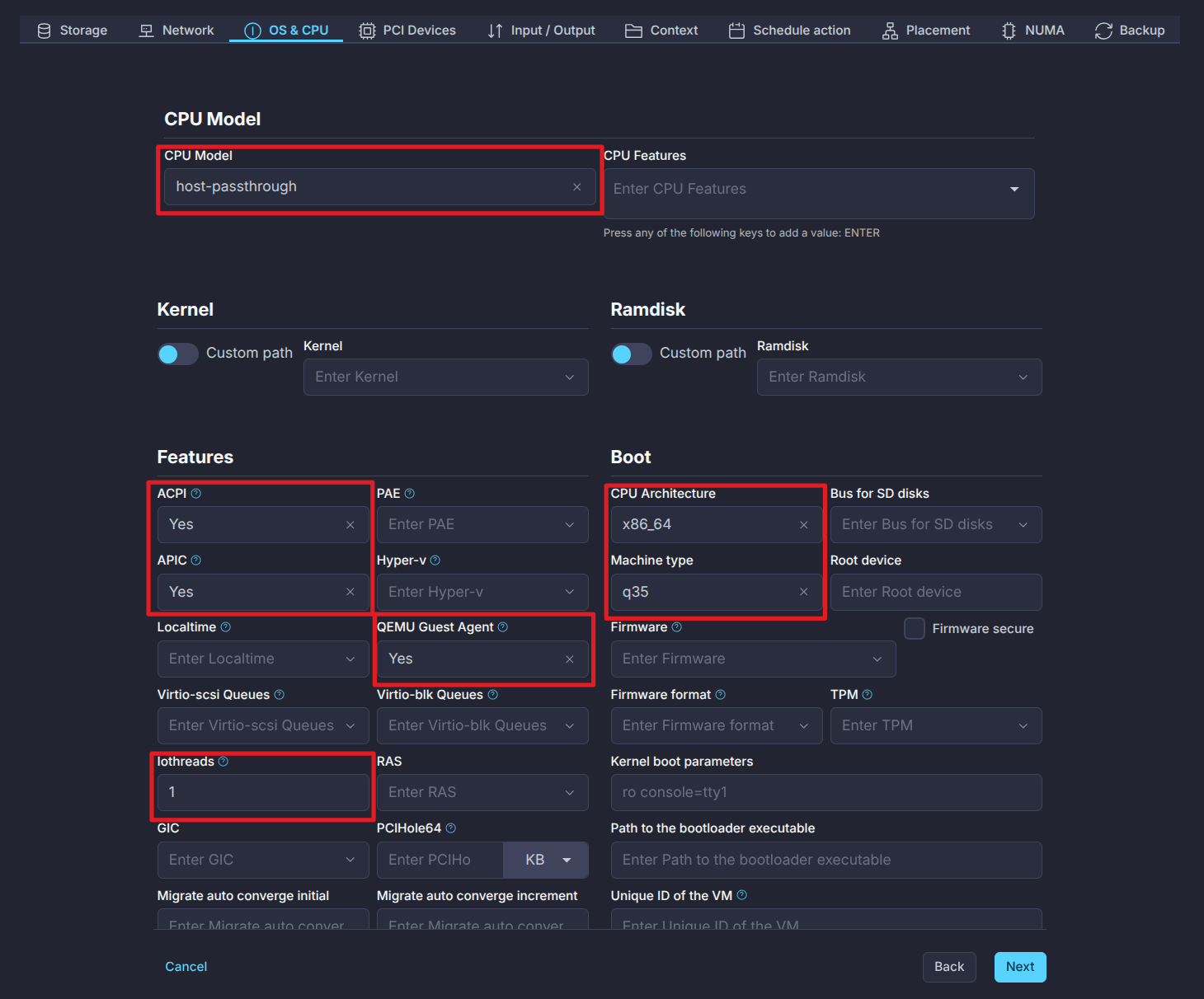
OS & CPU tab:
- Boot order:
- Ensure proper disk is selected
- CPU Model:
- CPU Model = “host-passthrough”
- Features:
- ACPI = “Yes”
- APIC” = “Yes”
- QEMU Guest Agent = “Yes”
- Iothreads” = “1” (or more if more disks)
- Boot:
- CPU Architecture = “x86_64”
- Machine type = “q35”
- Boot order:
NUMA tab:
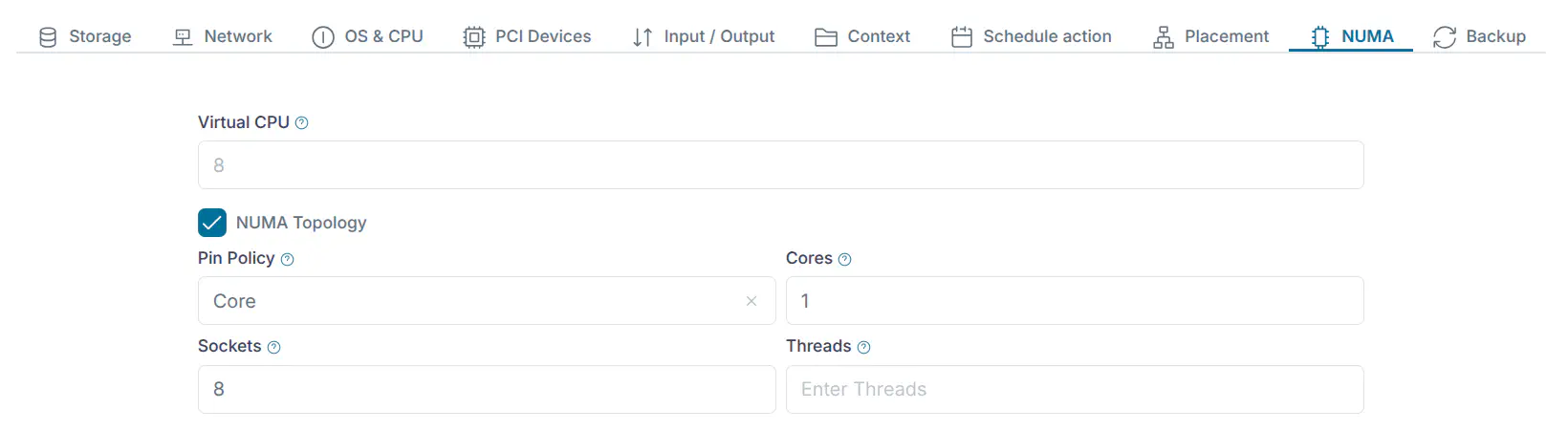
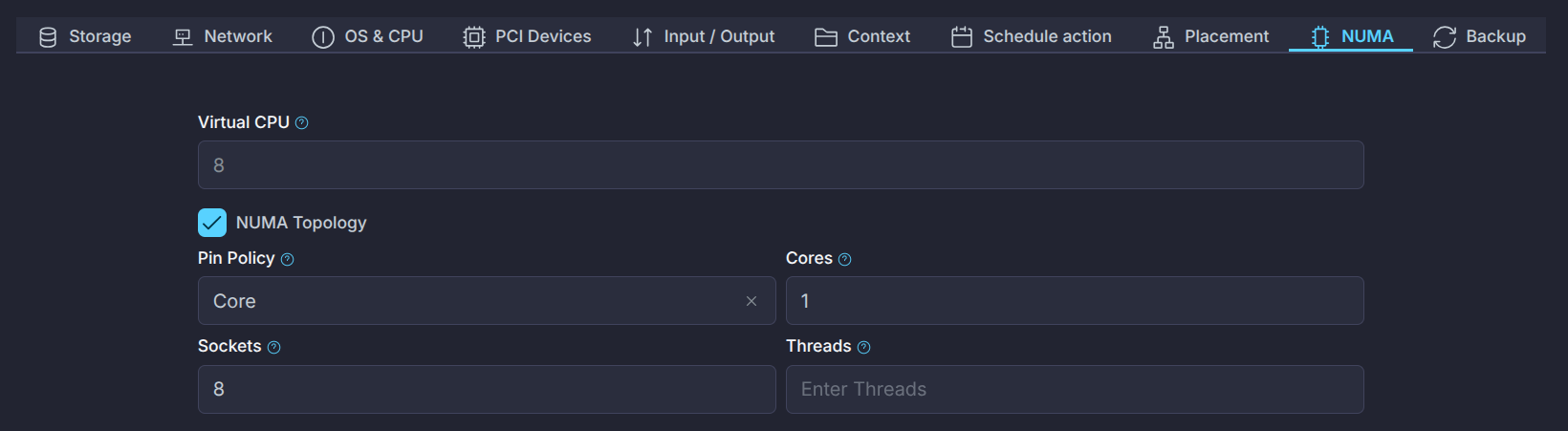
- Activate the NUMA Topology toggle
- Pin policy = “core”
NUMA Topology:
NUMA layout as described in the documentation. Layout depends on your CPU model (number of cores) and server hardware layout (number of CPUs). For example from 8 dedicated cores you may create eight one-core NUMA nodes or one eight-core NUMA node. Always keep the displayed control value “Virtual CPUs” equal to the value set in paragraph 2b. In either case CPU+memory proximity is set automatically.
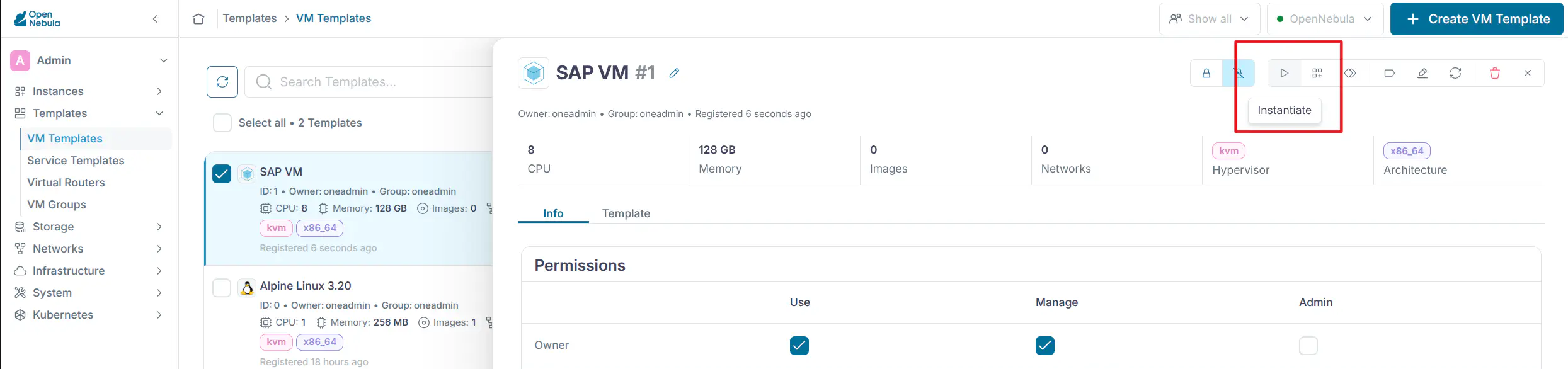
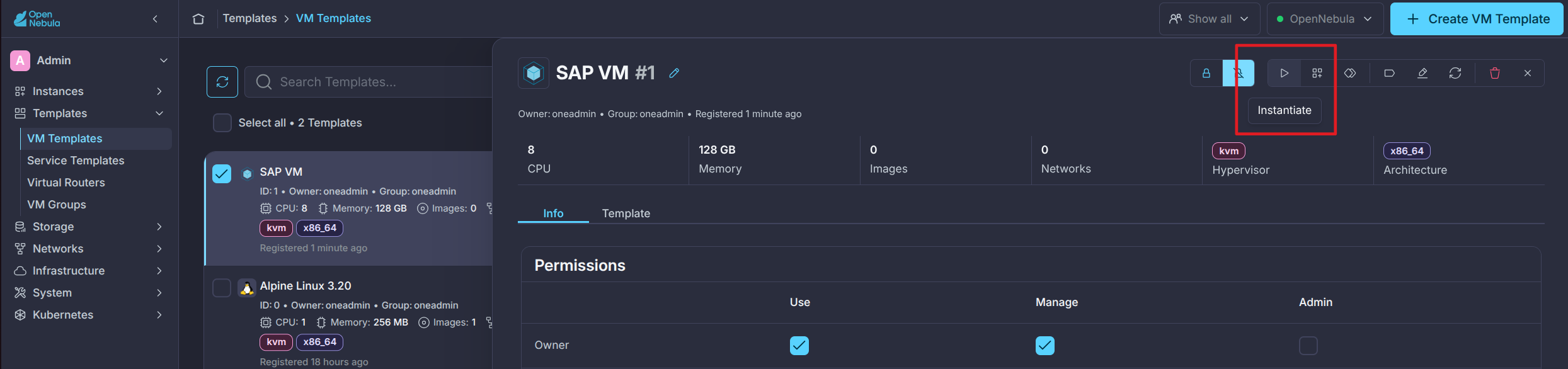
After completing the above conifguration, click Next and then Finish to create the new template. VM template has been created and you may deploy a VM from it. You can instantiate the SAP VM from the Templates -> VM Templates view. Select the new SAP VM template and click on the Instantiate icon:
OS and SAP deployment
This guide describes the preparation of the OpenNebula infrastructure and VM template required to provide a suitable virtualized environment for SAP workloads.
After the VM is instantiated, installation and configuration of the guest operating system and SAP software should be performed according to the requirements of the selected SAP solution and operating system. The exact deployment procedure depends on the software stack and vendor recommendations. At this stage, the virtual hardware configuration required for the workload has already been defined through the OpenNebula VM template.
From this point, follow the deployment and configuration procedures provided for the selected SAP solution and operating system, beginning from the initial VM boot. Operating system vendors such as Red Hat and SUSE provide dedicated guidance for deploying and configuring SAP workloads on their supported distributions.
GIVE FEEDBACK
Was this resource helpful?
Glad to hear it
Sorry to hear that