Validate Certified Hardware Deployments
After successfully verifying the infrastructure deployed by the automations, to run a Virtual Machine access the OpenNebula web UI at:
http://<Front-end IP>:2616/fireedge/sunstone
To log in, use the default username oneadmin, and the password specified in the one_pass variable of the inventory file.
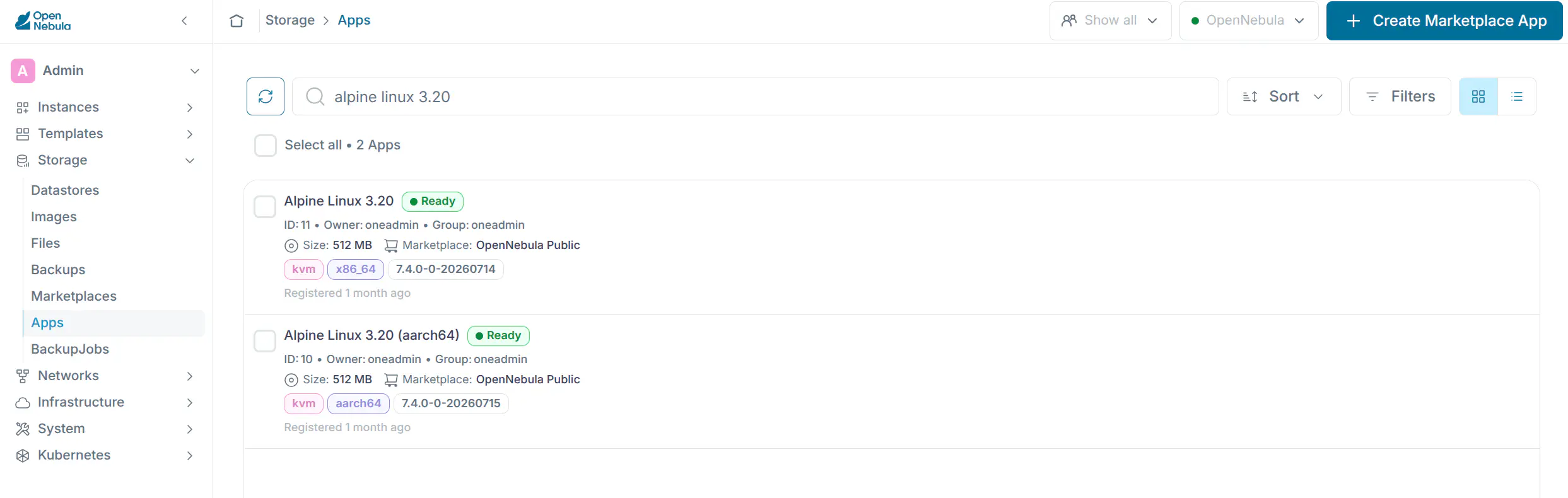
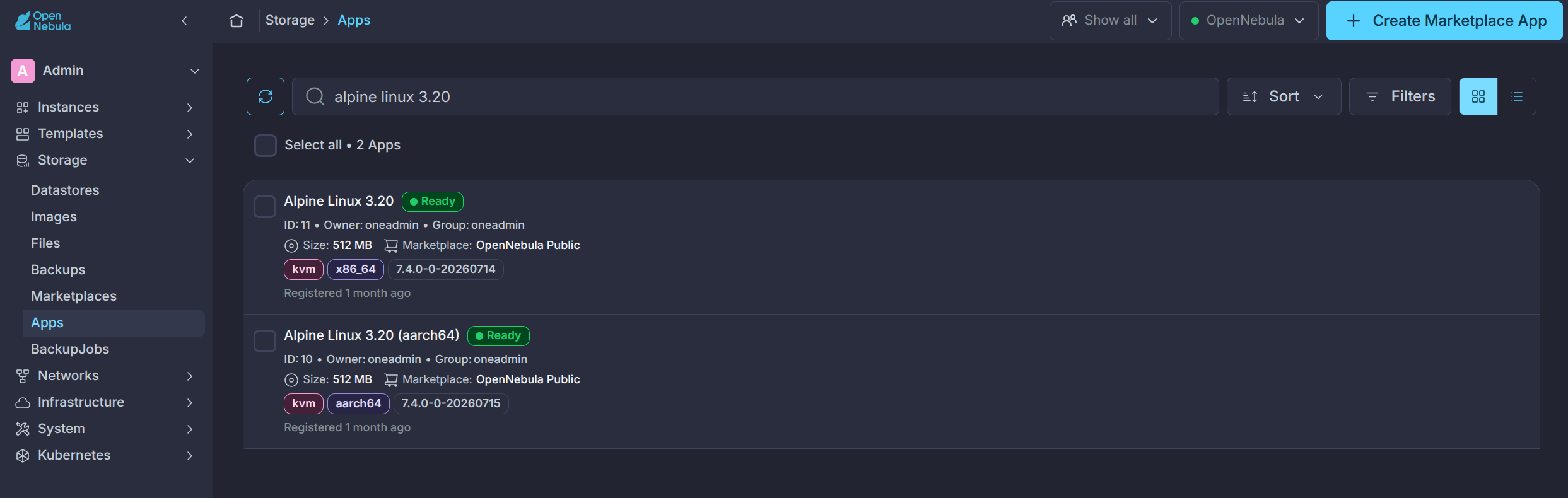
The image below shows the Alpine Linux 3.20 Virtual Machine included in the OpenNebula installation:
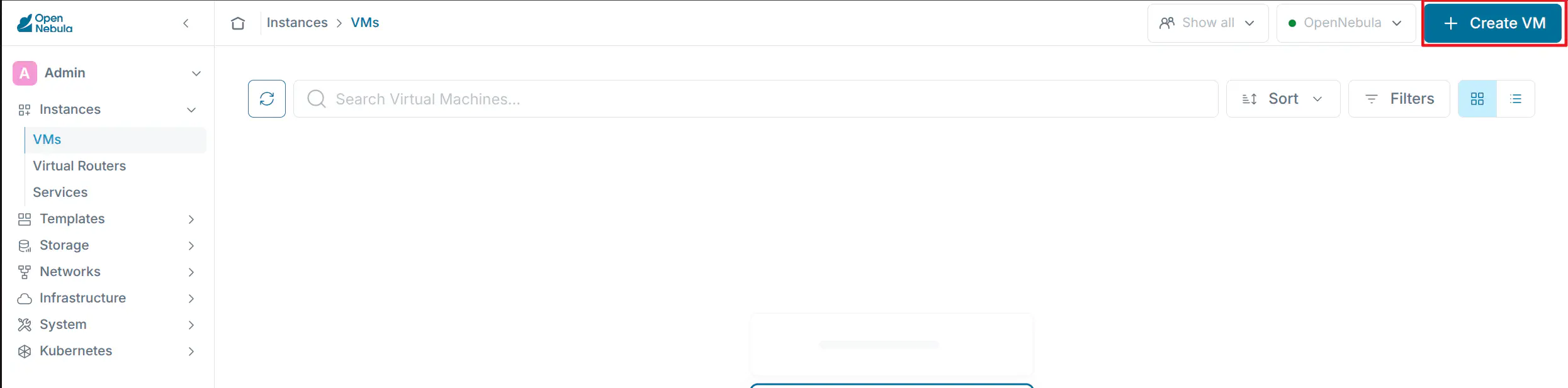
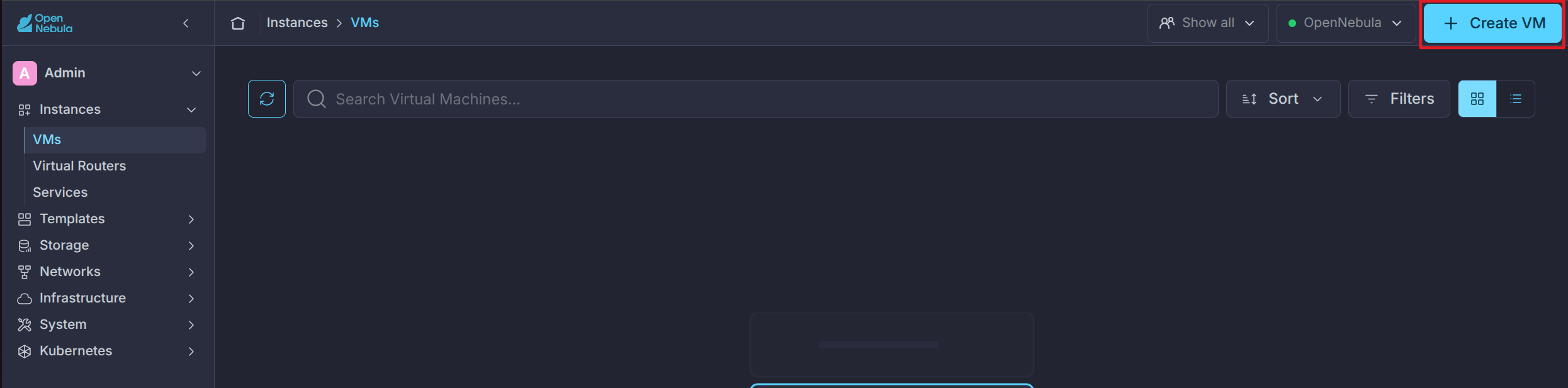
To instantiate the VM, in the Sunstone UI’s left-hand menu go to Instances –> VMs. Click the Create icon highlighted below, then select the Virtual Machine template. Follow the steps of the VM instantiation wizard. For this basic guide, all values can be left empty or at their defaults.
In the Instances -> VMs view select the new VM in the list to open the details page Configuration tab. Select Update configuration.
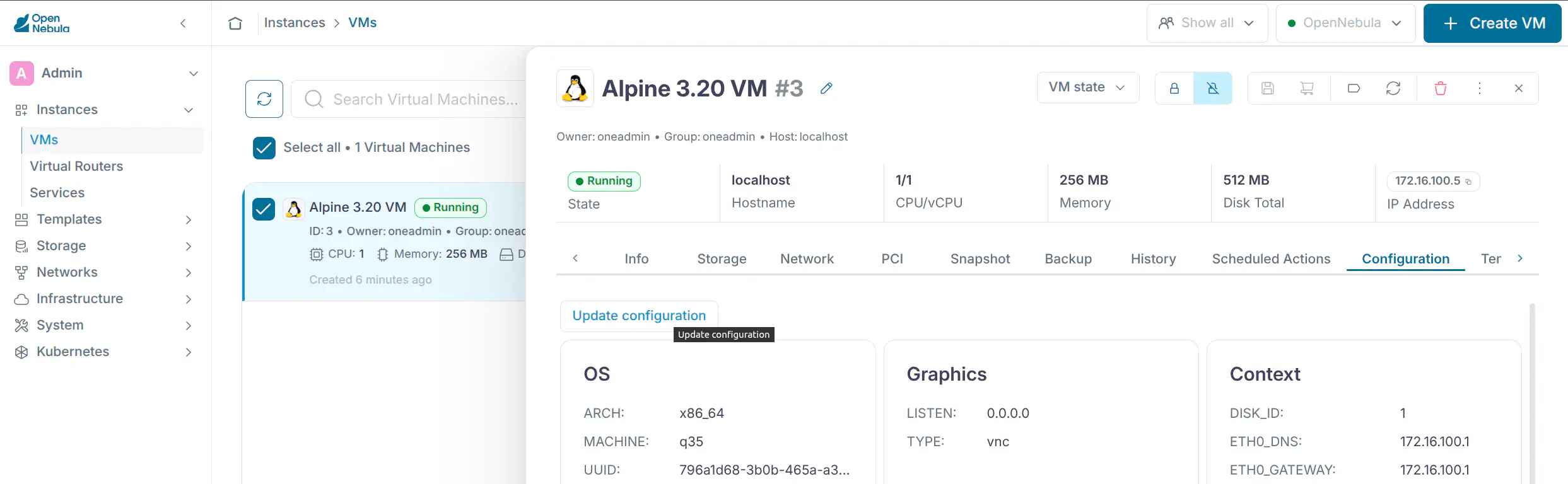
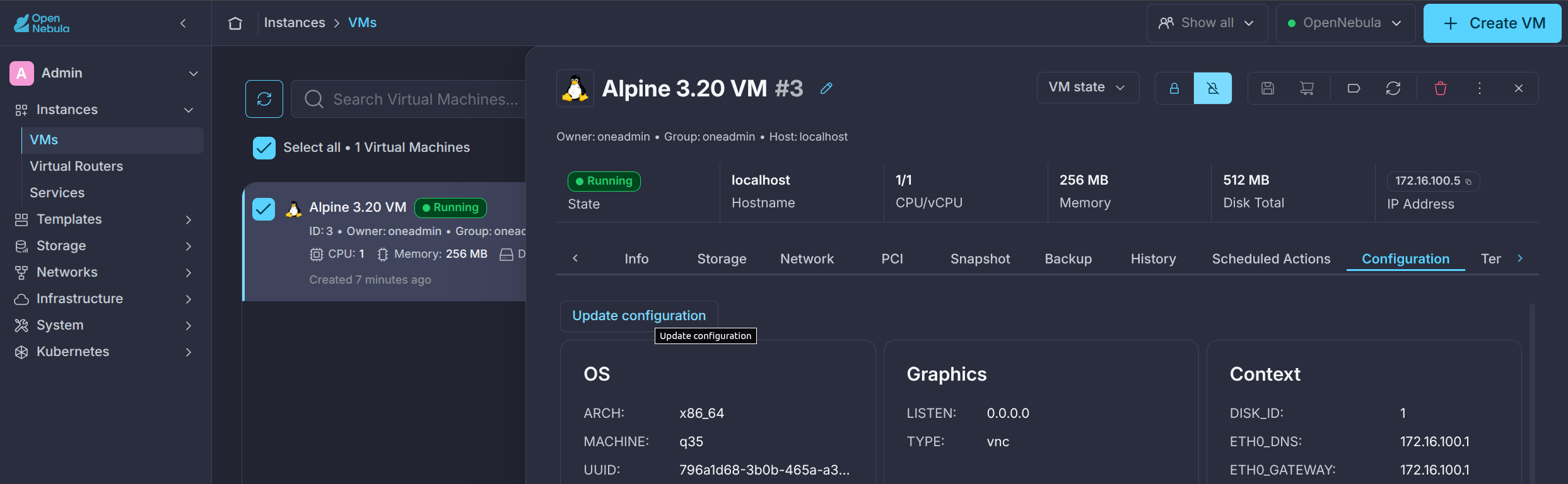
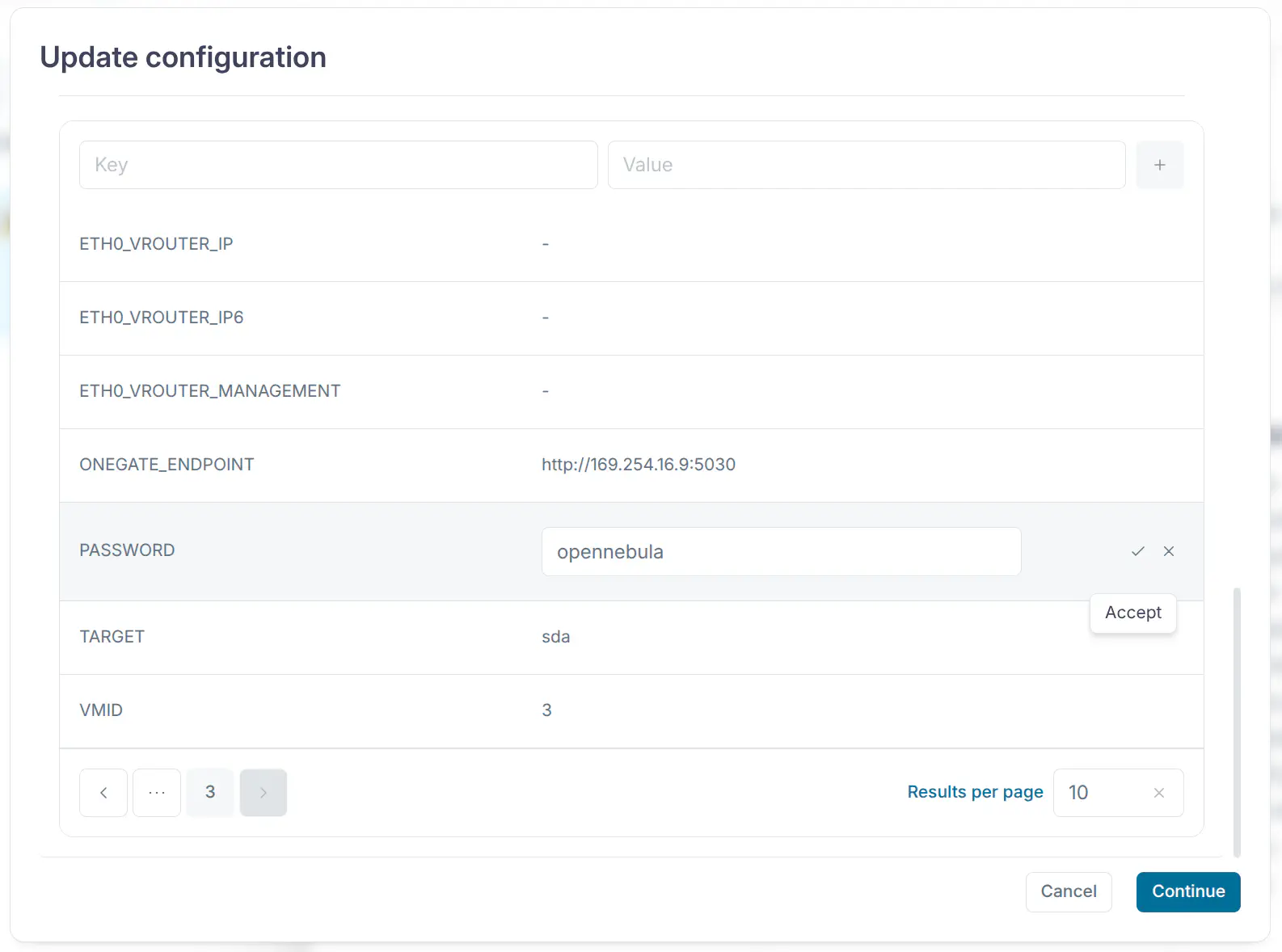
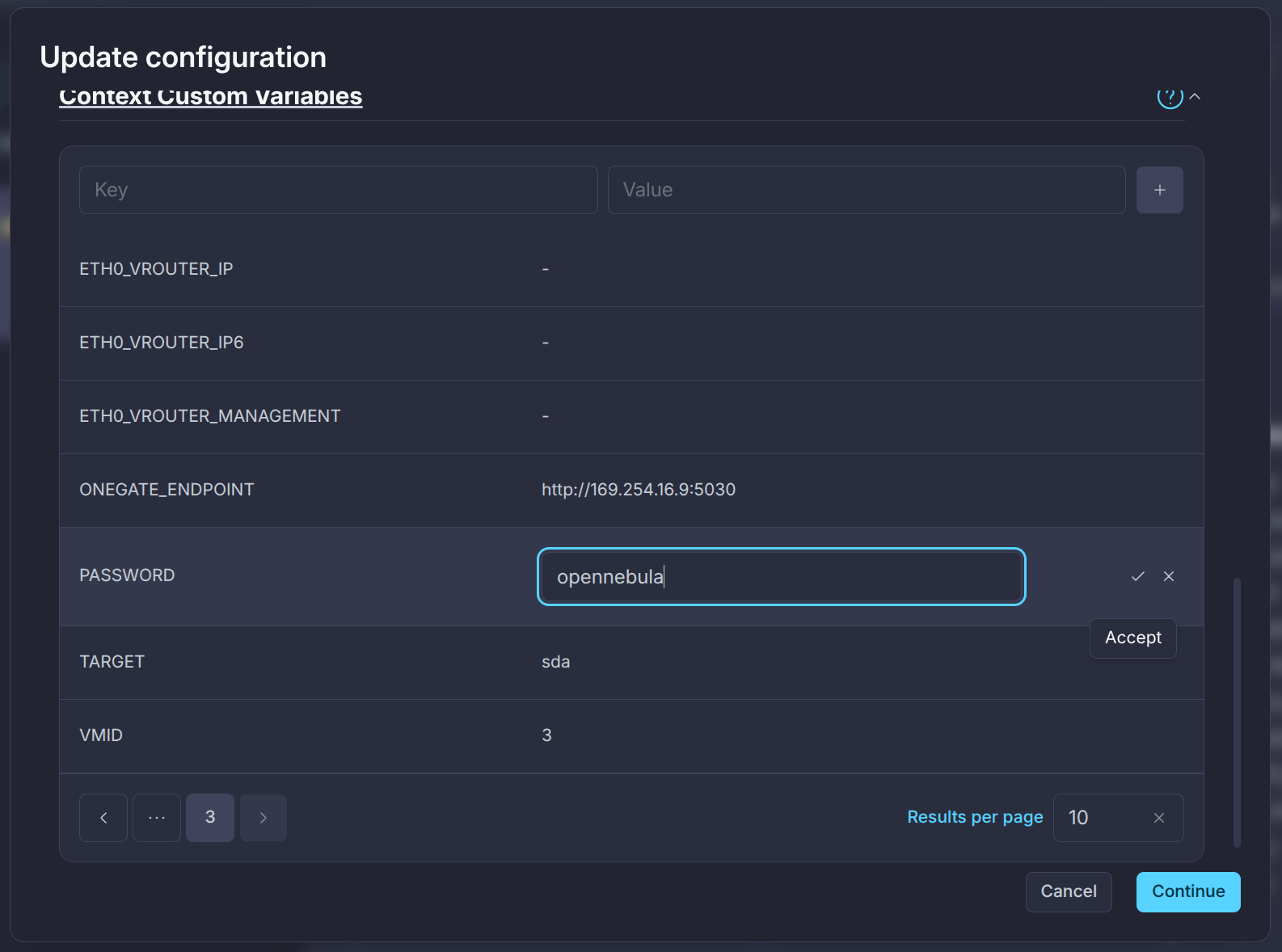
In the Context tab of the modal dialog that opens, scroll down to the Context Custom Variables section and expand it. Find the PASSWORD field and select Update (the pencil icon), then specify the desired root password for the VM, then click Accept, as shown below, then press Continue.
Log in to the VM via VNC, go to the ellipsis drop-down menu and select Console -> VNC. Log in as user root with the password that you specified in the previous step.
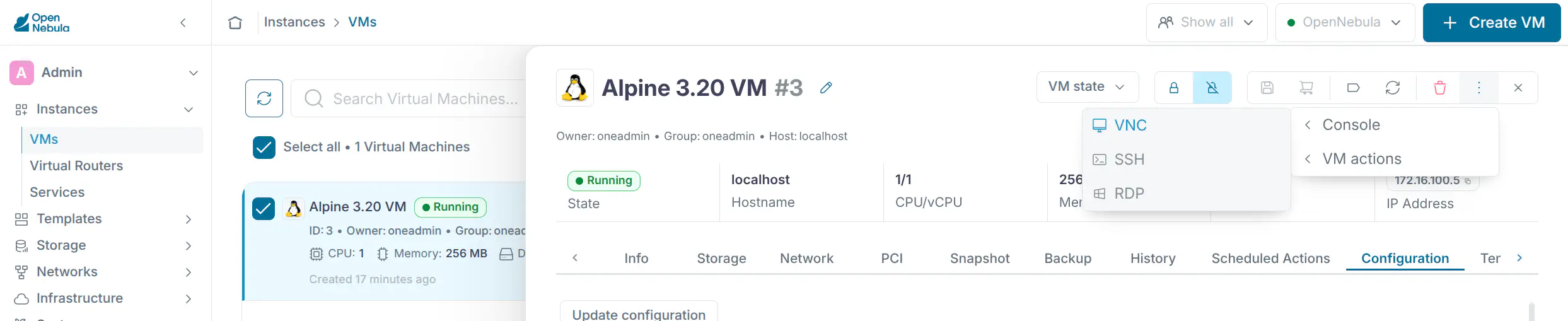
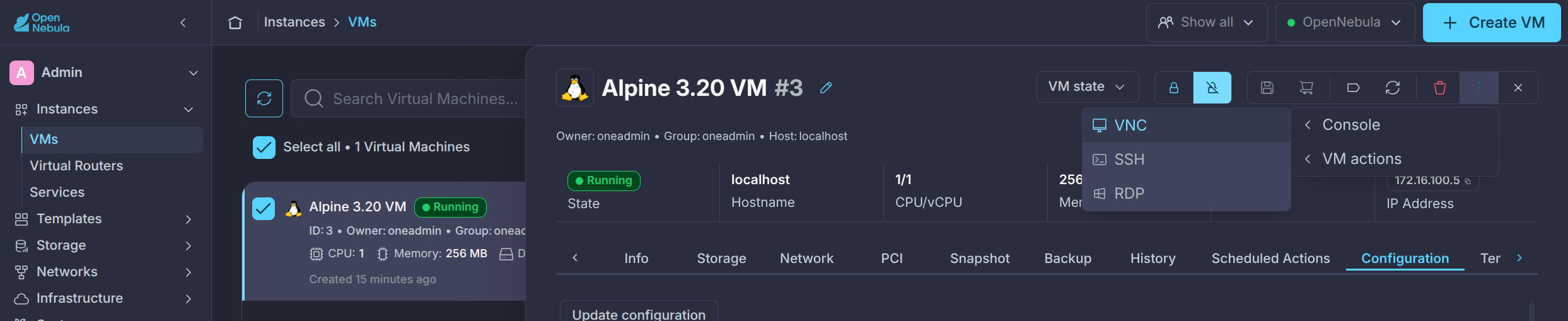
After accessing the deployed VM’s command line interface, verify that the terminal is responsive. For example, change to the home folder of user root:
root@vm:~# cd ~
root@vm:~# pwd
/root
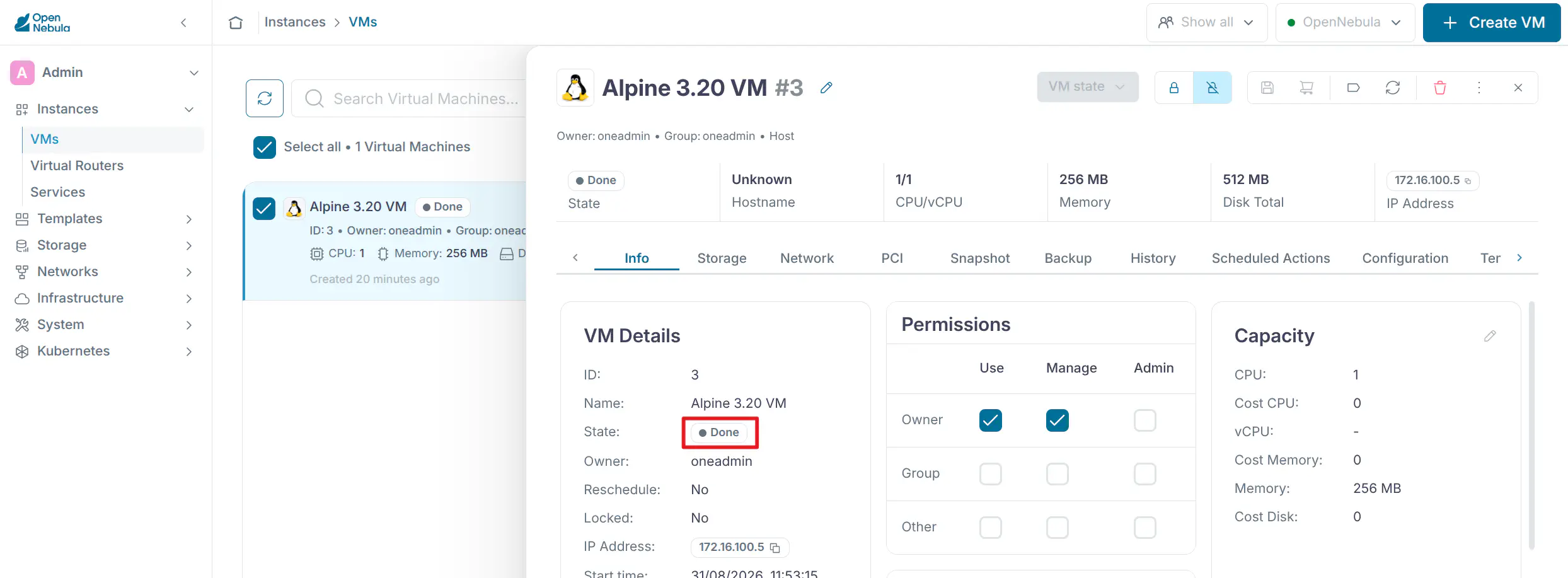
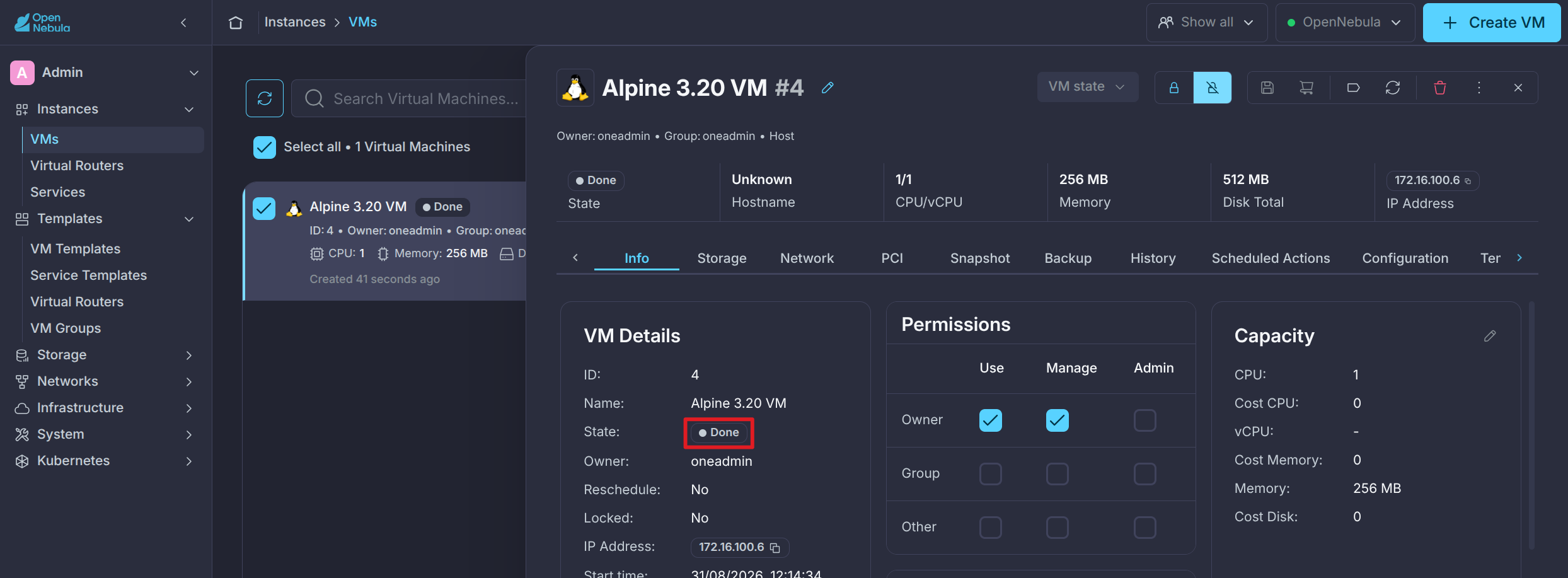
Finally, as a cleanup step, terminate the VM by clicking the red “Trash can” icon, then verify that the VM transitions to state DONE, as shown below.
GIVE FEEDBACK
Was this resource helpful?
Glad to hear it
Sorry to hear that