Managing Virtual Machine Instances
Use the onevm command or Sunstone to create VM instances, manage their lifecycle, schedule actions, and control access. This guide also covers custom metadata and recovery from failed operations. For instructions on defining reusable configurations, see the Virtual Machine Templates guide.
For device changes, resizing, snapshots, cloning, and migration, see Managing Virtual Machine Resources and Storage. For consoles and commands inside the guest, see Accessing Virtual Machines.
Virtual Machine States
The VM lifecycle includes the following states:
| Short state | State | Meaning |
|---|---|---|
pend | Pending | By default, a new VM starts in PENDING and waits for resources. It remains in this state until the Scheduler deploys it or you deploy it with onevm deploy. |
hold | Hold | The owner has held the VM. The Scheduler will not schedule it until you release it, but you can deploy it manually. |
clon | Cloning | The VM is waiting for one or more disk images to finish the initial copy to the repository. The image state is still lock. |
prol | Prolog | The system is transferring VM files, including disk images and the recovery file, to the target Host. |
boot | Boot | OpenNebula is waiting for the hypervisor to create the VM. |
runn | Running | The VM is running, including guest boot and shutdown phases. The virtualization driver monitors it periodically. |
migr | Migrate | The VM is migrating to another resource. For live migration, it keeps running. For cold migration, OpenNebula saves or powers off the VM before transferring its files. |
hotp | Hotplug | A disk or NIC attach/detach, save-as, resize, or exec operation is in progress. |
snap | Snapshot | A system snapshot is being taken. |
save | Save | The system is saving VM files during a migration, stop, or suspend operation. |
epil | Epilog | During termination, the system cleans up the Host and returns disk images marked for saving to their Image Datastore. During stop or undeploy, VM files are transferred to the System Datastore. |
shut | Shutdown | OpenNebula has sent the ACPI shutdown signal and is waiting for the guest to shut down. If the VM does not disappear before the timeout, OpenNebula assumes the guest OS ignored the signal and returns the VM to RUNNING instead of DONE. |
stop | Stopped | The VM is stopped. OpenNebula has saved its state and transferred it, along with the disk images, to the System Datastore. |
susp | Suspended | Like STOPPED, but VM files remain on the Host so you can resume the VM there without rescheduling it. |
poff | PowerOff | Like SUSPENDED, but without a checkpoint file. VM files remain on the Host for the next boot. OpenNebula also uses this state when the guest shuts down. |
unde | Undeployed | The VM is shut down, and its disks have been transferred to the System Datastore. You can resume the VM later. |
drsz | Disk Resize | A VM disk resize is in progress. |
back | Backup | A VM backup is in progress. |
rest | Restore | The system is restoring VM disks from a backup image. |
fail | Failed | The VM failed. |
unkn | Unknown | OpenNebula cannot reach the VM, so its state is unknown. |
clea | Cleanup-resubmit | The VM is waiting for the drivers to clean the Host after onevm recover --recreate. |
done | Done | The VM has finished. onevm list omits VMs in this state, but the database retains them for accounting. Use onevm show to view their information. |
Basic Virtual Machine Operations
Creating and Listing VMs
To list the registered VM Templates, run:
onetemplate list
ID USER     GROUP    NAME                         REGTIME
 6 oneadmin oneadmin vm-example            09/28 06:44:07
To instantiate the VM Template vm-example (ID 6), run:
onetemplate instantiate vm-example --name my_vm
VM ID: 0
If the Template defines user inputs, the CLI prompts you for their values:
onetemplate instantiate vm-example --name my_vm
There are some parameters that require user input.
  * (BLOG_TITLE) Blog Title: <my_title>
  * (DB_PASSWORD) Database Password:
VM ID: 0
To list VMs, run onevm list. Use onevm top to refresh the list continuously.
onevm list
ID USER     GROUP    NAME         STAT CPU     MEM        HOSTNAME        TIME
 0 oneadmin oneadmin my_vm        pend   0      0K                 00 00:00:03
The scheduler automatically deploys the VM on a Host with enough available resources. To force deployment as oneadmin, use onevm deploy:
onehost list
ID NAME               RVM   TCPU   FCPU   ACPU   TMEM   FMEM   AMEM   STAT
 2 testbed              0    800    800    800    16G    16G    16G     on
To deploy VM my_vm (ID 0) on Host testbed (ID 2), run:
onevm deploy 0 2

onevm list
ID USER     GROUP    NAME         STAT CPU     MEM        HOSTNAME        TIME
 0 oneadmin oneadmin my_vm        runn   0      0K         testbed 00 00:02:40
To view the VM details, run:
onevm show 0
VIRTUAL MACHINE 0 INFORMATION
ID                  : 0
NAME                : my_vm
USER                : oneadmin
GROUP               : oneadmin
STATE               : ACTIVE
LCM_STATE           : RUNNING
...
Searching for VM Instances
To search for VM instances, use the --search option of onevm list. This is especially useful in large environments with many VMs. Use the filter format VM.KEY1=VALUE1&VM.KEY2=VALUE2 to return VMs that match all conditions. The & operator acts as a logical AND. Use *=VALUE to search the full VM body or VM.TEMPLATE=VALUE to search the whole Template.
Searches use the JSON representation of the whole VM body. Specify a MySQL JSON path without the leading $.. For details on the path structure, see the MySQL documentation or MariaDB documentation. OpenNebula wraps the value in %, so the query matches fields that contain the specified value.
The VALUE part of a search query supports these special characters:
%: Matches any string, allowing for wildcard searches. For example,a%a%amatches names containing three “a”s in any position, with any number of characters between them._: Matches any single character, enabling precise pattern matching. For instance,a_a_amatches names with three “a”s, each separated by exactly one character.&: Always acts as a logical AND operator. You cannot use it inVALUEor escape it.
To search for strings that contain % or _ literally, escape these characters with a backslash \. For example:
a\%asearches for the literal sequencea%a.a\_amatchesa_awithout interpreting_as a single-character wildcard.
To search for a VM with a specific MAC address, run:
onevm list --search 'VM.TEMPLATE.NIC[*].MAC=02:00:0c:00:4c:dd'
ID    USER     GROUP    NAME    STAT UCPU UMEM HOST TIME
21005 oneadmin oneadmin test-vm pend    0   0K      1d 23h11
The command displays all matching VM instances. For example, to find VMs whose NAME contains test-vm and whose owner is oneadmin, run:
onevm list --search 'VM.NAME=test-vm&VM.UNAME=oneadmin'
 ID    USER     GROUP    NAME     STAT UCPU UMEM HOST TIME
 21005 oneadmin oneadmin test-vm  pend    0   0K       1d 23h13
 2100  oneadmin oneadmin test-vm2 pend    0   0K      12d 17h59
Terminating VM Instances
To terminate an instance, use onevm terminate when no conflicting operation is in progress. This command shuts down the VM if needed, deletes it, and frees its resources, such as Images and Virtual Networks. If an operation is stuck, see the Virtual Machine Failures guide.
For a running instance, choose one of these options:
terminate: Sends the ACPI signal to shut down and delete the VM gracefully. After the VM shuts down, OpenNebula cleans the Host and moves persistent and deferred-snapshot disks to the associated Datastore. If the VM is still running after the timeout, for example because the guest ignores ACPI signals, OpenNebula returns it to theRUNNINGstate.terminate --hard: Same as above but the VM is immediately destroyed. Use this action instead ofterminatewhen the VM doesn’t have ACPI support.
Pausing VM Instances
You can pause a VM for the short or long term. A short-term pause keeps all VM resources allocated to the Host so the VM can resume quickly on the same Host. Use these onevm commands or Sunstone actions:
suspend: Saves the VM state on the running Host. When you resume the VM, OpenNebula restores its saved state on the same Host.poweroff: Gracefully powers off a running VM by sending the ACPI signal. It is similar tosuspend, but does not save the VM state. When you resume the VM, it boots on the same Host.poweroff --hard: Same as above but the VM is immediately powered off. Use this action when the VM doesn’t have ACPI support.
POWEROFF state.For a long-term pause, OpenNebula frees the VM’s Host resources, cleans the Host, and saves the VM disk state in the System Datastore. Use these actions to preserve network and storage allocations, such as IP addresses and persistent disk Images:
undeploy: Sends the ACPI signal to shut down a running VM gracefully and transfers its disks back to the System Datastore. When you resume an undeployed VM, OpenNebula moves it to thePENDINGstate and the scheduler chooses where to deploy it again.undeploy --hard: Same as above but the running VM is immediately destroyed.stop: Same asundeploybut also the VM state is saved to resume it later.
To resume a paused VM, use:
resume: Resumes VMs in theSTOPPED,SUSPENDED,UNDEPLOYED, andPOWEROFFstates.
Rebooting VM Instances
Use the following commands to reboot a VM:
reboot: Gracefully reboots a running VM, sending the ACPI signal.reboot --hard: Performs a hard reboot.
Delaying VM Instances
To delay deployment of a PENDING VM, for example after creating or resuming it, use:
hold: Sets the VM to theHOLDstate. The scheduler does not deploy VMs in this state. To create a VM directly on hold, useonetemplate instantiate <template> --holdoronevm create <file> --hold.
To allow the scheduler to deploy the VM, use:
release: Moves a VM fromHOLDtoPENDING. You can schedule this action to release a VM automatically, as explained below.
Scheduling Actions for Virtual Machines
Use scheduled actions to run VM operations in the future, such as shutting down a VM after five hours. OpenNebula supports two types of scheduled actions:
- Punctual actions, which run at a specified date and time and can repeat periodically.
- Relative actions, which run after a specified interval from VM instantiation.
Scheduling One-time Actions
Use --schedule with supported onevm commands to delay an action until a specified date and time. For example:
onevm suspend 0 --schedule "09/20"
VM 0: suspend scheduled at 2016-09-20 00:00:00 +0200
onevm resume 0 --schedule "09/23 14:15"
VM 0: resume scheduled at 2016-09-23 14:15:00 +0200
onevm show 0
VIRTUAL MACHINE 0 INFORMATION
ID                  : 0
NAME                : one-0

[...]

SCHEDULED ACTIONS
ID    ACTION  ARGS   SCHEDULED REPEAT   END STATUS
 0   suspend     - 09/20 00:00              Next in 12.08 days
 1    resume     - 09/23 14:15              Next in 15.67 days
To delete or edit an action, use onevm sched-delete or onevm sched-update. The time attributes use Unix time internally. To edit action 0 on VM 0, run:
onevm sched-update 0 0
The editor displays the action attributes:
ID="0"
PARENT_ID="0"
TYPE="VM"
ACTION="suspend"
TIME="1703164454"
REPEAT="-1"
END_TYPE="-1"
END_VALUE="-1"
DONE="-1"
ID, PARENT_ID, and TYPE. For editable attributes, see Scheduled Action Template.Scheduling Periodic Actions
To schedule a periodic action, combine --schedule with an option that defines its frequency:
--weekly: Run the action every week on the specified days.--monthly: Run the action every month on the specified days.--yearly: Run the action every year on the specified days.--hourly: Run the action at a specified interval in hours.
For --weekly, --monthly, and --yearly, specify day indexes separated by commas:
--weekly: 0 (Sunday) through 6 (Saturday).--monthly: 1 through 31.--yearly: 0 through 365.
The option --hourly accepts an integer interval from 1 to 167 hours.
To set when the periodic action ends, use --end with either:
- A number, to specify the number of repetitions.
- A date, to specify the end date.
Here is a usage example for November 2026. The onevm show output assumes the actions are inspected on November 1 at 00:00 (+0100):
onevm suspend 0 --schedule "2026-11-02 00:00" --weekly "1,5" --end 5
VM 0: suspend scheduled at 2026-11-02 00:00:00 +0100
onevm resume 0 --schedule "2026-11-03 14:15" --weekly "2,6" --end 5
VM 0: resume scheduled at 2026-11-03 14:15:00 +0100
onevm snapshot-create 0 snap-01 --schedule "2026-11-03 00:00" --hourly 5 --end "2026-12-25"
VM 0: snapshot-create scheduled at 2026-11-03 00:00:00 +0100
onevm show 0
VIRTUAL MACHINE 0 INFORMATION
ID                  : 0
NAME                : one-0

[...]

SCHEDULED ACTIONS
ID           ACTION     ARGS    SCHEDULED        REPEAT            END  STATUS
 0          suspend        -  11/02 00:00    Weekly 1,5  After 5 times  Next in 24.0 hours
 1           resume        -  11/03 14:15    Weekly 2,6  After 5 times  Next in 2.59 days
 2  snapshot-create  snap-01  11/03 00:00  Each 5 hours    On 12/25/26  Next in 2.0 days
To delete or edit a periodic action, use onevm sched-delete or onevm sched-update. The time attributes use Unix time internally. For example:
onevm sched-update 0 2
ID="2"
PARENT_ID="0"
TYPE="VM"
ACTION="snapshot-create"
ARGS="snap-01"
TIME="1793660400"
REPEAT="3"
DAYS="5"
END_TYPE="2"
END_VALUE="1798153200"
DONE="-1"
Scheduling Relative Actions
Define relative scheduled actions in a VM Template to run operations a specified number of seconds after VM instantiation. For example, add the following SCHED_ACTION to shut down VMs one hour after instantiation:
onetemplate update 0
SCHED_ACTION=[
   ACTION="terminate",
   ID="0",
   TIME="+3600" ]
In Sunstone, create or update a VM Template, open the second step, Advanced options, and select the Schedule Action tab.
The following table lists the actions you can schedule. Some actions require arguments, such as a disk ID or snapshot name.
| Action | Arguments |
|---|---|
terminate [--hard] | |
undeploy [--hard] | |
hold | |
release | |
stop | |
suspend | |
resume | |
reboot [--hard] | |
poweroff [--hard] | |
snapshot-create | name |
snapshot-revert | snap ID |
snapshot-delete | snap ID |
disk-snapshot-create | disk ID, name |
disk-snapshot-revert | disk ID, snap ID |
disk-snapshot-delete | disk ID, snap ID |
backup | datastore ID, reset |
To pass arguments to an action, set ARGS in the action definition. For example:
onevm sched-update 0 0
ID="0"
PARENT_ID="0"
TYPE="VM"
ACTION="disk-snapshot-create"
ARGS="0, disksnap_example"
DAYS="1,5"
END_TYPE="1"
END_VALUE="5"
REPEAT="0"
TIME="1793574000"
In this example, the first argument identifies the disk, and the second specifies the snapshot name.
In the sched-update editor, put each attribute on a separate line without trailing commas. The CLI adds the separators when it constructs the scheduled action.
Creating Virtual Machine Charters
Charters add a configured set of scheduled actions to a VM. To enable Charter creation in Sunstone, add the following to vm-tab.yaml in the corresponding Sunstone view:
info-tabs:
  sched_actions:
    enabled: true
    actions:
      charter_create: true
Next, define the Charter’s scheduled actions in sunstone-server.conf in the FireEdge configuration.
For example:
leases:
  terminate:
    edit: false
    execute_after_weeks: 3
  poweroff:
    edit: true
    execute_after_minutes: 5
When you add a Charter to an existing VM, Sunstone calculates the delays from the time you open the Charter form. The example creates two scheduled actions:
- Terminate the VM three weeks after you open the Charter form. You cannot edit this action before creating it.
- Power off the VM five minutes after you open the Charter form. You can edit this action before creating it.
Charters configured in a VM Template use relative scheduled actions, with delays measured from VM instantiation.
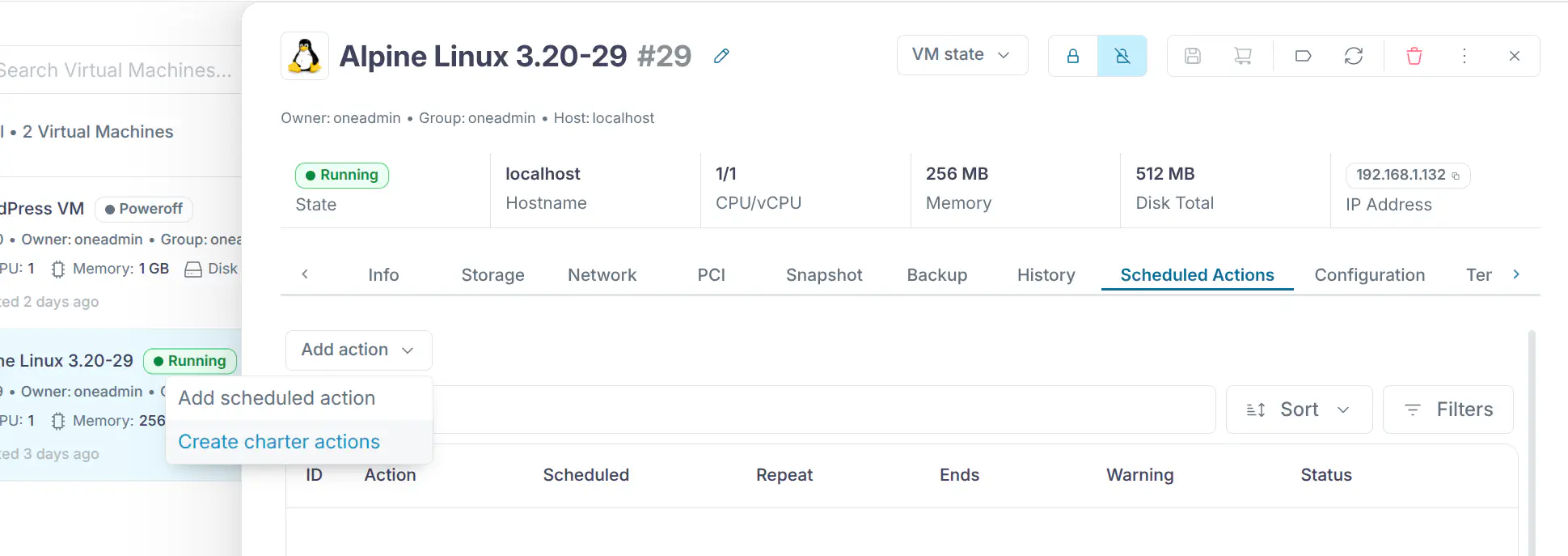
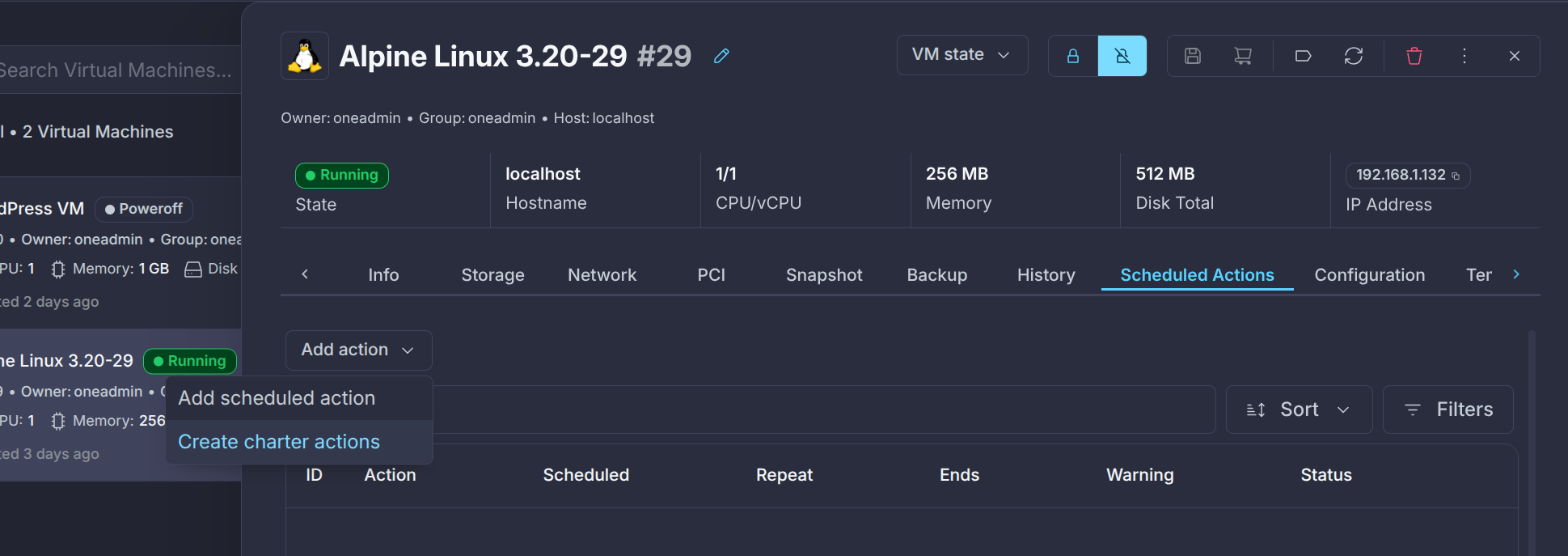
Click Charter to open the form:
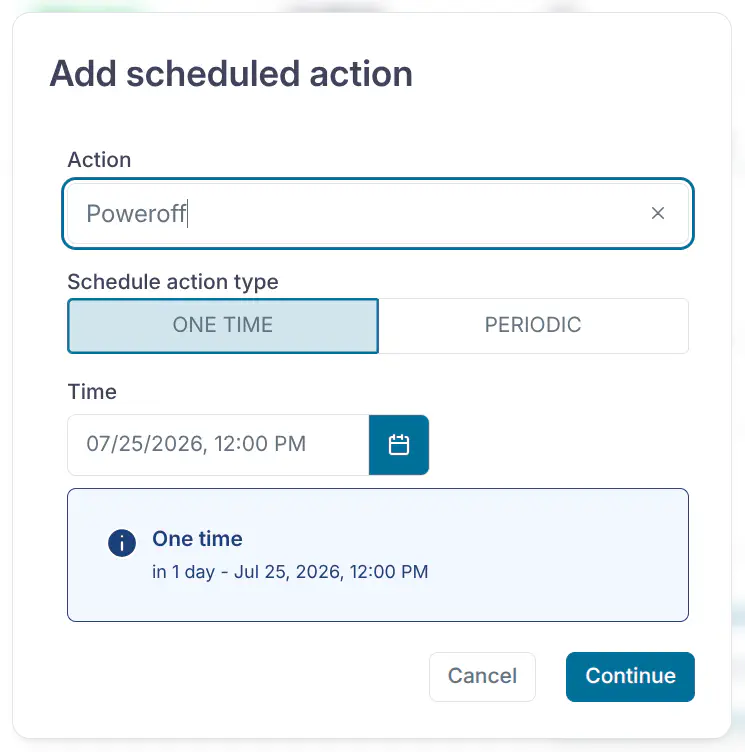
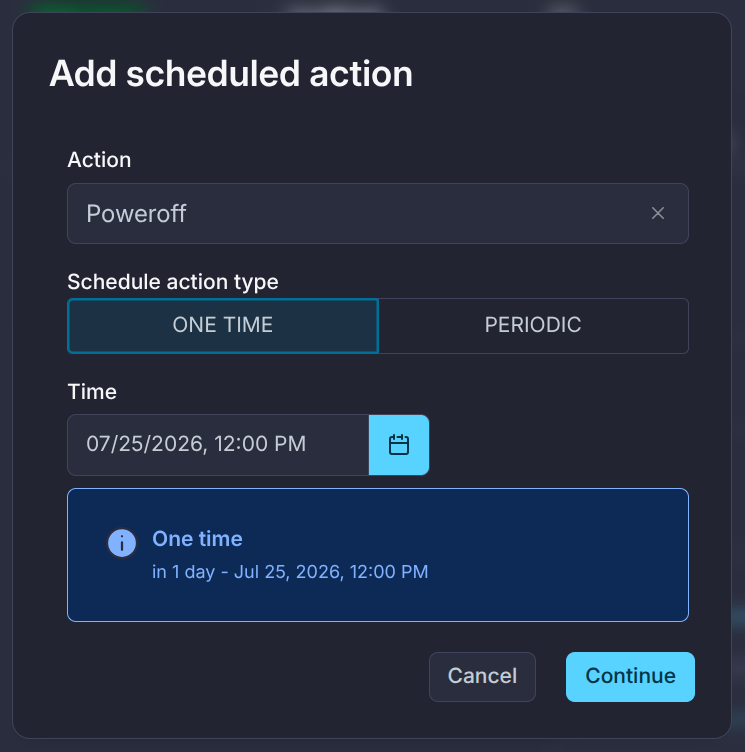
The first action is fixed. For the second action, you can change both the action and its time. Use the following attributes to configure a Charter:
| Attribute | Description |
|---|---|
edit | Whether you can edit the action in the form. Accepts true or false. |
execute_after_<period_type> | Delay before executing the action. <period_type> accepts years, months, weeks, days, hours, and minutes. For example, execute_after_years: 2 sets a delay of 2 years, and execute_after_months: 3 sets a delay of 3 months. For an existing VM, the delay starts when the Charter form is opened; for a VM Template, it starts at VM instantiation. |
To manage Charters from the CLI, use:
onevm create-chartonevm sched-updateonevm sched-delete
Add Charter definitions to the onevm configuration file, /etc/one/cli/onevm.yaml:
:charters:
  :suspend:
    :time: "+1209600"
    :warning:
        :time: "+1123200"
  :terminate:
    :time: "+1209600"
    :warning:
        :time: "+1123200"
To view Charters, run onevm show. An asterisk (*) before an action ID means its warning time has passed:
SCHEDULED ACTIONS
ID     ACTION     ARGS    SCHEDULED        REPEAT            END  STATUS
*0  suspend          -  01/01 03:00                               Next in 1.25 hours
 1  terminate        -  15/01 03:00                               Next in 14 days
Managing User-defined Data
Add custom attributes to store metadata for a VM instance. To view the existing template, run:
onevm show 0
...

VIRTUAL MACHINE TEMPLATE
...
VMID="0"
To add attributes, run onevm update:
onevm update 0
Enter the attributes in the editor:
ROOT_GENERATED_PASSWORD="1234"
To view the updated user template, run:
onevm show 0
...

VIRTUAL MACHINE TEMPLATE
...
VMID="0"

USER TEMPLATE
ROOT_GENERATED_PASSWORD="1234"
Managing Virtual Machine Permissions
Administrators can manage access through ACL rules. As a VM owner, you can also manage its implicit permissions. To share a VM or allow other users to list and view its information, use onevm chmod.
First, check the current permissions:
onevm show 0
...
PERMISSIONS
OWNER          : um-
GROUP          : ---
OTHER          : ---
To grant the VM’s group use permission, run:
onevm chmod 0 640
Check the updated permissions:
onevm show 0
...
PERMISSIONS
OWNER          : um-
GROUP          : u--
OTHER          : ---
Administrators can also change the VM’s group and owner with onevm chgrp and onevm chown.
Advanced Operations for Administrators
Use the following commands to recover a VM from a failed or stuck operation. For Host placement and migration controls, see Placing and Migrating VMs.
Troubleshooting
recover: Recover a VM when an operation is stuck or boot fails. For details, see Virtual Machine Failures. Use the following options:--success: Simulate success of the missing driver action.--failure: Simulate failure of the missing driver action.--retry: Retry the current driver action. For a Transfer Manager problem, you can combine this with--interactive.--delete: Delete the VM and move it toDONEimmediately.--recreate: Delete the VM and move it toPENDING.
migrateorresched: Boot a VM inUNKNOWNon another Host, either manually withmigrateor through the Scheduler withresched. Perform this action only when storage is shared or you have transferred it manually. OpenNebula does not move storage during this migration.
The onevm Command
The onevm command manages OpenNebula Virtual Machines. See the onevm command reference for its commands, arguments, and options, and the Command Line Interface guide for related tools and CLI configuration.
To inspect the syntax and options available in your installed client, use the help option:
onevm --help
onevm disk-attach --help
More VM Operations
Use the resource and access guides for the following tasks:
GIVE FEEDBACK
Was this resource helpful?
Glad to hear it
Sorry to hear that