Accessing Virtual Machines
Connect to VM consoles and desktops through Sunstone using VNC, RDP, or SSH, or execute commands through the QEMU Guest Agent. This guide covers connection requirements, VM configuration, and command execution from Sunstone and the CLI.
For creating instances, lifecycle controls, and VM permissions, see Managing Virtual Machine Instances. For device, capacity, and storage changes, see Managing Virtual Machine Resources and Storage.
Console Requirements
Use VNC, RDP, or SSH in Sunstone to access your VM’s console or desktop. This section describes the requirements and configuration for each connection method.
FireEdge uses Guacamole for VNC, RDP, and SSH connections. The OpenNebula binary packages install the opennebula-guacd proxy daemon alongside FireEdge.
Configuring VMs for VNC
VNC provides a graphical console supported by many hypervisors and clients.
To enable the VNC console service, add a GRAPHICS section to the VM Template.
Set LISTEN to an address on the hypervisor that the Guacamole proxy can reach.
The value 0.0.0.0 listens on all IPv4 interfaces; network and firewall rules must also permit the connection.
For example, add the following to the VM Template:
GRAPHICS=[
    LISTEN="0.0.0.0",
    TYPE="vnc"
]
Your browser must support WebSockets and have them enabled.
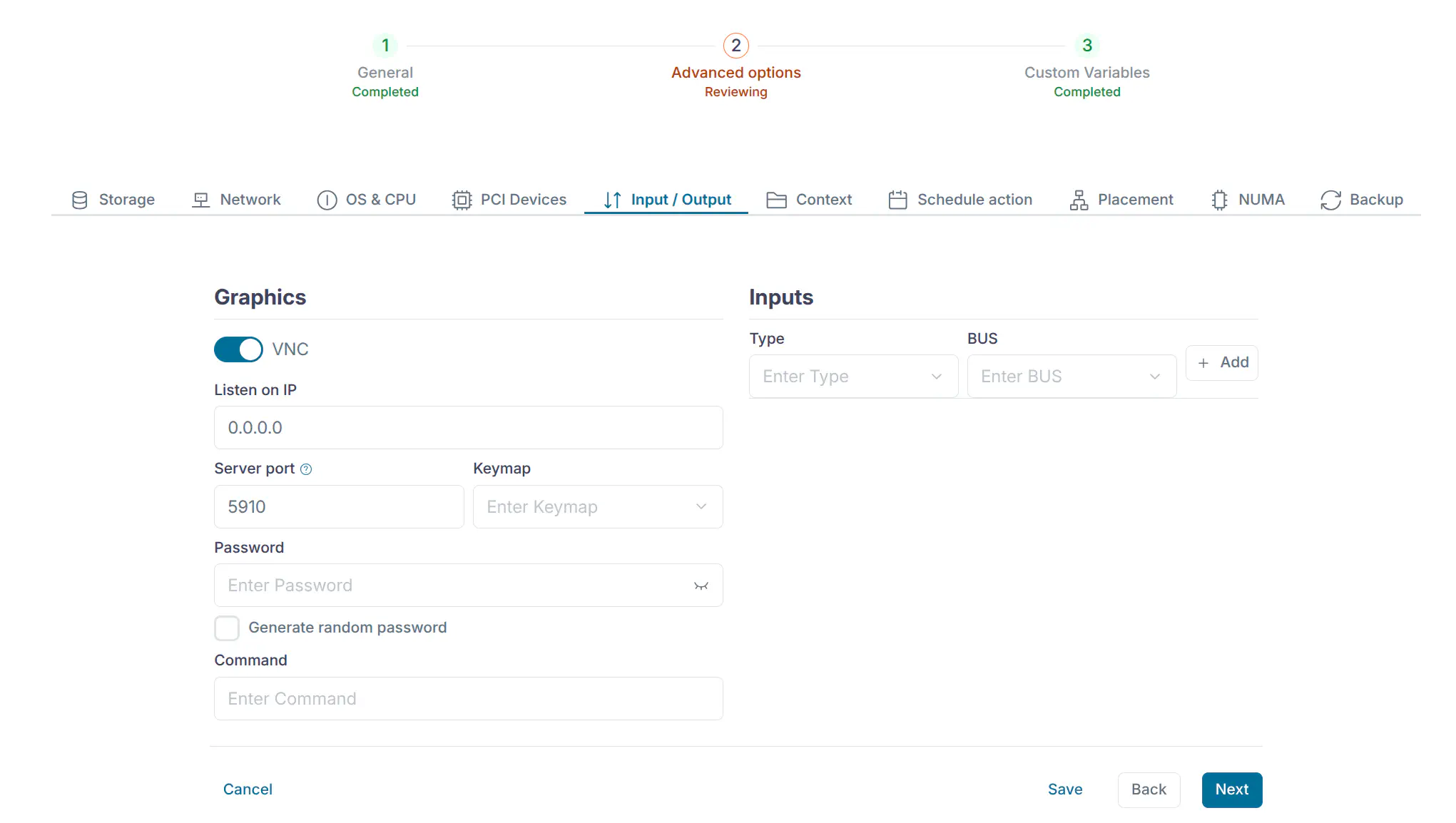
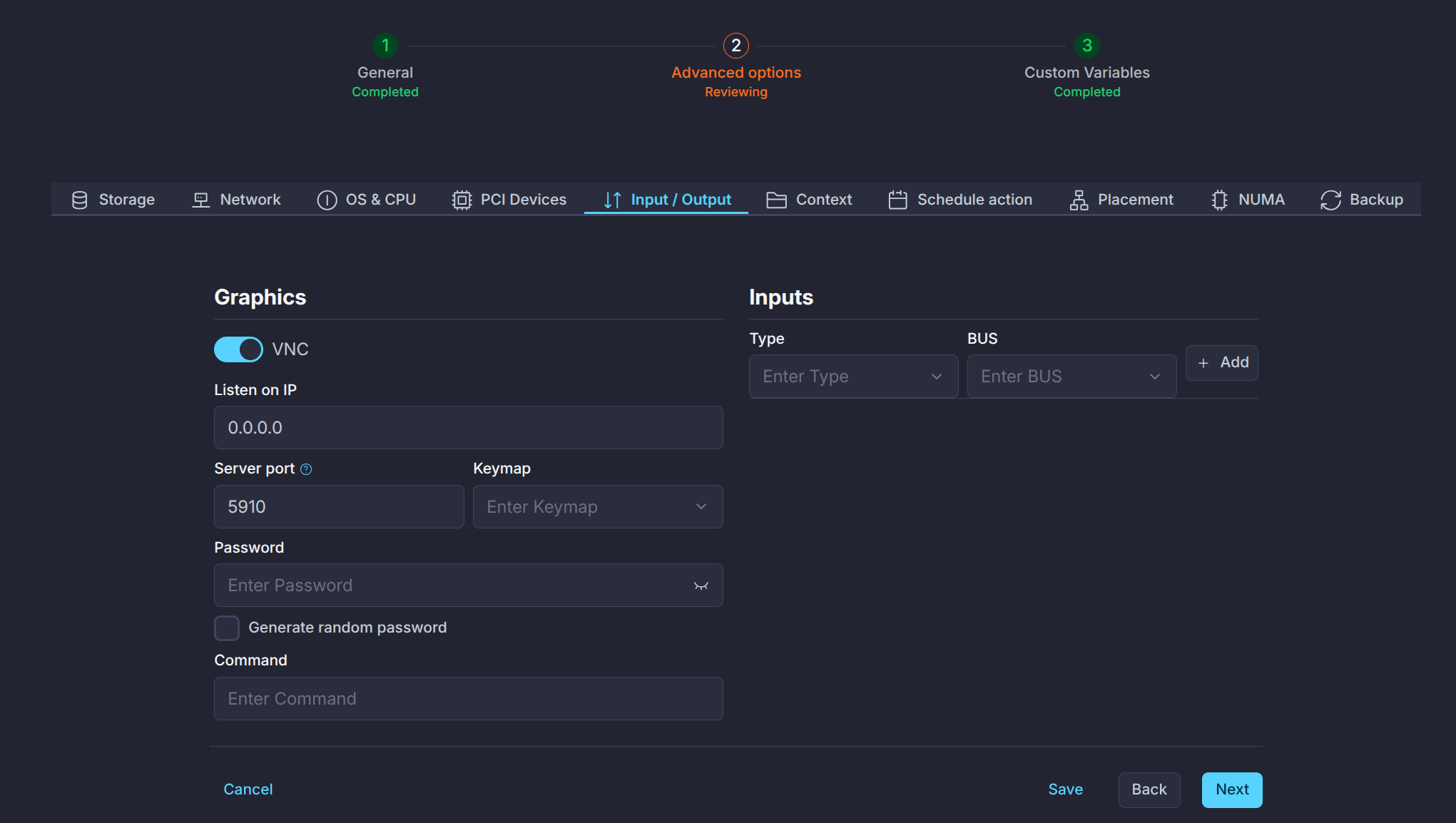
To configure VNC in Sunstone, update the VM Template. In Advanced options, open the Input/Output tab. In the graphics section, set the IP address, port, connection password, and keymap as needed.
Configuring VMs for RDP
Remote Desktop Protocol (RDP) provides access to another computer’s desktop over a network.
To enable RDP connections, set RDP="YES" on one NIC in the VM Template.
The guest must also have an RDP server enabled and allow connections from the Guacamole proxy to its RDP port (3389 by default). Setting RDP="YES" selects the connection interface; it does not enable the RDP service inside the guest.
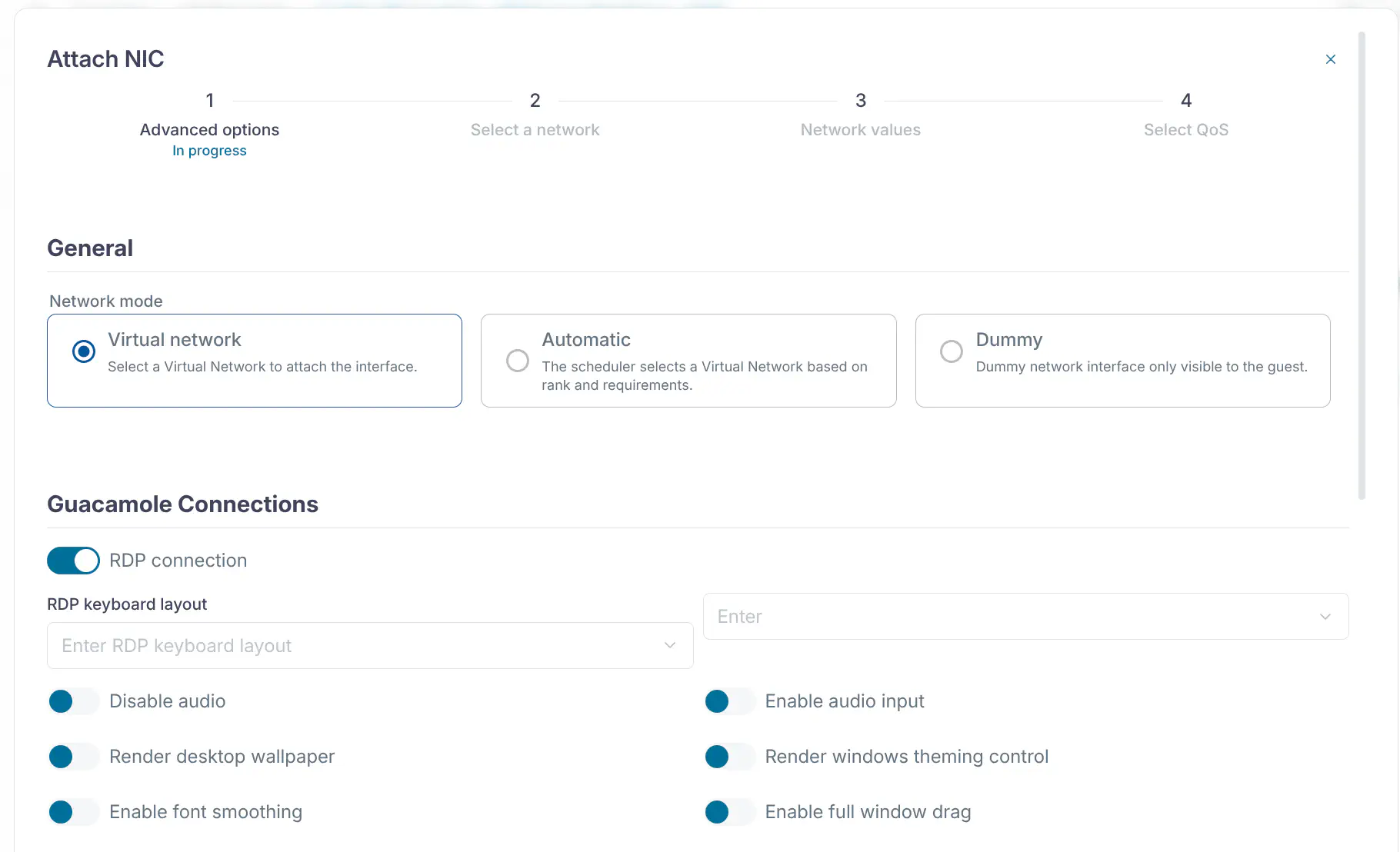
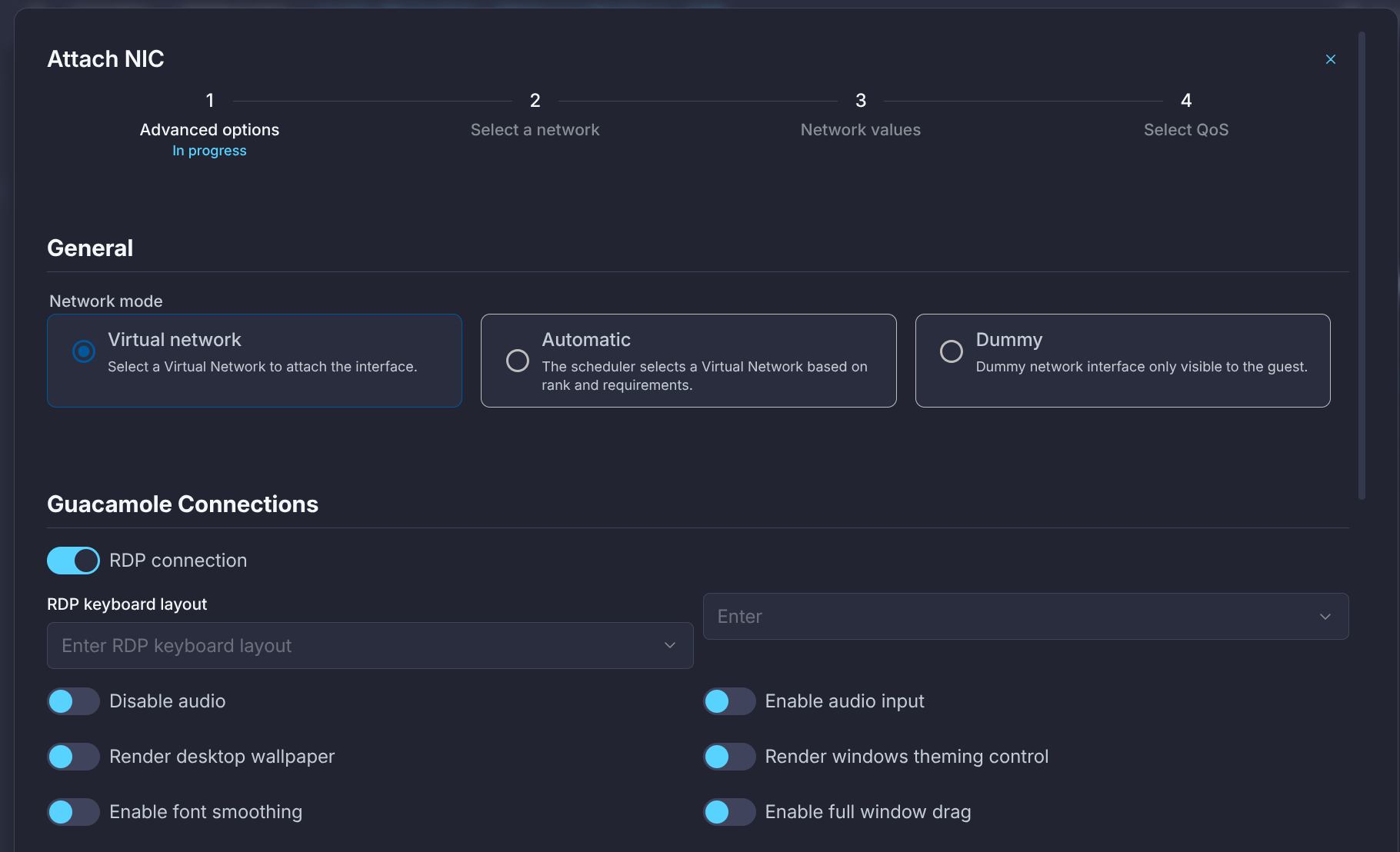
In Sunstone, enable RDP before instantiation in the VM Template or when attaching a NIC to an existing VM. In the Network tab, select Attach NIC and enable RDP:
In the VM Template’s advanced editor, add the attribute to the selected NIC:
NIC=[
    ...
    RDP = "YES"
]
After instantiating the VM, open its actions menu (the ellipsis icon), then select Console > RDP to connect in your browser:
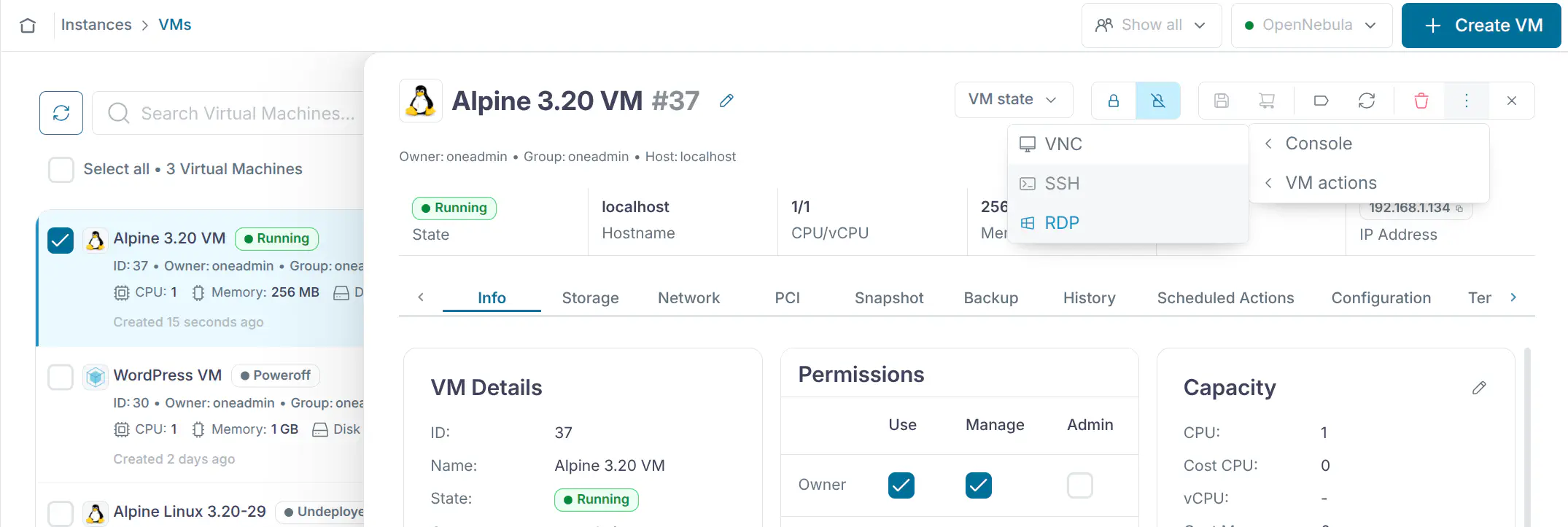
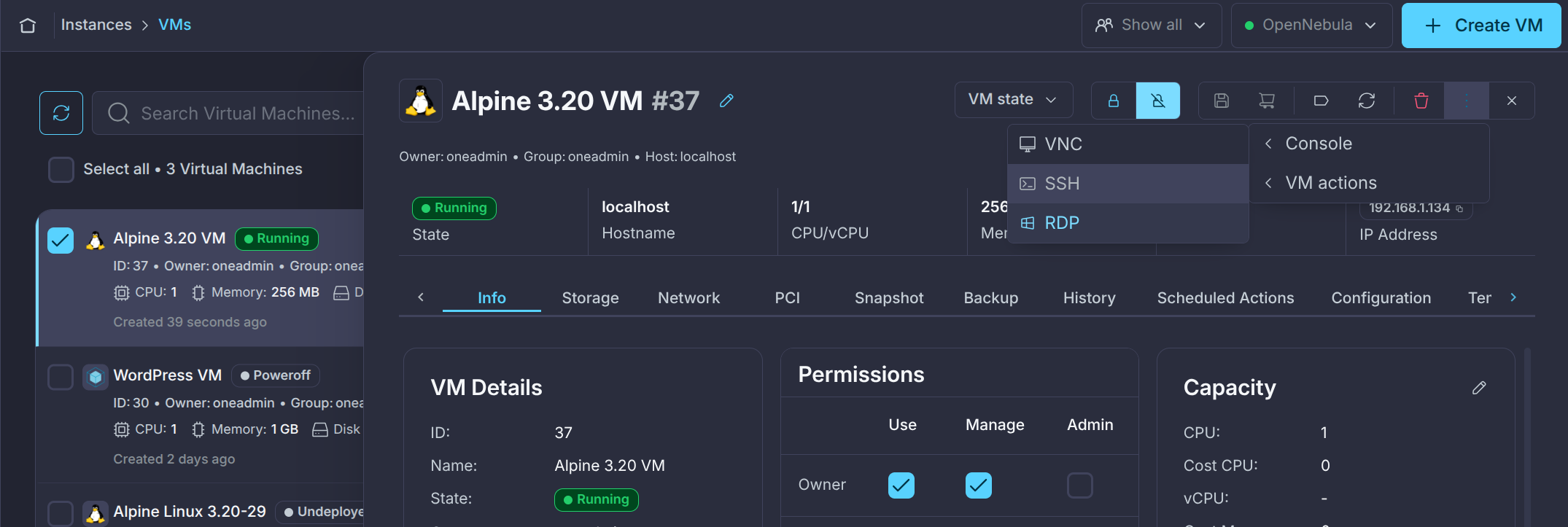
You can choose the RDP screen resolution in Sunstone.
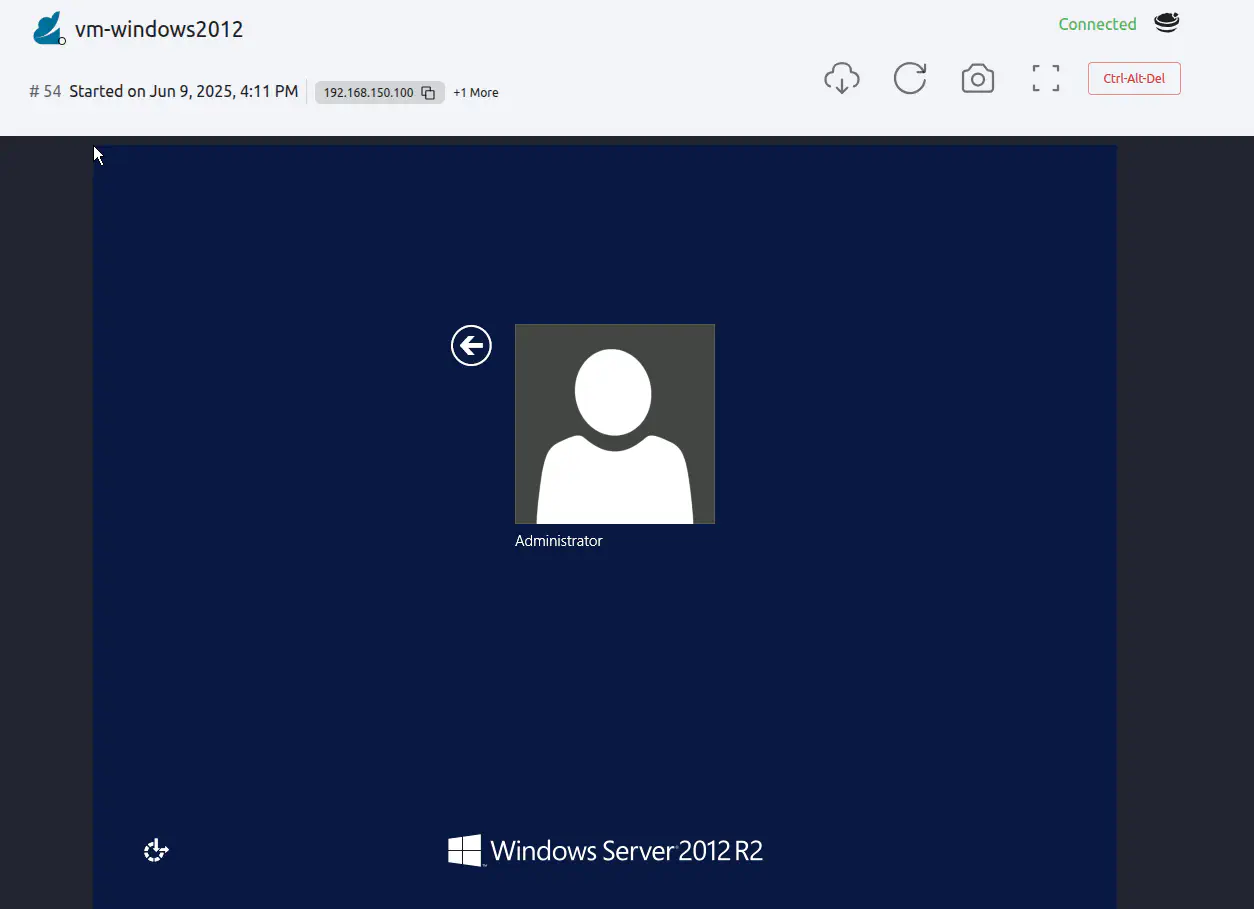
Sunstone uses PASSWORD and USERNAME from the VM Template’s CONTEXT section for the RDP connection, if set. See the VM Template contextualization reference.
On an English-language Windows guest, enable the Remote Desktop firewall rules from an elevated command prompt, or include the following in a start script that runs with administrative privileges:
netsh advfirewall firewall set rule group="remote desktop" new enable=yes
On other Windows language editions, use the corresponding localized firewall group name. This command opens the firewall rules; the guest’s RDP service must also be enabled.
Configuring VMs for SSH
SSH provides a text console and requires the destination’s hostname or IP address. As with RDP, enable SSH on one of the VM Template’s network interfaces.
In the VM Template’s advanced editor, add SSH="YES" to the selected NIC:
NIC=[
    ...
    SSH = "YES"
]
SSH uses port 22 by default. To use another port, set SSH_PORT in the VM Template’s CONTEXT section. The guest’s SSH service must listen on that port and accept connections from the Guacamole proxy.
CONTEXT/SSH_PUBLIC_KEY is absent, Sunstone uses CONTEXT/USERNAME and CONTEXT/PASSWORD for the SSH connection. When CONTEXT/SSH_PUBLIC_KEY is present, Sunstone uses the authenticated OpenNebula user’s SSH_PRIVATE_KEY and optional SSH_PASSPHRASE. The private key must match a public key authorized in the guest. See the VM Template contextualization reference.For password authentication, connect to the guest using an existing administrative account and a working authentication method, such as an SSH key. Follow the guest operating system’s instructions to configure the SSH service and account.
For example, on an Ubuntu guest with OpenSSH Server installed:
Create an account inside the guest. The command prompts for the new user’s password:
sudo adduser vmuserEnable
PasswordAuthentication yesin the guest’s OpenSSH server configuration, accounting for any settings in/etc/ssh/sshd_config.d/. See the Ubuntu OpenSSH Server configuration guide.Restart the SSH service inside the guest:
sudo systemctl restart ssh.service
Use the guest account’s username and password to connect through Sunstone. Other distributions may use a different SSH service name or account-creation procedure.
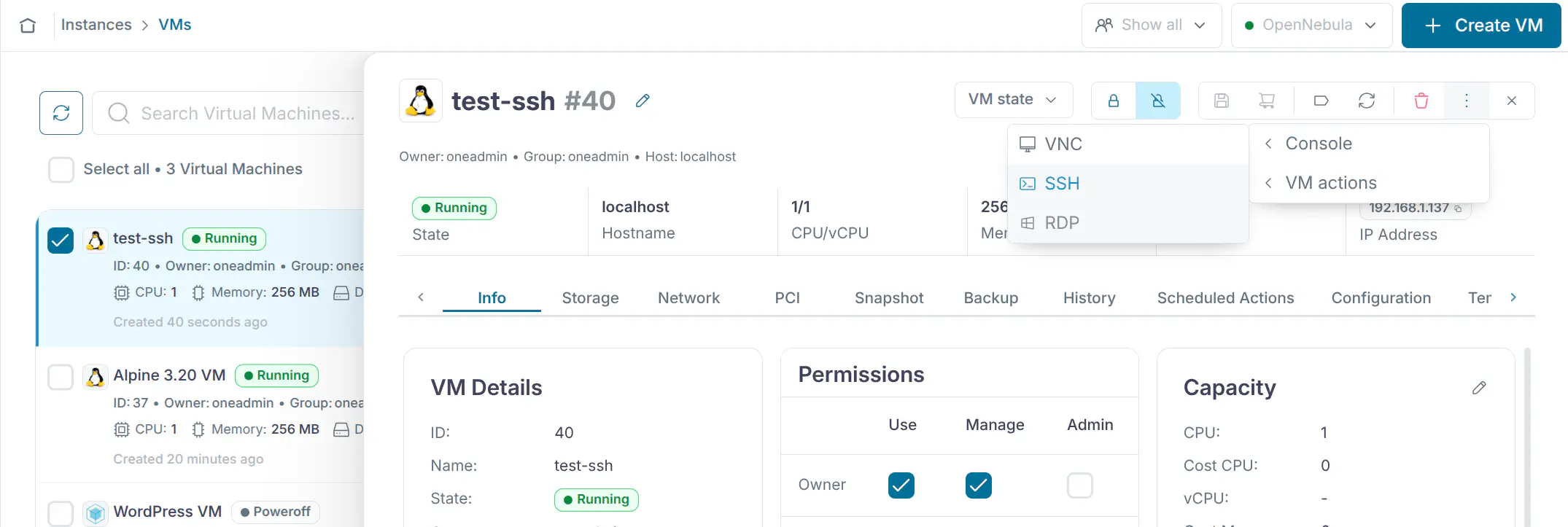
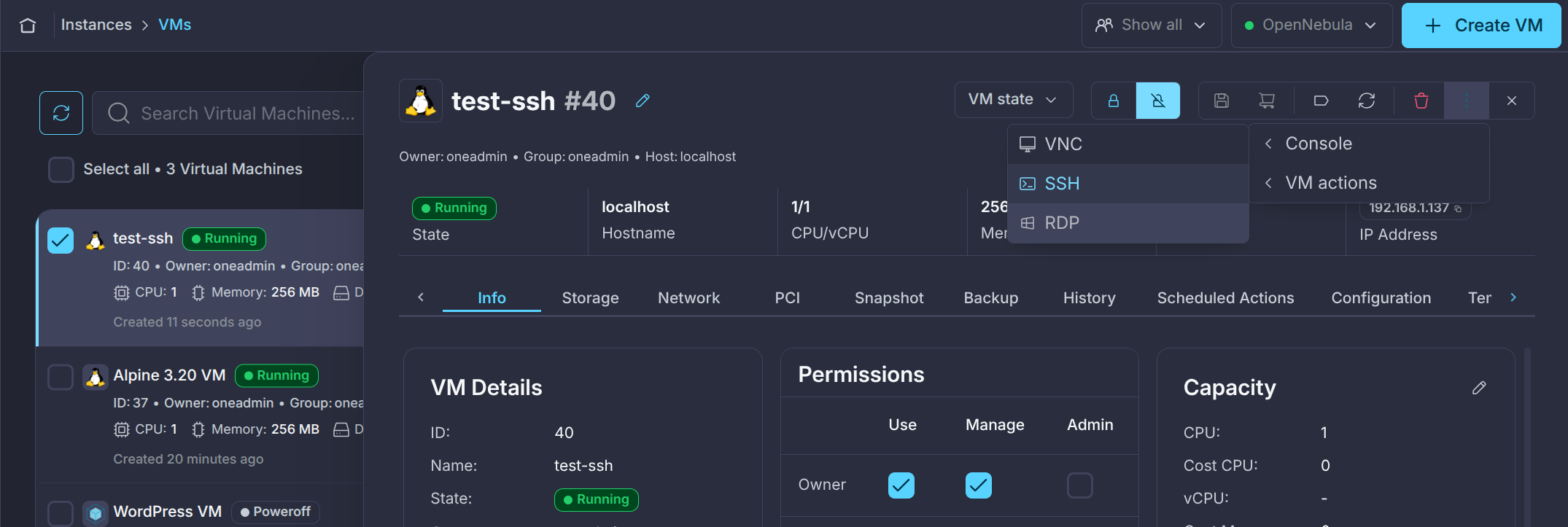
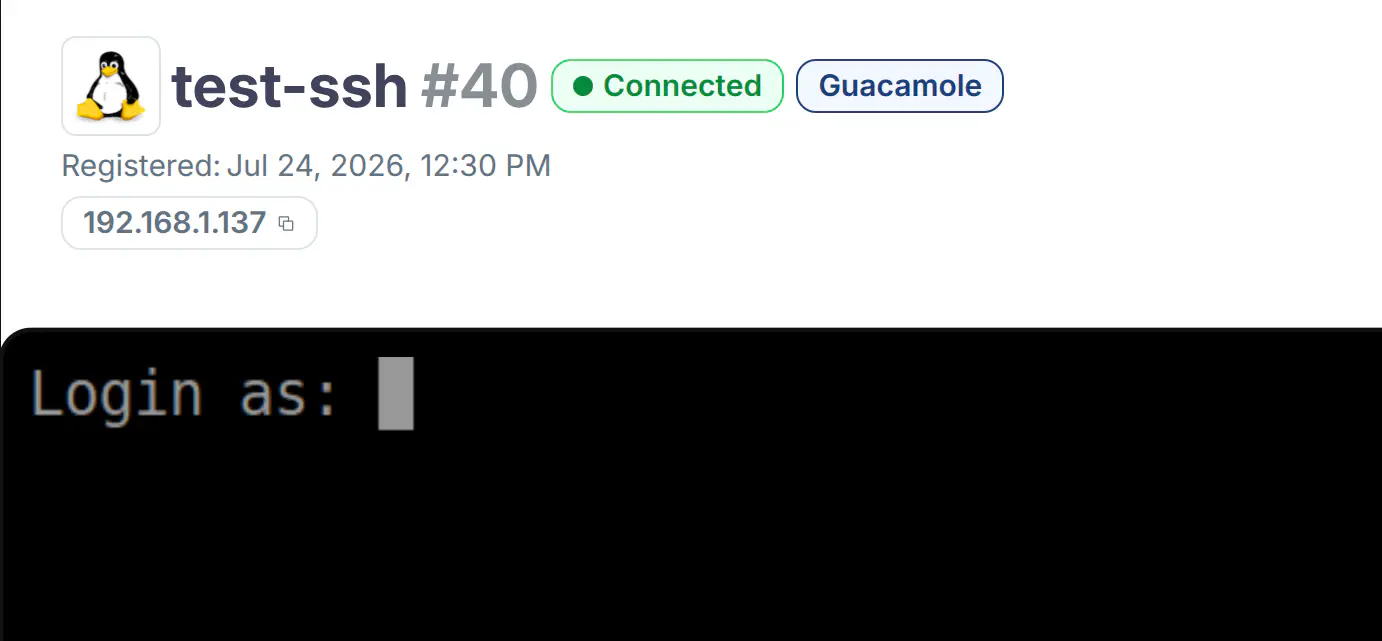
The SSH console opens in another tab:
ssh-rsa (RSA/SHA-1) signature algorithm.Executing Commands Inside a Virtual Machine
Before running commands, check the following prerequisites:
- Enable the QEMU Guest Agent communication channel in the VM Template by setting
GUEST_AGENT = "YES"inFEATURES. Install and start the agent inside the VM. See Enabling QEMU Guest Agent for more information. - Check that the VM is in the
RUNNINGstate.
OpenNebula sends commands to the VM through the QEMU Guest Agent and stores the results under QEMU_GA_EXEC in the VM template. The following diagram shows this process:
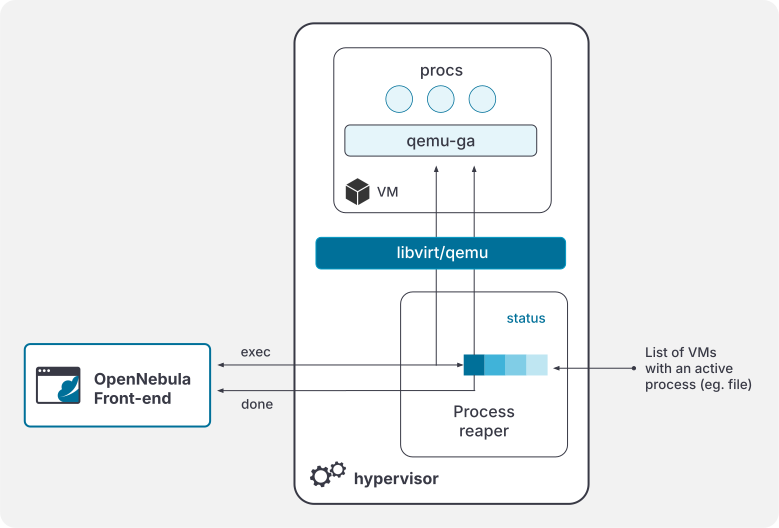
The vm/execution monitor probe collects the results and updates the QEMU_GA_EXEC block. The EXEC_VM setting controls its interval. For configuration details, see Monitoring System.
EXECUTING status. This restriction also applies after the command finishes, until the monitor probe updates its status.Execution Fields
The QEMU_GA_EXEC section in the VM template contains the following fields:
| Field | Description |
|---|---|
COMMAND | The command to be executed in the VM. |
STDIN | Standard input data passed to the command inside the VM. |
PID | Process ID of the command inside the guest. |
RETURN_CODE | Numeric exit code produced by the command (for example, 0 means success). |
STATUS | Execution state: EXECUTING, CANCELLED, DONE or ERROR. |
STDOUT | Command standard output (base64-encoded). |
STDERR | Command standard error (base64-encoded). |
Executing a Command from Sunstone
The Exec tab in the Virtual Machine details view lets you execute commands inside a VM from Sunstone. Enter a command in the Command field and click Run. The tab displays the execution status, return code, when the command was executed, and its standard output and standard error. You can also copy the output, re-run the last command, or cancel a command that is still running.
The prerequisites and restriction of one command at a time also apply in Sunstone. You must have VM:MANAGE permission for the VM.
To enable the tab, add the following block under info-tabs in the vm-tab.yaml file of the corresponding Sunstone view:
info-tabs:
  # Other information tabs

  exec:
    enabled: true
    actions:
      exec: true
      exec-retry: true
      exec-cancel: true
The standard view configuration files are:
/etc/one/fireedge/sunstone/views/admin/vm-tab.yaml/etc/one/fireedge/sunstone/views/cloud/vm-tab.yaml/etc/one/fireedge/sunstone/views/groupadmin/vm-tab.yaml/etc/one/fireedge/sunstone/views/user/vm-tab.yaml
The enabled attribute controls whether Sunstone displays the Exec tab. Configure the actions independently: exec displays the command form and Run button, exec-retry displays the Re-run button, and exec-cancel displays the Cancel button while a command is running. An omitted action behaves as if it were set to false.
After modifying the view configuration, reload Sunstone in the browser to fetch the updated view.
Executing a Command from the CLI
To execute a command inside a VM, use the onevm exec command. For example, to list files in VM 0:
onevm exec 0 'ls -l'
To check the command status, run:
onevm show 0
While the command is running, the template contains:
VIRTUAL MACHINE TEMPLATE
...
QEMU_GA_EXEC=[
  COMMAND="ls -l",
  STDIN="",
  STATUS="EXECUTING" ]
After the command finishes, the monitor probe updates the details:
VIRTUAL MACHINE TEMPLATE
...
QEMU_GA_EXEC=[
  COMMAND="ls -l",
  STDIN="",
  PID="3864",
  RETURN_CODE="0",
  STATUS="DONE",
  STDERR="",
  STDOUT="dG90Y..." ]
To rerun the last command, use onevm exec-retry:
onevm exec-retry 0
To cancel a running command, use onevm exec-cancel:
onevm exec-cancel 0
GIVE FEEDBACK
Was this resource helpful?
Glad to hear it
Sorry to hear that