FireEdge Configuration
The OpenNebula FireEdge server provides a next-generation web-management interface for remote OpenNebula Cluster provisioning as well as additional functionality to Sunstone. It’s a dedicated daemon installed by default as part of the Single Front-end Installation, but can be deployed independently on a different machine. The server is distributed as an operating system package opennebula-fireedge with the system service opennebula-fireedge.
Main Features
- Guacamole Proxy for Sunstone to remotely access the VMs (incl., VNC, RDP, and SSH)
- FireEdge Sunstone: new iteration of Sunstone written in React/Redux. Accessible through the following URL:
guacamole configuration block in the /etc/one/fireedge-server.conf file in order to use all supported protocol features. Without this change RDP, VNC or SSH may not function properly. See connection defaults and resolved issues for reference.http://<OPENNEBULA-FRONTEND>:2616
Configuration
The FireEdge server configuration file can be found in /etc/one/fireedge-server.conf on your Front-end. It uses YAML syntax, with the parameters listed in the table below.
| Parameter | Default Value | Description |
|---|---|---|
log | prod | Log debug: prod or dev |
cors | true | Enable CORS (cross-origin resource sharing) |
host | 0.0.0.0 | IP on which the FireEdge server will listen |
port | 2616 | Port on which the FireEdge server will listen |
one_xmlrpc | http://localhost:2633/RPC2 | Endpoint of OpenNebula XML-RPC API. It needs to match the ENDPOINT attribute of onezone show 0 |
oneflow_server | http://localhost:2474 | Endpoint of OneFlow server |
session_expiration | 180 | JWT expiration time (minutes) |
session_remember_expiration | 3600 | JWT expiration time when using remember check box (minutes) |
default_zone | Shows the default resources of that zone | |
default_zone/id | 0 | Id of the zone to which this fireedge belongs |
default_zone/name | OpenNebula | Name of the zone to which this fireedge belongs |
default_zone/endpoint | http://localhost:2633/RPC2 | XML-RPC url of the zone to which this fireedge belongs |
minimun_opennebula_expiration | 30 | Minimum time to reuse previously generated JWTs (minutes) |
subscriber_endpoint | tcp://localhost:2101 | Endpoint to subscribe for OpenNebula events |
debug_level | 2 | Log debug level |
truncate_max_length | 150 | Log message max length |
api_timeout | 120_000 | Global API timeout limit |
guacd/port | 4822 | Connection port of guacd server |
guacd/host | localhost | Connection hostname/IP of guacd server |
auth | opennebula | Authentication driver for incoming requests: OpenNebula the authentication will be done by the OpenNebula core using the driver defined for the user. remote performs the login based on a Kerberos X-Auth-Username header provided by authentication backend |
auth_redirect | This configuration is for the login button redirect. The available options are: /, . or a URL |
FireEdge Sunstone
The Sunstone server configuration file can be found in /etc/one/fireedge/sunstone/sunstone-server.conf on your Front-end. It uses the YAML syntax, with the parameters listed in the table below.
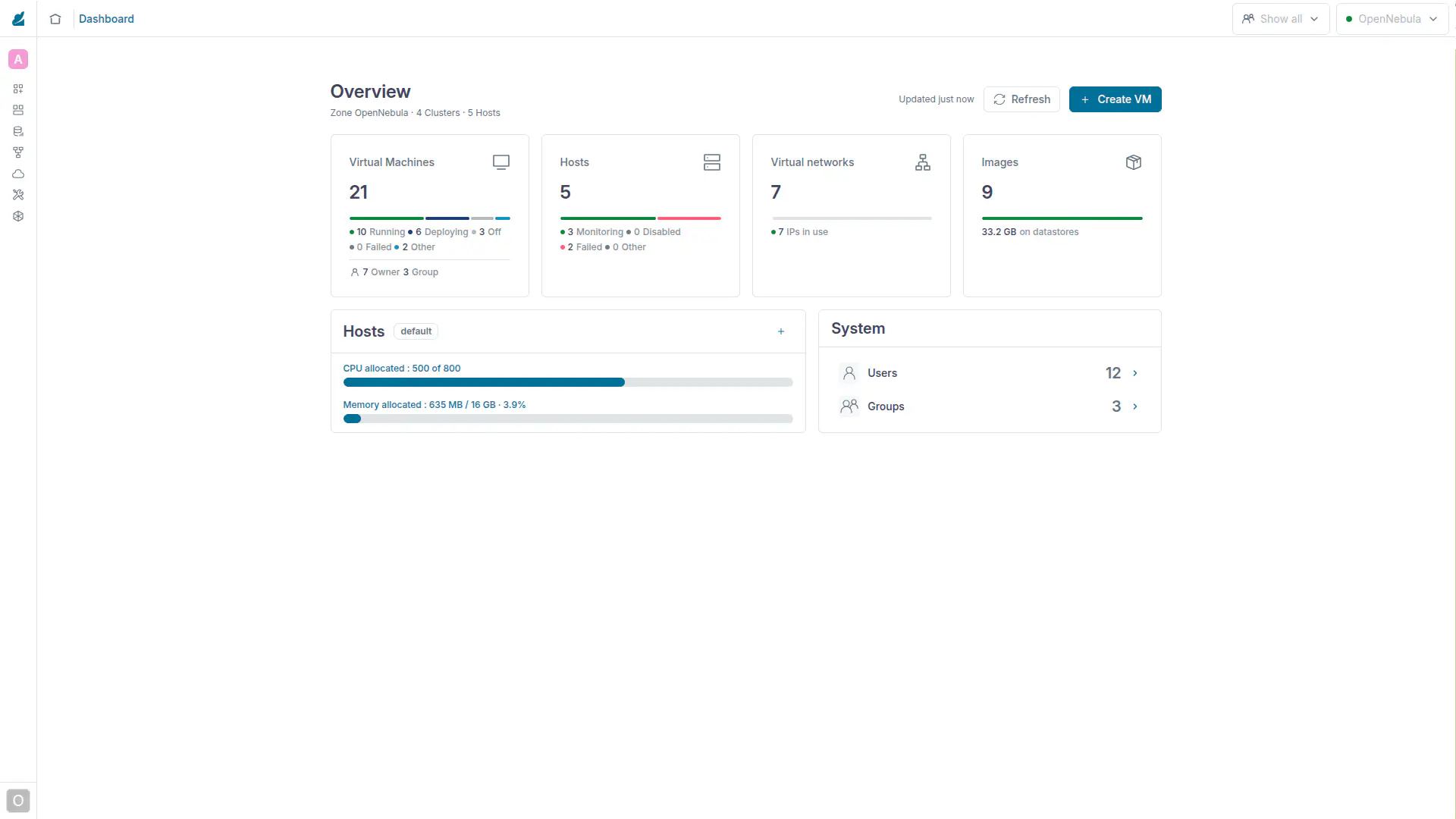
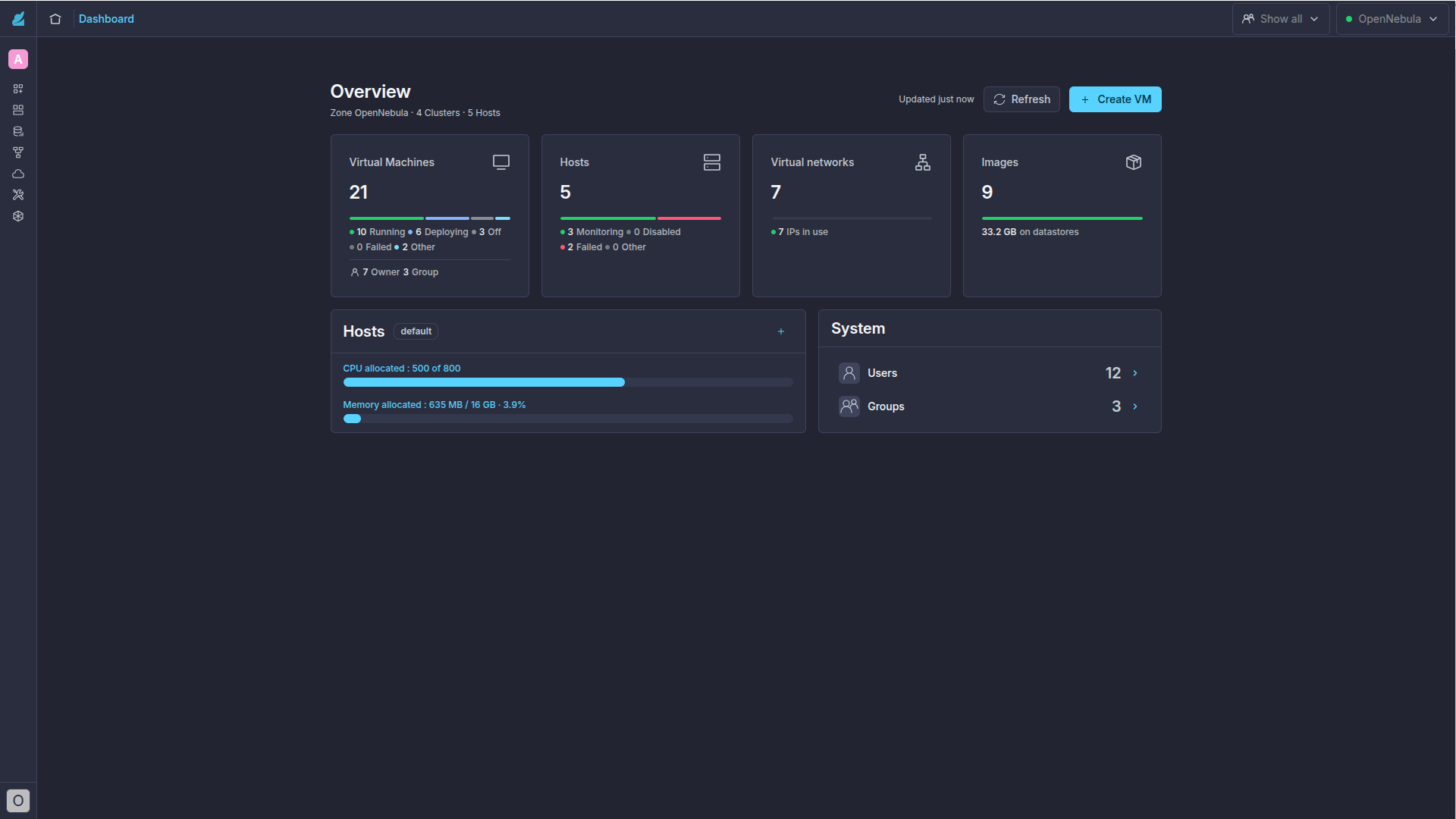
| Parameter | Default Value | Description |
|---|---|---|
support_url | https://opennebula.zendesk.com/api/v2 | Zendesk support URL |
token_remote_support | Support enterprise token | |
sunstone_prepend | Optional parameter for Sunstone commands command | |
tmpdir | /var/tmp | Directory to store temporal files when uploading images |
max_upload_file_size | 10737418240 | Max size upload file (bytes). Default is 10GB |
proxy | Enable an http proxy for the support portal and to download MarketPlaceApps | |
leases | Enable the vm leases | |
supported_fs | Support filesystem | |
currency | EUR | Currency formatting |
default_lang | en | Default language setting |
langs | List of server localizations | |
keep_me_logged_in | true | True to display ‘Keep me logged in’ option |
use_extended_vmpool | true | True to use the extended information fetch for vm pools |
currentTimeZone | Time Zone | |
rowStyle | card | Changes the style of rows in tables. Values can be card or list. |
dateFormat | dd/MM/yyyy | Date display format (Luxon tokens). The time is always HH:mm:ss. |
Once the server is initialized, it creates the file /var/lib/one/.one/fireedge_key, used to encrypt communication with Guacd.
In HA environments, fireedge_key needs to be copied from the first leader to the followers. Optionally, in order to have the provision logs available in all the HA nodes, /var/lib/one/fireedge needs to be shared between nodes.
Tuning and Extending
Branding FireEdge
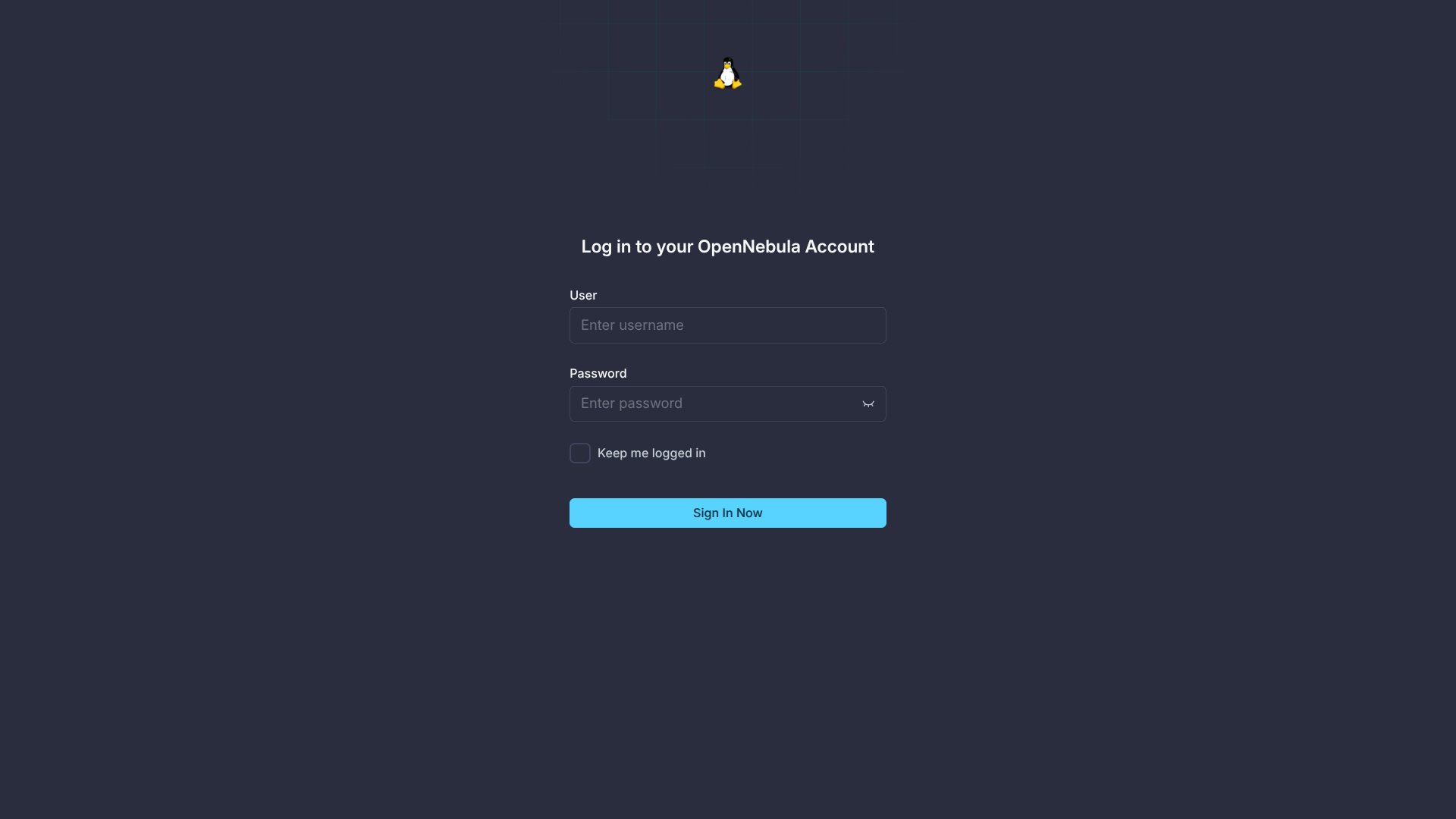
You can add your logo to the login, main, and loading screens by updating the logo: attribute as follows:
- The logo configuration is found in the
/etc/one/fireedge/sunstone/views/sunstone-views.yamlfile. - The logo of the main UI screen is defined for each view.
The logo image must be copied to /usr/lib/one/fireedge/dist/client/assets/images/logos.
You can also add a custom favicon by updating the favicon: attribute defined in the /etc/one/fireedge/sunstone/views/sunstone-views.yaml file. The favicon must be copied to /usr/lib/one/fireedge/dist/client/assets/images/favicon.
The following example demonstrates how to change the logo and the favicon to a generic Linux logo (included by default in all FireEdge installations):
# /etc/one/fireedge/sunstone/views/sunstone-views.yaml
---
logo: linux.png
favicon: linux.png

groups:
    oneadmin:
        - admin
        - user
default:
    - user
logo: is defined and the attribute favicon: is not defined, the logo: attribute will be used as favicon.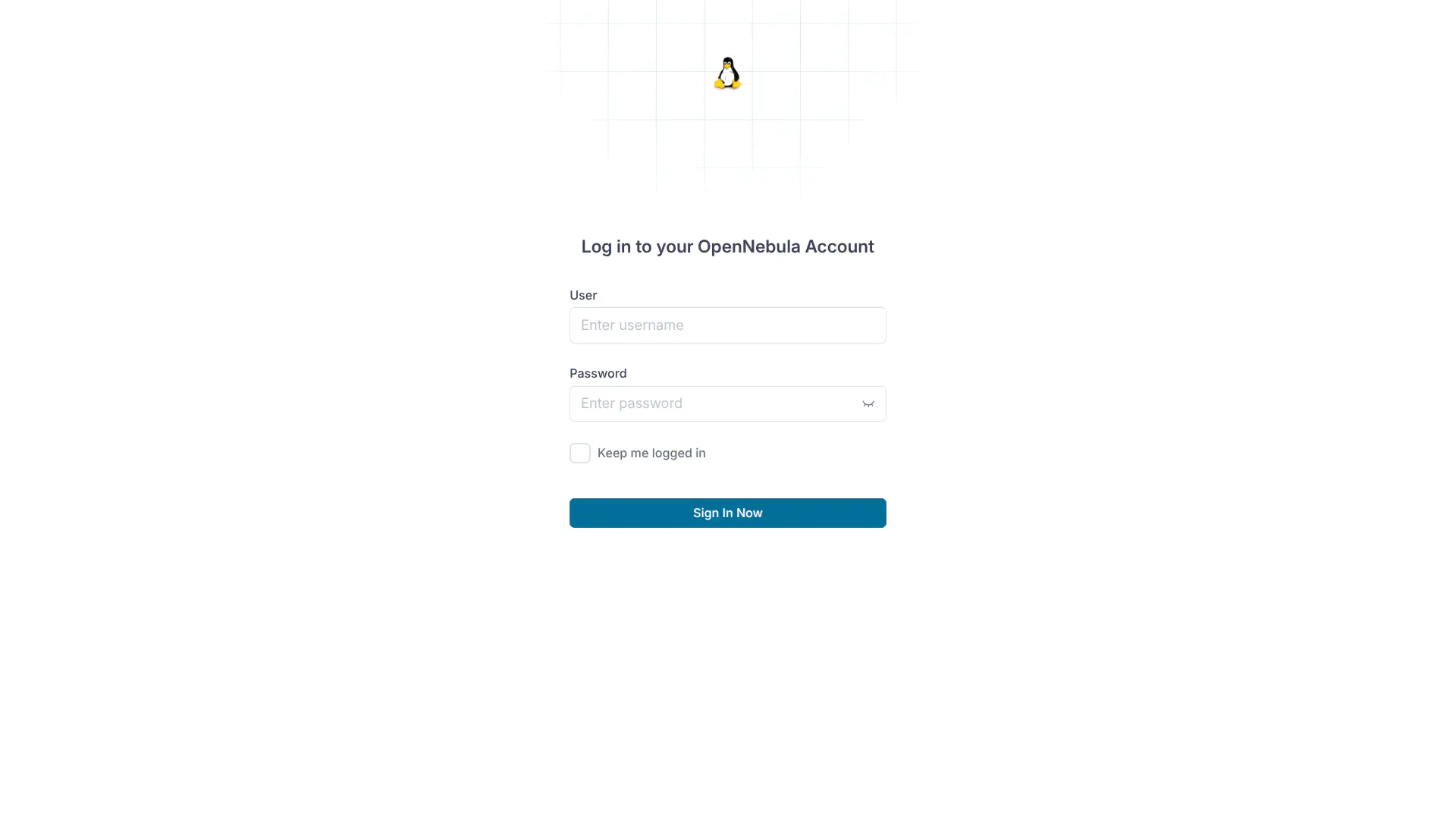
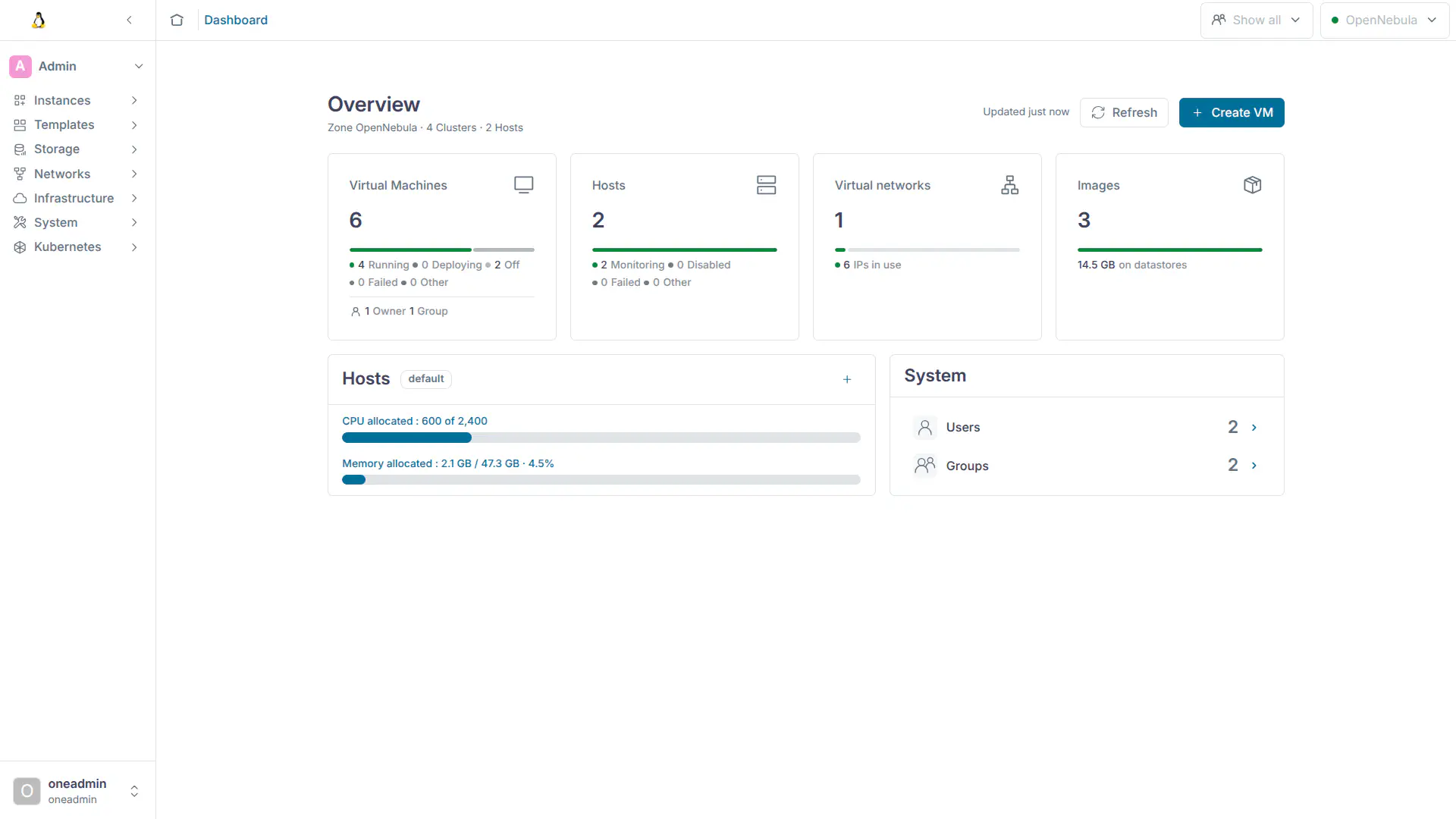
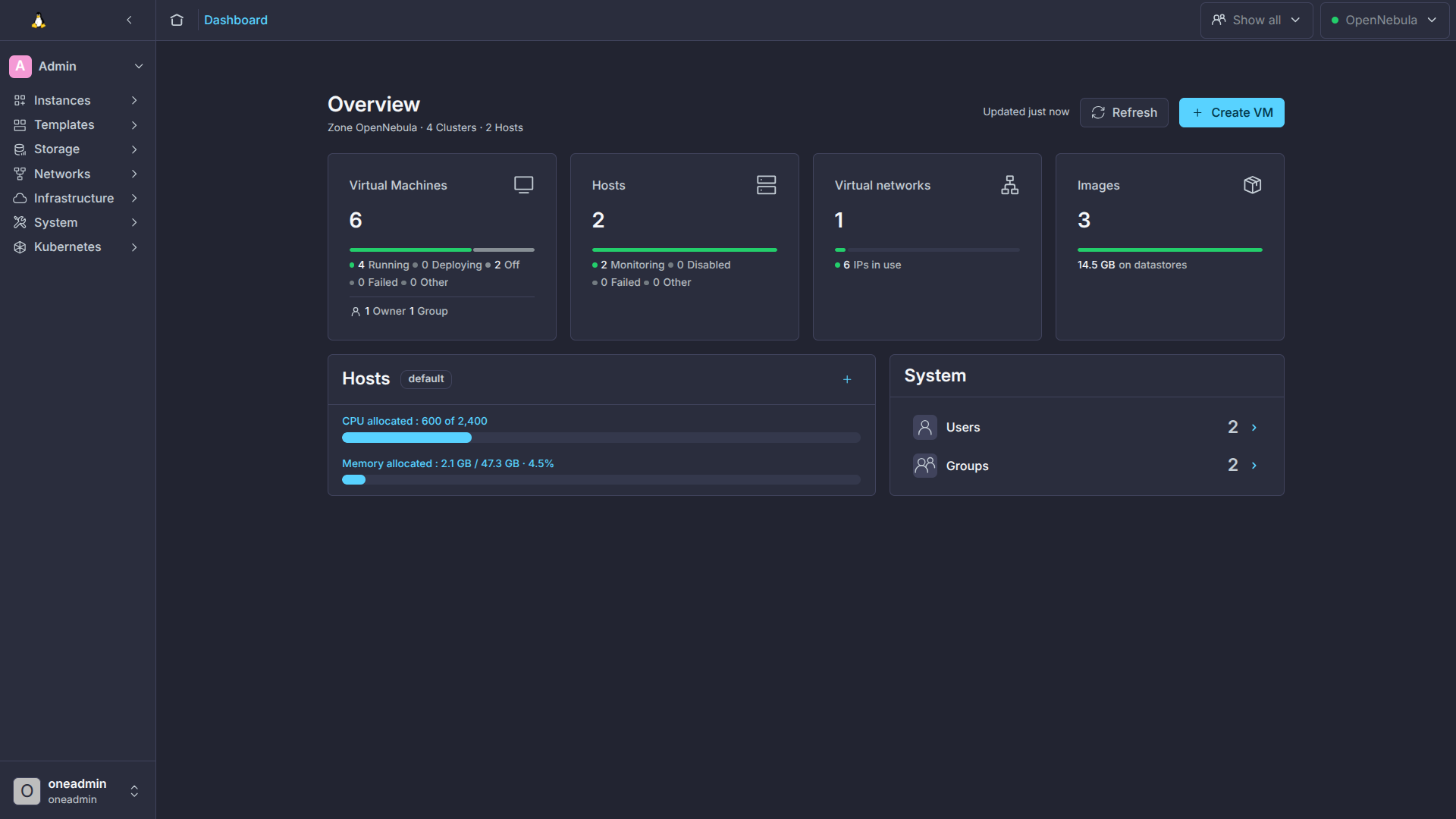
Configure Tables
Tables in Sunstone can be configured to visualize data as a table or as a list of cards:
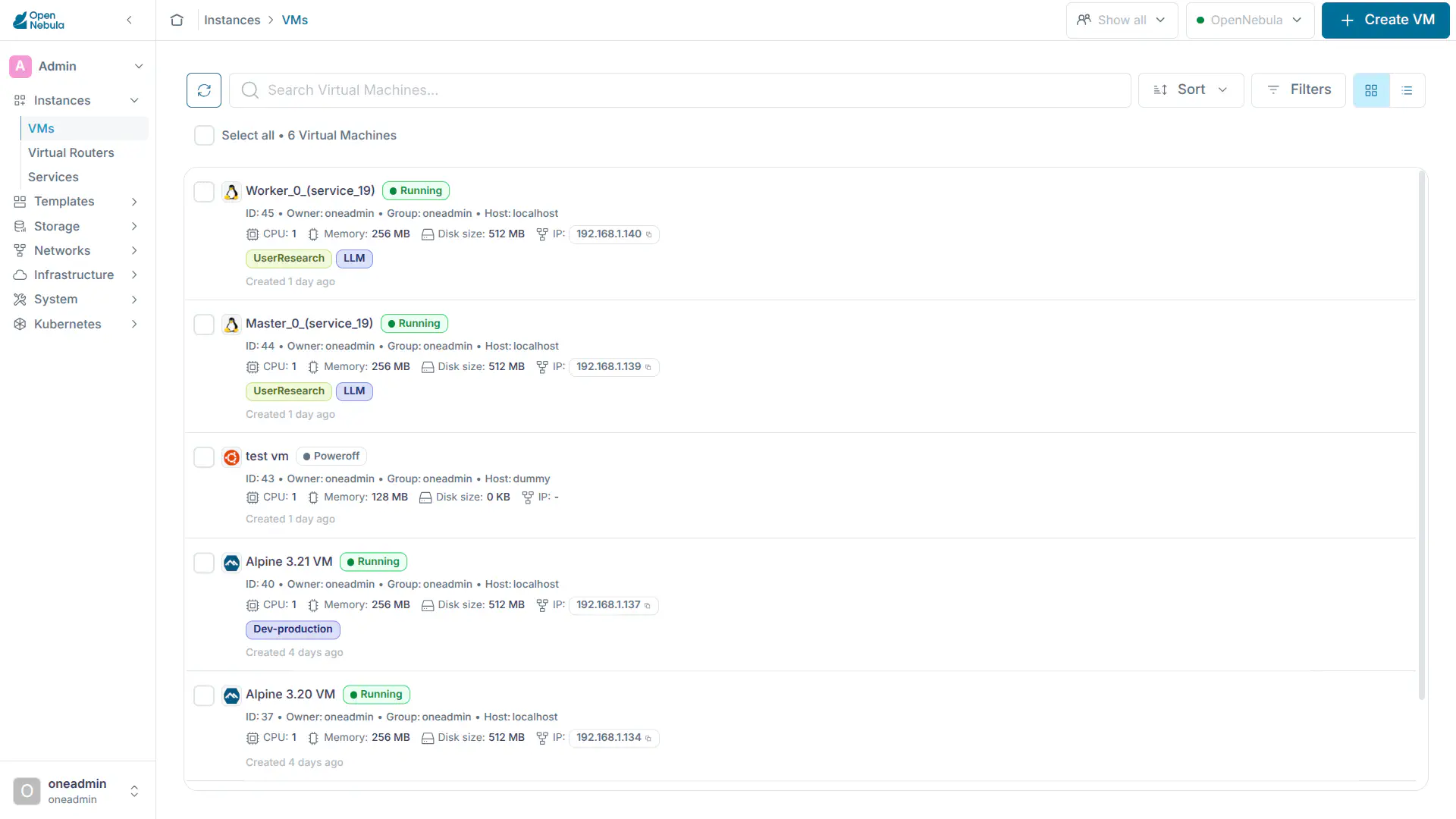
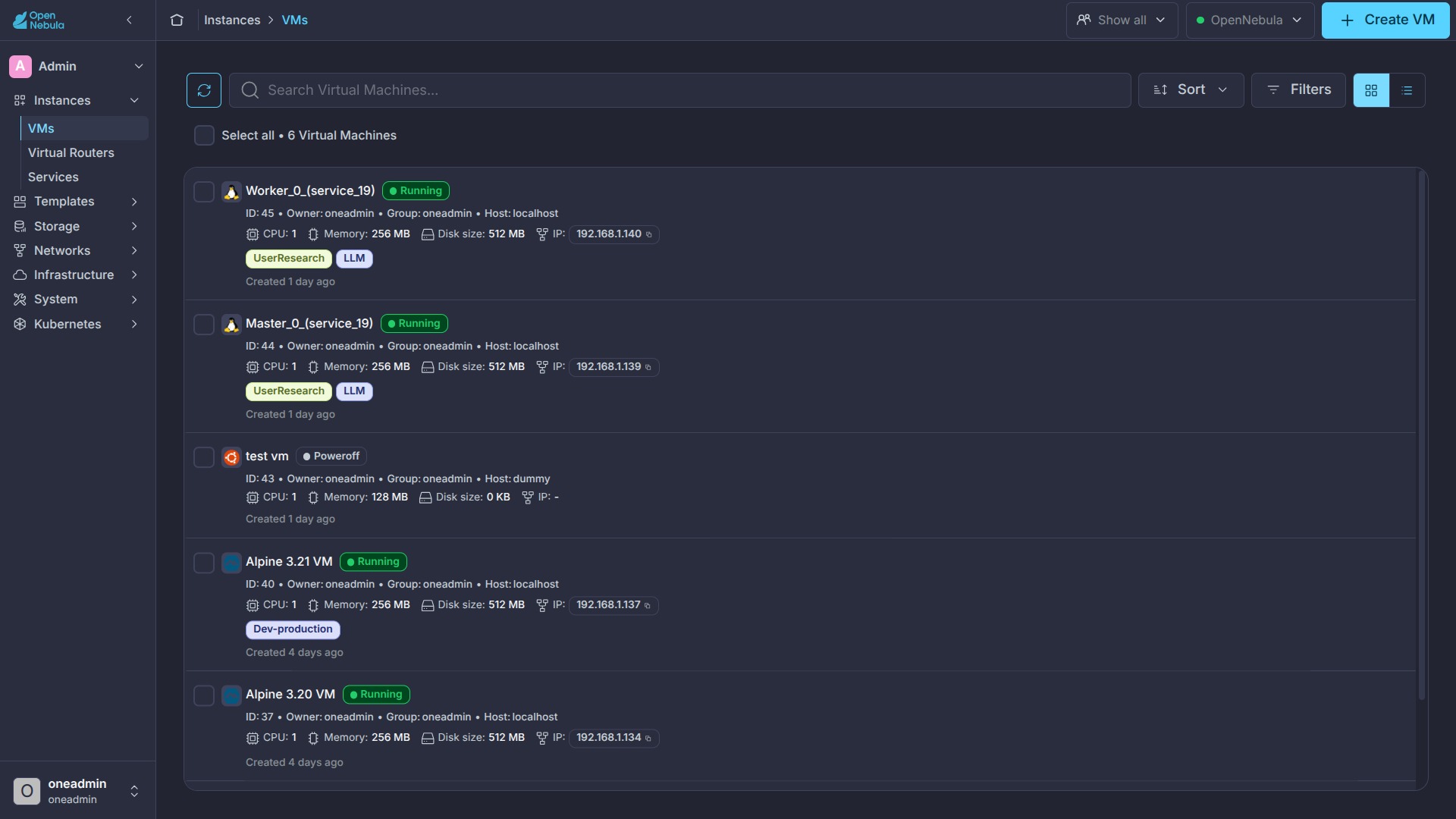
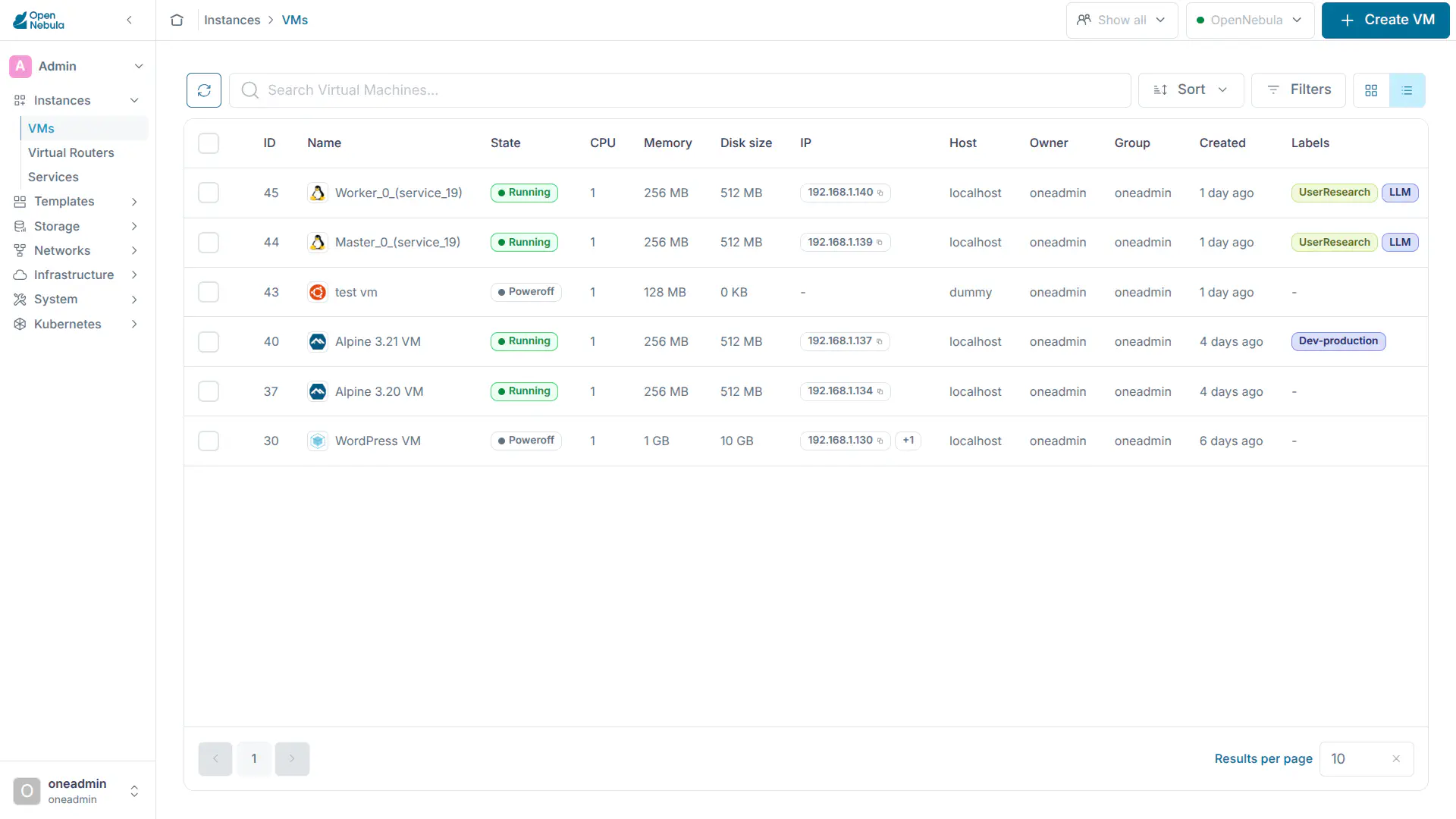
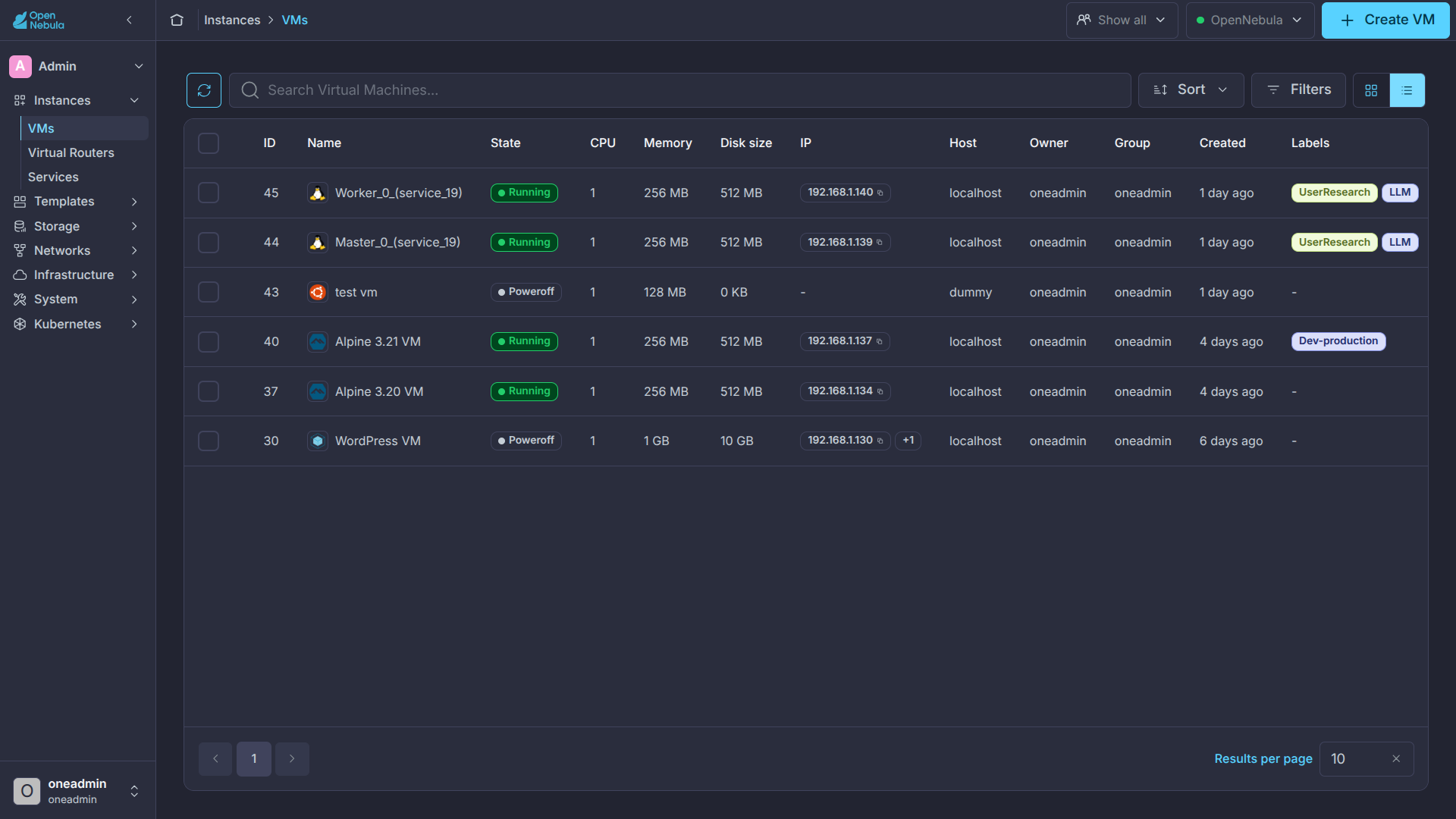
This configuration could be modified in the /etc/one/fireedge/sunstone/sunstone-server.conf file modifying the parameter rowStyle. See this table.
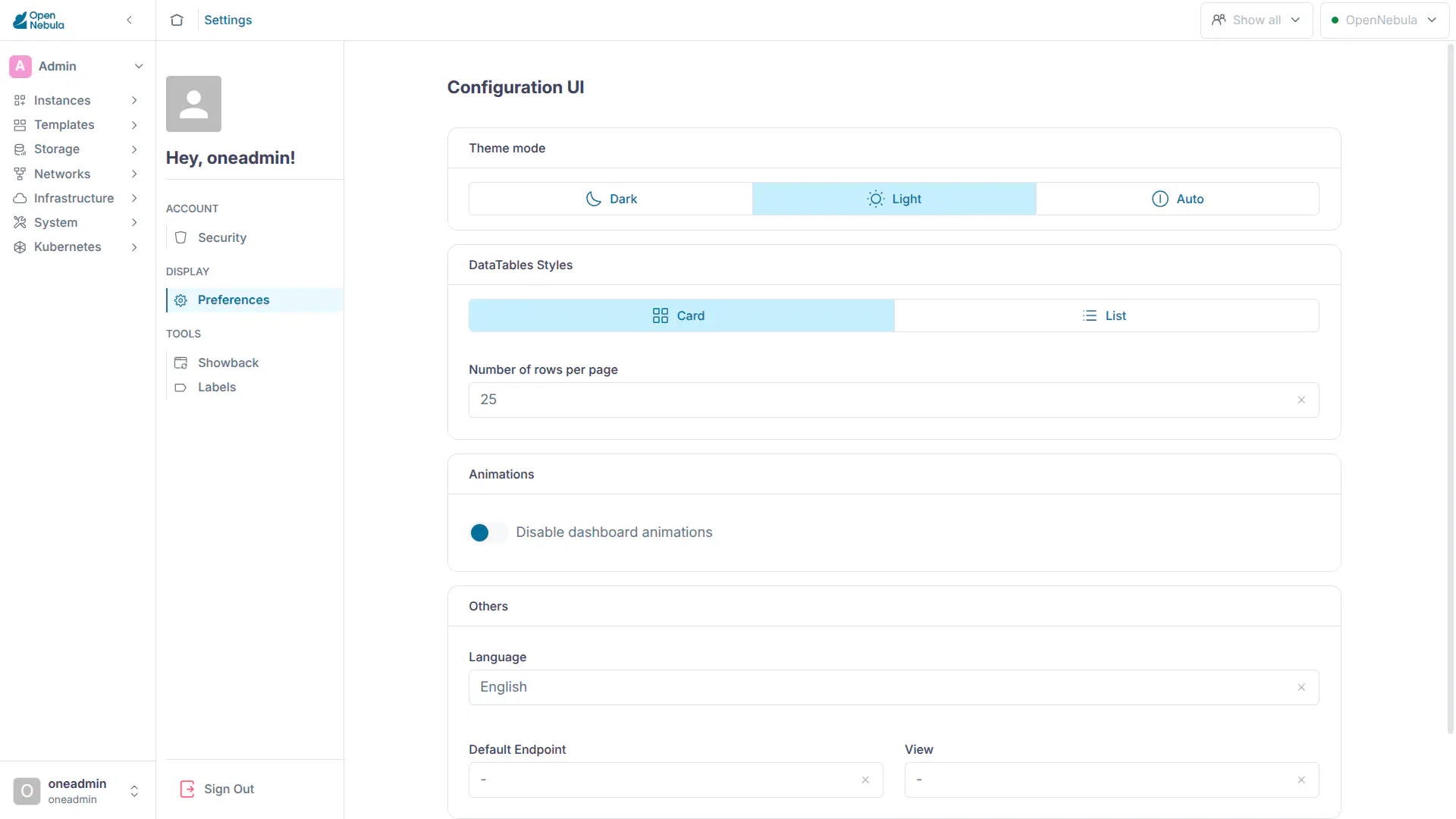
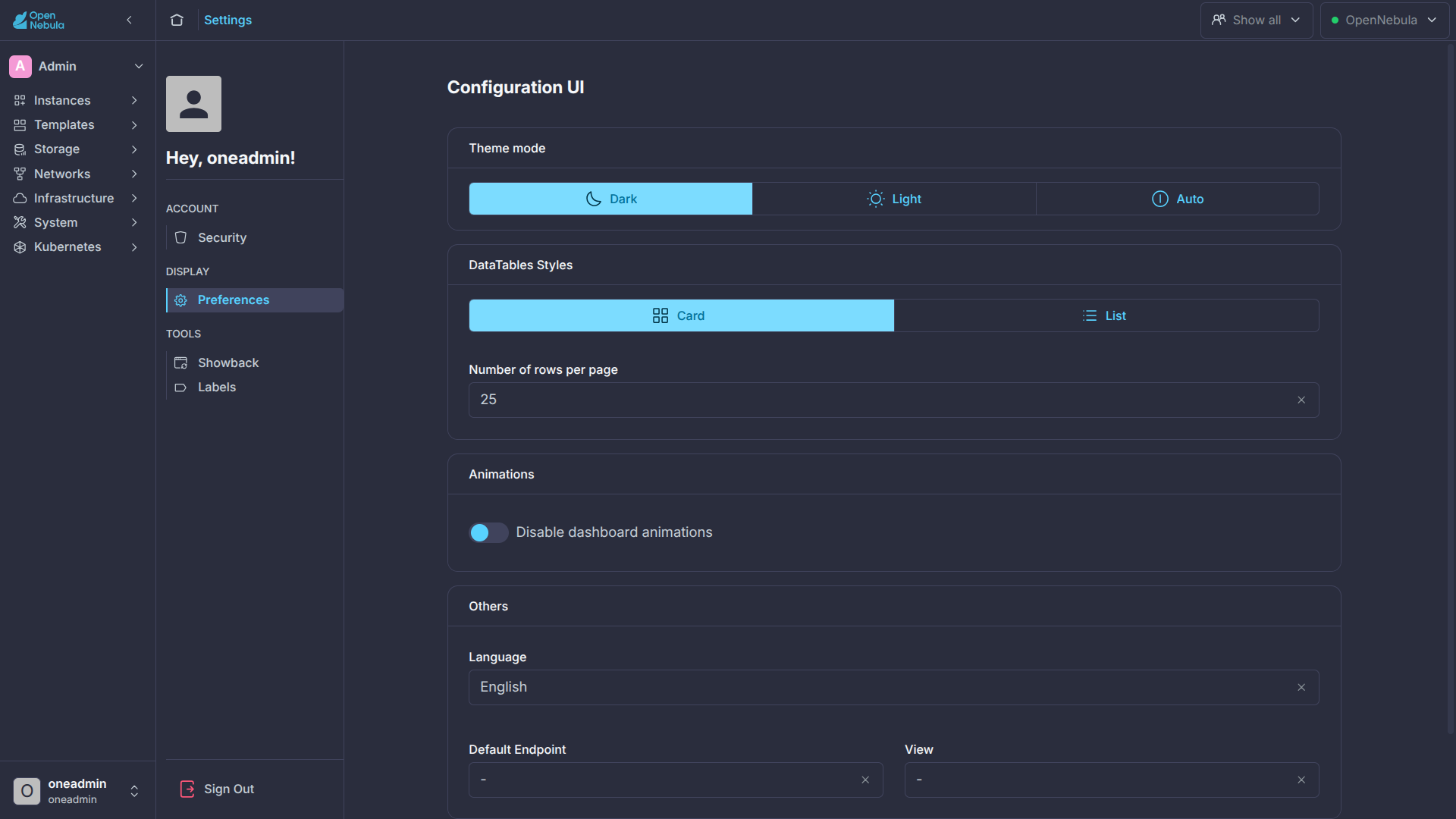
This configuration will be overridden for a specific user if the user changes the configuration in the settings section.
Customize colors
Sunstone will store the colors used in its components in two different files:
- For light mode:
src/modules/providers/theme/palettes/light.js - For dark mode:
src/modules/providers/theme/palettes/dark.js
These two files store a JSON object that has the same structure but with different values in order to set colors for light and dark mode.
| Key | Description |
|---|---|
| mainContainer | Defines the background color of the app. |
| buttons | Defines the different colors used in buttons. |
| tables | Defines the different colors used in resource tables. |
| tabs | Defines the different colors used in the component tabs, the one used in the details of a resource. |
| searchBar | Defines the different colors used in the search bar placed over all the resource tables. |
| sidebar | Defines the different colors used in the sidebar menu. |
| scrollbar | Defines the color of the scrollbar. |
| login | Defines the different colors used in login. |
| switchViewTable | Defines the different colors used in the button to switch between view types. |
| breadCrumb | Defines the different colors used in the breadcrumb. |
| topbar | Defines the different colors used in the topbar of the app. |
| footer | Defines the different colors used in the footer of the app. |
| graphs | Defines the different colors used in the different graphs used in the app. |
Configure Guacamole
FireEdge uses Apache Guacamole, a free and open source web application that allows you to access a remote console or desktop of the Virtual Machine anywhere using a modern web browser. It is a clientless remote desktop gateway which only requires Guacamole installed on a server and a web browser supporting HTML5.
Guacamole supports multiple connection methods such as VNC, RDP, and SSH and is made up of two separate parts - server and client. The Guacamole server consists of the native server-side libraries required to connect to the server and the Guacamole proxy daemon (guacd), which accepts the user’s requests and connects to the remote desktop on their behalf.
opennebula-guacd and service opennebula-guacd), which is installed alongside FireEdge. In the default configuration, the Guacamole proxy daemon is automatically started along with FireEdge, and FireEdge is configured to connect to the locally-running Guacamole. No extra steps are required!If Guacamole is running on a different Host to the FireEdge, the following FireEdge configuration parameters have to be customized:
guacd/hostguacd/port
Connection Defaults and Enforced Settings
Configure VNC, SSH and RDP connection parameters in the top-level guacamole section of /etc/one/fireedge-server.conf. This section is separate from guacd, which specifies how FireEdge connects to the Guacamole daemon.
| Section | Description |
|---|---|
guacamole.common | Defaults shared by VNC, SSH and RDP connections. |
guacamole.vnc, guacamole.ssh, guacamole.rdp | Protocol-specific defaults. These override values in common. |
guacamole.enforced.common | Settings enforced for all three protocols. |
guacamole.enforced.vnc, guacamole.enforced.ssh, guacamole.enforced.rdp | Protocol-specific enforced settings. These override values in enforced.common. |
The default configuration is:
guacamole:
  common:
    width: 1024
    height: 768
    dpi: 96

  rdp:
    port: 3389
    # Disable audio and microphone
    disable-audio: true
    enable-audio-input: false

    # Display and performance
    resize-method: display-update
    enable-wallpaper: false
    enable-theming: false
    enable-font-smoothing: false
    enable-full-window-drag: false
    enable-desktop-composition: false
    enable-menu-animations: false
    disable-bitmap-caching: false
    disable-offscreen-caching: false
    disable-glyph-caching: false

  vnc:
    port: 5900

  ssh:
    port: 22

  # Server policy, applied whenever a Guacamole connection opens
  enforced:
    common:
      disable-copy: true
      disable-paste: true
      enable-sftp: false
    rdp:
      # Requires NLA credentials; ignores certificate validation errors
      security: nla
      ignore-cert: true
      enable-drive: false
      enable-printing: false
Settings are applied in the following order, with later values overriding earlier ones: common, the protocol section, VM/NIC settings, browser settings, and enforced. Browser overrides are limited to display and terminal settings and rangeports. Enforced settings are applied whenever a Guacamole connection opens and cannot be overridden by VM/NIC or browser settings.
The default enforced settings disable clipboard copy/paste and SFTP for all three protocols. For RDP, they also disable drive and printer redirection and require Network Level Authentication (NLA). With ignore-cert: true, certificate validation errors are ignored. RDP guests must support NLA, and the connection requires credentials. Set guacamole.enforced.rdp.ignore-cert to false to require a guest certificate trusted by the Guacamole daemon. To change these requirements, edit guacamole.enforced.rdp; setting RDP_SECURITY in a VM does not override an enforced security mode.
Additional connection parameters can be configured using their Guacamole parameter names. Restart the FireEdge service after changing the configuration.
Service Control and Logs
Change the server running state by managing the operating system service opennebula-fireedge.
To start, restart, or stop the server, execute one of:
$ systemctl start   opennebula-fireedge
$ systemctl restart opennebula-fireedge
$ systemctl stop    opennebula-fireedge
To enable or disable automatic start on host boot, execute one of:
$ systemctl enable  opennebula-fireedge
$ systemctl disable opennebula-fireedge
Server logs are located in /var/log/one in the following files:
/var/log/one/fireedge.log: operational log./var/log/one/fireedge.error: errors and exceptions log.
Other logs are also available in Journald. Use the following command to show them:
$ journalctl -u opennebula-fireedge.service
Troubleshooting
Conflicting Port
A common issue when starting FireEdge is a used port:
Error: listen EADDRINUSE: address already in use 0.0.0.0:2616
If another service is using the port, you can change FireEdge configuration (/etc/one/fireedge-server.conf) to use another Host/port.
GIVE FEEDBACK
Was this resource helpful?
Glad to hear it
Sorry to hear that