VM Groups (Affinity)
In enterprise-grade cloud environments, orchestrating the physical placement of virtualized workloads is paramount to achieving infrastructure resilience, performance optimization, and strict fault isolation. OpenNebula addresses these requirements through its VM Group architectural subsystem (Affinity and Anti-Affinity Groups). This mechanism enables system administrators and cloud architects to define relationship policies among multi-VM application tiers. Operational realities such as urgent infrastructure maintenance, emergency capacity rebalancing, or live patching frequently demand that in certain cases these rules must be temporarily bypassed.
This document provides details about the structural mechanics of OpenNebula VM Groups and how to use them, including the exact execution paths where placement rules (or policies) are overridden during cold or live migrations, and the self-healing workflows triggered by the reschedule action to restore policy compliance.
Structural Architecture of OpenNebula VM Groups
An OpenNebula VM Group defines a logical boundary enclosing a set of interrelated Virtual Machines or abstract classifications called Roles. By grouping these Roles, OpenNebula can evaluate complex relational matrices to determine where instances should reside relative to each other and relative to the underlying physical hypervisor topology.
Placement logic within VM Groups is divided into three primary categories:
- VM-to-VM Affinity: Forces instances belonging to the same Role to be placed onto the same physical hypervisor node. This is highly effective for microservices or high-throughput computing workloads that exhibit dense east-west network traffic, minimizing network latency by utilizing local memory-speed vSwitch communication.
- VM-to-VM Anti-Affinity: Directs instances of a Role to be scattered across different physical Hosts or fault domains. This is standard practice for High Availability (HA) Cluster nodes, ensuring that a physical hardware failure on a single Host does not induce a catastrophic outage of an entire application tier.
- Role-to-Role Inter-Affinity / Anti-Affinity: Governs relationship rules between different classes of servers. For example, a policy can dictate that the backup-role must never run on the same hypervisor node as the production-database-role (Anti-Affinity), or that app-servers must reside on the same chassis as their corresponding cache-nodes (Affinity).
Administrators implement these behaviors inside OpenNebula templates using predefined attributes such as POLICY, AFFINED, and ANTI_AFFINED, which are translated dynamically into complex scheduling requirements.
Defining a VM Group
A VM Group consists of two parts: a set of Roles and a set of placement constraints for the Roles. Usually, you will put VMs implementing a given functionality of a multi-VM application in the same Role, e.g. the Front-ends or the database VMs. Additionally, you can define placement constraints for the VMs in the VM Group, with placement rules that can refer to the VMs within a Role or VMs across Roles.
A Role is defined with the following attributes:
| Attribute | Mandatory | Description |
|---|---|---|
NAME | YES | The name of the Role. It must be unique within the VM Group. |
POLICY | NO | Placement policy for the VMs of the Role. Possible values are: AFFINED and ANTI_AFFINED. |
HOST_AFFINED | NO | Defines a set of Hosts (by their ID) where the VMs of the Role can be executed. |
HOST_ANTI_AFFINED | NO | Defines a set of Hosts (by their ID) where the VMs of the Role cannot be executed. |
You can impose additional placement constraints on the VMs of a Role by using the following attributes:
| Attribute | Mandatory | Description |
|---|---|---|
AFFINED | NO | List of Roles (comma-separated) whose VMs has to be placed in the same Host. |
ANTI_AFFINED | NO | List of Roles (comma-separated) whose VMs cannot be placed in the same Host. |
Creating VM Groups
Creating VM Groups in Sunstone
To manage VM Groups go to Templates -> VM Groups. Click + Create VM group to open the VM Group creation wizard and name the group:
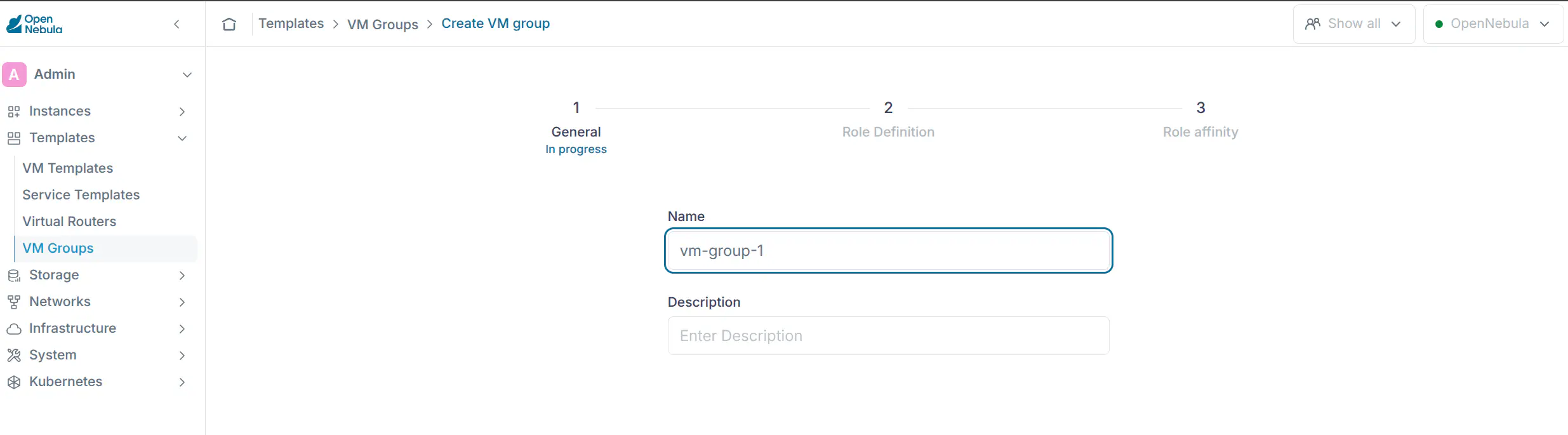
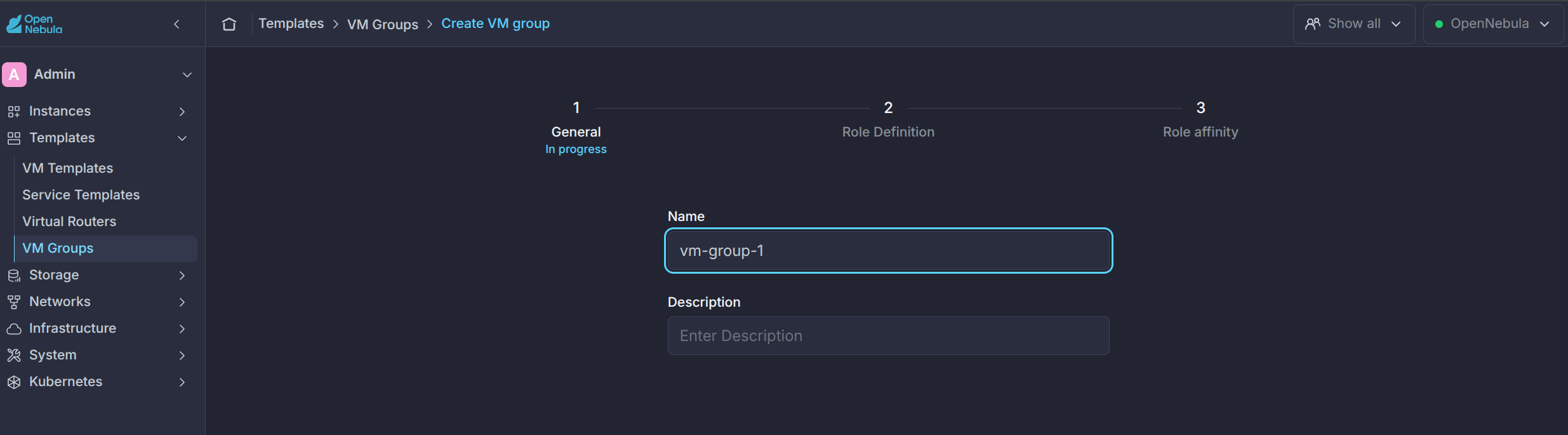
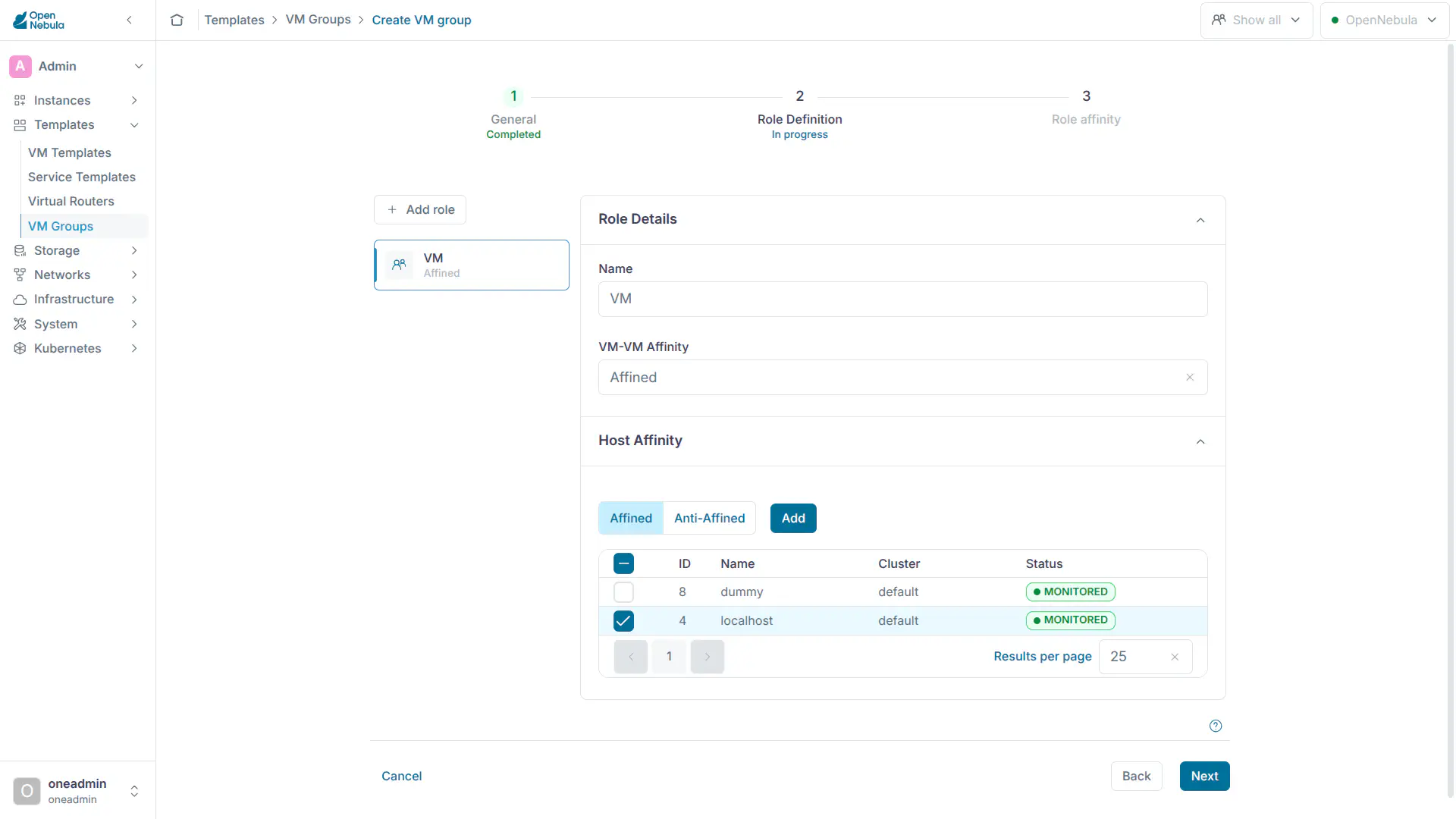
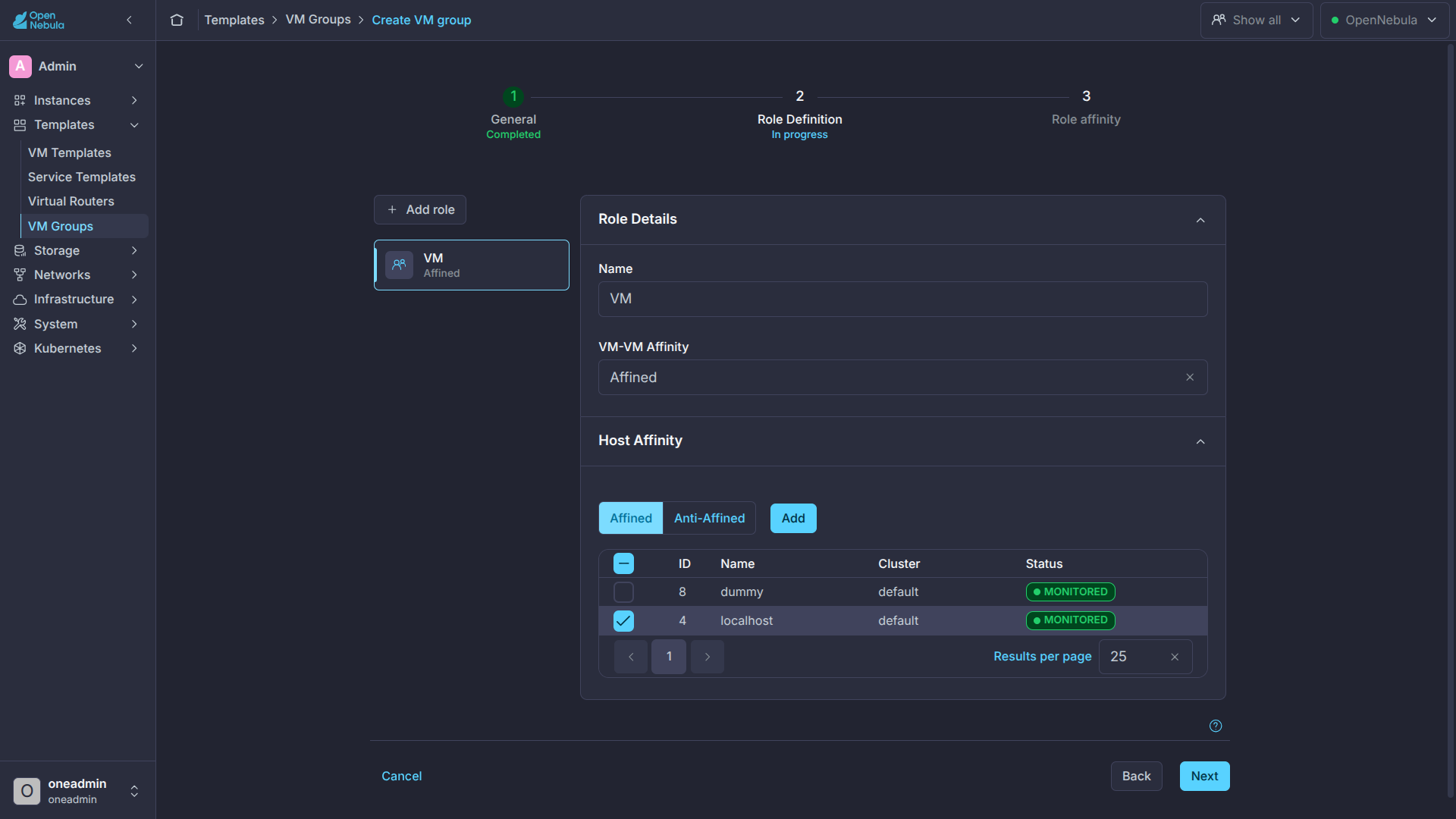
In the Role Definition page you can create new Roles and configure them including VM-VM and Host affinities:
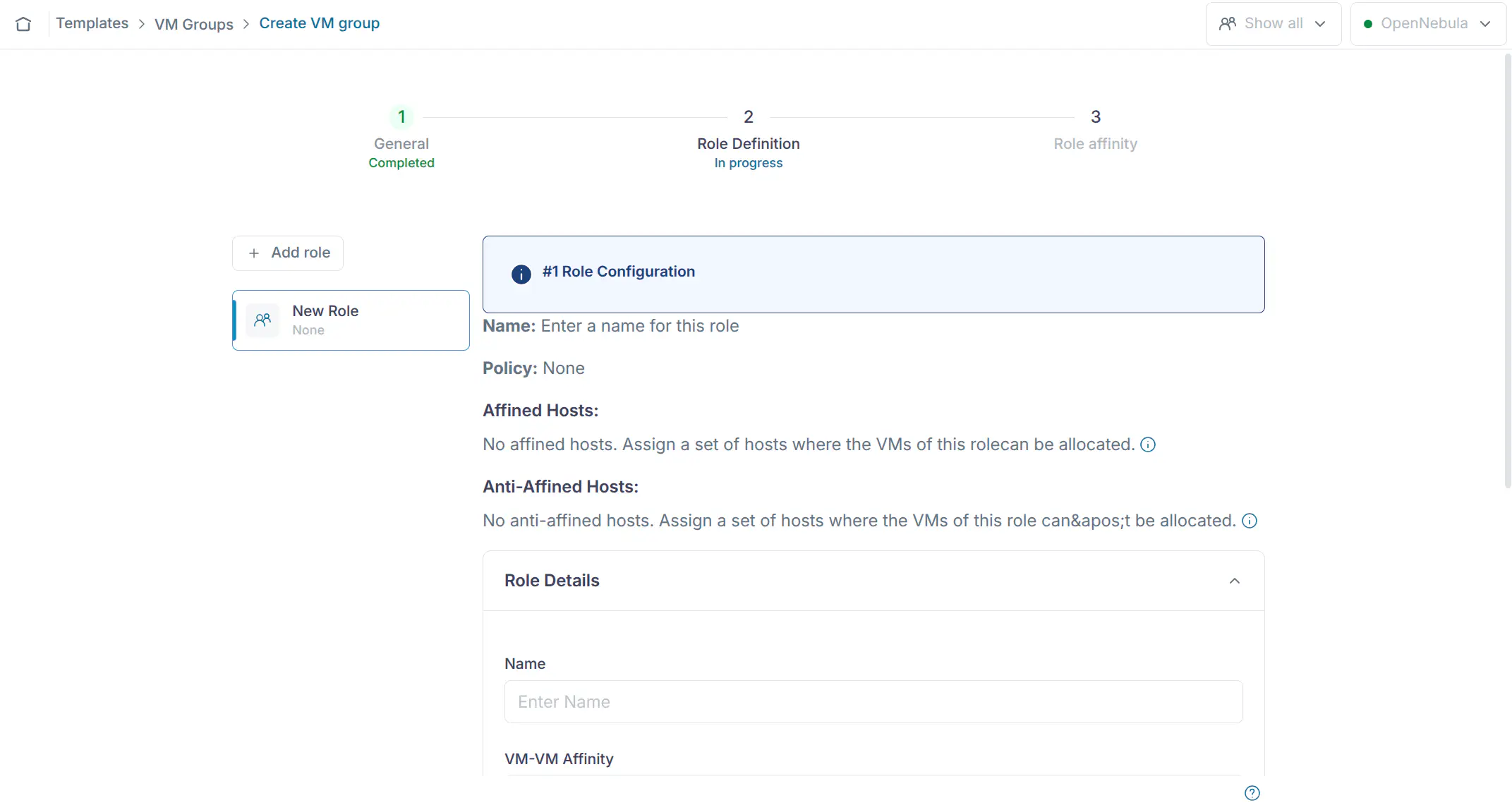
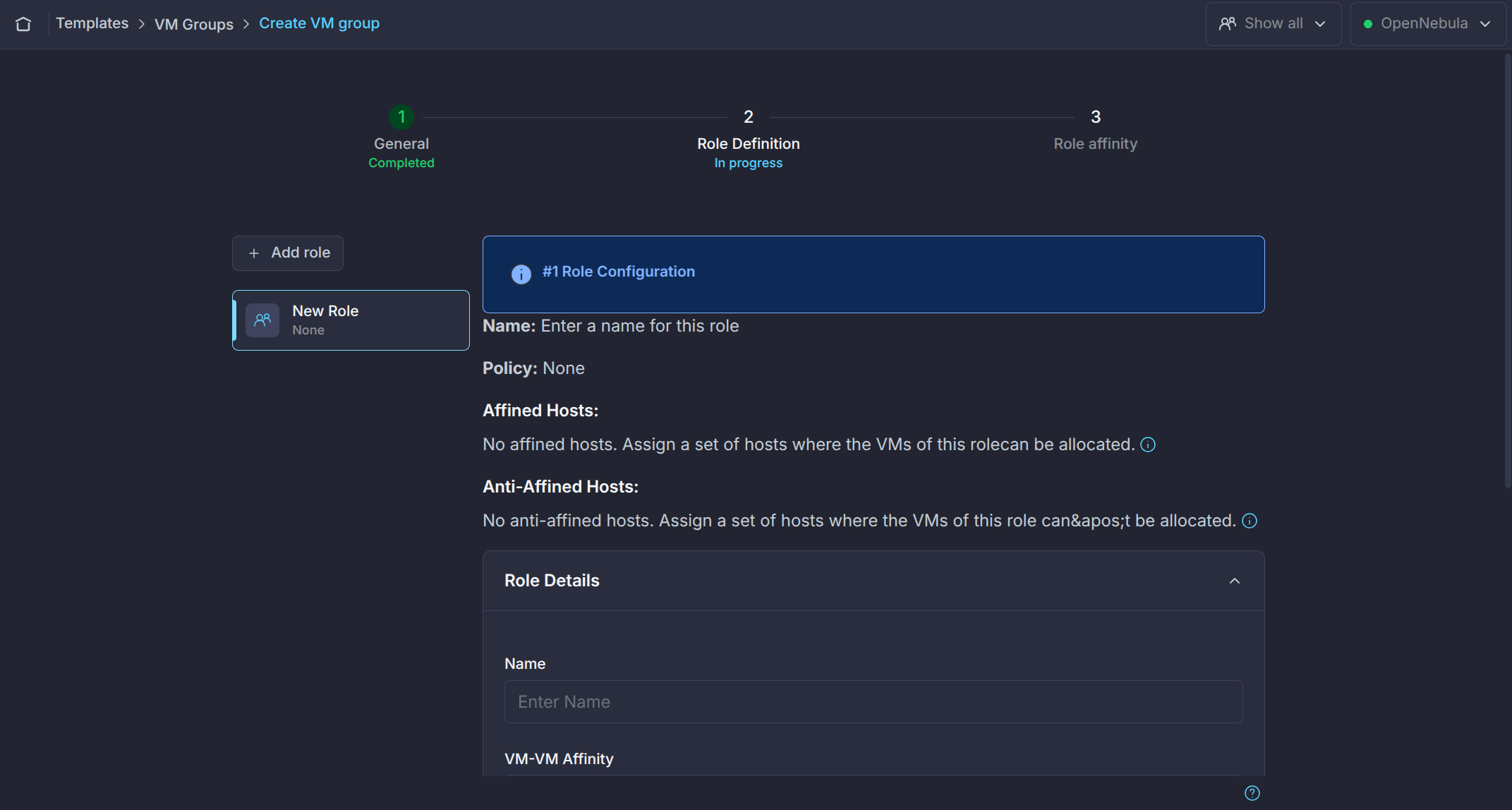
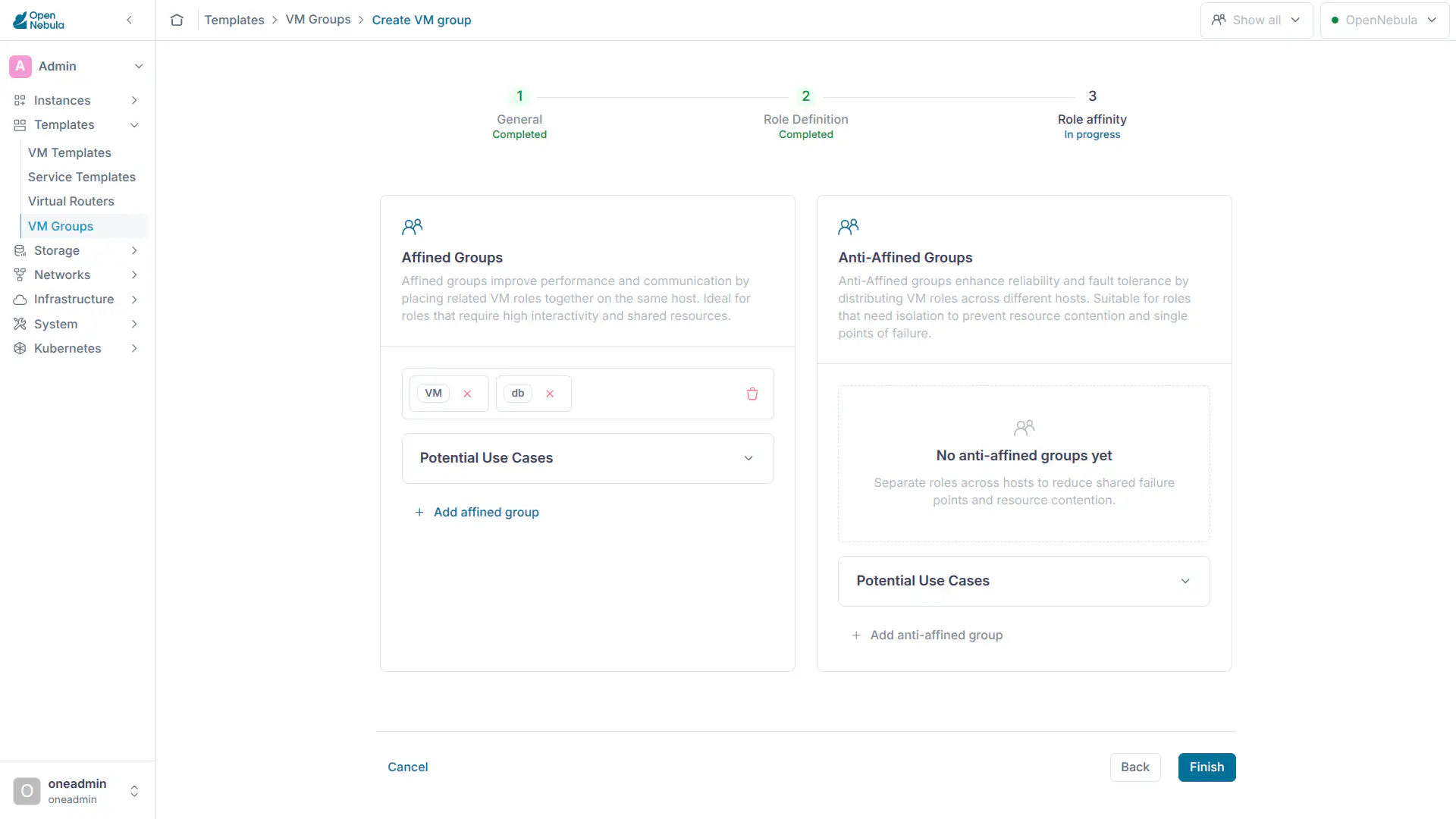
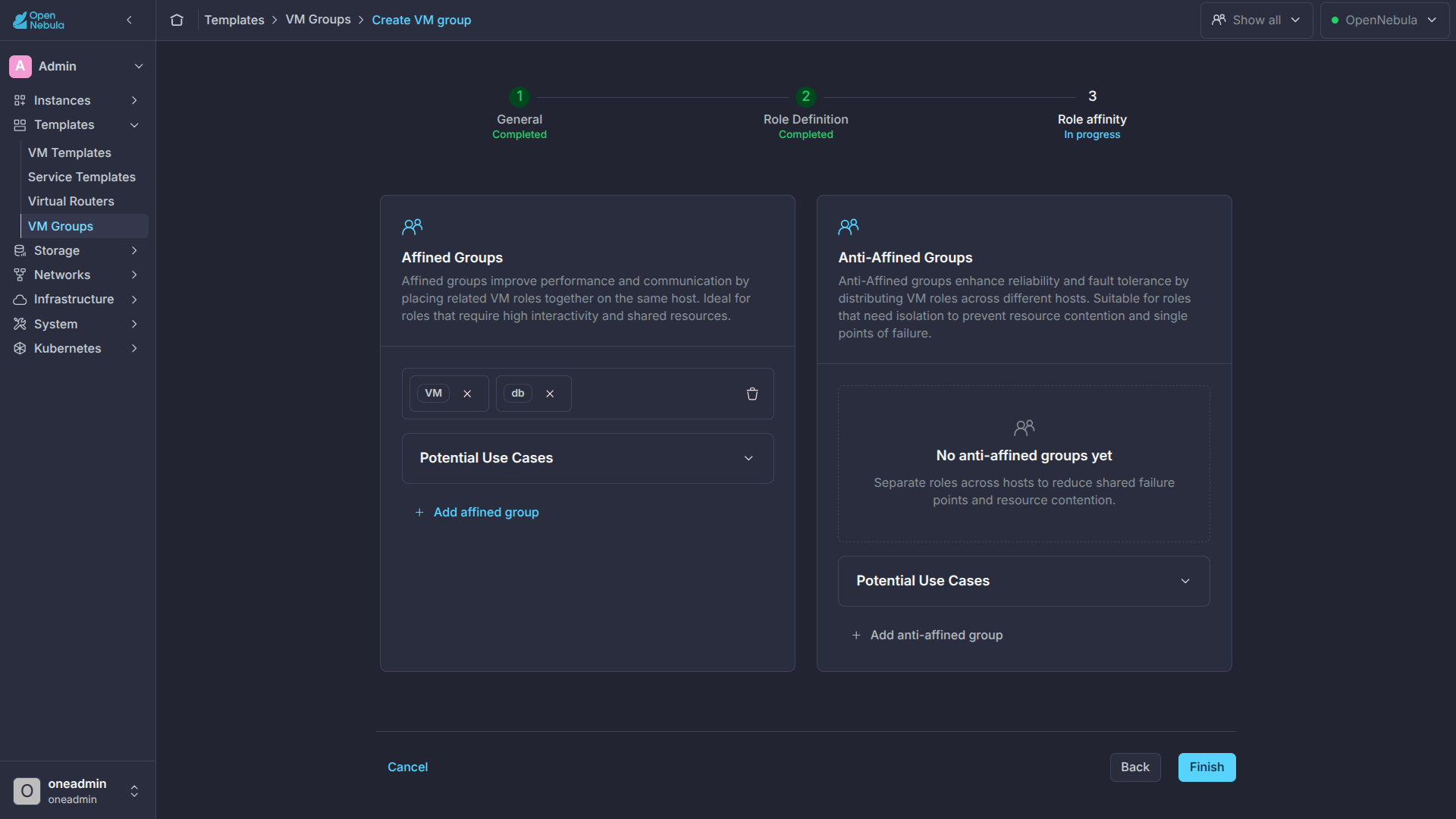
Then press Next to advance to the Role affinity page, where you can adjust role affinities.
Creating VM Groups with the CLI
To create a VM Group with the CLI, create a template file following this example:
cat ./vmg.txt

NAME = "multi-tier server"

ROLE = [
    NAME   = "front-end",
    POLICY = "ANTI_AFFINED"
]

ROLE = [
    NAME         = "apps",
    HOST_AFFINED = "2,3,4"
]

ROLE = [ NAME = "db" ]

AFFINED = "db, apps"
Then create the group using the CLI:
onevmgroup create ./vmg.txt
ID: 0
Placement Policy Examples
The following VM Group template examples show how different placement policies can be applied to the VMs of a VM Group.
VM to Host Affinity
This policy is set on a Role basis using the HOST_AFFINED and HOST_ANTI_AFFINED attributes. Host affinity rules are compatible with any other rules applied to the Role VMs.
For example, if you want to place the VMs implementing the database for your application in high performance Hosts, you could use:
ROLE = [
    NAME         = "database",
    HOST_AFFINED = "1,2,3,4"
]
VM to VM Affinity
Specifies whether the VMs of a Role have to be placed together in the same Host (AFFINED) or scattered across different Hosts (ANTI_AFFINED). The VM to VM affinity is set per Role with the POLICY attribute.
For example, you may want to spread CPU-bound VMs across Hosts to prevent contention:
ROLE = [
    NAME   = "workers",
    POLICY = "ANTI_AFFINED"
]
Role to Role Affinity
For example, consider that you need the VMs of a database to run together so they access the same storage. At the same time, you need all the backup VMs to run in a separate Host; and you need database and backups to also be in different Hosts. Finally, you may have some constraints about where the database and backups can run:
ROLE = [
    NAME  = "databases",
    HOST_AFFINED = "1,2,3,4,5,6,7"
    POLICY = "AFFINED"
]

ROLE = [
    NAME = "backup",
    HOST_ANTI_AFFINED = "3,4"
    POLICY = "ANTI_AFFINED"
]

ANTI_AFFINED = "databases, backup"
ANTI_AFFINED policy cannot be included in any AFFINED Role-Role rule.Using a VM Group
Once you have defined your VM Group you can start adding VMs to it, either by picking a Role and VM Group at instantiation, by setting it in the VM Template, or dynamically add a VM Group for an existing VM. To apply a VM Group to your Virtual Machines either use the Sunstone wizard or set the VM_GROUP attribute:
onetemplate update 0
...
VMGROUP = [ VMGROUP_NAME = "muilt-tier app", ROLE = "db" ]
You can also specify the VM_GROUP by its id (VMGROUP_ID), and in case of multiple groups with the same name you can select it by owner with VMGROUP_UID, as with any other resource in OpenNebula.
VMGROUP attribute when a VM is created (onevm create) or when the associated template is instantiated (onetemplate instantiate). This way the same VM template can be associated with different Roles.Dynamic VM Group Management
You can dynamically add or remove a Virtual Machine from a VM Group without needing to recreate the VM or update its template.
To add a VM to a VM Group and Role:
onevm vmgroup-add <vmid> <vmgroupid> <role>
If the Virtual Machine is already running on a Host, OpenNebula will check if the VM’s current Host complies with the affinity rules of the target VM Group and Role. If the rules are not met, the operation will fail.
To remove a VM from its current VM Group:
onevm vmgroup-del <vmid>
VM Group Management
VM Groups can be updated to edit or add new rules. Currently only Role-to-Role rules can be updated if there are no VMs in the Roles. All base operations are supported for the VM Group object: create, delete, chgrp, chown, chmod, update, rename, list, show, lock, and unlock. For managing Roles, use onevmgroup commands role-add, role-delete, and role-update.
Note also that the same ACL/permission system is applied to VM Groups, so use access is required to place VMs in a group.
Scheduling Mechanics vs. Administrative Control
To understand when placement rules can be bypassed, it is essential to distinguish between the two separate execution pathways within the OpenNebula control plane:
- The Automated Scheduling Path: OpenNebula’s scheduling daemon operates asynchronously in a periodic loop. When a new Virtual Machine is instantiated or placed in a pending state, the scheduler reads the VM Group definition, auto-generates a complex hypervisor requirement expression (
SCHED_REQUIREMENTS), filters out invalid Hosts, and assigns the VM to an eligible node. The scheduler will strictly enforce rules; if no Host satisfies an affinity constraint, the affected VMs remain trapped in thePENDINGstate. - The Direct Operational Path (oned): The primary OpenNebula core daemon directly handles API calls initiated by authorized human operators or external orchestration scripts. When an administrator explicitly commands a VM to move to a designated destination Host via the command-line interface or the Sunstone GUI, the system interprets this as an absolute directive. Administrative sovereignty overrides the automated scheduler filters, completely bypassing the VM Group rule validation logic.
VM Groups are placed by dynamically generating the requirement (SCHED_REQUIREMENTS) of each VM and re-evaluating these expressions. Moreover, the following is also considered:
- The scheduler will look for a Host with enough capacity for an affined set of VMs. If there is no such Host all the affined VMs will remain pending.
- If new VMs are added to an affined Role, it will pick one of the Hosts where the VMs are running. By default, all should be running in the same Host but if you manually migrate a VM to another Host it will be considered feasible for the Role.
- The scheduler does not have any synchronization point with the state of the VM Group, it will start scheduling pending VMs as soon as they show up.
- Re-scheduling of VM Groups works as for any other VM, it will look for a different Host considering the placement constraints.
The Exception Matrix: Bypassing Rules via Migrations
When explicit manual control is exerted over a Virtual Machine, configured placement rules can be actively bypassed. The following architectural table summarizes how various operational actions treat VM Group constraints:
| Operational Action | Affinity Constraint Status | Architectural Implication |
|---|---|---|
| Initial Instantiation | Strictly Respected | Calculates baseline compliant placement prior to boots |
| Manual Live / Cold Migration | Bypassed | Alters target node tracking; rule check skipped. |
| Reschedule Action | Re-enforced / Healed | Re-evaluates group state and migrates VMs back to compliance. |
Restoring Compliance via the Reschedule Action
When a manual migration fractures a VM Group constraint, OpenNebula does not continuously block hypervisor operations or forcibly crash instances. Instead, the platform enters a state of temporary policy divergence. To reconcile this divergence, administrators use the Reschedule action.
Executing a reschedule does not immediately terminate or move a VM. Instead, it alters an internal status flag in the OpenNebula database, signaling to the scheduler daemon during its next execution pass that the virtual instance requires evaluation. The scheduler treats the target VM with the same rigorous scrutiny as a freshly instantiated request, executing the following internal operations:
- State Assessment: It scans the current physical Host where the rescheduled VM is residing.
- Constraint Evaluation: It fetches the VM Group schema associated with the instance and scans the physical layout of all sibling instances within that group across the entire Cluster.
- Rule Conflict Discovery: If it notes that an anti-affinity rule is currently bypassed (e.g., two HA Roles sharing a Host) or an affinity rule is bypassed (e.g., local packing is unmet), the Host is marked as non-compliant for that VM.
- Migration Plan Execution: The scheduler searches the broader Cluster for a valid Host that possesses enough CPU/RAM overhead and strictly satisfies the VM Group constraints. Once a valid target node is discovered, the scheduler automatically fires an underlying live or cold migration command, moving the VM to repair the Cluster state without requiring manual destination mapping from the operator.
LIVE_RESCHEDS variable to 1 in /etc/one/oned.conf.Advanced Operational Workflows and Scenarios
To implement this operational behavior in production environments, administrators can consult the following tactical scenarios and workflow blueprints.
Scenario A: Hypervisor Maintenance and Cluster Healing
Context: A Cluster contains physical nodes Host_01 and Host_02. A highly available web application runs two load-balanced nodes, VM_Web_A (on Host_01) and VM_Web_B (on Host_02), restricted by an explicit anti-affinity group policy to ensure hardware redundancy. Host_01 requires immediate kernel updates and a physical reboot.
The Workflow:
- The administrator executes a manual live migration command to evacuate
Host_01. - OpenNebula executes the transfer. Both web servers are now running concurrently on
Host_02. The anti-affinity group rule is actively bypassed, but the application avoids downtime during maintenance. - The administrator updates and reboots
Host_01. The Host returns online and enters theMONITOREDstate. - Instead of manually calculating where to return the Virtual Machines, the administrator executes the reschedule action against the non-compliant VM.
- During the next scheduling interval, the scheduler intercepts the flag, scans the topology, discovers the anti-affinity collision on
Host_02, and automatically initiates a live migration ofVM_Web_Aback to the newly restoredHost_01, completely self-healing the Cluster’s high-availability state.
Scenario B: Compute-Intensive Overload Redirection
Context: A latency-critical database stack utilizes an affinity group ensuring that VM_DB_Master and VM_DB_Replica stay on an NVMe-backed premium hypervisor (Host_Premium) to eliminate network transit lag. Suddenly, unexpected analytics processing triggers a major CPU contention crisis on Host_Premium, threatening overall stack stability.
The Workflow:
- To preserve database responsiveness, the system operator chooses to break the performance affinity rule to trade network latency for raw processing compute capacity.
- The operator executes a cold migration sequence on the replica to shift it to an underutilized standard Host.
- The instance boots up successfully on Host_Standard. The workload is stabilized, but the affinity rule is bypassed since the master and replica are split.
- Hours later, the heavy processing finishes, and CPU utilization on Host_Premium normalizes.
- To enforce the affinity low-latency rules once again, the operator triggers rescheduling on the replica.
- The scheduler assesses the available capacity on Host_Premium, matches it against the bypassed affinity metadata, and automatically issues a live migration request to reunite the database instances on the premium Host.
Other Common Scenarios
What happens if a reschedule is triggered on a compliant VM?
- The scheduler will attempt to move the VM into another compliant Host. If no other Host meets the group requirements the VM won’t be moved, but will be left marked for rescheduling.
What happens when a reschedule is triggered but no Host meets the requirements?
- The VM will be left with the Reschedule flag activated. As soon as a Host appears that meets the requirements (for example a VM with anti-affinity rules in that Host was terminated), the scheduler will move the VM there. The reschedule flag can be removed through both CLI and Sunstone.
What happens if 2 VMs are breaking an Anti-Affinity rule and both are marked for reschedule?
- The scheduling operations are executed sequentially. One VM will be moved to a fulfilling
Host_B(if able). Then the scheduler will also attempt to move the VM into another fulfilling Host (different than B, since that one no longer fulfills the anti-affinity requirement). If another Host is found, the second VM will also be moved. If not, it will be left marked forRescheduleuntil a Host is found.
What happens if a VM has manual template requirements that conflict with its VM Group rules when a reschedule is triggered?
GIVE FEEDBACK
Was this resource helpful?
Glad to hear it
Sorry to hear that