Operations
Use the Portal
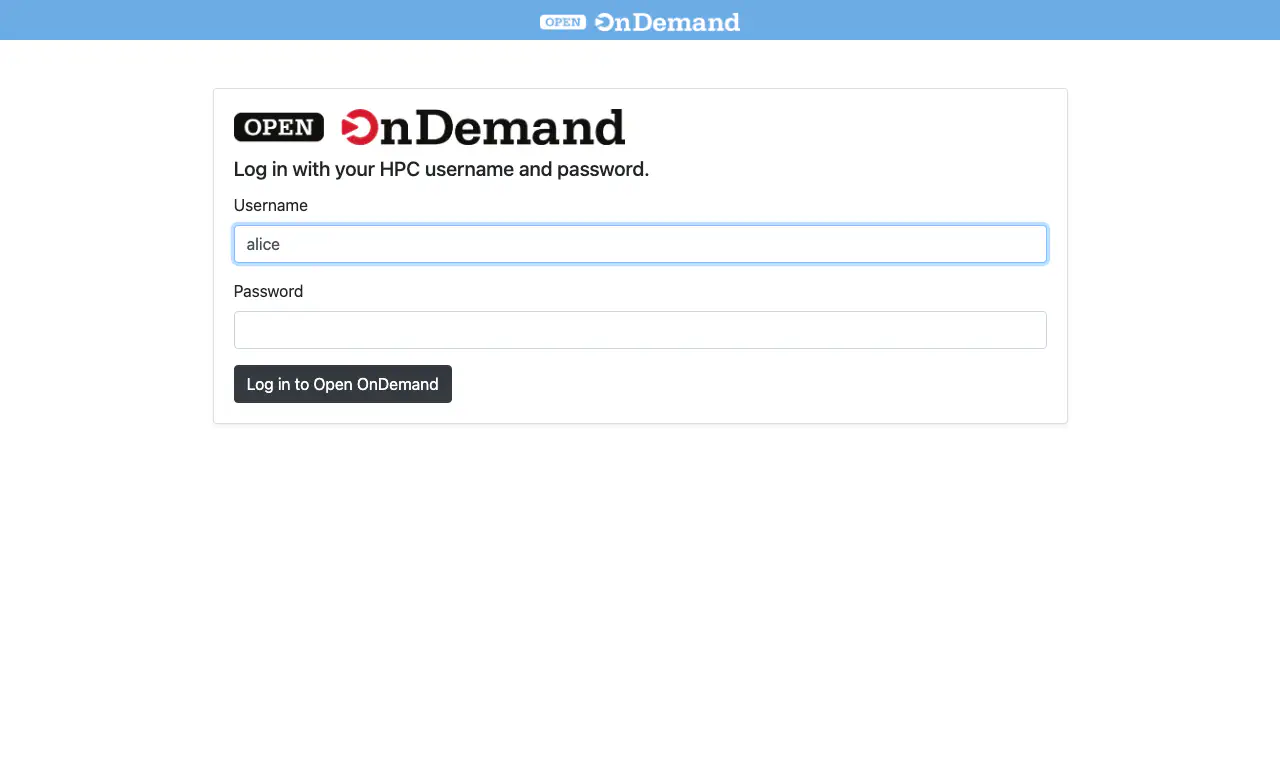
- Open the address of
OOD_URLin a web browser. - Accept the certificate warning. The certificate is self-signed.
- Sign in with the LDAP user name and password.
Tools for Users
| Menu | Tool | What users do |
|---|---|---|
| Files | Home Directory | Browse, upload, download and delete files. |
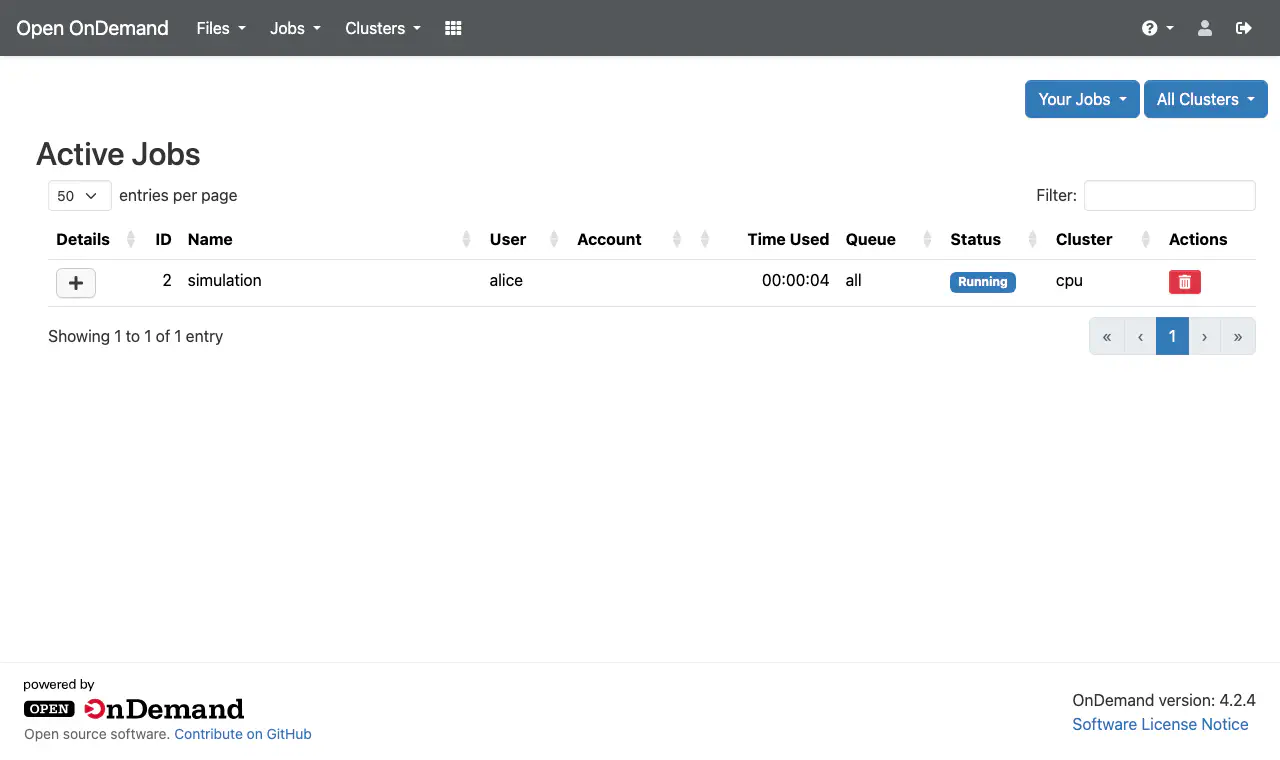
| Jobs | Active Jobs | See their jobs on every Cluster and cancel them. |
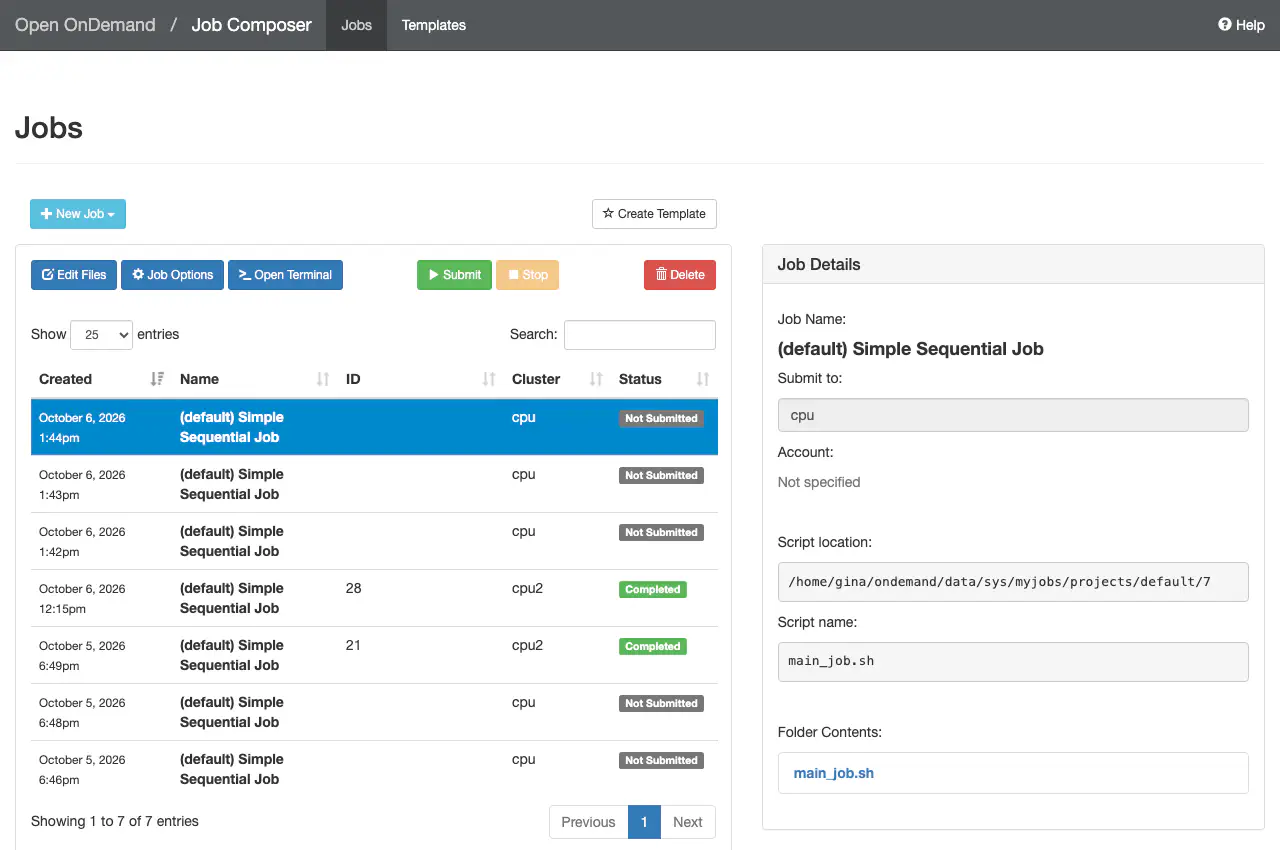
| Jobs | Job Composer | Create a job from a script or a template and submit it to a Cluster. |
| Jobs | Project Manager | Group job scripts in project folders. |
| Clusters | <name> Shell Access | Open a terminal on the controller of a Cluster. |
| Clusters | System Status | See the nodes, CPUs and jobs of each Cluster. |
The portal has no remote desktop, because the OneSlurm workers have no VNC server.
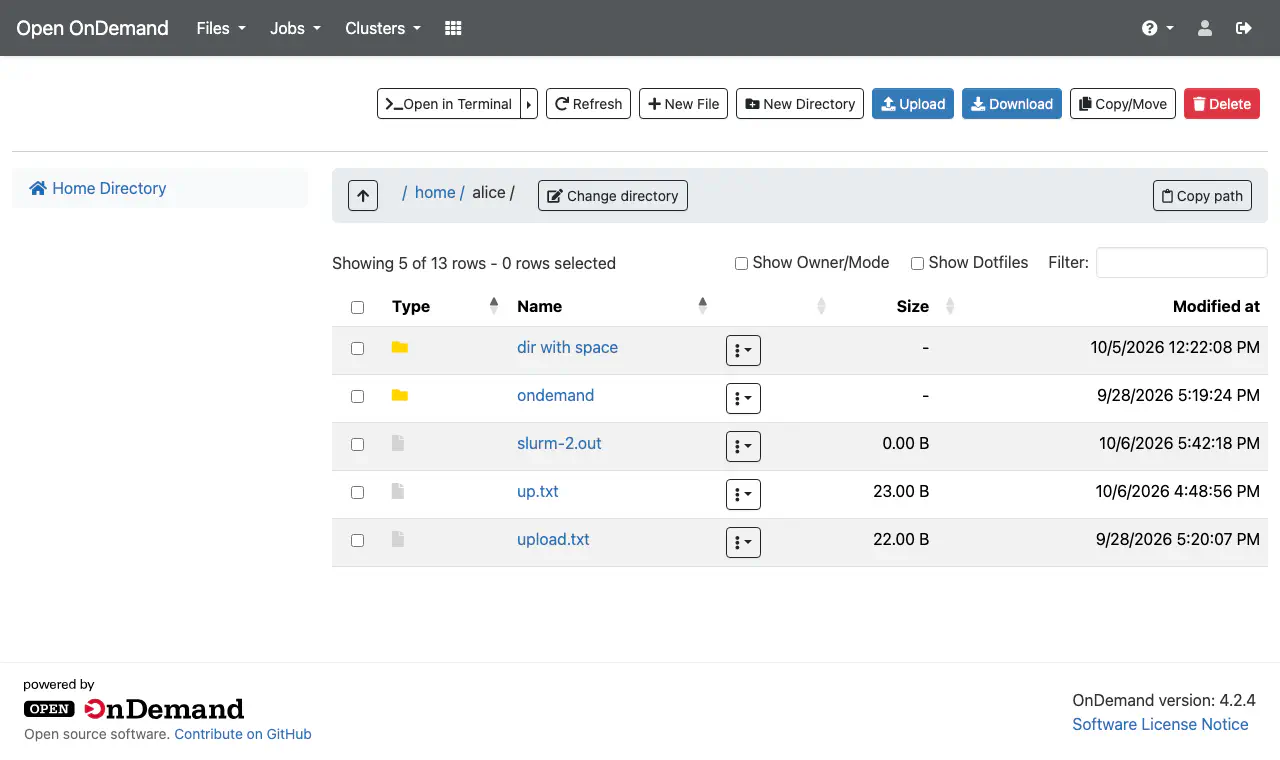
- A file uploaded in Files is on every Cluster at once, because they share
/home. - Open in Terminal opens a terminal on the first Cluster of the list.

Jobs submitted from the terminal or from the Job Composer appear in Active Jobs.
Add Users
- Create the user in the LDAP server of the Clusters.
- Create the home directory on the NFS export, owned by the user, with mode
700.
The portal needs no change. If the user signs in before the home directory exists, the portal shows Home directory not found. Create the home directory, then the user clicks Restart Web Server on that page.
Change the Clusters
You can add or remove Clusters on a running portal.
Before you add a Cluster:
- Check that its controller is running. The portal saves its SSH host key at this step.
- If the Cluster is on another network, attach that network to the VM first.
Then:
- In Sunstone, open the VM.
- Go to Configuration -> Update configuration -> Context -> Context Custom Variables.
- Edit
ONEAPP_SLURM_CLUSTERS_LIST. Use one Cluster per line, or separate them with spaces. - Save the change.
The appliance configures the portal again in about three minutes. Removed Clusters disappear from the portal, and new Clusters appear in its menus.
OOD_URL and OOD_ERROR keep their old values. Read the result in /var/log/one-appliance/configure.log in the VM. This is a known issue of the one-context package 7.4.0.Security
The ports that the portal uses are in Requirements.
LDAP Without TLS
The portal connects to LDAP with ldap://, like OneSlurm. Passwords travel without encryption between the portal and the LDAP server. Keep the portal, the Clusters and the LDAP server on a private network.
SSH to the Portal VM
Only root can open an SSH session on the portal VM, with the key of the OpenNebula user that created it. LDAP users cannot use SSH or copy files to the portal VM. They use the portal or a Cluster controller.
Next Steps
If something does not work, refer to Troubleshooting and Limitations.
GIVE FEEDBACK
Was this resource helpful?
Glad to hear it
Sorry to hear that