Migrating VMs with OneSwap
OpenNebula provides OneSwap, a command-line tool designed to simplify migrating Virtual Machines from vCenter to OpenNebula. OneSwap has been used in the field with a 96% success rate in converting VMs automatically, greatly simplifying and speeding up the migration process.
OneSwap supports importing Open Virtual Appliances (OVAs) previously exported from vCenter/ESXi environments. The Managing OVAs and VMDKs guide provides instructions, with complete examples.
Architecture and Requirements
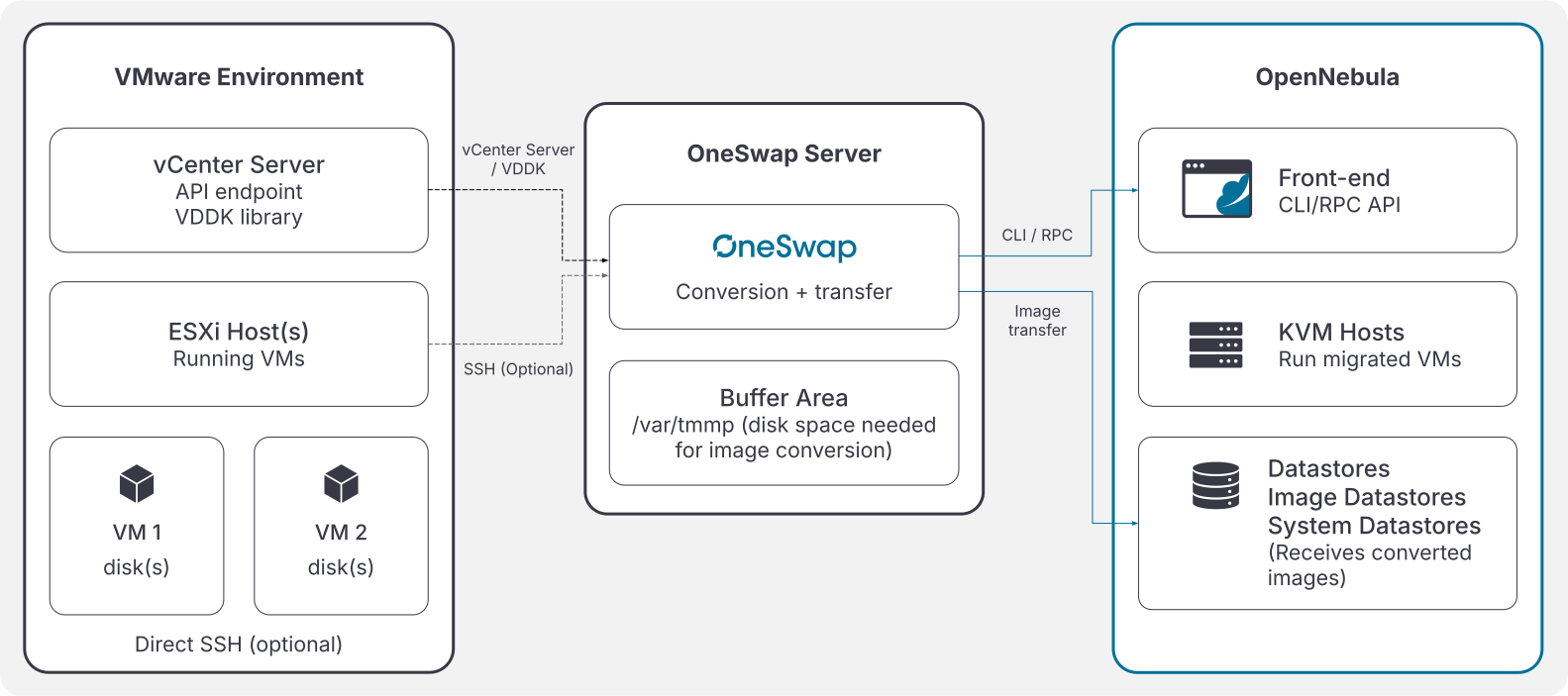
OneSwap can be run directly on the OpenNebula frontend or on a dedicated server. Running it on a separate server is recommended for production environments as it isolates the migration workload and avoids impacting the OpenNebula frontend during large or concurrent migrations.
The OneSwap server must have network access to:
- OpenNebula Front-end: to execute CLI commands (
onevm,onedatastore, etc.) and transfer converted images to the datastores. - vCenter/ESXi endpoint: to connect to the vCenter API and export virtual machine disks.
Run oneswap on a dedicated server with sufficient disk space to buffer VM images during conversion. This server should have high-bandwidth connectivity to both the vCenter environment and the OpenNebula image datastores to minimize migration time.
vCenter Permissions Requirements
OneSwap requires specific vCenter permissions depending on the conversion mode used. Below are the required privileges for vCenter 8.
Minimum Permissions (All Conversion Modes)
Datastore:
- Browse datastore - Required to discover VMDK files and VM storage configuration
- Used by: All conversion modes (standard virt-v2v, custom, hybrid, clone)
Network:
- Assign network - Required to read VM NIC configuration and network mappings
- Used by: All conversion modes
Resource:
- Assign virtual machine to resource pool - Required to read VM placement and resource allocation
- Used by: All conversion modes
Virtual machine > Change Configuration:
- Change Settings - Required to read VM hardware configuration (CPU, RAM, disks)
- Query unowned files - Required to access VM configuration files
- Used by: All conversion modes
Virtual machine > Edit Inventory:
- Create from existing - Required to read VM metadata and state
- Used by: All conversion modes
Virtual machine > Guest operations:
- Guest operation queries - Required to read guest OS information, IP addresses, and installed tools
- Used by: All conversion modes
Additional Permissions for Clone Mode (--clone)
Datastore:
- Allocate space - Required to provision storage for the cloned VM (thin provisioning)
- Used by:
--clonemode only
Folder:
- Create folder - CRITICAL - Required to create the cloned VM in the same folder as the original
- Without this permission, clone operations will fail with
FileLocked: Unable to access file since it is locked
- Without this permission, clone operations will fail with
- Used by:
--clonemode only
Virtual machine > Edit Inventory:
- Create new - Required to create the cloned VM
- Remove - Required to delete the clone after successful conversion
- Used by:
--clonemode only
Virtual machine > Provisioning:
- Clone virtual machine - Required to execute the CloneVM_Task operation
- Customize guest - Required for VM customization during cloning
- Used by:
--clonemode only
Additional Permissions for Custom/Fallback/Hybrid Modes
Datastore:
- Low level file operations - Required to download VMDK files directly from datastores
- Used by:
--custom,--fallback,--hybridmodes
Permission Setup Example
Create a custom role in vCenter 8:
Role Name: OneSwap-Standard
Description: Minimum permissions for standard virt-v2v conversions

Permissions:
  - Datastore > Browse datastore
  - Network > Assign network
  - Resource > Assign virtual machine to resource pool
  - Virtual machine > Change Configuration > Change Settings
  - Virtual machine > Change Configuration > Query unowned files
  - Virtual machine > Edit Inventory > Create from existing
  - Virtual machine > Guest operations > Guest operation queries
For clone mode support, create an extended role:
Role Name: OneSwap-Clone
Description: Permissions for clone-based conversions (zero production impact)

Includes all permissions from OneSwap-Standard, plus:
  - Datastore > Allocate space
  - Folder > Create folder
  - Virtual machine > Edit Inventory > Create new
  - Virtual machine > Edit Inventory > Remove
  - Virtual machine > Provisioning > Clone virtual machine
  - Virtual machine > Provisioning > Customize guest
For download-based conversions (custom/fallback/hybrid):
Role Name: OneSwap-Download
Description: Permissions for custom conversion modes

Includes all permissions from OneSwap-Standard, plus:
  - Datastore > Low level file operations
Important Notes:
- Assign roles at vCenter root level with “Propagate to children” enabled
- For
--clonemode, the VM must NOT have any snapshots (remove all snapshots before cloning) - For
--deltaand--esximodes, vCenter permissions are minimal as operations run via direct ESXi SSH
Installation
The package opennebula-swap, provided on the official OpenNebula Repositories, provides the command oneswap.
It can be installed in Ubuntu and Debian with
apt install opennebula-swap
And in Alma Linux and RHEL with
dnf install opennebula-swap
System Requirements
The following packages must be installed on the conversion host:
| Package | Required for |
|---|---|
virt-v2v | All standard conversion modes |
guestfs-tools | Context injection, --virtio, --win-qemu-ga (requires ≥ 1.49.9 for those options) |
qemu-img | All conversion modes |
ovmf | Migrating UEFI guests (provides OVMF firmware for x86-64); without it virt-v2v will fail with “cannot find firmware for UEFI guests” |
guestfish / virt-inspector | Windows context injection and disk inspection |
nbdkit (with VDDK plugin) | --vddk transfers; Debian/Ubuntu packages do not ship the VDDK plugin — see VDDK Transfer Support |
When installing OneSwap via the provided packages all dependencies are installed automatically. If deploying from source, the dependencies listed in the table above must be installed manually using the system package manager.
Requirements and recommended settings
OneSwap requirements for virtual conversion from VMware to OpenNebula are the following:
- OneSwap is only supported on Ubuntu 24.04 LTS, Debian 12 and Alma Linux/RHEL 9 servers. On previous versions of Ubuntu and Alma/RHEL some dependencies are outdated.
- A working OpenNebula environment with capacity enough to store imported images and VMs and a user with permissions on the destination datastores. Alternatively, conversion can be done with user
oneadminand set the right permissions in a posterior step. The destination user and group for the migrated objects can also be set with the--one-userand--one-groupoptions. - A vCenter endpoint with valid credentials to export the VMs.
- The parameters
vcenter,vuser,vpassandportmust be specified. - If the vCenter endpoint uses a self-signed or untrusted SSL certificate, add the
--accept-certoption (or set:accept_cert: truein the configuration file). - If Delta conversion mode is being used, the user running the
oneswapcommand must have ssh passwordless access to the ESXi host where the VMs to convert are running.
- The parameters
- If oneswap is run on a different machine than the OpenNebula frontend, then the following components must also be configured:
- Set up the transfer method options (oneswap parameters
http_transfer,http_hostandhttp_port).
- Set up the transfer method options (oneswap parameters
/etc/one/oneswap.yaml but the user running oneswap must be able to run CLI commands on the destination OpenNebula frontend (i.e. being able to run onevm list). If oneswap is ran from the frontend as oneadmin user this works directly.oneswap runs from a server different than OpenNebula frontend, check the documentation about installing the CLI commands and export the variables ONE_XMLRPC and ONE_AUTH accordingly.Normally that means populating the file
$HOME/.one/one_auth with username:password and adding export ONE_XMLRPC=http://opennebula_frontend:2633/RPC2 on the user profile, but it is recommended to check the documentation.Optional requirements and required tools
- VDDK library is recommended to improve disk transfer speeds. As of the moment of writing, the library can be downloaded from Broadcom developer portal. VDDK version MUST match the vCenter version.
- It is recommended to increase the vCenter API timeout to avoid request timeouts while converting big VMs. By default this value is 120 minutes and can be changed in vCenter at “Administration -> Deployment -> Client Configuration”, allowing values up to 1440 minutes (24 hours).
- The following libraries/programs must be installed
libguestfslibrary, version must be >= 1.50libvirtlibrary, version should be >= 8.7.0virt-v2v, stable version
Ubuntu 24.04 and AlmaLinux/RHEL 9 provide up to date versions of the packages.
VDDK Transfer Support
--vddk transfers require the nbdkit VDDK plugin, which Debian/Ubuntu packages do not ship (on RHEL install the nbdkit-vddk-plugin package). To build and install it, run once on each migration host (as root):
/usr/lib/one/oneswap/scripts/setup_nbdkit_vddk.sh
The script builds the nbdkit version matching the installed distro package and copies only the VDDK plugin into nbdkit’s plugin directory. It requires internet access, or an internal mirror via the NBDKIT_REPO_URL environment variable.
Required software for migrating Windows Virtual machines
There are two requirements to convert Windows Virtual Machines:
- VirtIO ISO drivers must be stored in the
/usr/local/share/virtio-windirectory. - RHsrvany, an Open Source srvany implementation to create the needed Windows services during the migration.
- In Alma Linux and RHEL this package is a dependency of OneSwap and will be installed automatically
- In Ubuntu the package can be downloaded from fedoraproject.org.
For compatibility with older versions of virt-v2v the following symlinks are needed
ln -s /usr/share/virt-tools /usr/local/share/virt-tools
ln -s /usr/share/virtio-win /usr/local/share/virtio-win
Github page for the project provides instructions about how to decompress the package for Ubuntu. At the moment of writing the procedure is
apt install -y rpm2cpio

wget -nd -O srvany.rpm https://kojipkgs.fedoraproject.org/packages/mingw-srvany/1.1/11.eln153/noarch/mingw-srvany-redistributable-1.1-11.eln153.noarch.rpm

rpm2cpio srvany.rpm | cpio -idmv \
  && mkdir /usr/share/virt-tools \
  && mv ./usr/i686-w64-mingw32/sys-root/mingw/bin/*exe /usr/share/virt-tools/
Windows CompactOS Support
Windows guests that use NTFS system compression (CompactOS / WOF) fail conversion with inspection could not detect the source guest / No root device found, because the ntfs-3g inside the libguestfs appliance cannot read WOF-compressed system files. You can check a guest from an elevated prompt with:
compact /compactos:query
To enable CompactOS support, run once on each migration host (as root):
/usr/lib/one/oneswap/scripts/setup_ntfs_wof.sh
The script builds the ntfs-3g-system-compression plugin, installs it, and packs it as a supermin.d overlay so every libguestfs appliance rebuild includes it automatically (no fixed appliance or LIBGUESTFS_PATH needed). It requires internet access, or an internal mirror via the NTFS_WOF_REPO_URL environment variable.
Migrating Virtual Machines
OneSwap supports three different modes for the migration of Virtual Machines:
- Regular mode (non-delta)
- Requires VMs to be powered-off (neither suspended or hibernating)
- VMs to convert must not have any snapshot
- Clone mode (
--clone) avoids powering off the original VM- OneSwap performs a full clone of the VM in vCenter (named
<vm_name>-clone, created powered off) and converts the clone, so the original VM keeps running untouched. - The original VM must not have any snapshots before cloning.
- The clone is automatically deleted after a successful conversion. If the cleanup fails, a warning is shown and the clone must be removed manually.
- Requires the additional vCenter permissions described in Additional Permissions for Clone Mode.
- OneSwap performs a full clone of the VM in vCenter (named
- Delta mode (
--delta) is intended for low-downtime migrations (slower)- VMs must be powered on
- Requires passwordless root SSH access to the ESXi host where the VM runs.
- OneSwap creates a snapshot of the running VM, transfers and converts the base disks while the VM keeps running, and only powers off the VM for the final delta synchronization. The total downtime is reported at the end of the migration.
On Linux VMs
- The virtual machine must have the kernel headers installed. The name of the package may differ on each distribution, for instance, in Ubuntu the package to install is
linux-headersand in Alma Linux iskernel-headers. - The guest kernel version must support virtio drivers (kernel 2.6.30 or greater, which was issued on 2009-07-09).
- virt-v2v tool does not support updating GRUB2, if the following message is shown during the conversion process:
WARNING: could not determine a way to update the configuration of Grub2
booting the VM from a rescue CD and fixing grub may be necessary.
On Windows VMs
- Fast startup must be disabled (Control Panel -> Power Options -> Advanced power settings)
- Installing VirtIO Storage and Network drivers (available at their github) before the conversion will improve conversion times. If not, they will be injected later.
- Officially, Windows 2016 and onwards require UEFI boot.
- Windows VMs can only be converted with virt-v2v style transfer (
--customwill fail withWindows is not supported in OpenNebula's Custom Conversion process, and--fallbackwill fail if the custom conversion is triggered). - If the guest uses NTFS system compression, see Windows CompactOS Support.
- When the converted guest is detected as Windows, OneSwap automatically tunes the resulting OpenNebula VM Template following KVM best practices for Windows:
- Enables Hyper-V enlightenments (
HYPERV=YESplus the corresponding Hyper-V clock and feature flags inRAW), along with ACPI, APIC, PAE and LOCALTIME features. - Sets the CPU model to
host-passthrough(unless--cpu-modelwas specified), machine typeq35and architecturex86_64. - Configures a
virtiovideo device, a USB tablet input device for proper mouse handling, SCSI disk bus and automatic virtio multi-queue. - Adds
REPORT_READYandTOKENto the context section, and setsGUEST_AGENT=YESif--win-qemu-gawas used.
- Enables Hyper-V enlightenments (
Virtual machines with UEFI BIOS
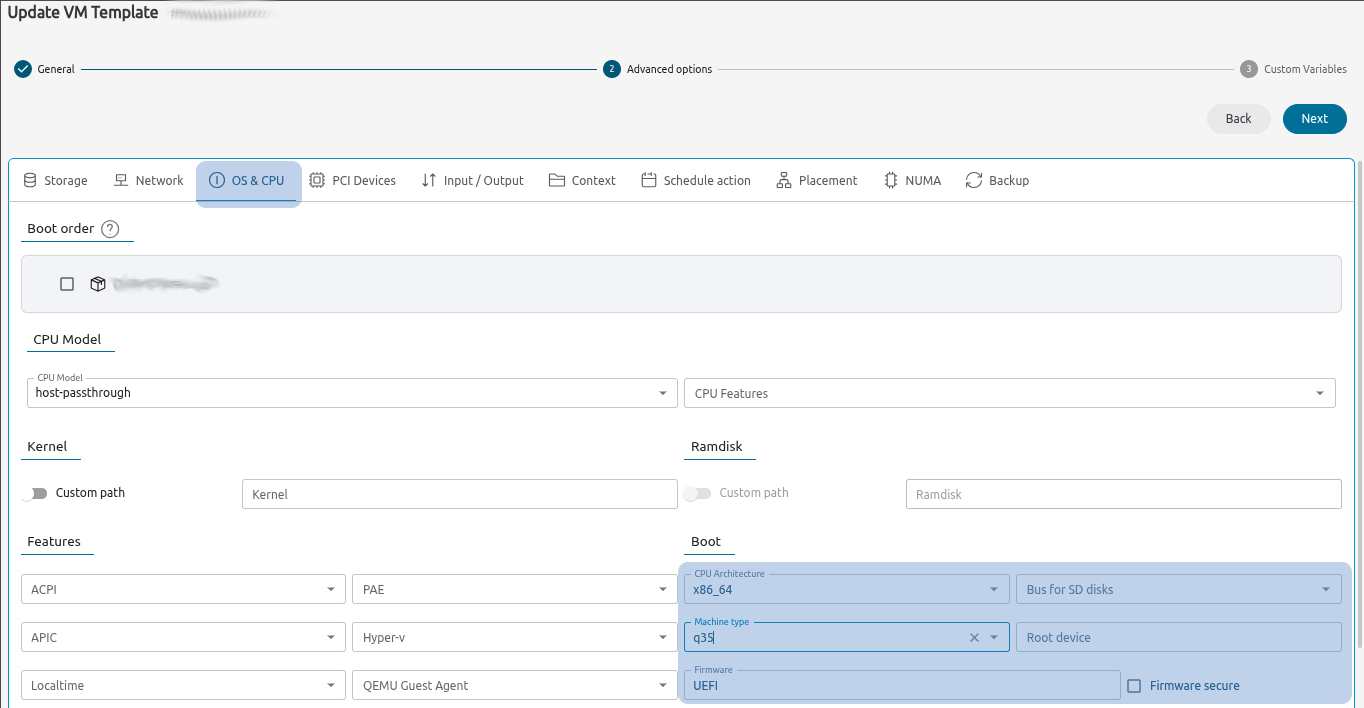
OneSwap normally detects if the VM boots in UEFI mode and sets up the OpenNebula template accordingly (including Secure Boot detection), but in some strange cases autodetection may fail. The firmware paths configured in the template can be customized with the --uefi-path and --uefi-sec-path options (by default OneSwap uses the OVMF firmware files shipped by the distribution, e.g. /usr/share/OVMF/OVMF_CODE_4M.fd on Ubuntu). If autodetection fails, modify the following options on the OpenNebula template:
- CPU architecture:
x86_64 - Machine type:
q35 - UEFI firmware: UEFI (for secure firmware the box must be checked)
oneswap usage
The oneswap tool provides three commands:
| Command | Description |
|---|---|
oneswap list <object> | List vCenter objects (vms, datacenters, clusters) |
oneswap convert <vm_name> | Convert one (or a batch of) vCenter Virtual Machines |
oneswap import | Import an OVA as a VM or a VMDK as an Image (see Managing OVAs and VMDKs) |
For convenience, it is a good practice to populate the /etc/one/oneswap.yaml file with the values that will apply for most migrated VMs (vCenter credentials, datastore, network, transfer options, etc.). If the user running oneswap has no permissions to edit the file, it can be copied, modified and oneswap executed with the parameter --config-file NEW_CONFIG_FILE.yaml. Options given on the command line are merged with the ones in the configuration file.
OneSwap logs all the operations to /var/log/one/oneswap.log. To increase the log verbosity, set the environment variable ONE_SWAP_DEBUG before running the command.
Listing vCenter resources
Before migrations, oneswap can query vCenter VMs, Data Centers and Clusters (vCenter 7, 8 and 9 are supported):
| Command | Output |
|---|---|
oneswap list datacenters | Lists Data Centers |
oneswap list clusters [--datacenter DCName] | List Clusters (can filter by Data Center) |
oneswap list vms [--datacenter DCName [--cluster ClusterName]] | List VMs on vCenter. Cluster needs the Data Center name. |
The VM listing shows for each VM its vCenter reference, name, power state, ESXi host, CPU, memory and the capacity of each of its disks. The list can be filtered with the following options:
--name text: filter by VM name containingtext.--datacenter text/--cluster text: filter by Data Center / Cluster name.--state vm_state: filter VMs by their power state:poweroff,runningorsuspended.
Transfer methods
There are four methods to transfer the images from vCenter/ESXi to the conversion host:
- vCenter API (default)
- The disks are downloaded by
virt-v2vthrough the vCenter API (vpx://). No extra options are needed, but it is usually the slowest option.
- The disks are downloaded by
- VDDK Library (
--vddk /path/to/lib)- Use the VMware Virtual Disk Development Kit library, usually the fastest transfer method.
- Requires the nbdkit VDDK plugin, see VDDK Transfer Support.
- ESXi Direct SSH transfer (
--esxi,--esxi-user,--esxi-pass)- Copy the disk via SSH from the ESXi host, which may be useful if the vCenter download is slow. Incompatible with VDDK.
- The vCenter credentials are still required to gather the VM information.
- Hybrid (
--hybrid)- Use the RbVmomi2 library to download the image locally, then convert it with a local
virt-v2vrun. - Fast, but requires extra disk space as it copies the image. Incompatible with
--custom,--esxiand--vddk.
- Use the RbVmomi2 library to download the image locally, then convert it with a local
A custom conversion option (--custom) is also provided, which is only recommended as a fallback, that does not use virt-v2v. It relies on RbVmomi2, using qemu-img and virt-customize/guestfish to prepare the image for OpenNebula. It can be useful for guest distributions which are not supported by virt-v2v or which fail to convert, but it does not support Windows guests. With --fallback, OneSwap first attempts the virt-v2v conversion and automatically retries with the custom conversion process if it fails. --fallback and --custom cannot be combined.
Converting Virtual Machines
The basic conversion of a single VM only requires the VM name and the vCenter credentials (which can also be stored in /etc/one/oneswap.yaml):
VOPTS='--vcenter 12.34.56.78 --vuser Administrator@vsphere.local --vpass changeme123'

# Convert a virtual machine
oneswap convert vm-1234 $VOPTS [--fallback|--custom] [--network ID] [--datastore ID]

# Convert a virtual machine transferring directly from ESXi
oneswap convert vm-1234 $VOPTS --esxi 12.34.56.79 --esxi-pass changeme123 [--esxi-user root]

# Convert a vCenter virtual machine utilizing the proprietary VDDK library (usually faster)
oneswap convert vm-1234 $VOPTS --vddk /path/to/vddk-lib

# Convert without powering off the original VM (clone mode)
oneswap convert vm-1234 $VOPTS --clone

# Convert a running VM with low downtime (delta mode, requires passwordless SSH to the ESXi host)
oneswap convert vm-1234 $VOPTS --delta

# Convert using OpenNebula Custom Conversion (no virt-v2v)
oneswap convert vm-1234 $VOPTS --custom
The conversion creates one OpenNebula Image per VM disk (named <vm_name>_<index>, in the Image Datastore selected with --datastore, default ID 1) and a VM Template with the equivalent capacity (CPU, vCPU, memory), NICs, firmware and graphics configuration. Disk conversion takes place in the working directory (--work-dir, default /var/tmp), where a subdirectory is created for each VM; with --delete-after the leftover conversion directory is removed once the images are transferred. The disk format can be selected with --format (qcow2, the default, or raw), and a custom virt-v2v executable can be set with --v2v-path.
Batch conversion
Multiple VMs can be converted sequentially in a single run, either from a file or inline:
# One VM name per line; empty lines and lines starting with # are ignored
oneswap convert --vm-list /path/to/vms.txt $VOPTS [--fallback|--custom|--hybrid]

# Comma-separated list of VM names
oneswap convert --vms vm-web-01,vm-db-01,vm-app-01 $VOPTS [--fallback|--custom|--hybrid]
The VMs are converted one at a time; if a conversion fails, the batch continues with the remaining VMs. At the end, a summary is printed with the total number of VMs requested, the successful conversions and the list of failed VMs. The command exits with code 0 if all the VMs were converted successfully and 1 otherwise. The positional VM name, --vms and --vm-list are mutually exclusive.
Prechecks
Before starting a conversion, OneSwap runs a set of prechecks against the destination OpenNebula cloud and the conversion host, and aborts early when:
- The target Image Datastore does not have enough free space for the VM disks.
- An Image named
<vm_name>_<n>or a VM Template named after the VM already exists in OpenNebula. - The OpenNebula Virtual Network passed with
--networkdoes not exist. --vddkis used but the nbdkit VDDK plugin is not installed (see VDDK Transfer Support).
For Windows guests, OneSwap also warns when the conversion host lacks CompactOS/WOF support (see Windows CompactOS Support). The prechecks can be skipped with --skip-prechecks.
Network mapping
For each NIC of the source VM, OneSwap looks for an OpenNebula Virtual Network whose VCENTER_NETWORK_MATCH attribute matches the name of the vCenter network the NIC is attached to. If no network matches, the OpenNebula Virtual Network ID passed with --network is used as a fallback (a comma-separated list of IDs, one per NIC, can also be passed). The NIC addresses copied from vCenter can be controlled with:
--skip-ip: do not pull the IP addresses from vCenter to be created in OpenNebula.--skip-mac: do not pull the MAC addresses from vCenter to be created in OpenNebula.
Contextualization and guest packages
OneSwap injects the OpenNebula context packages into the guest, automatically detecting the operating system. The packages are searched by default in /usr/share/one/context, and a different directory can be set with --context-package. The injection behavior can be tuned with the following options:
--inject-dns host|ip: passhostto copy the conversion host’s/etc/resolv.confinto the guest, or pass one or more comma-separated DNS server IPs (e.g.8.8.8.8or8.8.8.8,1.1.1.1) to generate a customresolv.conf. Useful when the guest needs working DNS resolution on first boot.--context-min-free MB: minimum free space (in MB) required on the guest root filesystem before context injection. If free space is below this threshold OneSwap warns and skips the injection. Set to0to disable the check. Default:1024.--context-fail-on-low-space: fail the disk conversion instead of warning and skipping when the guest root filesystem free space is below--context-min-free.--context-timeout SECONDS: maximum time allowed for each context injection command before it is aborted. Set to0to disable. Default:600.--disable-contextualization: remove the default contextualization options in the OpenNebula template (by default Network and SSH contextualization are enabled).
Additional guest software can be injected during the conversion:
--virtio /path/to/iso: full path of the win-virtio ISO file, required to inject VirtIO drivers into Windows guests.--virt-tools /path/to/virt-tools: path to the directory containingrhsrvany.exe, defaults to/usr/local/share/virt-tools(see Required software for migrating Windows Virtual machines).--win-qemu-ga /path/to/iso: install the QEMU Guest Agent into a Windows guest.--qemu-ga: install theqemu-guest-agentpackage into a Linux guest, useful with--customor--fallback.--remove-vmtools: inject a firstboot script that removes VMware Tools from the guest on its first boot in OpenNebula (supported for both Linux and Windows guests, including Windows Server 2025).
--custom conversions, injecting VirtIO drivers or the Windows QEMU Guest Agent requires virt-customize >= 1.49.9.Ownership and placement in OpenNebula
By default the migrated objects belong to the user running the OpenNebula CLI commands. The following options control the ownership and scheduling of the created Images and VM Template:
--one-user user/--one-group group: assign the migrated objects (Images, VM Template) to this OpenNebula user/group (name or numeric ID).--one-cluster id: ID of the OpenNebula Cluster the VM Template should be scheduled to.--one-host id: ID of the OpenNebula Host the VM Template should be scheduled to.--one-sys-ds id: ID of the System Datastore in OpenNebula the VM should be scheduled to.--one-ds-cluster id: ID of the Cluster in OpenNebula the System Datastore should be scheduled to.
Customizing the created VM Template
The capacity and devices of the created VM Template default to the values read from vCenter, and can be overridden with:
--cpu cpus/--vcpu vcpus: physical CPU / vCPU values to set in OpenNebula. Default is to match the CPU cores in vCenter.--memory-max memorymb/--vcpu-max vcpumax: maximum memory (MB) and vCPU values for hot resize. Memory/CPU Hot Add must be enabled in VMware (when enabled in vCenter, hot resize is configured automatically in the template).--cpu-model model_type: set a specific CPU model in OpenNebula. Default is none (for Windows guests,host-passthroughis set automatically).--dev-prefix prefix: the dev prefix to use on the disks in OpenNebula (e.g.sd,hd,vd,xvd). Default is none (Windows disks default tovd).--persistent-img: make the created images persistent in OpenNebula.--img-wait sec: the amount of time to wait for each image to be created in OpenNebula. Default is 120 seconds.--graphics-type type: graphics type to enable in OpenNebula (vnc,sdl,spice), with the related--graphics-listen,--graphics-port,--graphics-keymap,--graphics-passwordand--graphics-commandoptions.--uefi-path /path/to/uefi/--uefi-sec-path /path/to/uefi.secboot: paths to the UEFI (Secure Boot) firmware files to be configured in the VM template for UEFI guests.--root option: choose the root filesystem to be converted when the guest has several (ask,single,firstor/dev/sdX). Default:first.
Running OneSwap on a dedicated server
When oneswap runs on a server different from the OpenNebula frontend, the converted images cannot be registered from a local path. In this case OneSwap can serve the converted disks to the frontend over HTTP:
--http-transfer: transfer images over HTTP. OneSwap starts a temporary HTTP server during the image registration.--http-host host: IP of the OneSwap machine the frontend will download the images from. Autodetected if not specified.--http-port port: port of the temporary HTTP server. Default:29869.
Using an alternative OpenNebula endpoint (--endpoint) requires HTTP transfer to be enabled. Make sure the OpenNebula frontend can reach the OneSwap server on the configured port.
GIVE FEEDBACK
Was this resource helpful?
Glad to hear it
Sorry to hear that