Automatic Installation with miniONE
Automatic installation of an OpenNebula Front-end can be achieved using the miniONE quick installation script. The miniONE installation script automatically configures the target server to deploy a stripped-down version of OpenNebula with the essential modules to run a cloud Cluster. After installing miniONE, you will be able to deploy Virtual Machines, provision Clusters with on-premises or cloud resources and manage your cloud using the command line, the API or the Sunstone user interface.
Prerequisites
You may wish to install the miniONE OpenNebula Front-end on its own dedicated machine, that is only intended for management and not workload, in which case you should follow the guidelines for “Front-end only”. You may also install the miniONE OpenNebula Front-end on the same machine you intend to use for compute workloads, in which case you should consider your intended use-case, guidance is given below for a small Kubernetes Cluster and an AI Factory.
You may use on-premises hardware, virtual or bare-metal resources from a cloud provider to install miniONE. If you are intending to use the target machine only for the OpenNebula Front-end and not Cluster workloads, a Virtual Machine meeting the requirements given below would suffice. If you are intending to use the target machine for Cluster workloads, particularly Kubernetes workloads, it is highly recommended to use a bare-metal instance.
To install miniONE it is important to meet the following prerequisites for the machine on which you intend to install miniONE:
Supported operating systems:
- RHEL/AlmaLinux 9 or 10
- Debian 12 or 13
- Ubuntu 22.04 or 24.04
- openSUSE 16.0, SLES 15.7
- See the Platform Notes for further details on compatible operating systems
Minimum hardware:
Front-end only:
- 16 GiB RAM
- 80 GiB free disk space
Kubernetes:
- 64 GiB RAM
- 120 GiB free disk space
AI Factory:
- 128 GiB RAM
- 512 GiB free disk space
- NVIDIA L40S or H100 GPU
Configuration:
- Access to the privileged user (root) account
- An SSH server running on port 22
- Open ports:
- 22 (SSH)
- 80 (for the web UI)
Installing miniONE
Log in to the machine on which you intend to install miniONE (or use SSH on remote hardware). Open a terminal and switch to the root user with the sudo command:
sudo -i
Download miniONE, run:
wget 'https://github.com/OpenNebula/minione/releases/download/v7.2.0/minione'
Make the minione script executable:
chmod +x minione
Now run the installation script:
./minione
--password option to enter a secure and memorable password of your own: ./minione --password <password>The miniONE script executes the installation while logging output to the terminal. Installation usually takes between one and three minutes on most machines. Once finished, miniONE displays a report in the terminal with connection parameters and login credentials:
### Report
OpenNebula 7.0 was installed
Sunstone is running on:
  http://192.168.1.130/
Use following to login:
  user: oneadmin
  password: ZMCoOWUsBg
Please take a note of the IP address and login credentials, you will need them later.
Finally update the localhost status:
sudo -u oneadmin onehost sync --force
This command might take 2-3 minutes to complete, check the status of the localhost periodically with sudo -u oneadmin onehost list until the STAT column of the localhost item reads on.
At this point, you have successfully installed miniONE. OpenNebula services should be running, and the system is ready for your first login.
Verify the Installation
Now verify the installation by logging in to OpenNebula’s Sunstone UI.
Point your browser to the Edge IP and port provided by the miniONE report, in this case 192.168.1.130, or simply to http://localhost. You should be greeted with the Sunstone login screen:
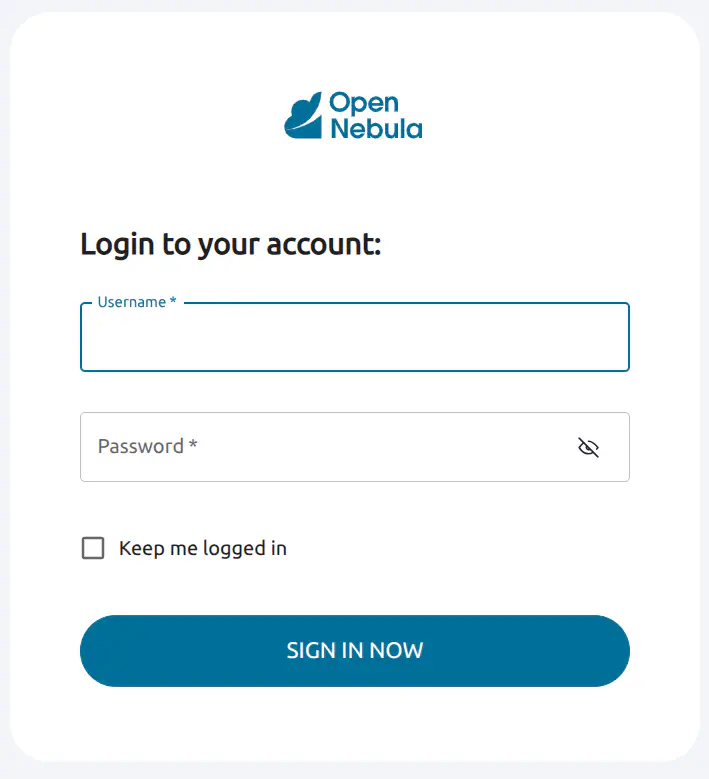
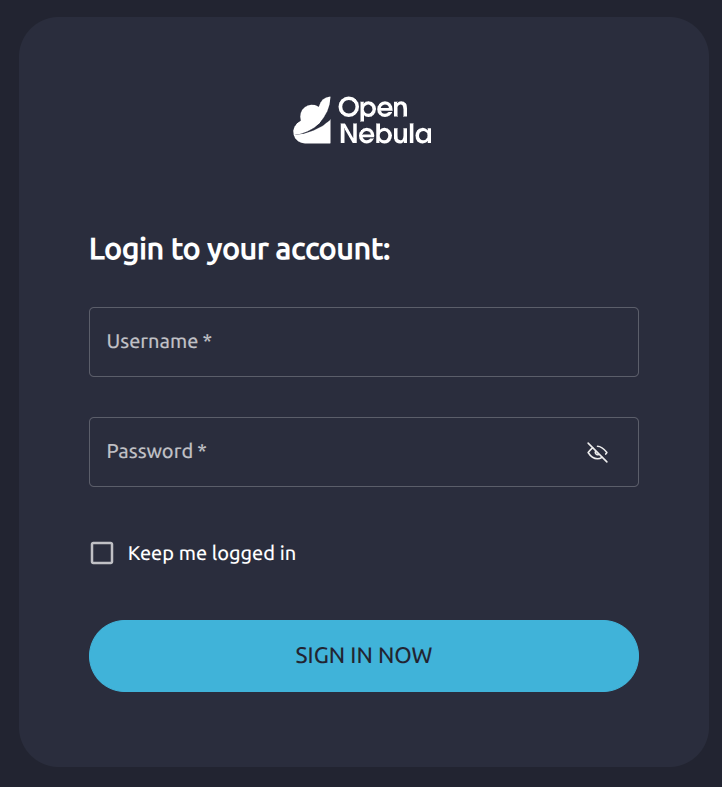
In the Username input field, type oneadmin. For Password, enter the password provided by miniONE at the end of the report (in this example, ZMCoOWUsBg) then press Enter or click SIGN IN NOW.
The screen will display the Sunstone Dashboard:
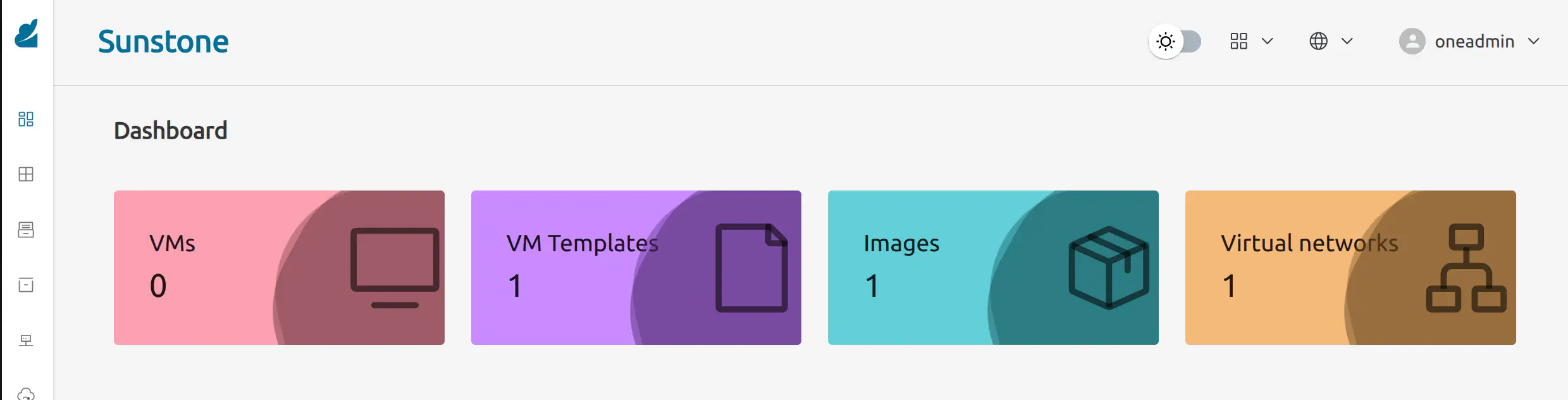
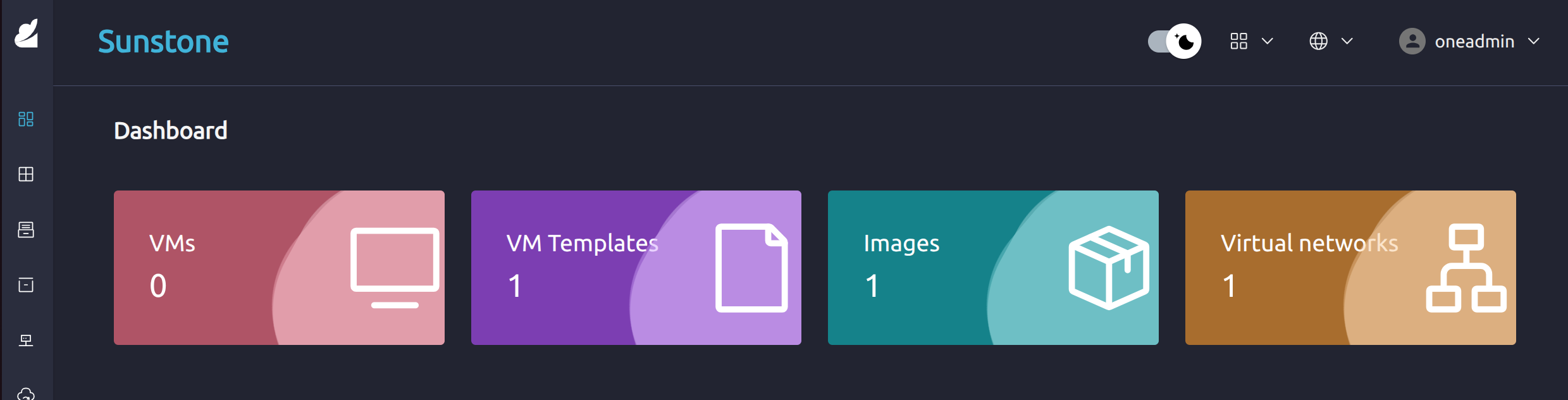
As you can see, the Dashboard indicates the following installed components:
- 1 VM template
- 1 image
- 1 Virtual Network
The existing Virtual Network is a bridged network attached to a local interface named vnet. To inspect this network, in Sunstone open the left-hand menu (hover the mouse over the left-hand sidebar), then click Networks –> Virtual Networks:
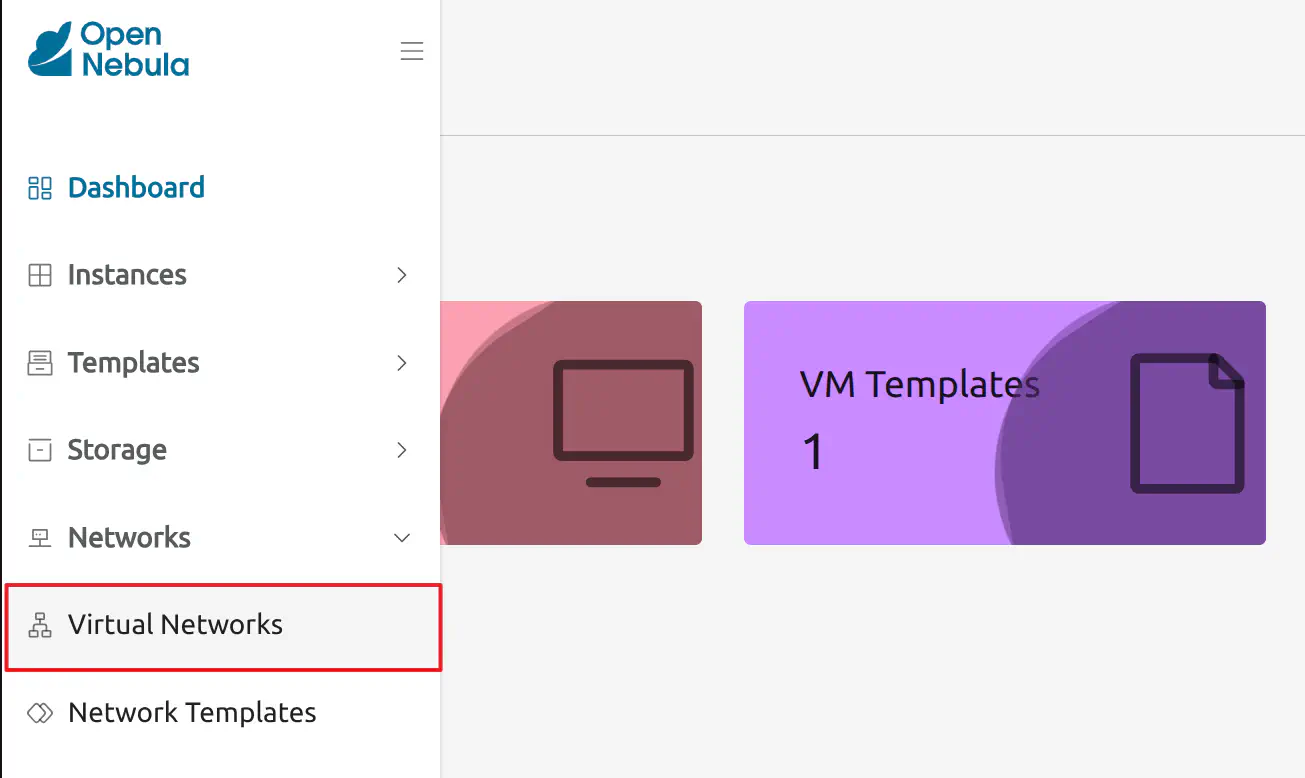
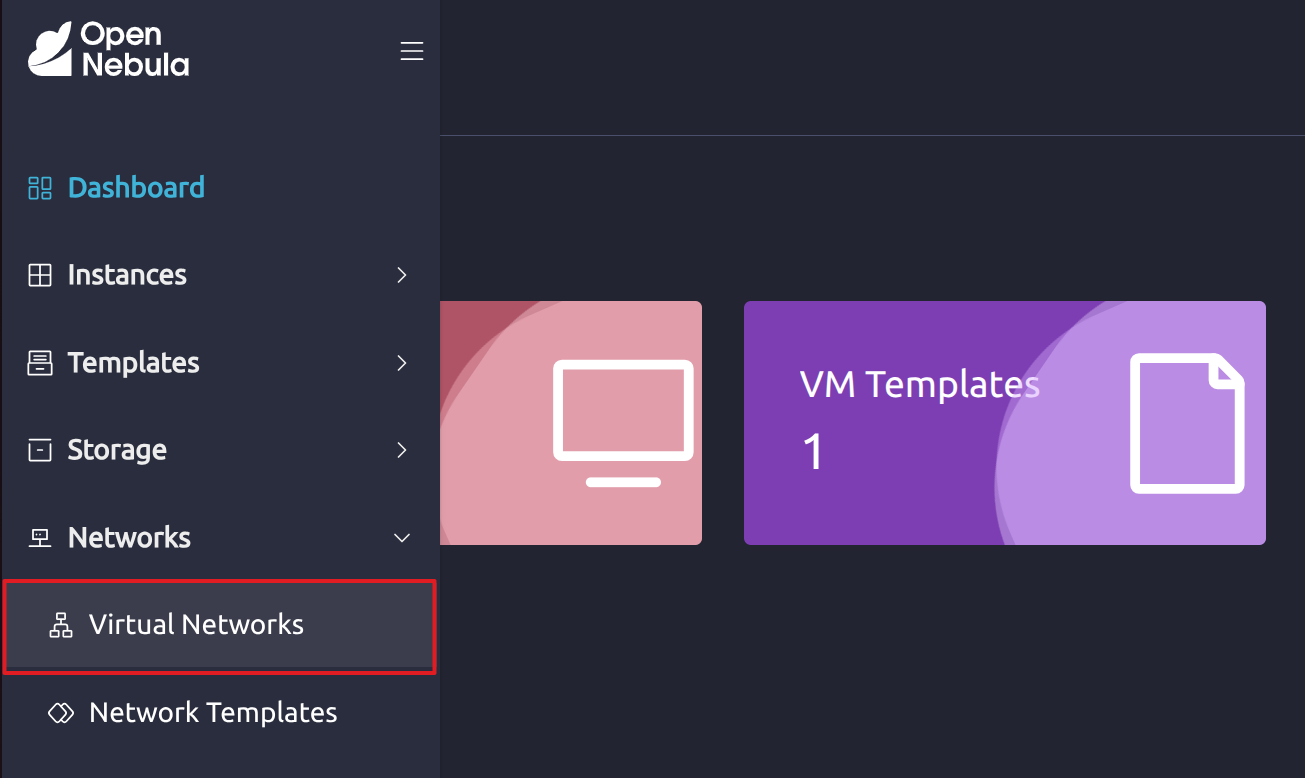
Sunstone will display the Virtual Networks screen. Click the item labelled vnet to display information about this network:
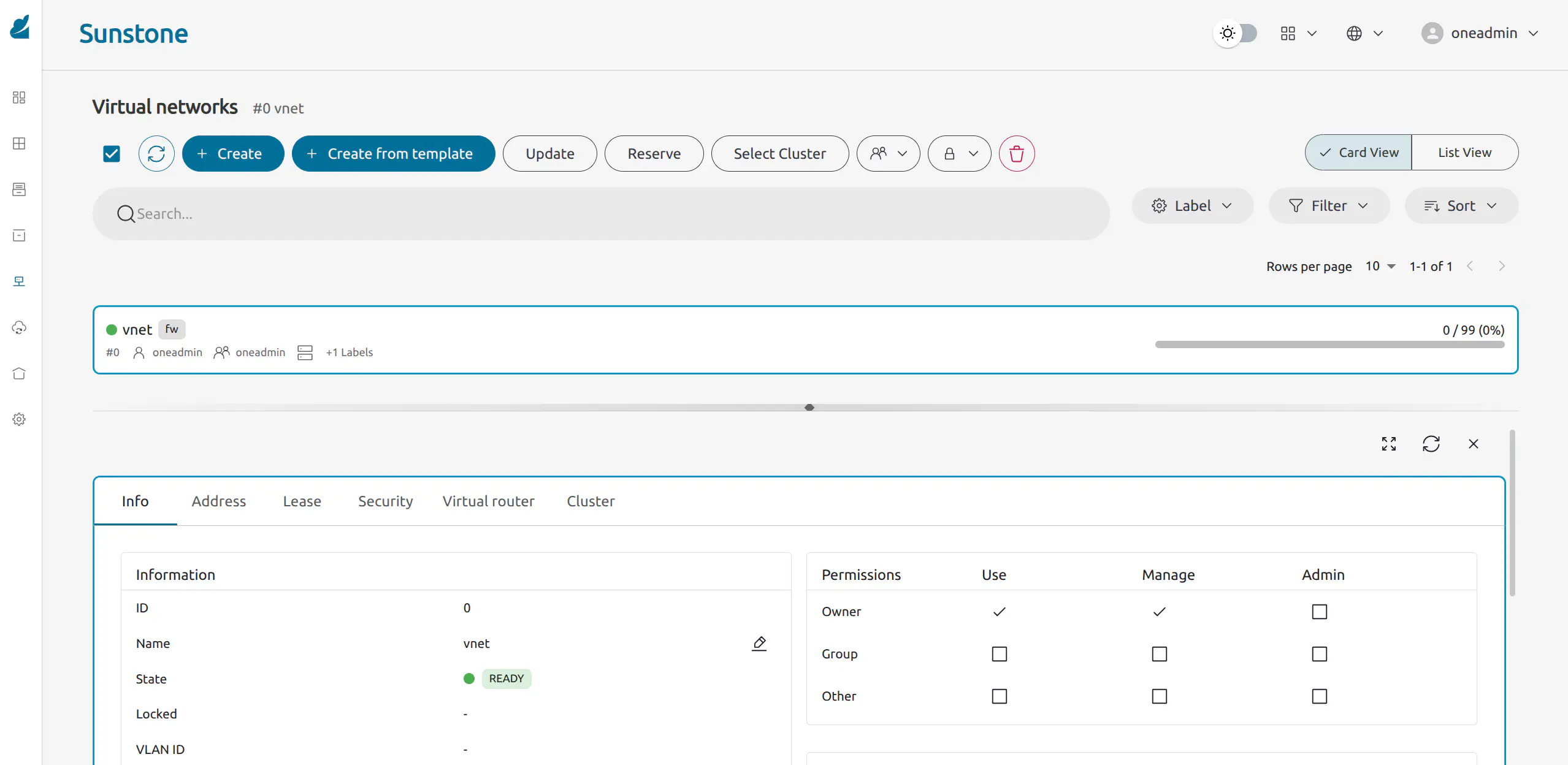
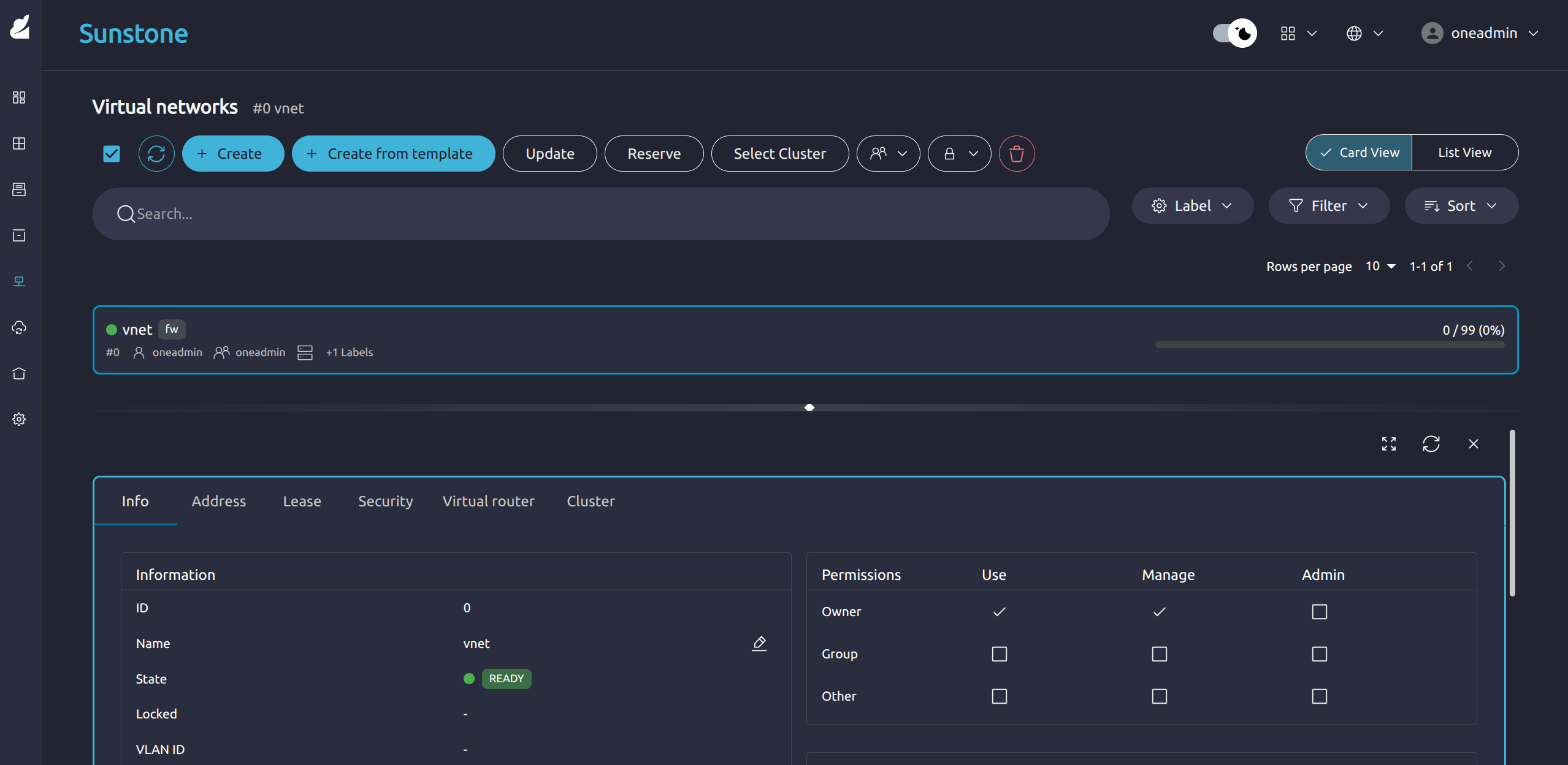
During installation, a KVM virtualization Host was automatically configured on the local machine. To inspect the KVM host, in Sunstone open the left-hand menu, then click Infrastructure -> Hosts.
Deploy a Virtual Machine Locally
miniONE automatically downloaded the template for a VM with Alpine Linux 3.20 preinstalled. Through the Sunstone UI, we can now instantiate this VM on the local KVM Host with a few clicks.
To deploy the Alpine Linux VM, in the left-hand sidebar go to Templates -> VM Templates. This screen displays a list of all VM templates installed on the system. In this case, only the Alpine Linux 3.20 template is installed:
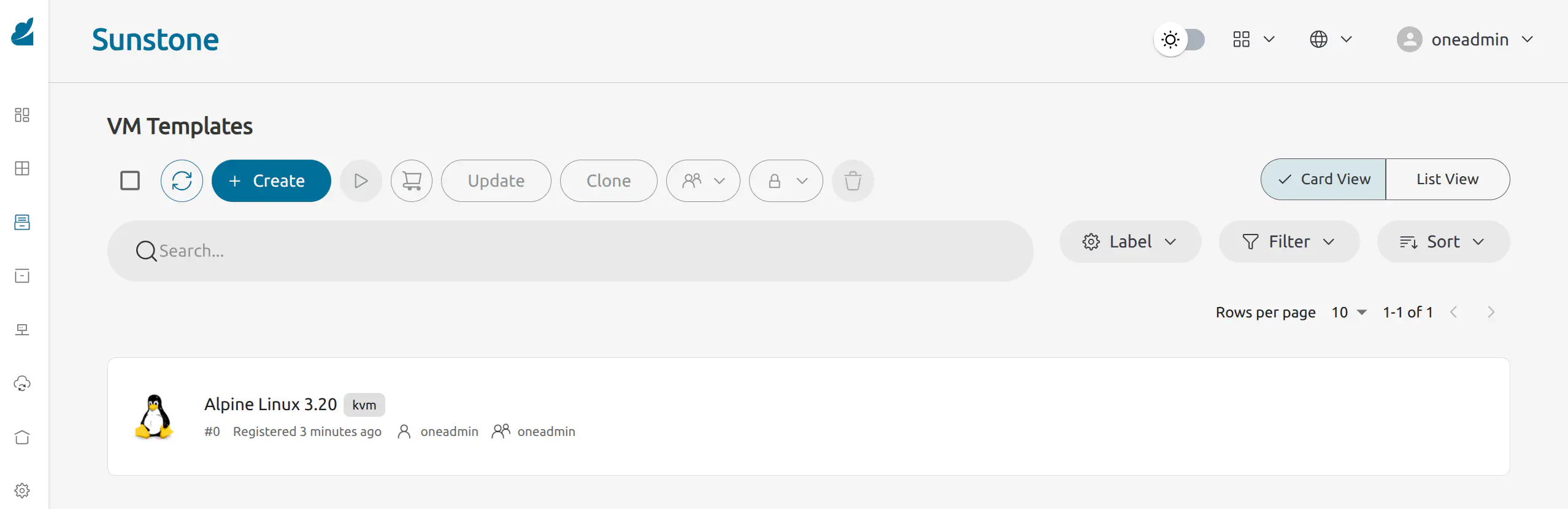
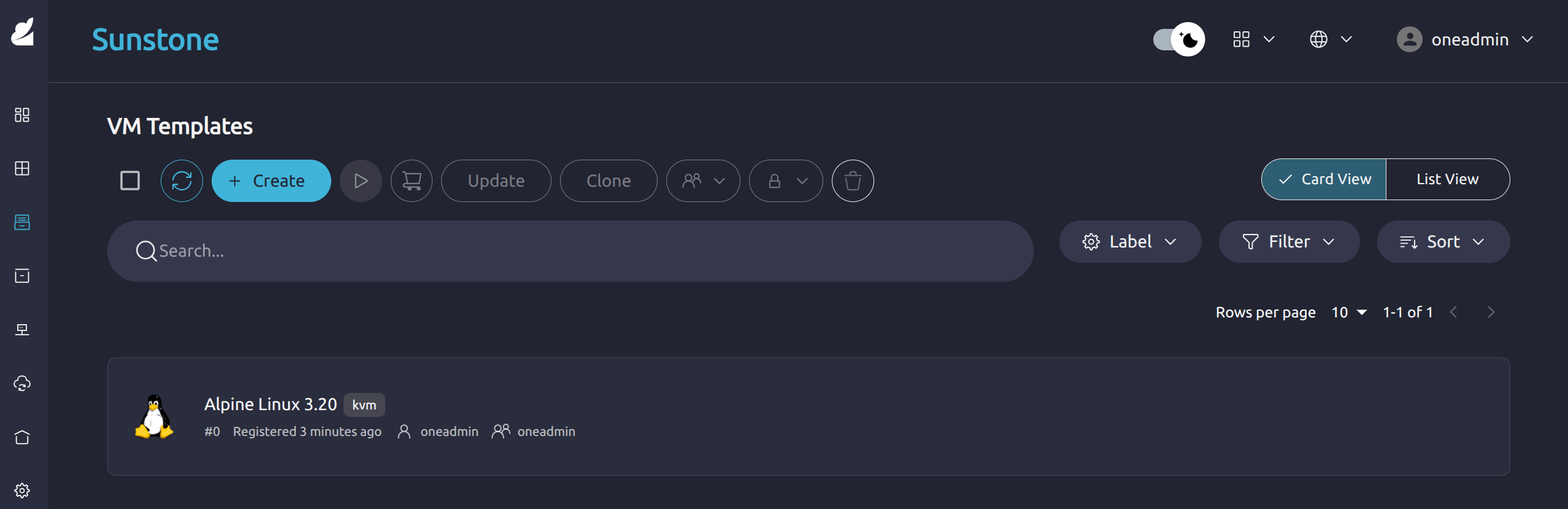
To instantiate the VM template, click the template item and click the Instantiate icon at the top.
Sunstone will display the first screen of the Instantiate VM Template wizard:
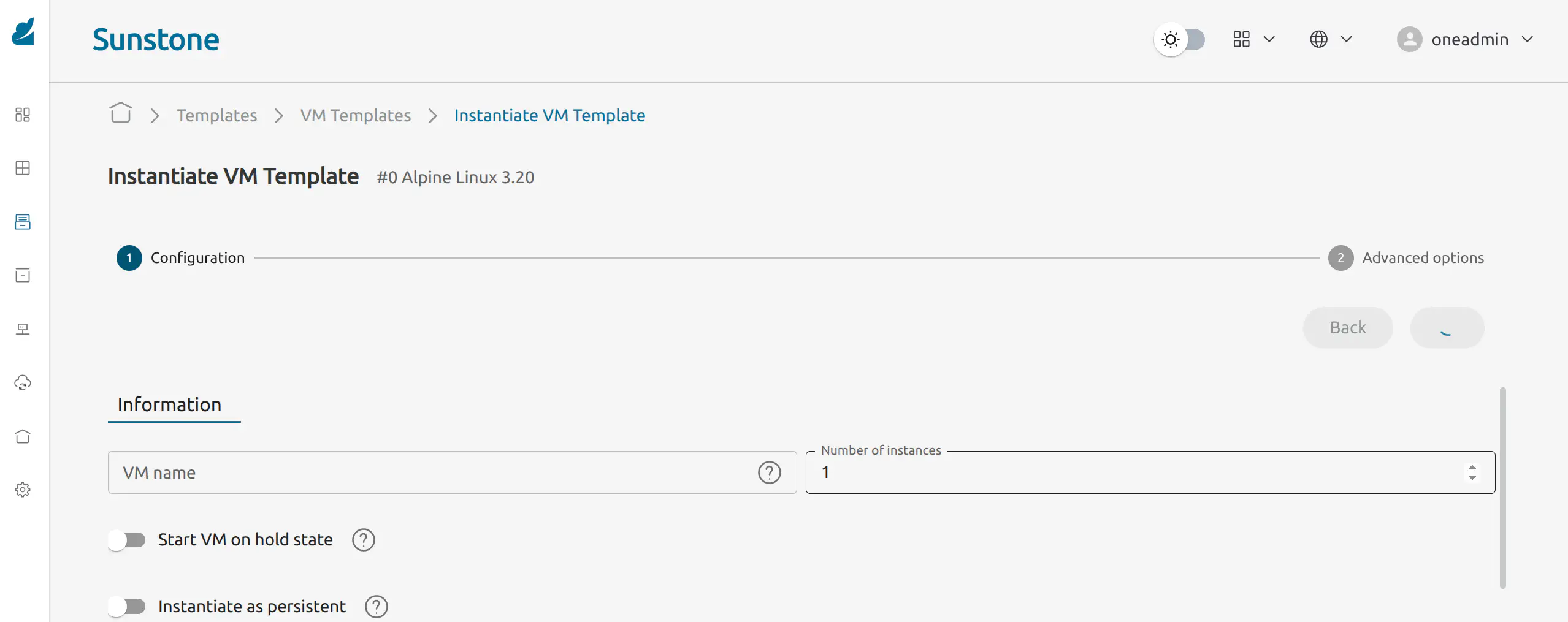
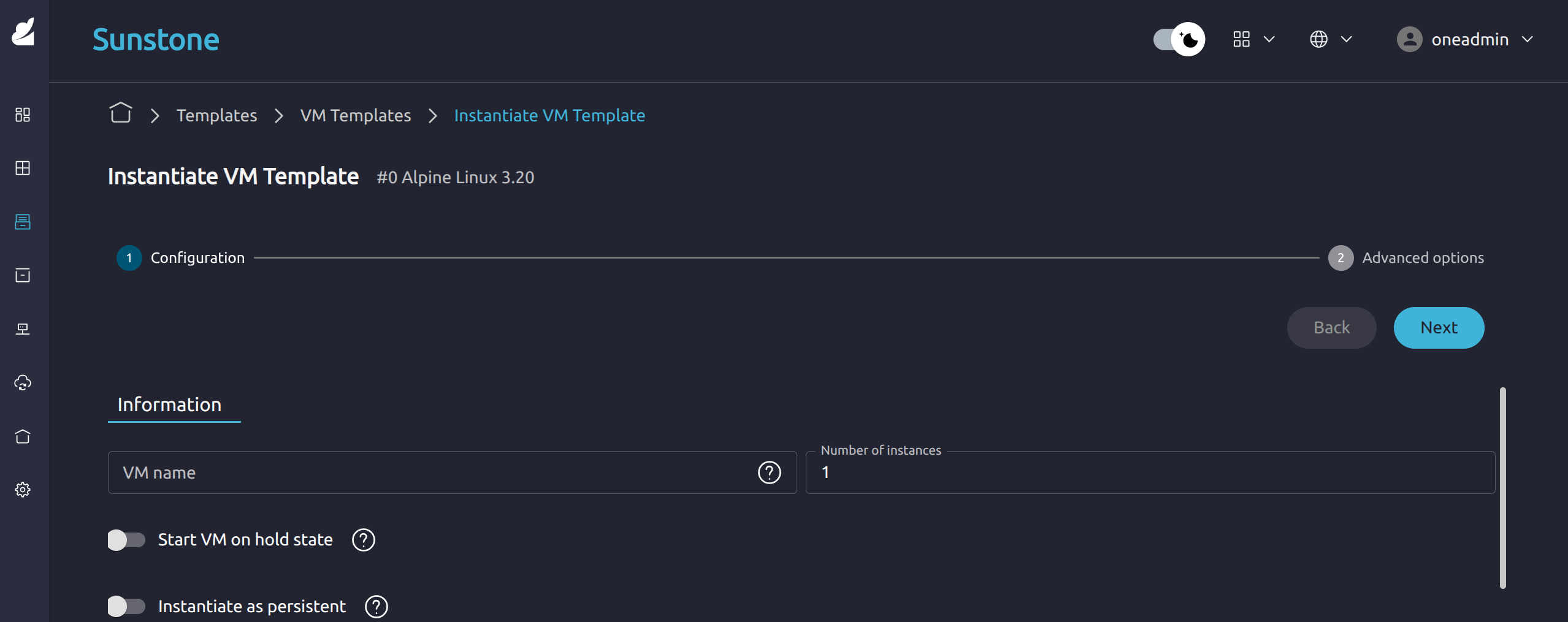
Leave the Capacity, Ownership and VM Group parameters with their default values. Click Next.
The next screen allows you to see and modify further parameters for the VM, including selecting the Virtual Network or scheduling actions.
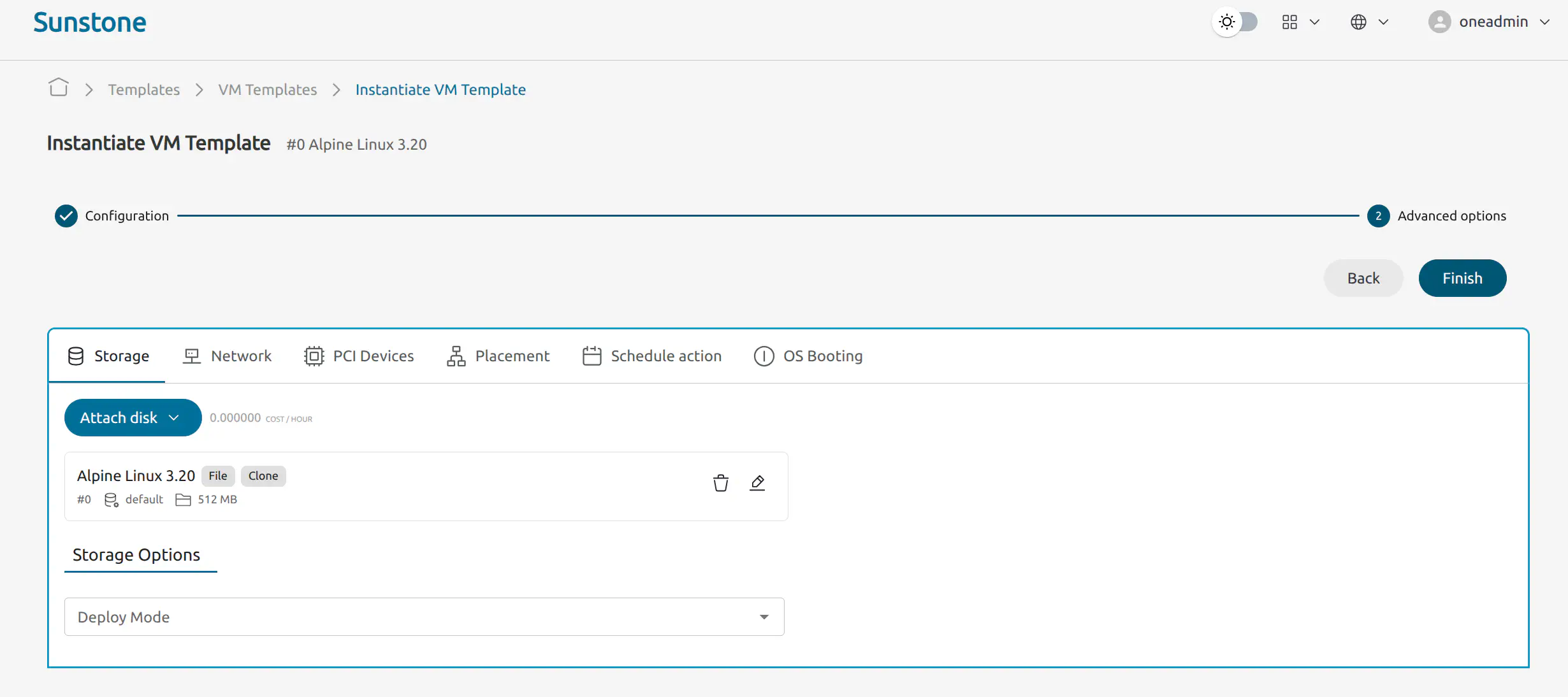
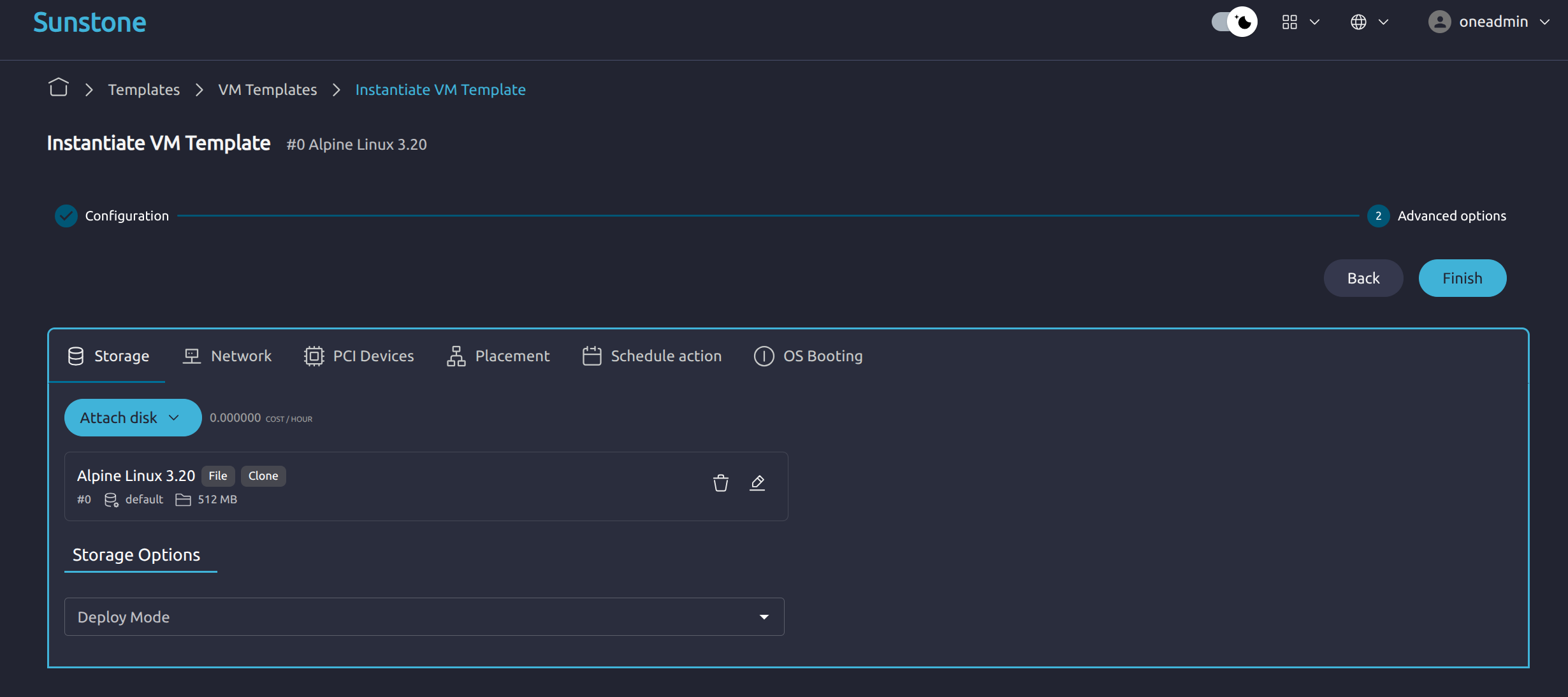
Click Finish.
OpenNebula will instantiate the VM template. For the Alpine Linux VM, this should take just a few seconds. Once instantiation is complete, Sunstone should display the Instances -> VMs screen, with the Alpine Linux VM as the sole instance:
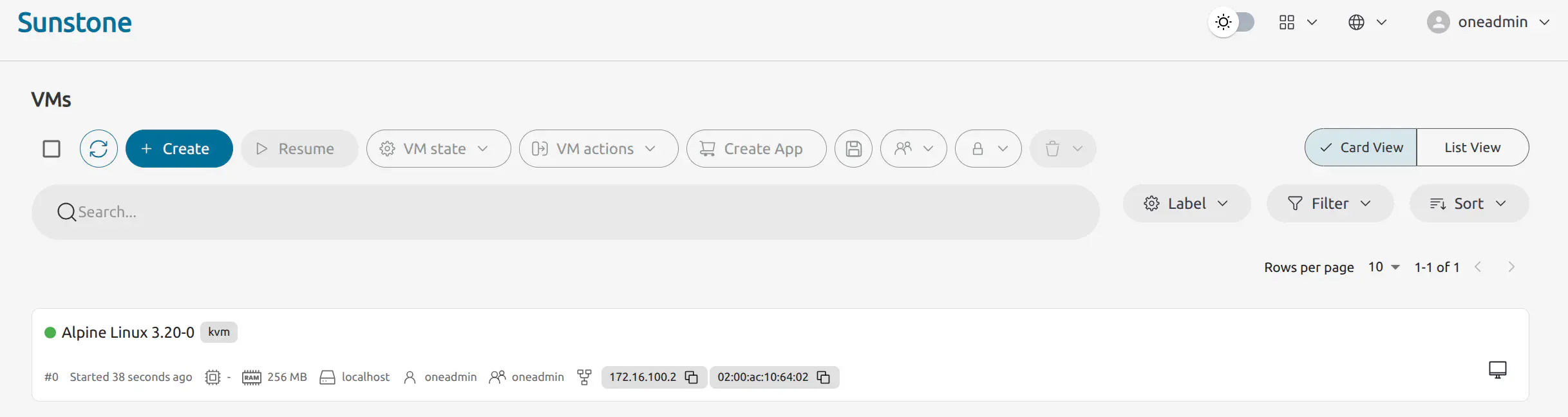
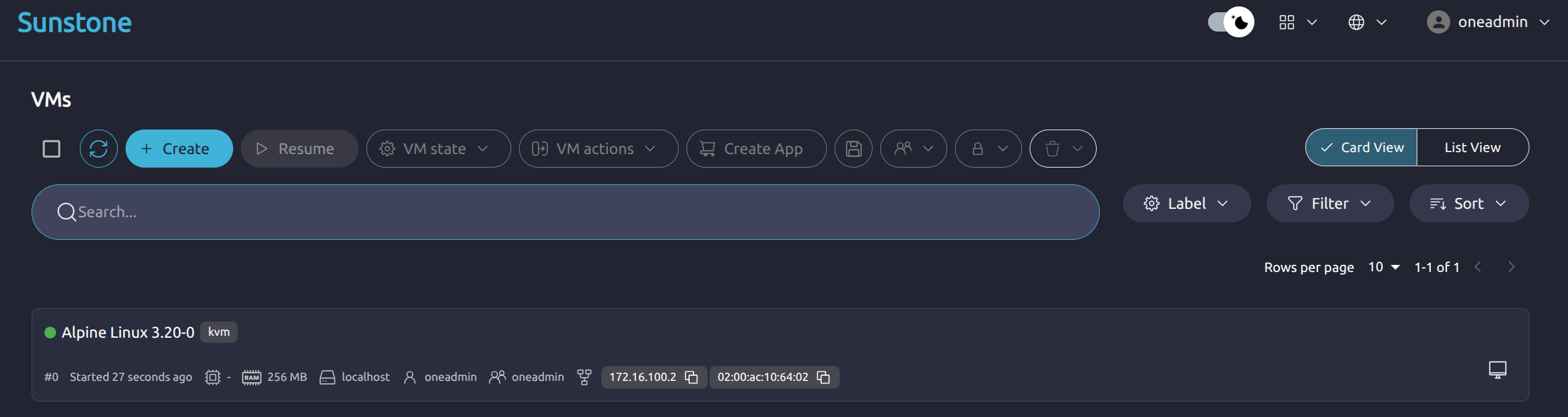
The green dot to the left of the VM name indicates that the VM is running. Note that you may need to click the Refresh icon
Log in to the Virtual Machine
The quickest way to log into the VM is by VNC, available directly in Sunstone. Just click the VNC icon and Sunstone will display the VM boot messages screen directly in your browser in another tab.
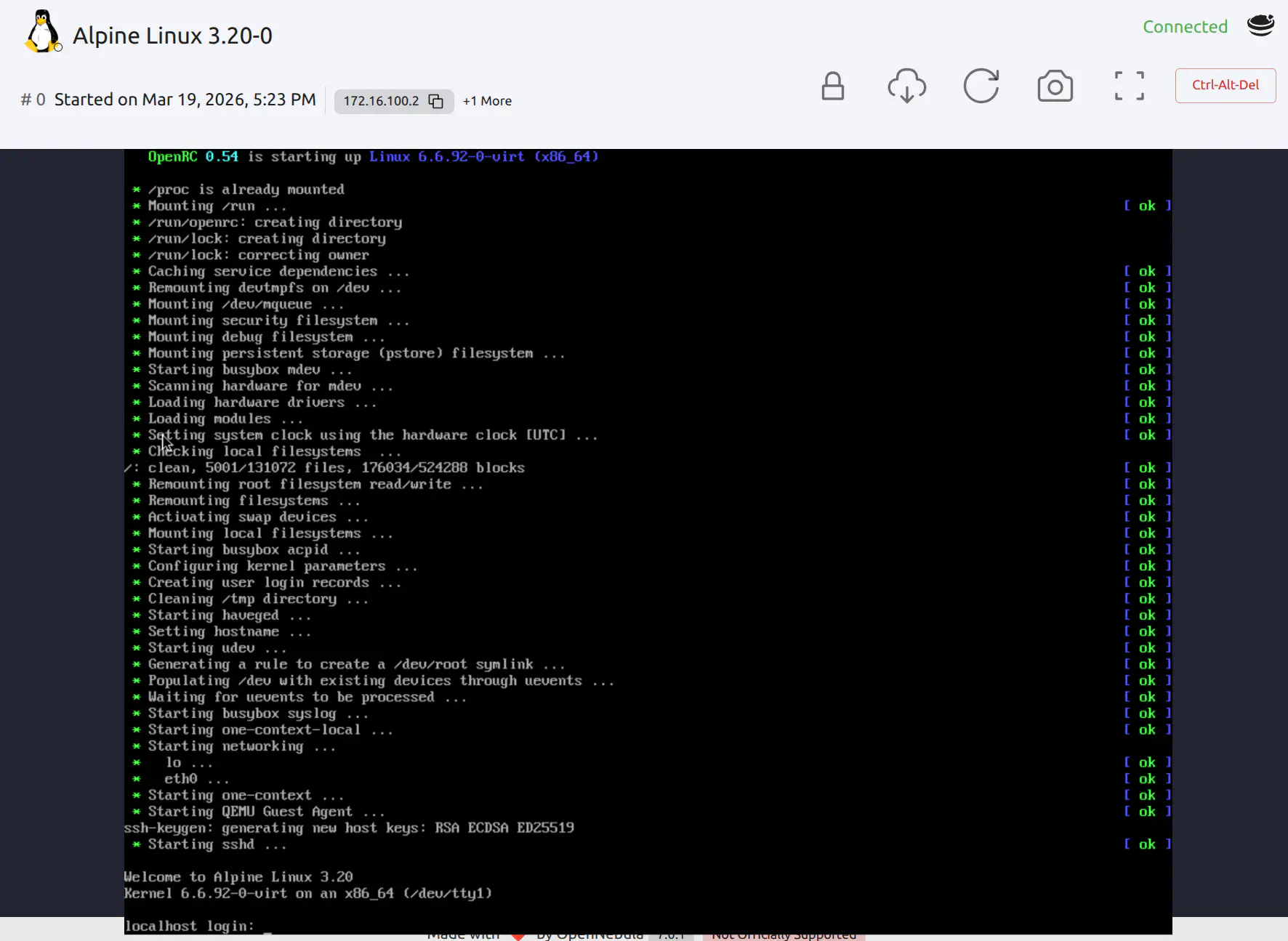
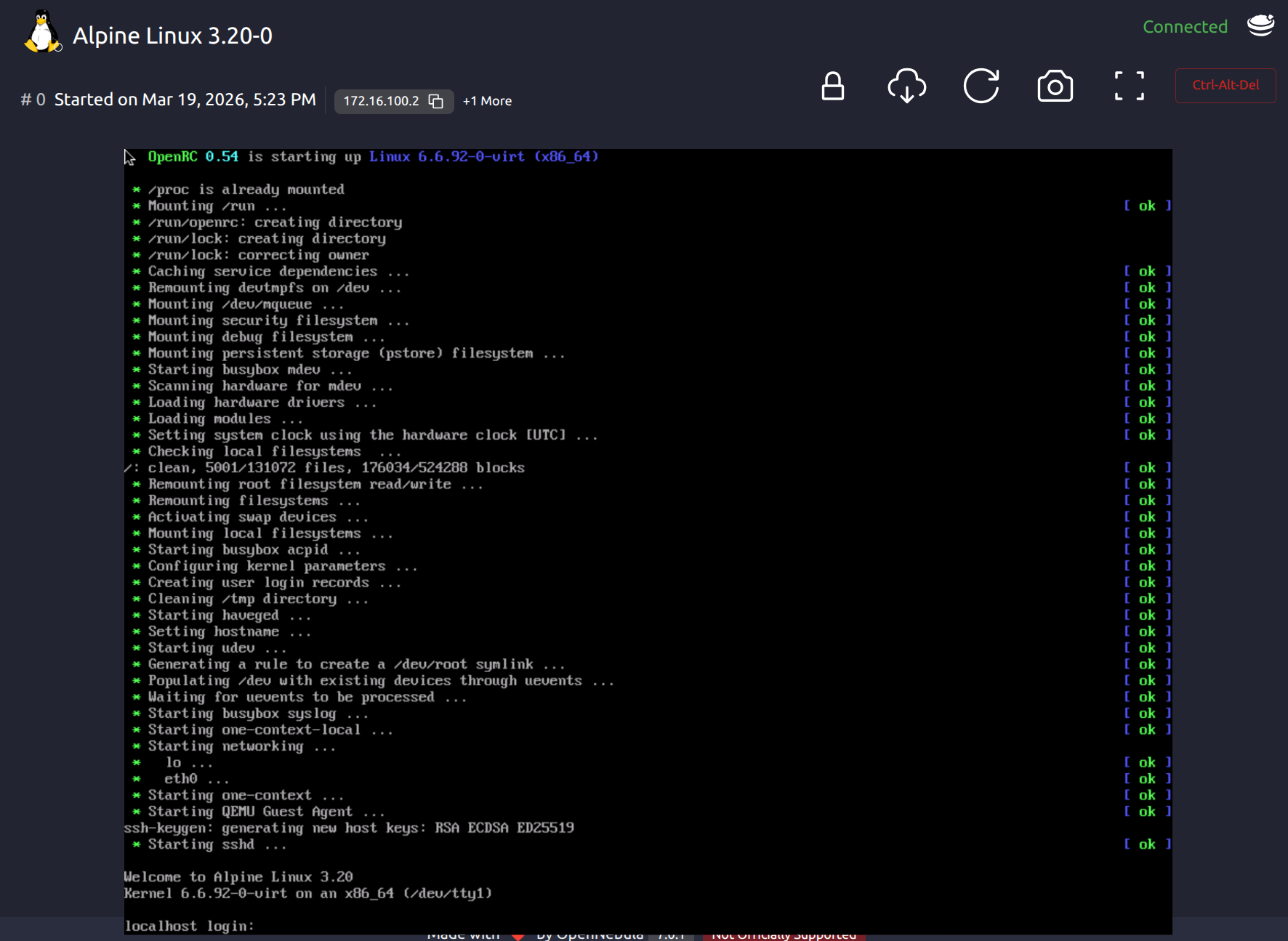
Log in as root with password opennebula. You can then use the command line to explore the VM and run processes:
- Try running
ping 1.1.1.1to test the internet connection - Try running
topto see the processes running on the machine
If the above procedure works, you have successfully installed miniONE and it is ready to deploy and manage your cloud infrastructure.
Next Steps
After completing the miniONE installation process and validation, you can proceed to deploy Clusters automatically or manually. Proceed to the Cluster Deployment Documentation for details.
You can also try deploying Kubernetes Clusters with the Kubernetes Quickstart Guides.
GIVE FEEDBACK
Was this resource helpful?
Glad to hear it
Sorry to hear that