OneGate Configuration
The OneGate server allows Virtual Machines to pull and push information from/to OpenNebula. It can be used with both the KVM and LXC hypervisors if the guest operating system has preinstalled the OpenNebula contextualization package. It’s a dedicated daemon installed by default as part of the Single Front-end Installation, but can be deployed independently on a different machine. The server is distributed as an operating system package opennebula-gate with the system service opennebula-gate.
Read more in OneGate Usage.
Recommended Network Setup
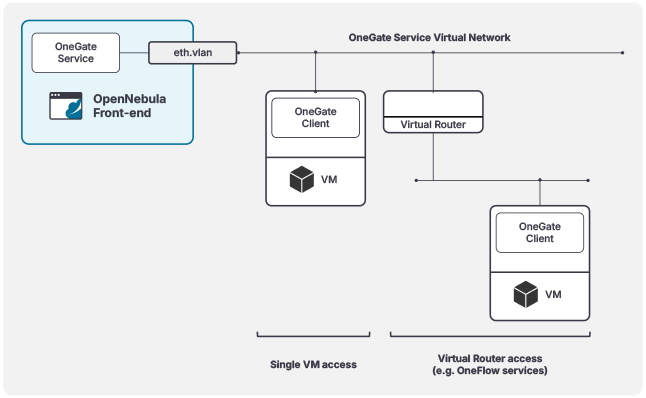
To use the OneGate Service, VMs must have connectivity to the service. We recommend setting up a dedicated Virtual Network, ideally on a separate VLAN, for OneGate access. To accomplish this, simply add a Virtual Network Interface (NIC) to the OneGate Service network for the VMs requiring access to the service. In cases where you’re deploying a multi-tier service, you can just add the virtual router to the OneGate Service network. The recommended network layout is illustrated in the diagram below:
Configuration
The OneGate configuration file can be found in /etc/one/onegate-server.conf on your Front-end. It uses YAML syntax, with the parameters listed in the table below.
| Parameter | Description |
|---|---|
| Server Configuration | |
:one_xmlrpc | Endpoint of OpenNebula XML-RPC API |
:host | Host/IP where OneGate will listen |
:port | Port where OneGate will listen |
:ssl_server | SSL proxy URL that serves the API (set if is being used) |
| Authentication | |
:auth | Authentication driver for incoming requests. * onegate based on tokens provided in VM context |
:core_auth | Authentication driver to communicate with OpenNebula core * cipher for symmetric cipher encryption of tokens* x509 for X.509 certificate encryption of tokensFor more information, visit the Cloud Server Authentication reference. |
| OneFlow Endpoint | |
:oneflow_server | Endpoint where the OneFlow server is listening |
| Permissions | |
:permissions | By default OneGate exposes all the available API calls. Each of the actions can be enabled/disabled in the server configuration. |
:restricted_attrs | Attributes that cannot be modified when updating a VM template |
:restricted_actions | Actions that cannot be performed on a VM |
:vnet_template_attributes | Attributes of the Virtual Network template that will be retrieved for Virtual Networks |
| Logging | |
:debug_level | Logging level. Values: 0 for ERROR level, 1 for WARNING level, 2 for INFO level, 3 for DEBUG level |
:expire_delta | Default interval for timestamps. Tokens will be generated using the same timestamp for this interval of time. THIS VALUE CANNOT BE LOWER THAN EXPIRE_MARGIN. |
:expire_margin | Tokens will be generated if time > EXPIRE_TIME - EXPIRE_MARGIN |
In the default configuration, the OneGate server will only listen to requests coming from localhost. Because the OneGate needs to be accessible remotely from the Virtual Machines, you need to change :host parameter in /etc/one/onegate-server.conf to a public IP of your Front-end Host or to 0.0.0.0 (to work on all IP addresses configured on Host).
Configure OpenNebula
Before Virtual Machines can communicate with OneGate, you need to edit /etc/one/oned.conf and set the OneGate endpoint in parameter ONEGATE_ENDPOINT. This endpoint (IP/hostname) must be reachable from the Virtual Machines over the network!
ONEGATE_ENDPOINT = "http://one.example.com:5030"
Restart the OpenNebula service to apply changes.
Service Control and Logs
Change the server running state by managing the operating system service opennebula-gate.
To start, restart, or stop the server, execute one of:
# systemctl start   opennebula-gate
# systemctl restart opennebula-gate
# systemctl stop    opennebula-gate
To enable or disable automatic start upon Host boot, execute one of:
# systemctl enable  opennebula-gate
# systemctl disable opennebula-gate
Server logs are located in /var/log/one in the following files:
/var/log/one/onegate.log/var/log/one/onegate.error
Other logs are also available in Journald. Use the following command to show these:
# journalctl -u opennebula-gate.service
Advanced Setup
Example: Use Transparent OneGate Proxy to Improve Security
Add the following config snippet to the ~oneadmin/remotes/etc/vnm/OpenNebulaNetwork.conf file on Front-end machines:
:tproxy:
# OneGate service.
- :service_port: 5030
  :remote_addr: 10.11.12.13 # OpenNebula Front-end VIP
  :remote_port: 5030
Propagate config to hypervisor Hosts, execute as oneadmin on the leader Front-end machine:
$ onehost sync -f
Deploy a guest Virtual Machine and test OneGate connectivity from within:
$ onegate vm show
Read more in Transparent Proxies.
GIVE FEEDBACK
Was this resource helpful?
Glad to hear it
Sorry to hear that