On-premises SSH Cluster
An SSH on-premises Cluster utilizes existing physical or virtual servers as OpenNebula Hosts, integrating with and configuring on-premises infrastructure. The on-premises Cluster deployment operates using KVM hypervisors.
On-premises SSH Cluster Implementation
Users must manually provide reachable IP addresses for each Host, ensuring that SSH connectivity functions correctly and system prerequisites are already met. The default OS is Ubuntu 22.04. The networking model is implemented as follows:
- Public Networking: Requires manually provided IP addresses or previously configured public IPs. IP forwarding rules must be managed manually.
- Private Networking: Uses BGP-EVPN and VXLAN to create private Virtual Networks among provided Hosts.
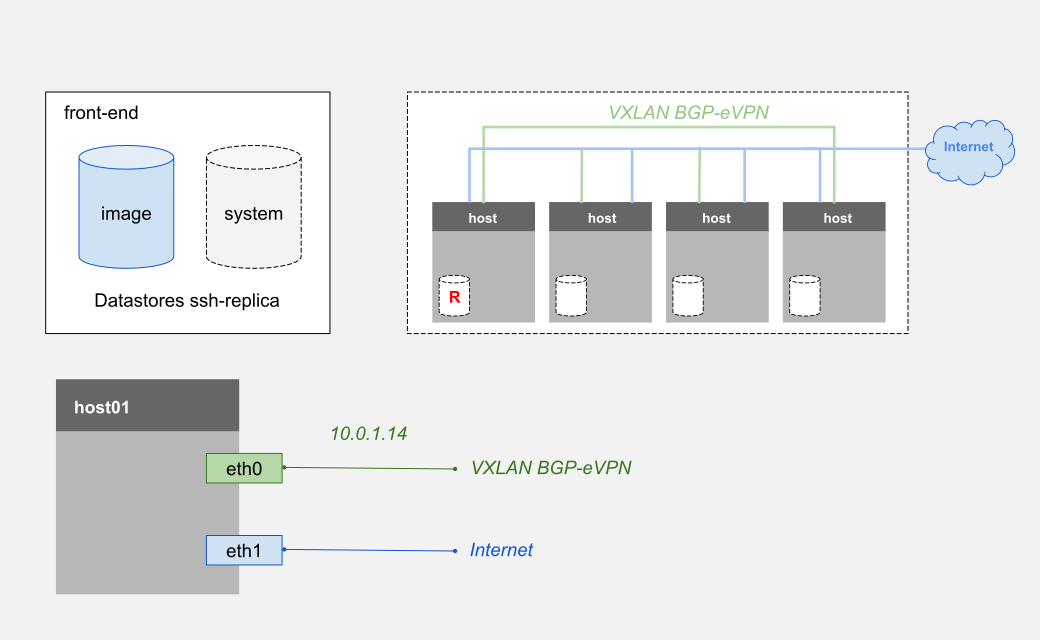
OpenNebula Resources
The following resources, which are associated with each on-premises Cluster, are created in OpenNebula:
- Cluster: Aggregating all other resources.
- Hosts: Corresponding to the provided IP addresses.
- Datastores: Image and system datastores configured with an SSH transfer manager that utilize the first provided Host as the datastore replica.
- Virtual Network: For public networking. This resource is configured manually.
- Virtual Network Template: For private networking.
Creating an On-premises Provision
Prerequisites
To create an on-premises Provision with SSH, you should use the On-premises Provider which is provided by default with the opennebula-form package installation.
Procedure
Select the relevant interface to create an on-premises Provision in your OpenNebula installation:
Step 1. Navigate to Infrastructure -> Clusters in the Sunstone sidebar:
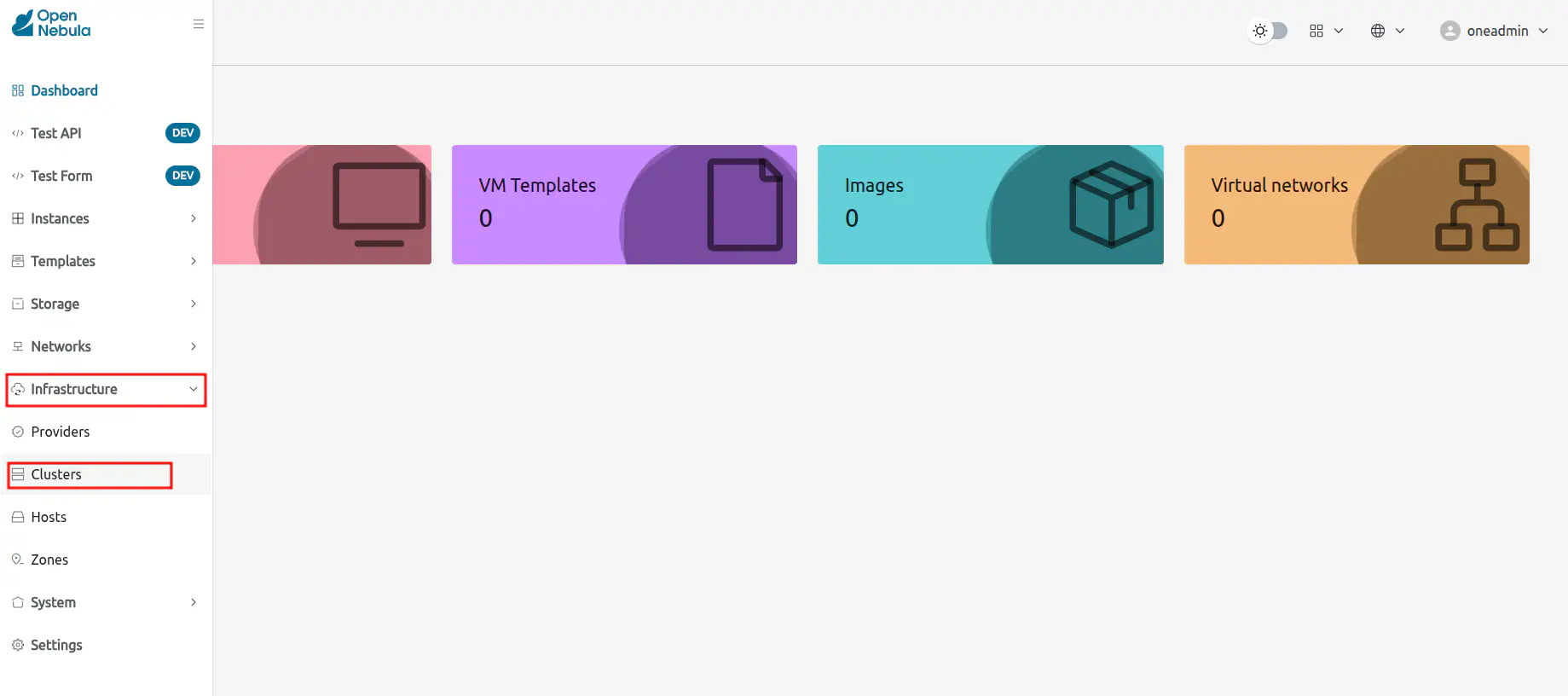
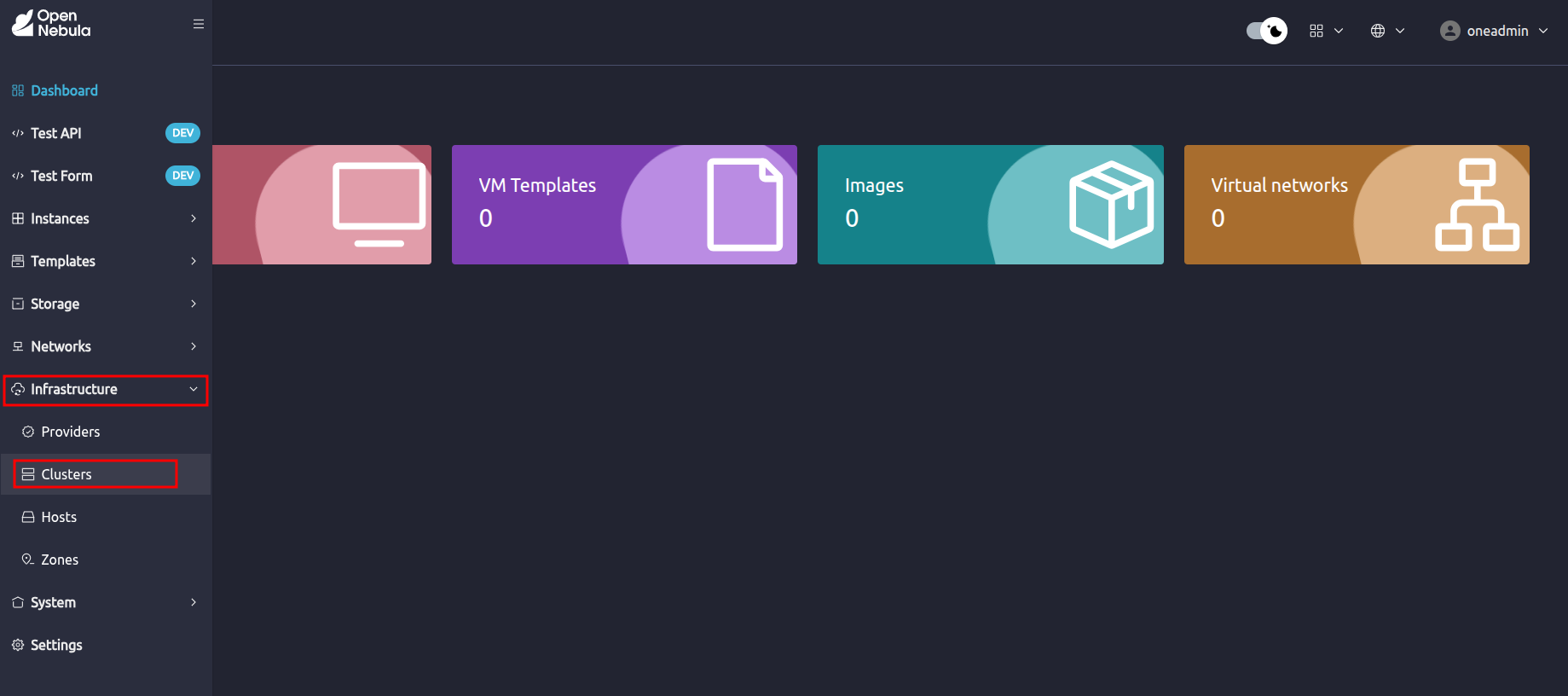
Step 2. Click Create button and select the option Install a new On-Premise Cluster:
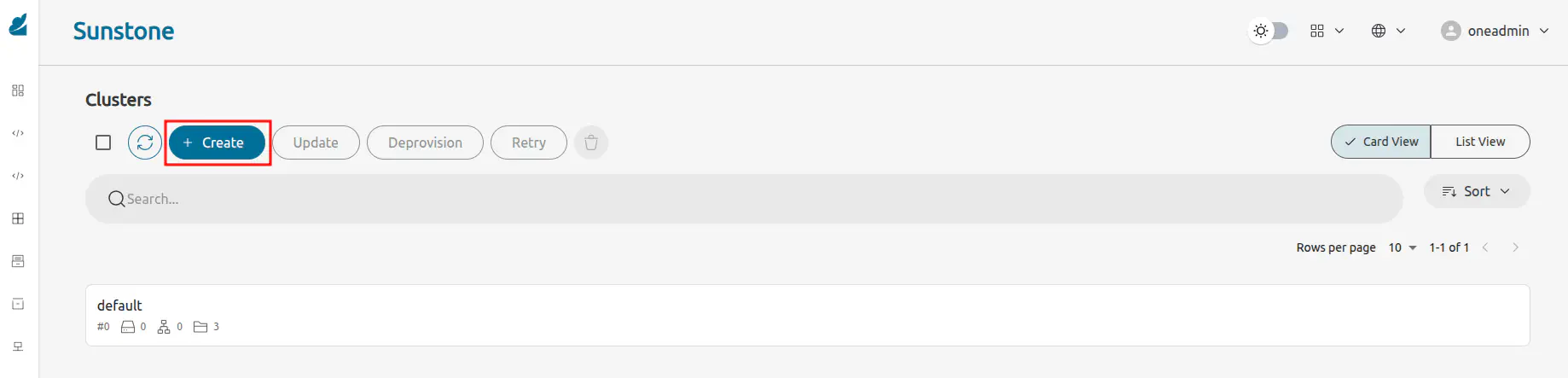
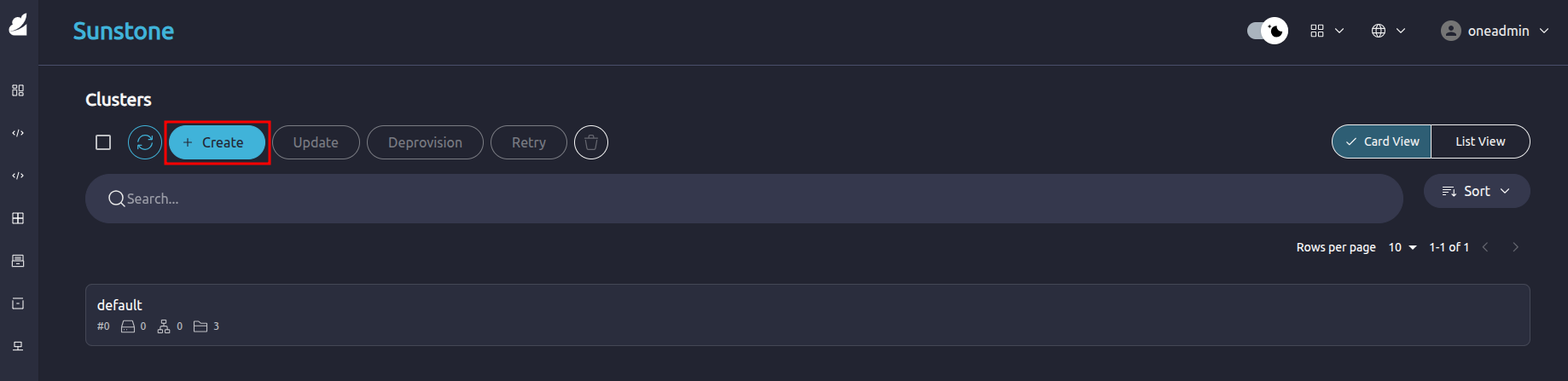
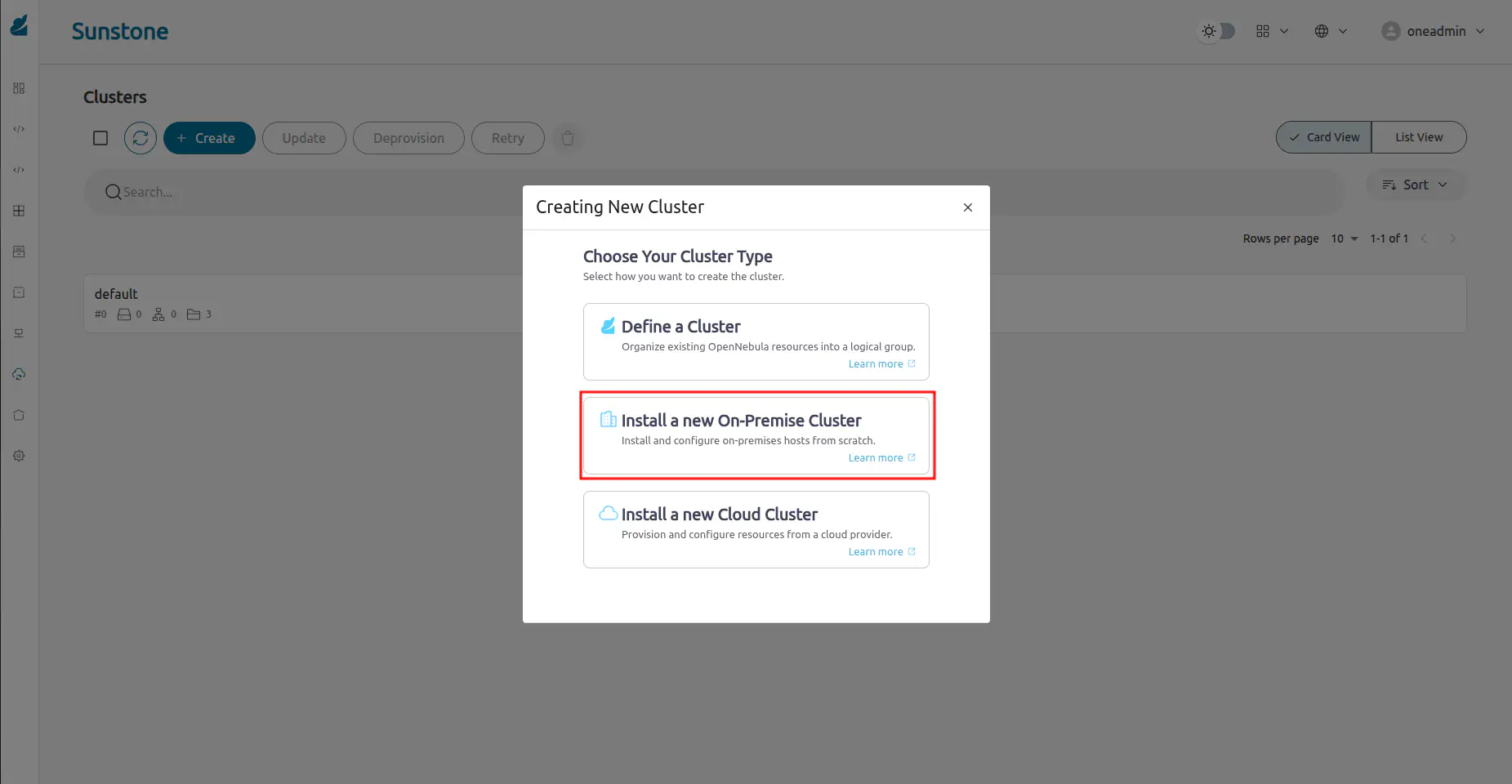
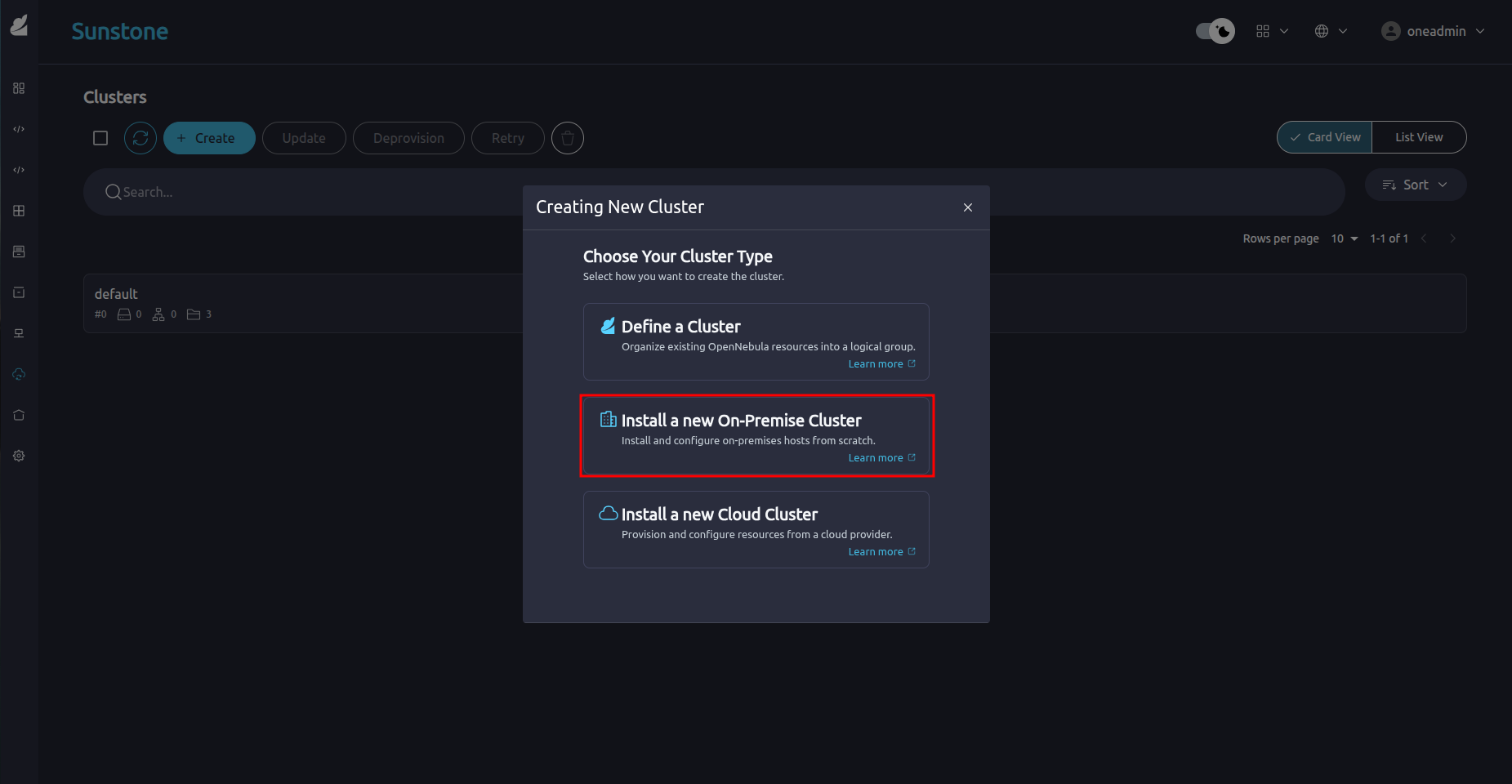
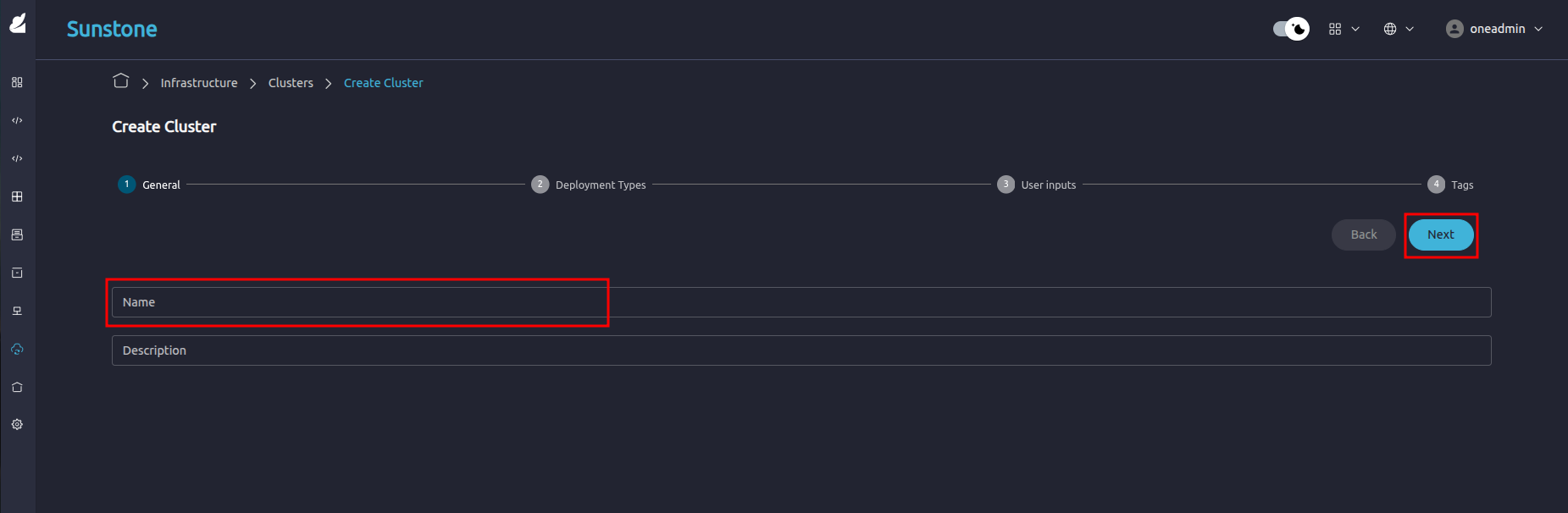
Step 3. Enter a name for the cluster in the General page the click Next:
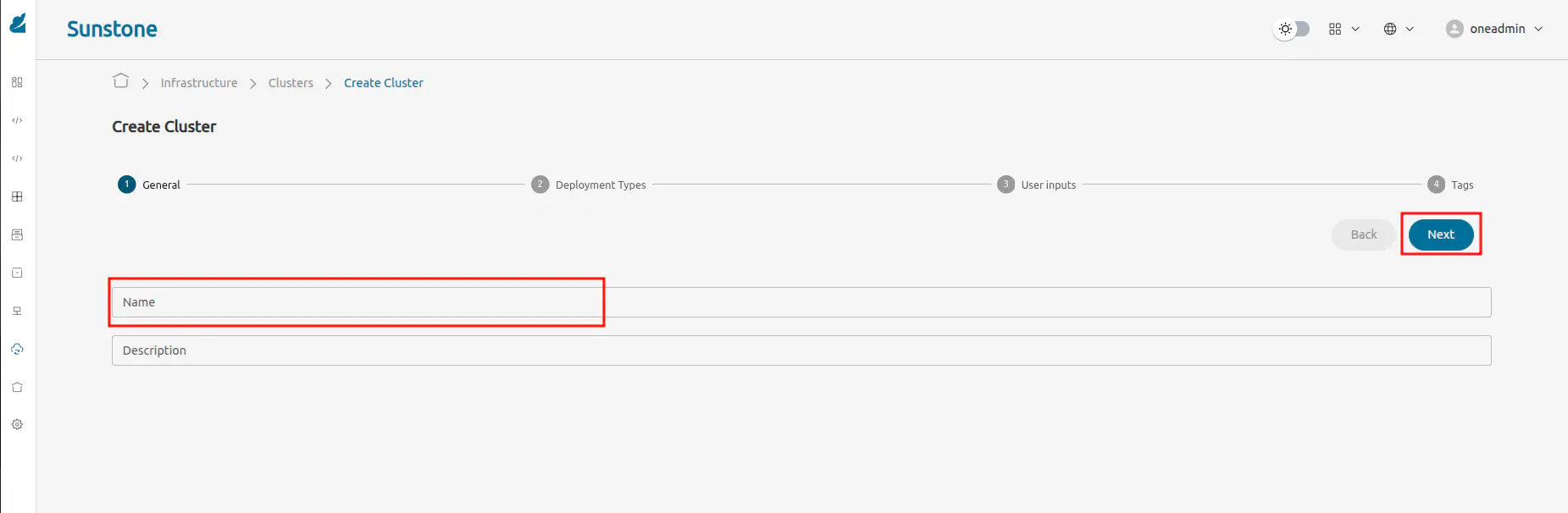
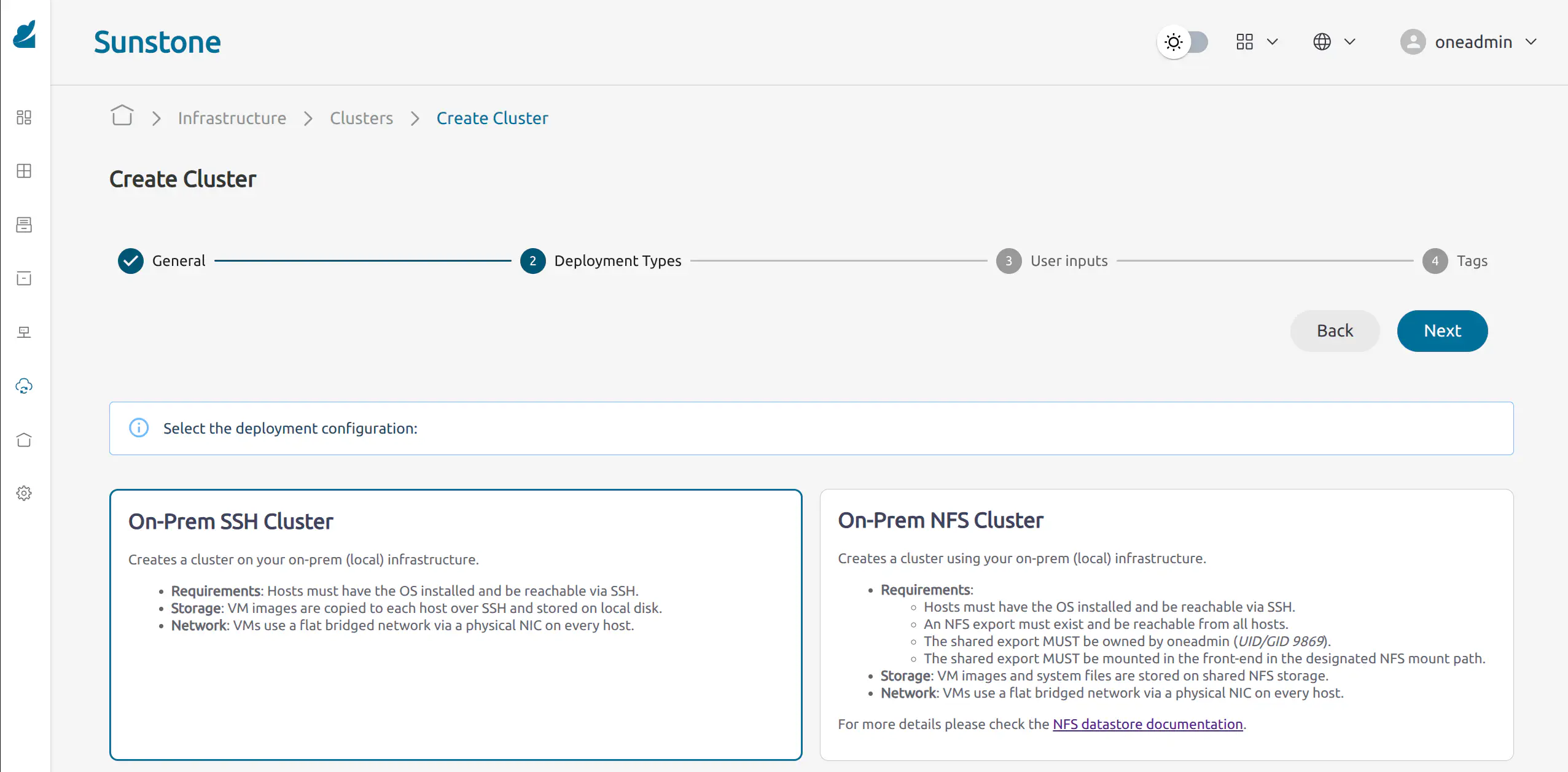
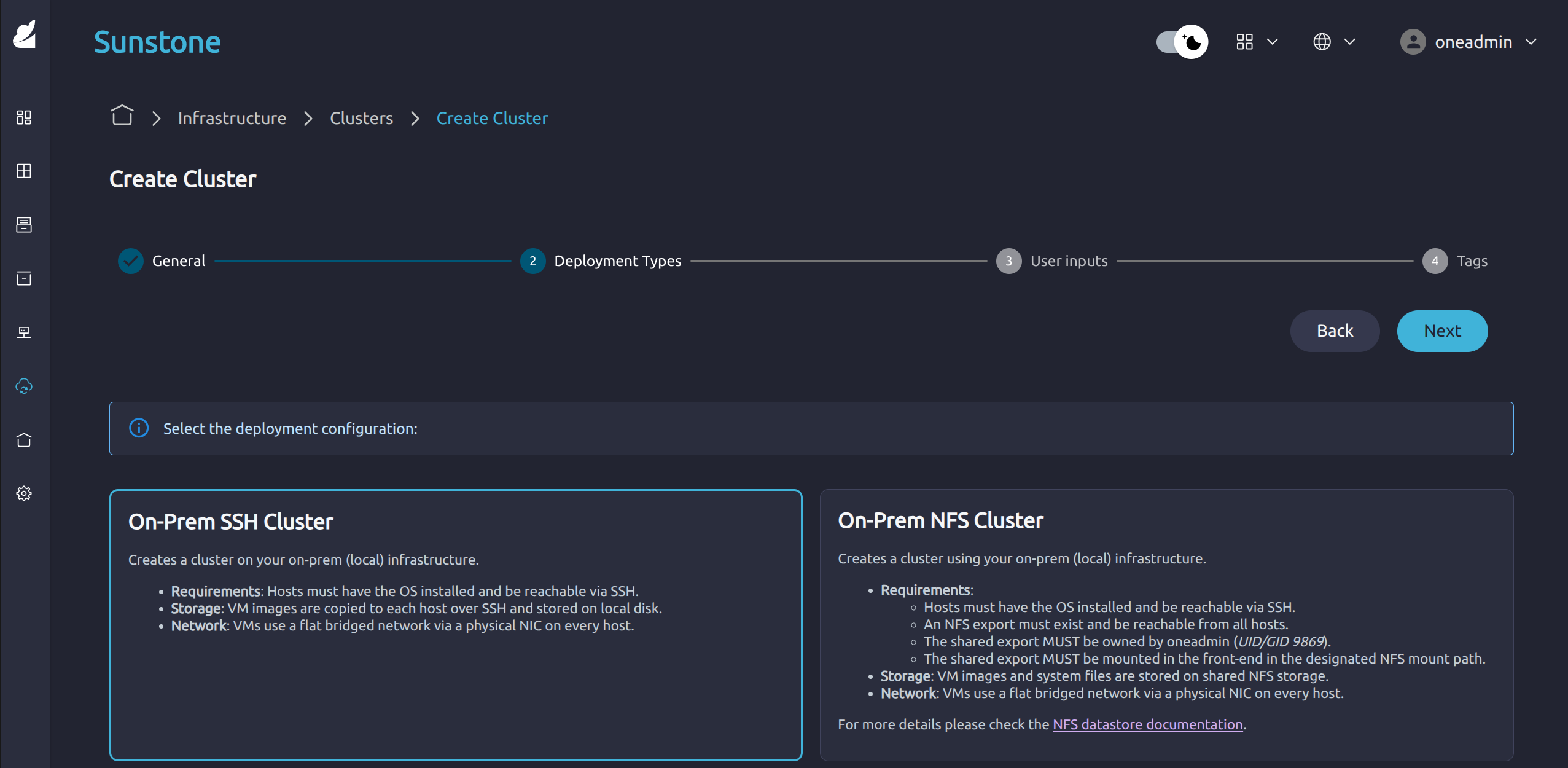
Step 4. Select the On-Prem SSH Cluster type and click Next:
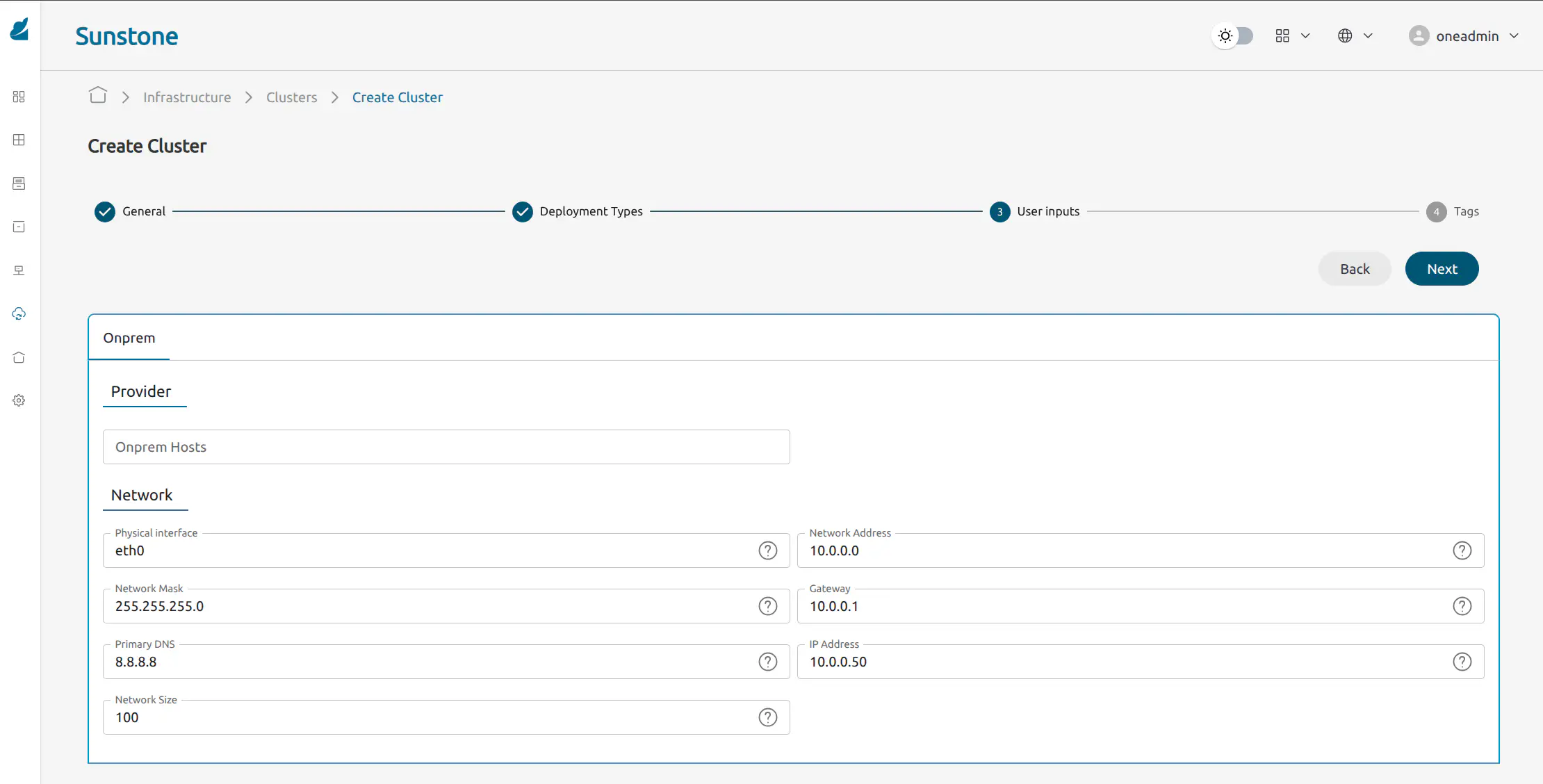
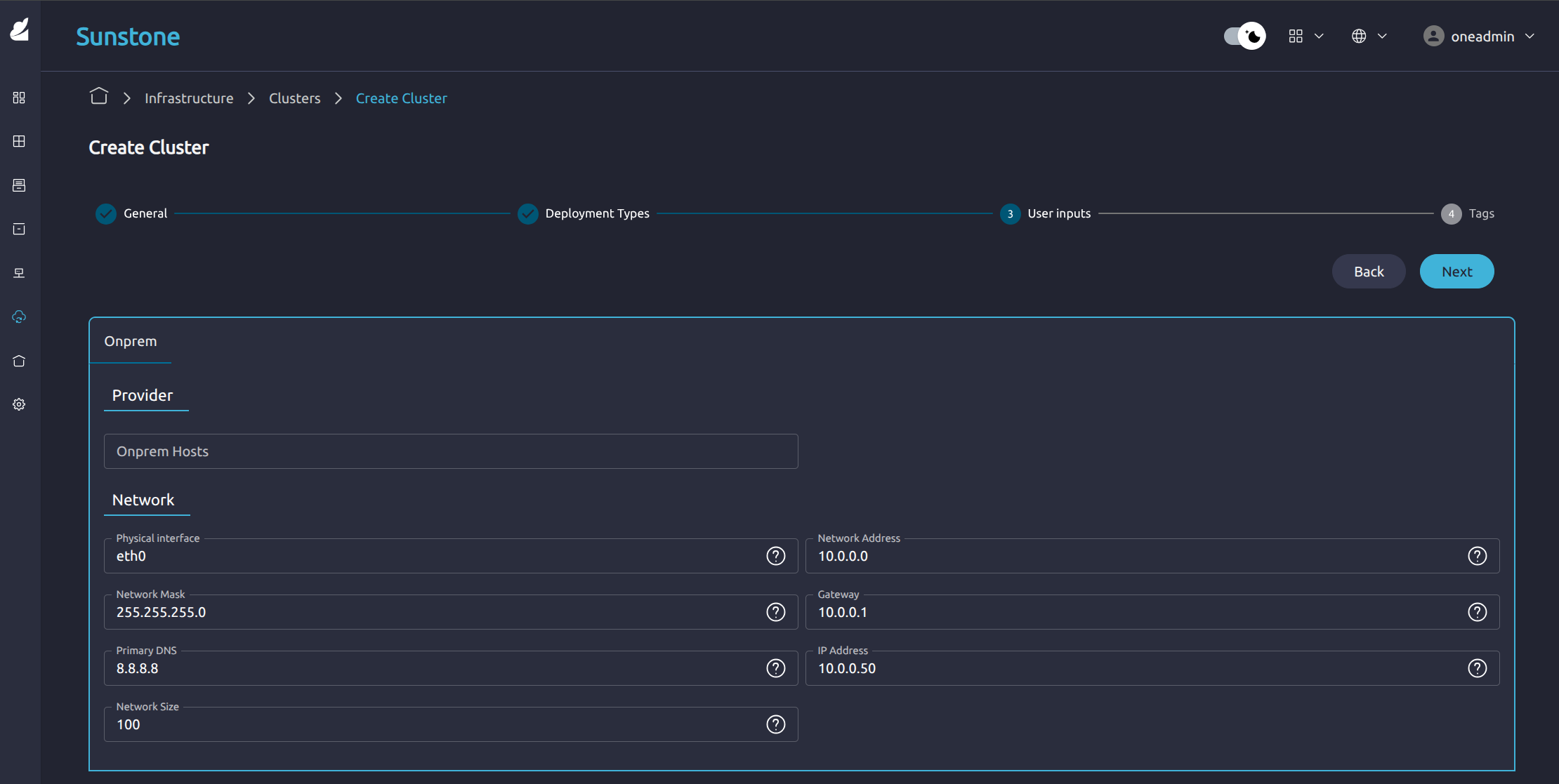
Step 5. Enter the correct configuration details in the User Inputs page and click Next:
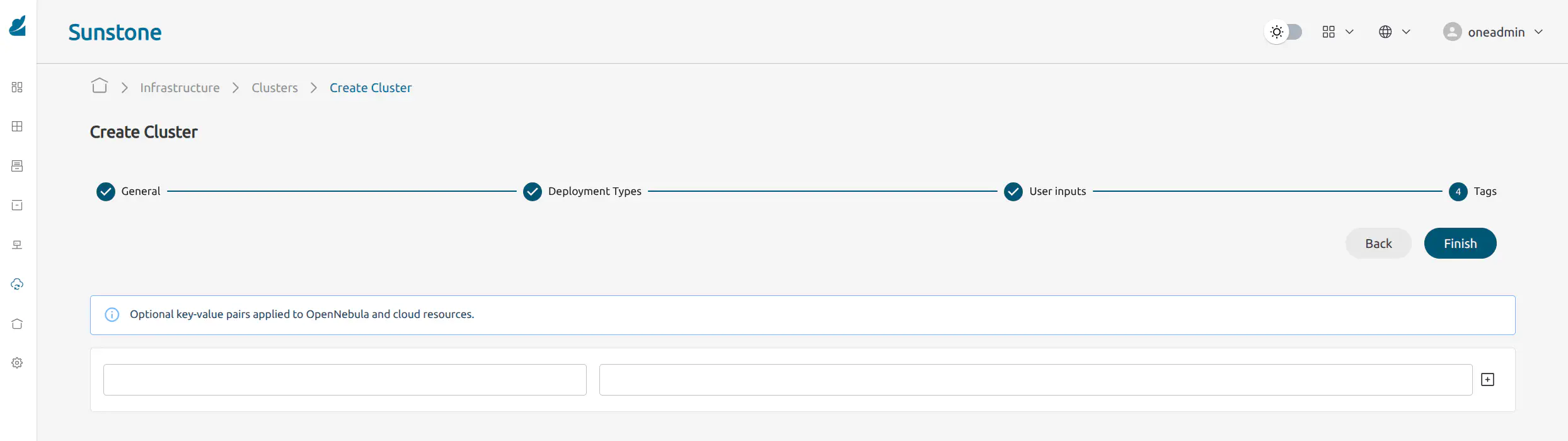
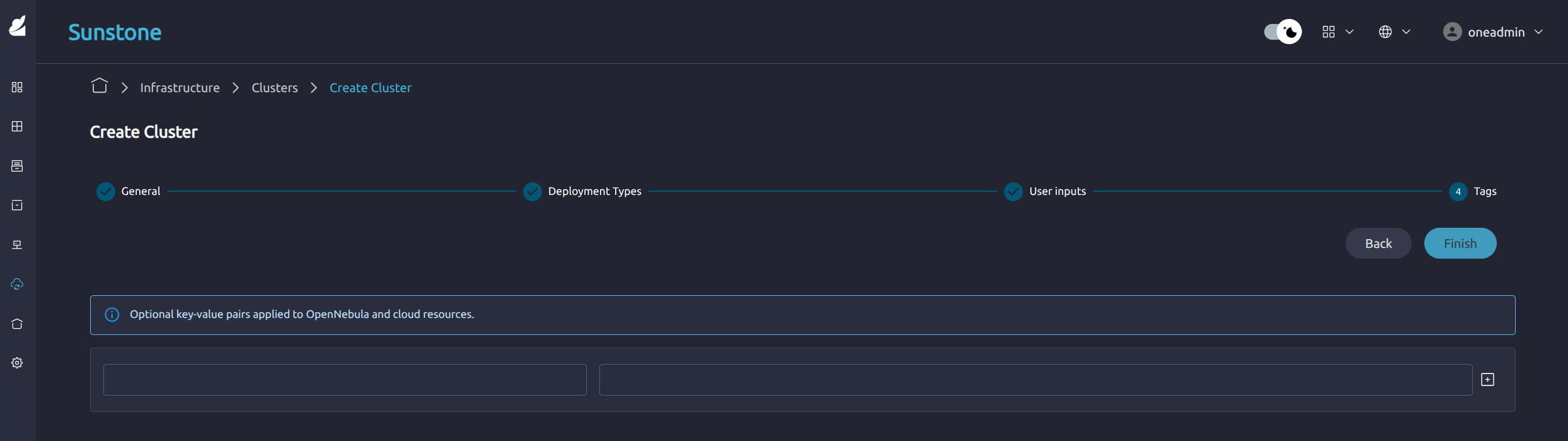
Step 6. You can add optional tags to help identify the Cluster, click Finish:
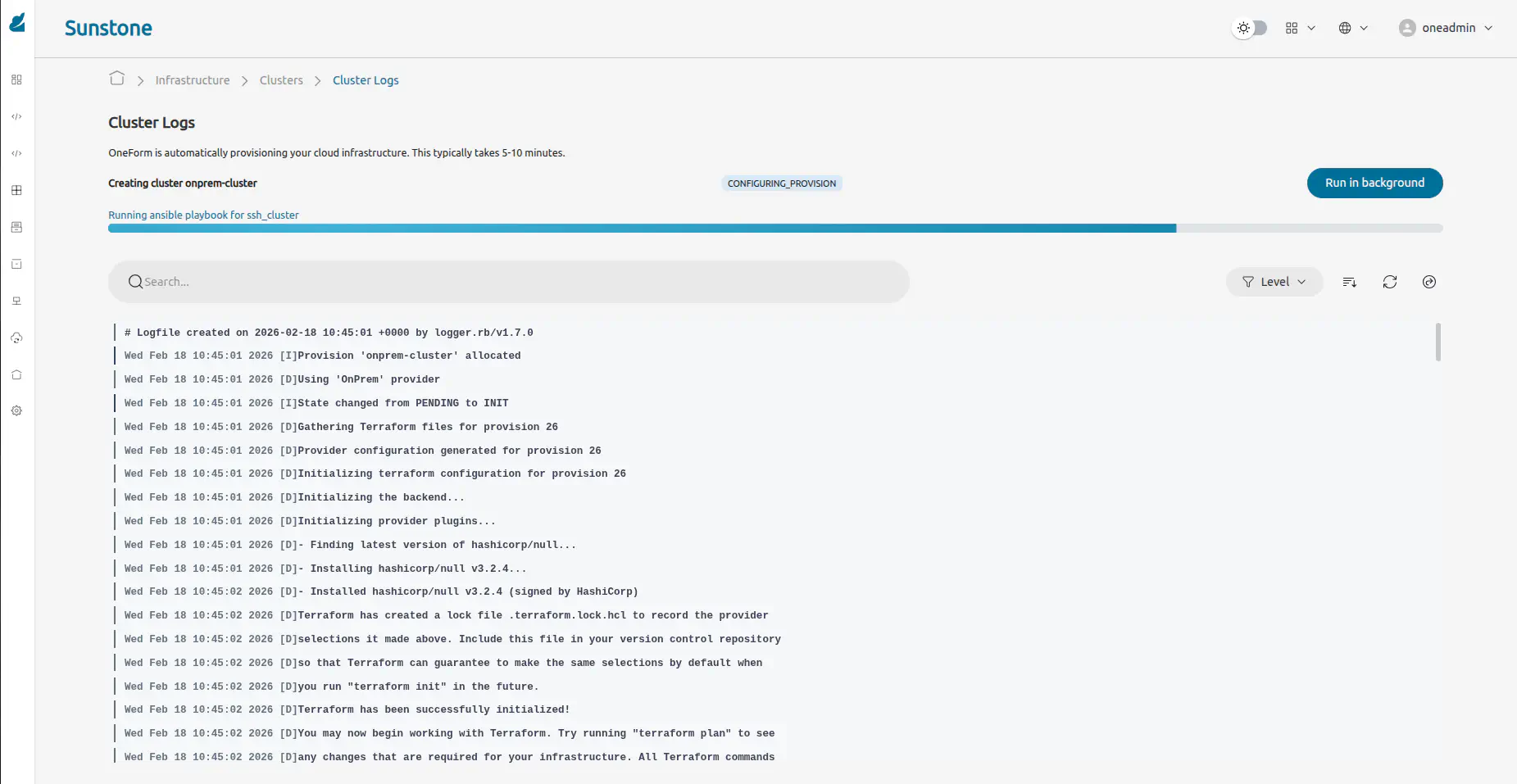
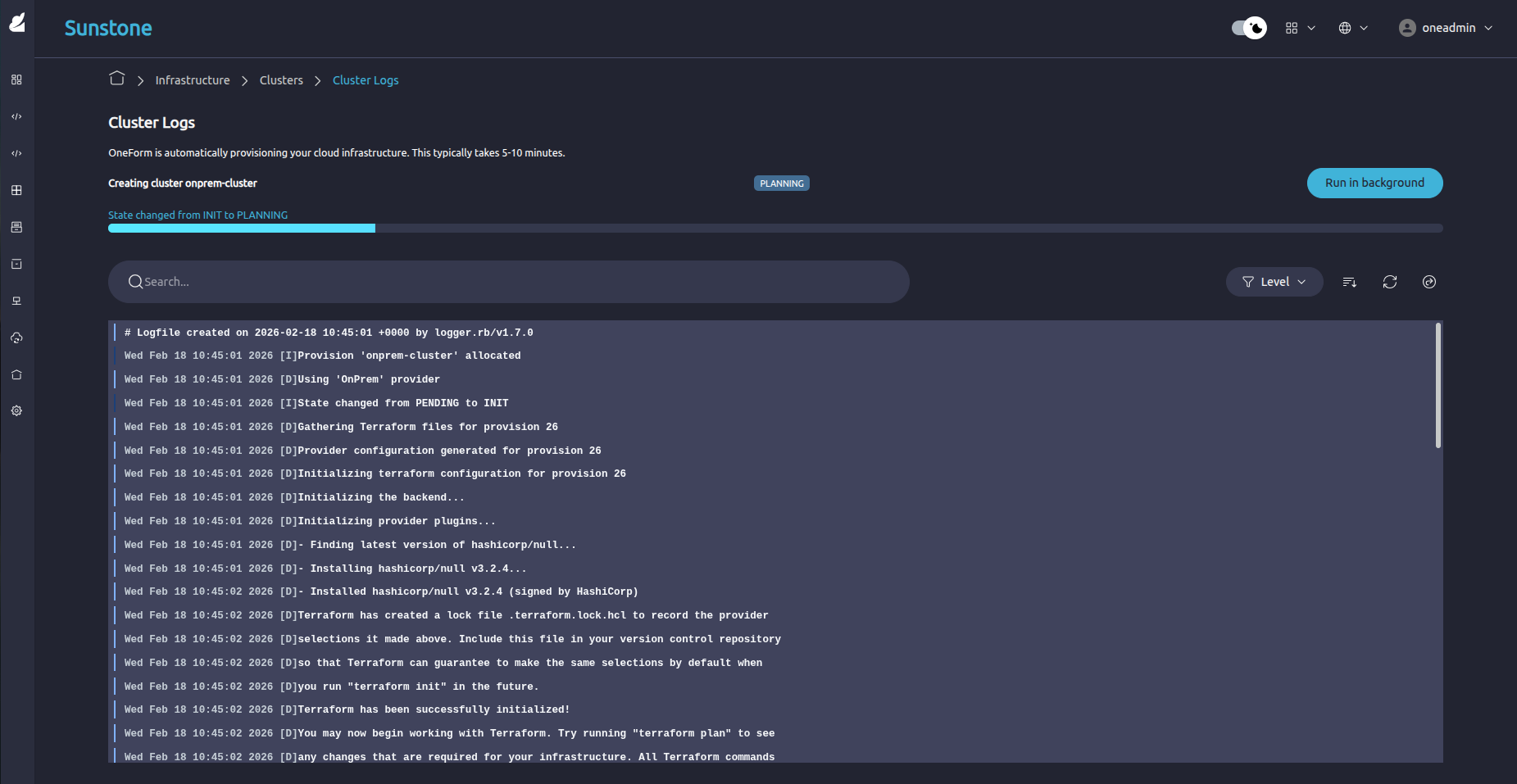
Step 7. The Cluster Logs page shows the progress of the Cluster installation process:
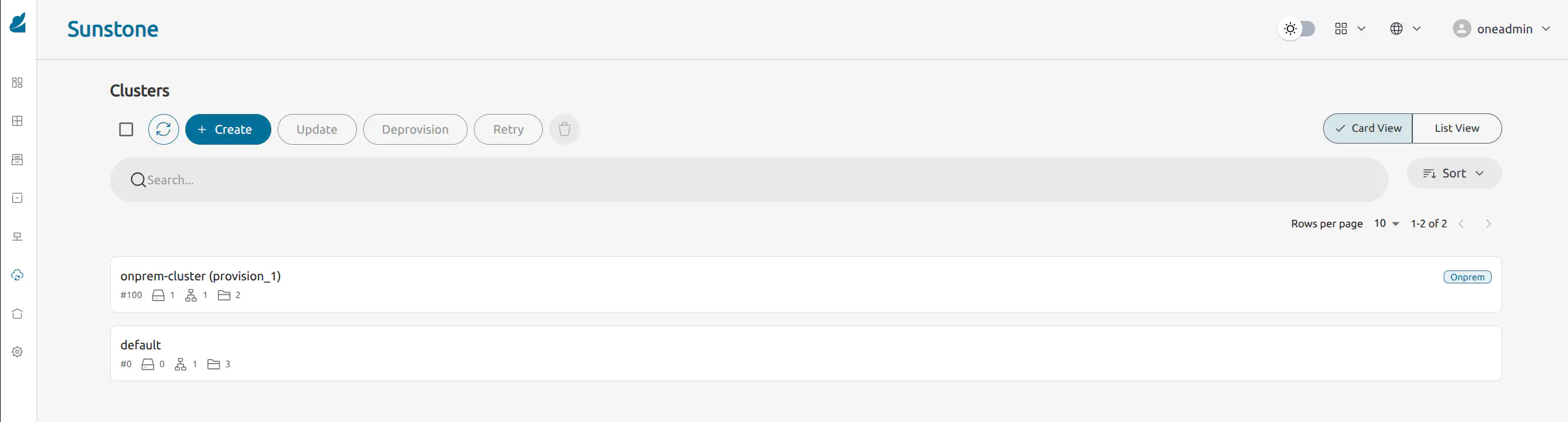
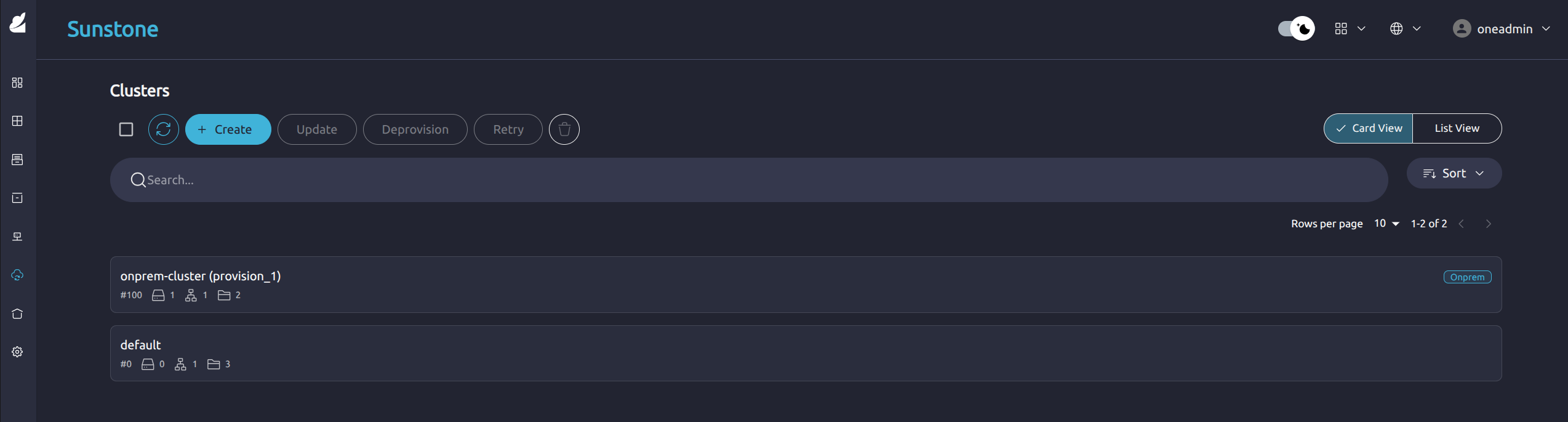
Step 8. After reaching the RUNNING state, a full cloud cluster is available, ready to operate:
Create an on-premises Provision with the oneprovision create <name> --provider-id <id> command, specifying onprem as the Provider type and the ID of the associated Provider to this Provision (use oneprovider list to identify the correct Provider). This will initiate an automated process in which OneForm prompts for all required input parameters and starts the deployment:
oneprovision create onprem --provider-id 1
Please select a deployment configuration for this Provision:
    0: On-Prem SSH Cluster
    1: On-Prem NFS Cluster

    Please type the selection number:
Select the SSH option 0, the CLI will then prompt for numerous details about the Provision, enter the appropriate details or press Enter to use defaults:
There are some parameters that require user input.
  * (oneform_onprem_hosts) Host IPs [type: list(string)]
    Press enter for default ([]). Enter comma-separated values:
  * (oneform_tags) value of the tags to assign to the instance [type: map(string)]
    Press enter for default ({}). Enter KEY=VALUE pairs separated by commas:
...
After you have created the Provision, list all the existing Provisions using the oneprovision list command:
oneprovision list
ID USER     GROUP     NAME                  STATE            REGTIME
1  oneadmin oneadmin  On-Prem SSH Cluster   RUNNING          06/05 10:52:29
To inspect the details of a specific Provision, run the oneprovision show command. The output displays information about the generated OpenNebula objects such as Hosts, datastores, and networks:
oneprovision show 1
PROVISION 1 INFORMATION
ID                  : 1
NAME                : On-Prem SSH Cluster
DESCRIPTION         : It deploys a SSH cluster on On-Prem
USER                : oneadmin
GROUP               : oneadmin
STATE               : RUNNING
PROVIDER ID         : 1
REGISTRATION TIME   : 06/05 10:52:29

PERMISSIONS
OWNER               : um-
GROUP               : ---
OTHER               : ---

PROVISION VALUES
oneform_onprem_hosts : 0

OPENNEBULA RESOURCES
CLUSTER
ID                  : 2
NAME                : On-Prem SSH Cluster

HOSTS
ID   NAME            RESOURCE_ID
3    3.74.216.118    i-006a01c592f849031

NETWORKS
ID   TYPE            NAME
6    vxlan           private_onprem_network

DATASTORES
ID   TYPE            NAME
101  system_ds       onprem_system_ds
102  image_ds        onprem_image_ds
To create a new on-premises Provision using the OneForm API, use the following example request, replacing the appropriate parameters for your Provision:
curl -X POST "https://oneform.example.server/api/v1/provisions" \
  -u "username:password" \
  -H "Content-Type: application/json" \
  -d '{
    "driver": "onprem",
    "deployment_type": "ssh_cluster",
    "provider_id": 1,
    "user_inputs_values": {
      "oneform_onprem_hosts": 1
    },
    "name": "OnPrem Cluster",
    "description": "Provision in OnPrem"
  }'
For further details about the API, see the OneForm API Reference.
Now that you have created an on-premises SSH Cluster, learn how to Manage your Provisioned Clusters.
GIVE FEEDBACK
Was this resource helpful?
Glad to hear it
Sorry to hear that