Veeam Backup (EE)
The OpenNebula-Veeam® Backup Integration works by exposing a native oVirt-compatible REST API via the ovirtAPI server component, allowing Veeam to connect to OpenNebula as if it were an oVirt/RHV hypervisor. This integration enables Veeam to perform image-level backups, incremental backups by using Changed Block Tracking, as well as granular restores like Full VM and file-level directly from the Veeam console. This integration is part of OpenNebula Enterprise Edition (EE).
Features
| Area | Benefit | Description |
|---|---|---|
| Data Protection | Agentless, Image-Level Backups | Protect entire VMs without installing or managing agents inside the guest OS. |
| Efficiency | Incremental Backups (CBT) | Leverages Change Block Tracking (CBT) via the API to back up only the data that has changed, reducing backup windows. |
| Native Integration | Uses Standard Veeam Workflow | Connect OpenNebula as a standard “oVirt” hypervisor in Veeam. No additional custom Veeam plug-ins are required. |
| Recovery | Flexible Restore Options | Enables Full VM restores, instant VM recovery, and file-level restores directly from the Veeam B&R console. |
| Automation | Full Discovery | Veeam automatically discovers and displays the OpenNebula cluster hierarchy (clusters, hosts, VMs, and storage). |
| Portability | VMWare import | Enables restoring virtual machines backed up in Veeam from VMWare into OpenNebula. |
Compatibility
The oVirtAPI module is compatible with the Veeam Backup & Replication version specified in the Platform Notes.
The following table summarizes the supported backup modes for each storage system:
| Storage | Full | Incremental |
|---|---|---|
| File (qcow2) | Yes | Yes |
| File (raw) | Yes | No* |
| Ceph | Yes | Yes |
| LVM | Yes | Yes** |
| NetApp | Yes | Yes |
* While OpenNebula doesn’t support backups for raw images, Veeam will perform a full backup and perform block to block comparison to create it’s own incremental.
** Supported for LVM-thin environments.
Limitations
Here is a list of the limitations affecting the Veeam integration with OpenNebula:
- The KVM appliance in step 4.2 does not include context packages. This implies that in order to configure the networking of an appliance, you must either manually choose the first available free IP in the management network or set up a DHCP service router.
- Alpine virtual machines cannot be backed up.
- During image transfers, you may see a warning message stating
Unable to use transfer URL for image transfer: Switched to proxy URL. Backup performance may be affected. This is expected and shouldn’t affect performance. - Spaces are not allowed in Virtual Machine names in the integration, so avoid using them (even if they are allowed in OpenNebula itself), otherwise you may face issues when performing an in-place restores of said VMs.
If facing other issues or bugs, we highly encourage to check the Veeam section of the Known Issues page.
Architecture
To ensure a compatible integration between OpenNebula and Veeam Backup, the following components and network configuration are required:
- Backup Server: to host both the OpenNebula Backup datastore and the OpenNebula oVirtAPI Server.
- Veeam Backup Appliance: this is automatically deployed by Veeam when OpenNebula is added as a hypervisor.
- Management Network: to provide connectivity between all of the following components:
- OpenNebula Front-end
- OpenNebula Backup server
- All OpenNebula Hosts (running the VMs to be backed up)
- Veeam Server
- Veeam Backup appliance
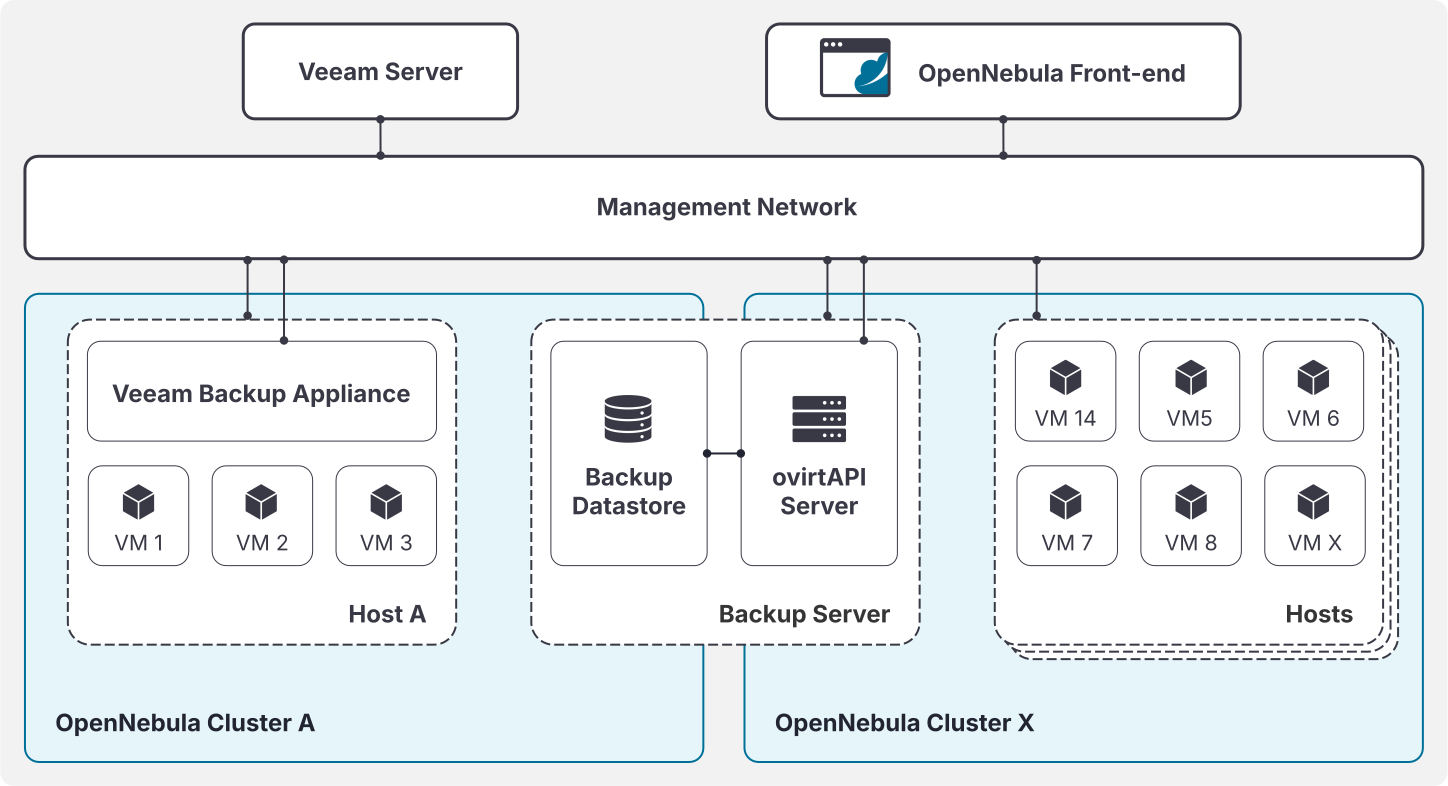
Backup Server Requirements
To ensure full compatibility with the ovirtAPI module, the Backup Server must run one of the following operating systems:
- AlmaLinux 9
- Ubuntu 22.04 or 24.04
- RHEL 9
- Debian 12
The minimum hardware specifications are:
- CPU: 8 cores
- Memory: 16 GB RAM
- Disk: Sufficient storage to hold all active backup operations. See more details regarding the storage requirement in the next section.
Storage Requirements
The Backup Server acts as a staging area between OpenNebula and the Veeam repository. It must provide enough disk capacity and I/O headroom for active backup and restore operations. Follow these practical guidelines when sizing and configuring storage:
Primary backup datastore (
/var/lib/one/datastores/<backup-datastore-id>): this is where OpenNebula writes VM images and incremental chains before Veeam moves them to its repository. Size this datastore to hold the largest set of concurrently active backups you expect.Temporary restore area (
/var/tmp): when restoring a VM from a Veeam repository into OpenNebula, the restored image is staged here before being moved to the image datastore. Provision this directory to hold at least the largest single disk being restored (or the sum of concurrently restored disks if you will perform parallel restores). You can change this in thetmp_images_pathparameter in the configuration.Retention and duplicate chains: the backup will exist both in the OpenNebula backup datastore and in the Veeam repository. If you delete the chain from OpenNebula and Veeam subsequently runs an incremental, Veeam will perform a full backup and reconstruct incrementals itself. This increases transfer time but keeps backups consistent. If storage is constrained, schedule regular cleanup of old backup images in the OpenNebula datastore to free space, understanding that this may force full transfers on the next incremental run.
Cleanup tooling: the ovirtapi package includes a helper script to automate cleanup of the backup datastore:
/usr/lib/one/ovirtapi-server/scripts/backup_clean.rb. You can run this script as theoneadminuser or schedule it via cron to maintain a maximum used threshold. Example crontab (daily at 00:00) to cap usage at 50%:
0 0 * * * ONE_AUTH="oneadmin:oneadmin" MAX_USED_PERCENTAGE="50" /usr/lib/one/ovirtapi-server/scripts/backup_clean.rb
Ensure the ONE_AUTH variable is set to a valid OpenNebula user:password pair with permission to delete backup images. You may adjust MAX_USED_PERCENTAGE to a different threshold if desired.
Veeam Backup Appliance Requirements
When adding OpenNebula as a platform into Veeam, a KVM appliance will be deployed (step 4.2) as a VM into OpenNebula. This appliance has the following minimum requirements:
- CPU: 6 cores
- Memory: 6 GB RAM
- Disk: 100 GB
Please make sure that there is an OpenNebula host with enough capacity for this appliance. The system and image datastores should also be able to accomodate the disk storage requirement.
Installation and Configuration
1. Prepare the environment for the oVirtAPI Server
A server should be configured to expose both the Rsync Backup datastore and the oVirtAPI Server. This server should be accessible from all the clusters that you want to be able to back up via the management network shown in the architecture diagram. The oVirtAPI Server is going to act as the communication gateway between Veeam and OpenNebula.
2. Create a backup datastore
The next step is to create a backup datastore in OpenNebula. This datastore will be used by the oVirtAPI module to handle the backup of the Virtual Machines before sending the backup data to Veeam. Currently only Rsync Datastore is supported. An additional property called VEEAM_DS must exist in the backup datastore template and be set to YES.
2.1. Create the Rsync backup datastore
Here is an example of how to create an Rsync datastore in a Host named backup-host and then add it to a given cluster:
cat << EOF > /tmp/rsync-datastore.txt
NAME="VeeamDS"
DS_MAD="rsync"
TM_MAD="-"
TYPE="BACKUP_DS"
VEEAM_DS="YES"
RESTIC_COMPRESSION="-"
RESTRICTED_DIRS="/"
RSYNC_HOST="localhost"
RSYNC_USER="oneadmin"
SAFE_DIRS="/var/tmp"
EOF

onedatastore create /tmp/rsync-datastore.txt
2.2. Add the datastore to the cluster
onecluster adddatastore <cluster-name> <datastore-name>
/var/lib/one/datastores).You can find more details regarding the Rsync datastore in Backup Datastore: Rsync.
3. Install and configure the oVirtAPI module
In order to install the oVirtAPI module, you need to have the OpenNebula repository configured in the backup server. You can do so by following the instructions in OpenNebula Repositories. Then, install the opennebula-ovirtapi package.
The configuration file can be found at /etc/one/ovirtapi-server.yml. You should change the following variables before starting the service:
one_xmlrpc: Address of the OpenNebula Front-end. Please do not include any prefixes such ashttp://, only the IP address itself is needed.endpoint_port: Port used by the OpenNebula RPC endpoint (defaults to 2633).public_ip: Address that Veeam is going to use to communicate with the ovirtapi server.backup_freeze: (Optional) Controls which filesystem freeze mode OpenNebula requests when performing backups initiated via the oVirtAPI/Veeam integration. Valid values areNONE,AGENT, andSUSPEND. For details on each mode see the Backup Modes section in the backup guide: Backup Modes.
You may see the 5554 port in the public_ip variable in the default settings, this is no longer needed so avoid using it. Leave only the IP address in the variable, no port needed.
You may also have a variable named instance_id, which you should delete if you are running a version of the package >=7.0.1.
During installation a self-signed certificate is generated at /etc/one/ovirtapi-ssl.crt for encryption. You can replace this certificate with your own and change the cert_path configuration variable.
After installing the package, you should make sure that the oneadmin user in the backup server can perform passwordless ssh towards the oneadmin user in the Front-end server.
Finally, start the service with either systemctl start apache2 (Ubuntu/Debian) or systemctl start httpd (RHEL/Alma).
oneadmin user will be created. Please make sure that this user and the same oneadmin user in the frontend can establish passwordless ssh connections in both directions.In RHEL and Alma environments, you may face issues with the passenger package dependencies (mod_passenger and mod_ssl). You may add the correct repository and install the packages with the following:
curl –fail -sSLo /etc/yum.repos.d/passenger.repo https://oss-binaries.phusionpassenger.com/yum/definitions/el-passenger.repo dnf install -y passenger mod_passenger mod_ssl
4. Add OpenNebula to Veeam
To add OpenNebula as a hypervisor to Veeam, configure it as an oVirt KVM Manager in Veeam and choose the IP address of the oVirtAPI module. You can follow the official Veeam documentation for this step or follow the next steps:
4.1. Add the new virtualization manager
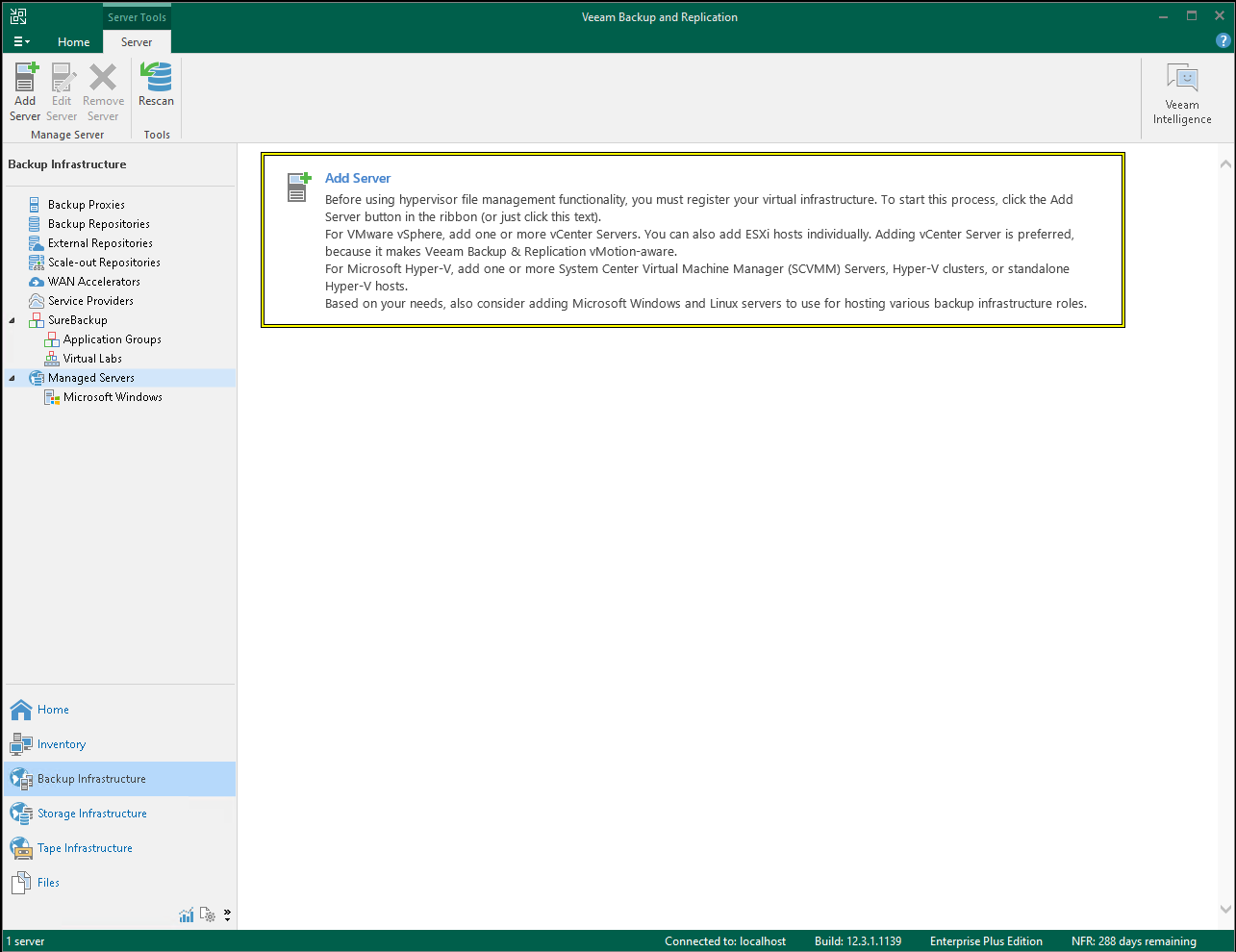
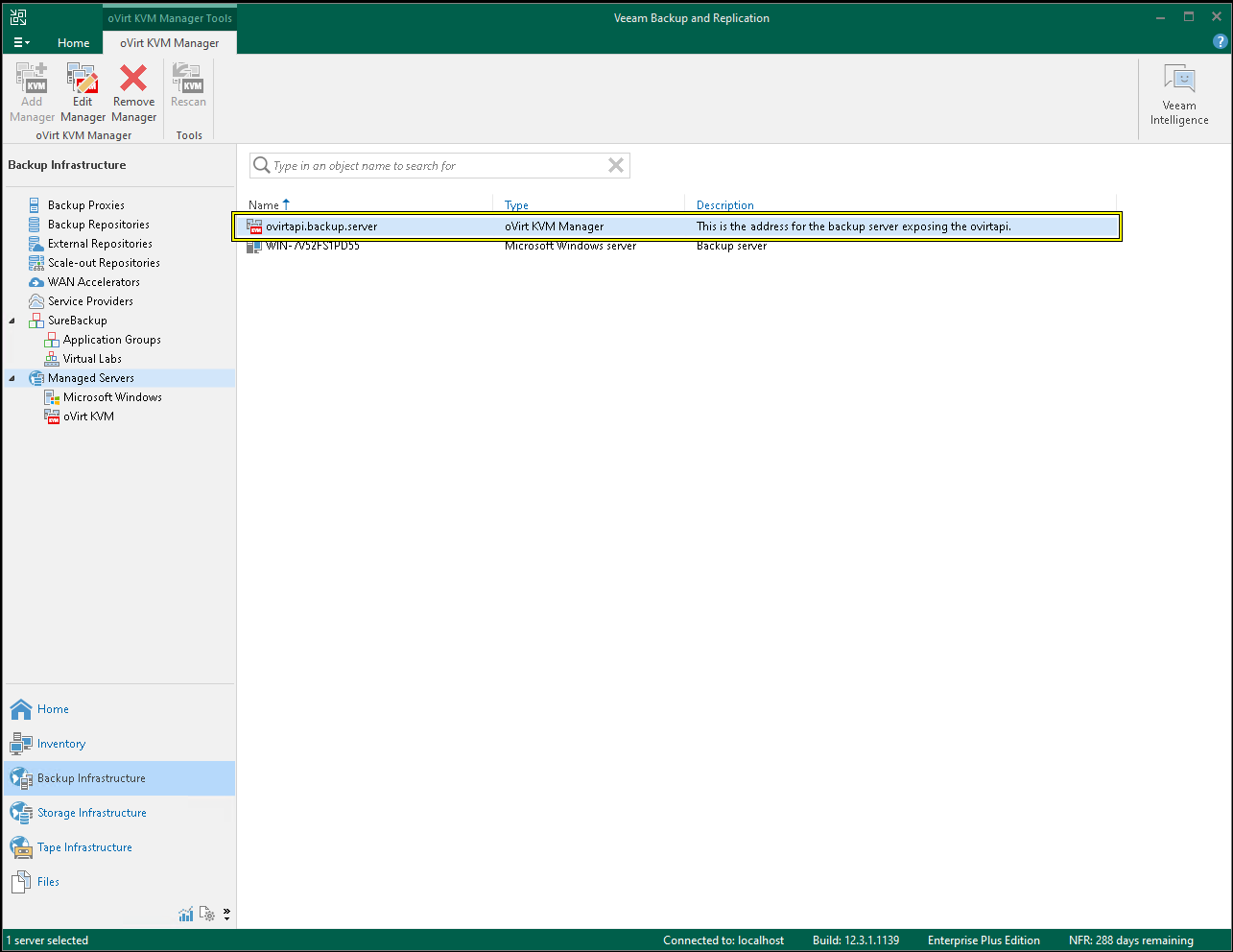
The first step should be to add the ovirtAPI Backup server to Veeam. Head over to Backup Infrastructure, then to Managed Servers, and then click Add Manager:
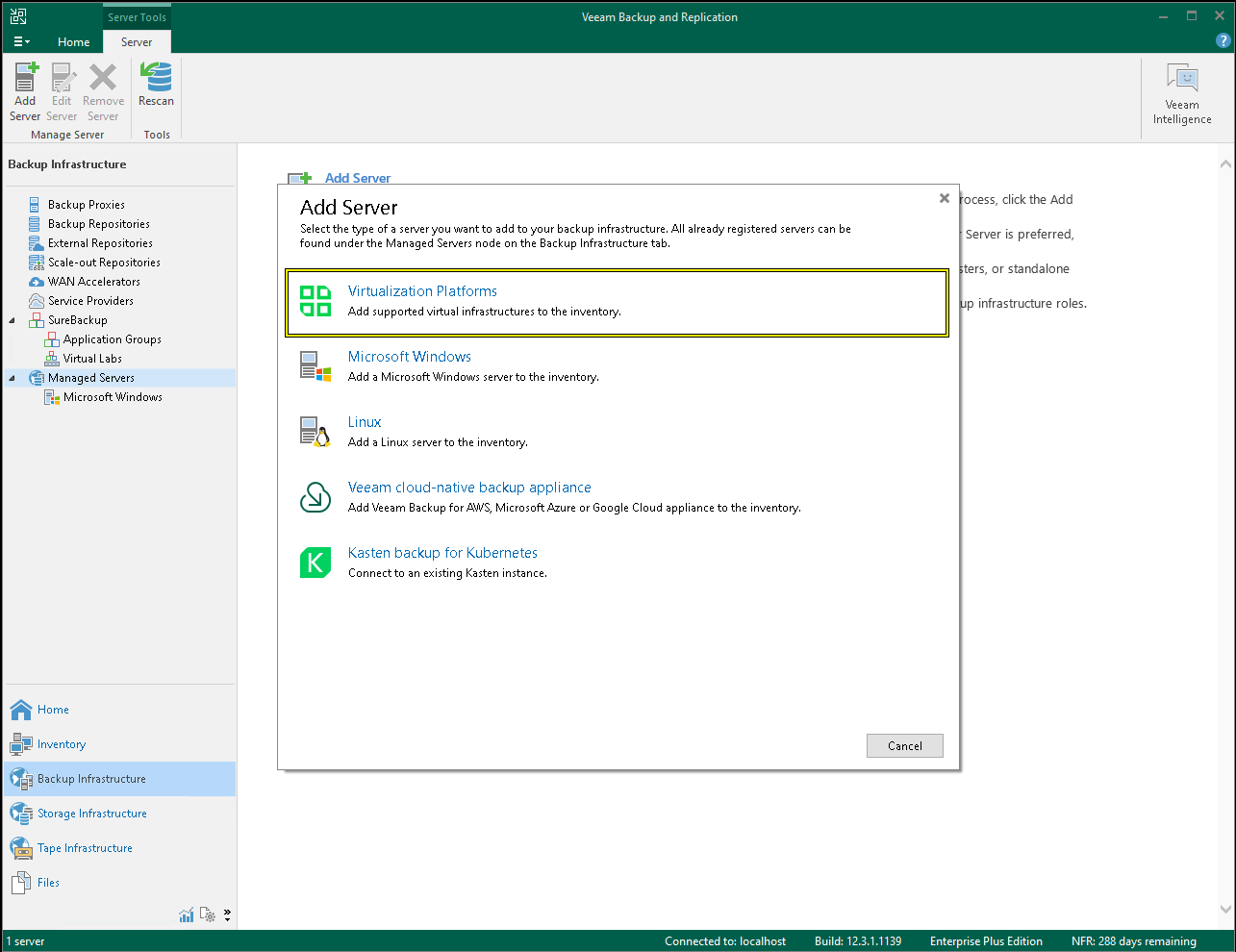
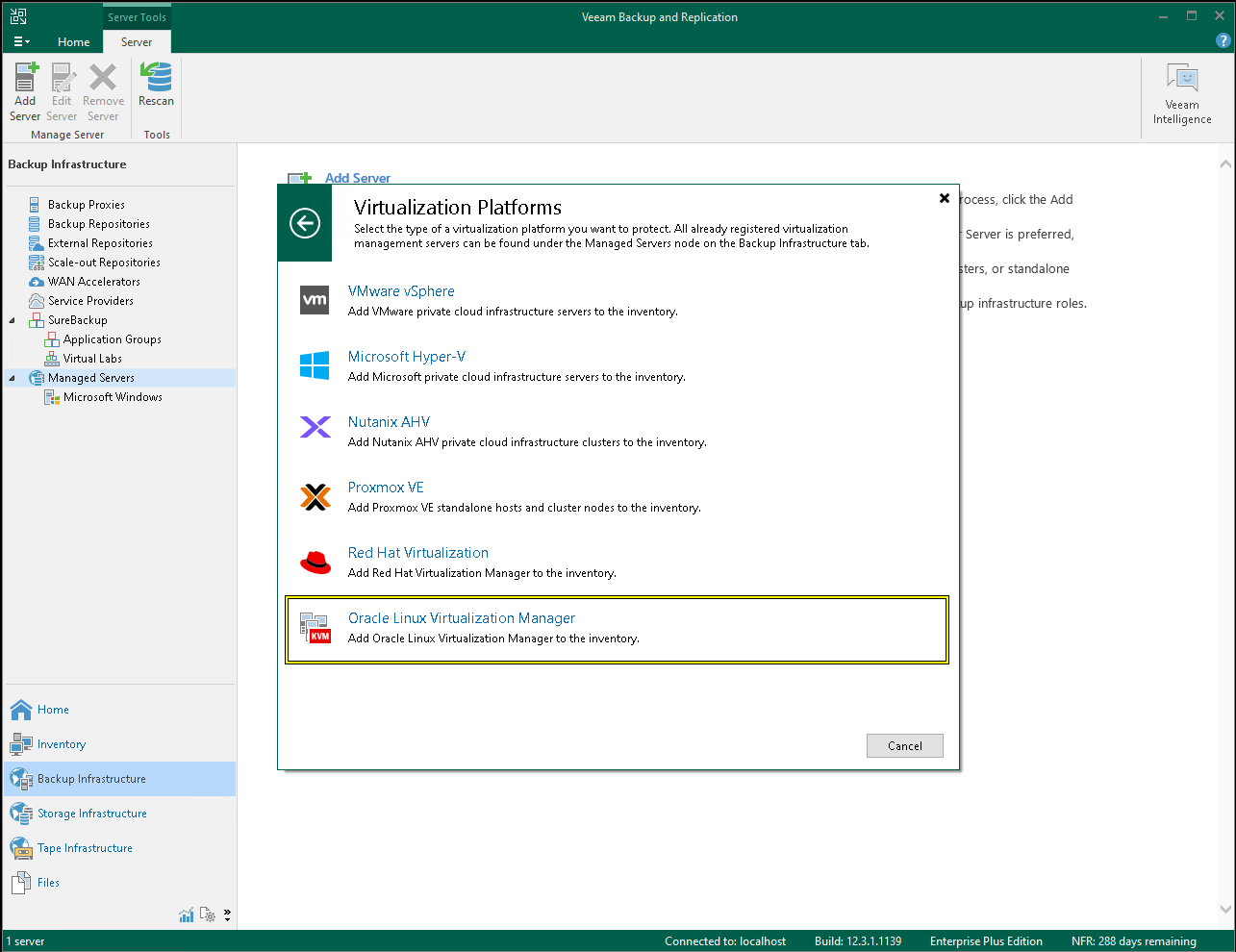
Then, choose to add a new Virtualization Platform and select Oracle Linux Virtualization Manager:
This will open a new dialog box. In the address field, you must make sure that it points to the IP address or DNS name of the server where the ovirtAPI module is installed and the backup datastore is hosted:
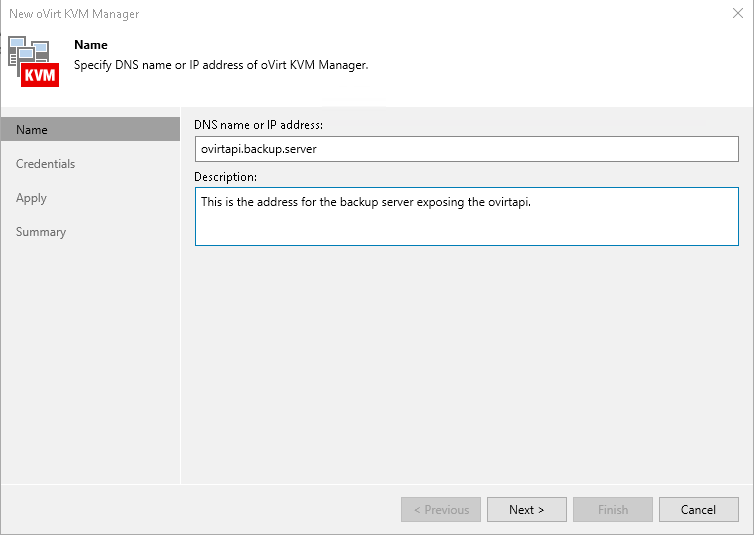
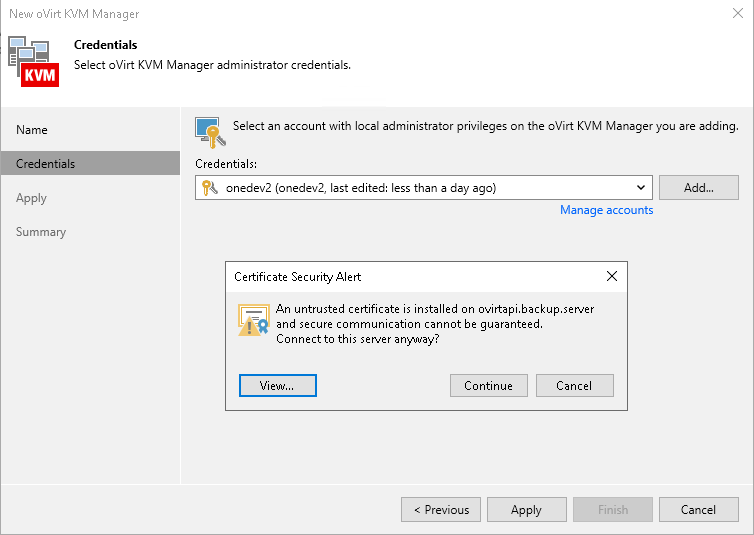
On the Credentials tab, you should set the user and password used to access the OpenNebula Front-end. You can either choose the oneadmin user or create a new user with the same privileges as oneadmin. Please remember that this user is an OpenNebula user, NOT a system user, meaning that this is a user such as the ones used to access the OpenNebula Fireedge web interface, which should be listed in the System/Users tab of Fireedge or through the CLI with oneuser list.
If you are using the default certificate, you may receive an untrust certificate warning, which you can disregard:
As a last step, you can click finish and the new ovirtAPI server should be listed under Managed Servers as a oVirt KVMhypervisor.
4.2. Deploy the KVM appliance
In order for Veeam to be able to perform backup and restore operations, it must deploy a dedicated Virtual Machine to act as a worker. To deploy it, go to the Backup Infrastructure tab, then Backup Proxies, and click Add Proxy:
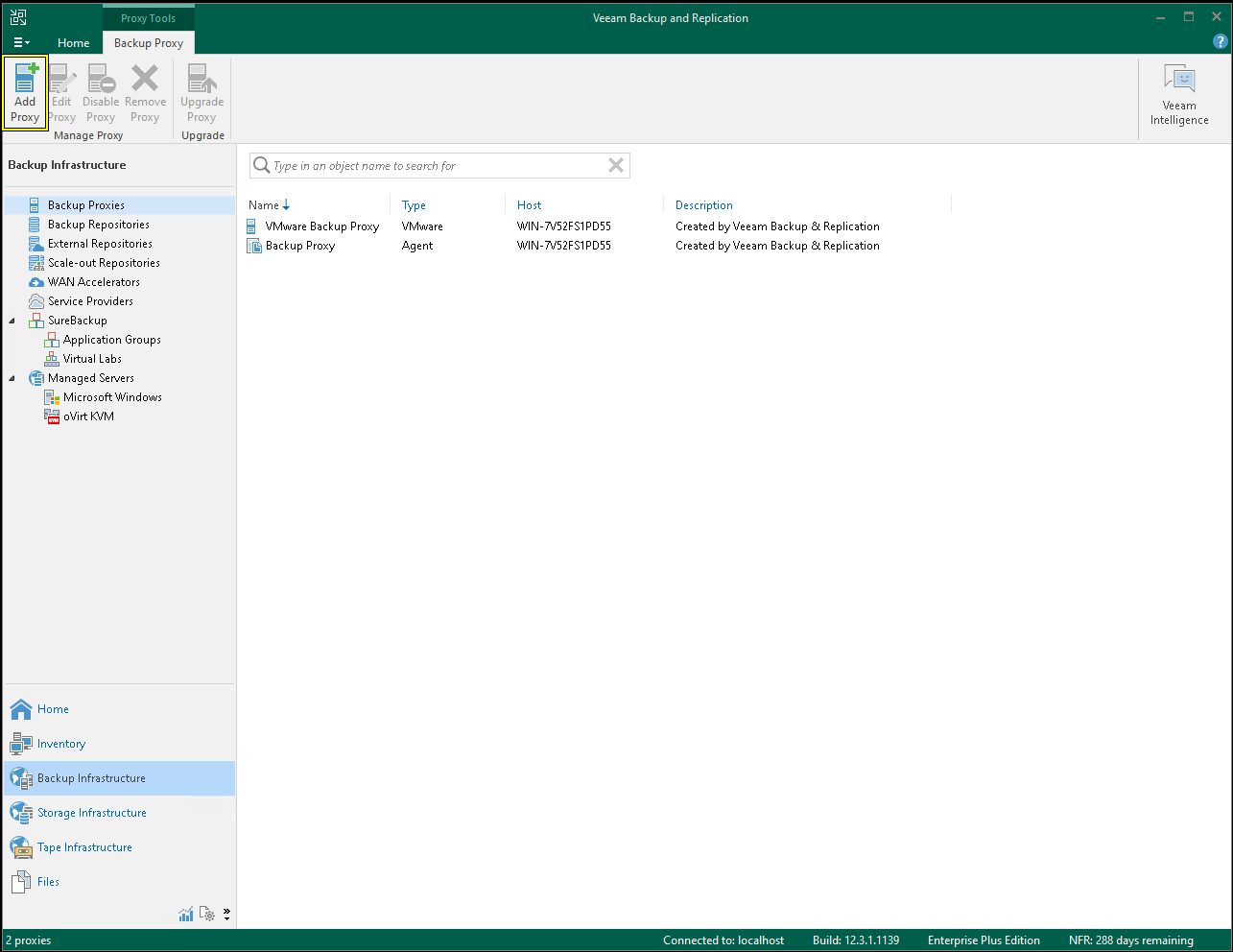
A new dialog box will open. Select the Oracle Linux Virtualization Manager, then click to deploy the Oracle Linux Virtualization Manager backup appliance:
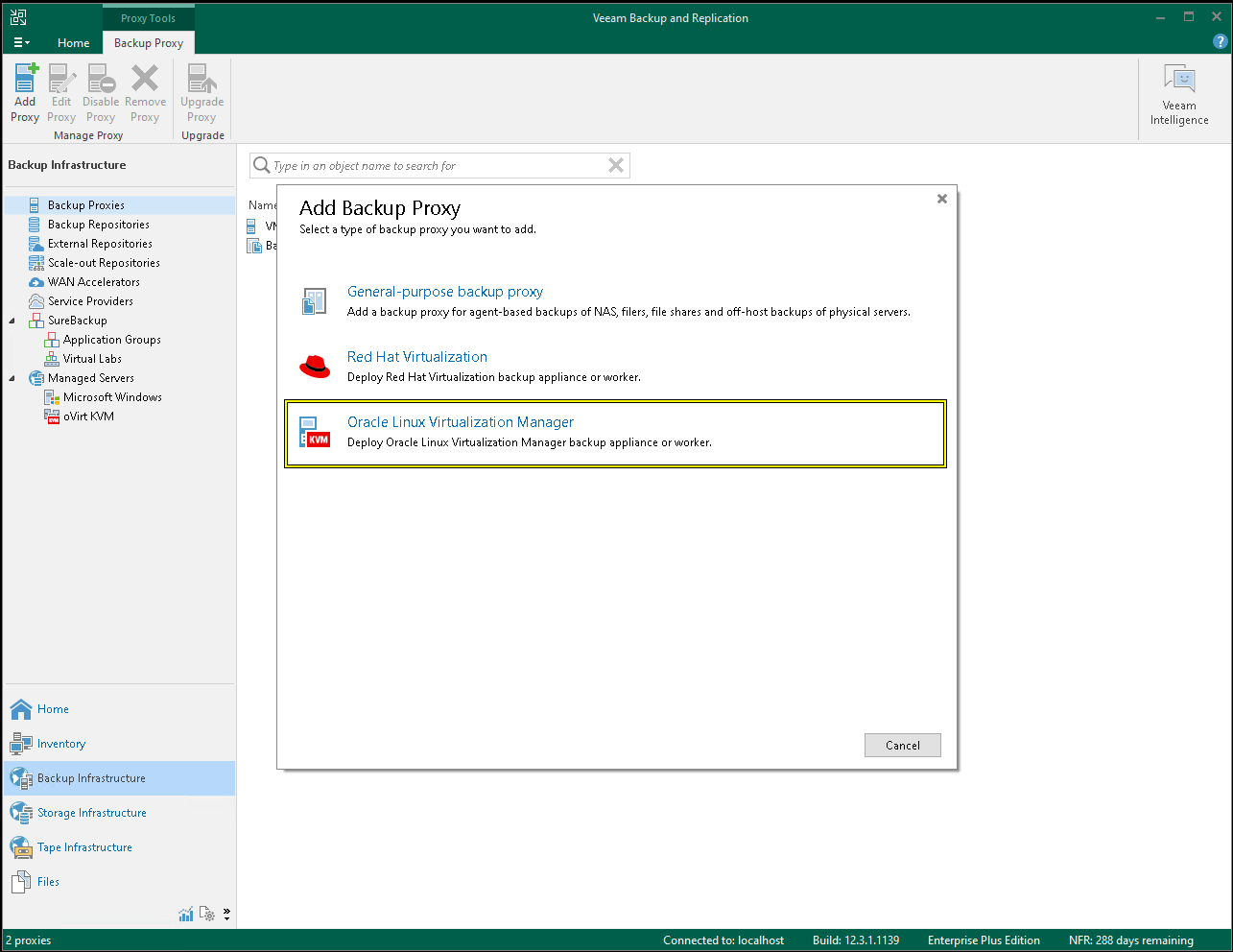
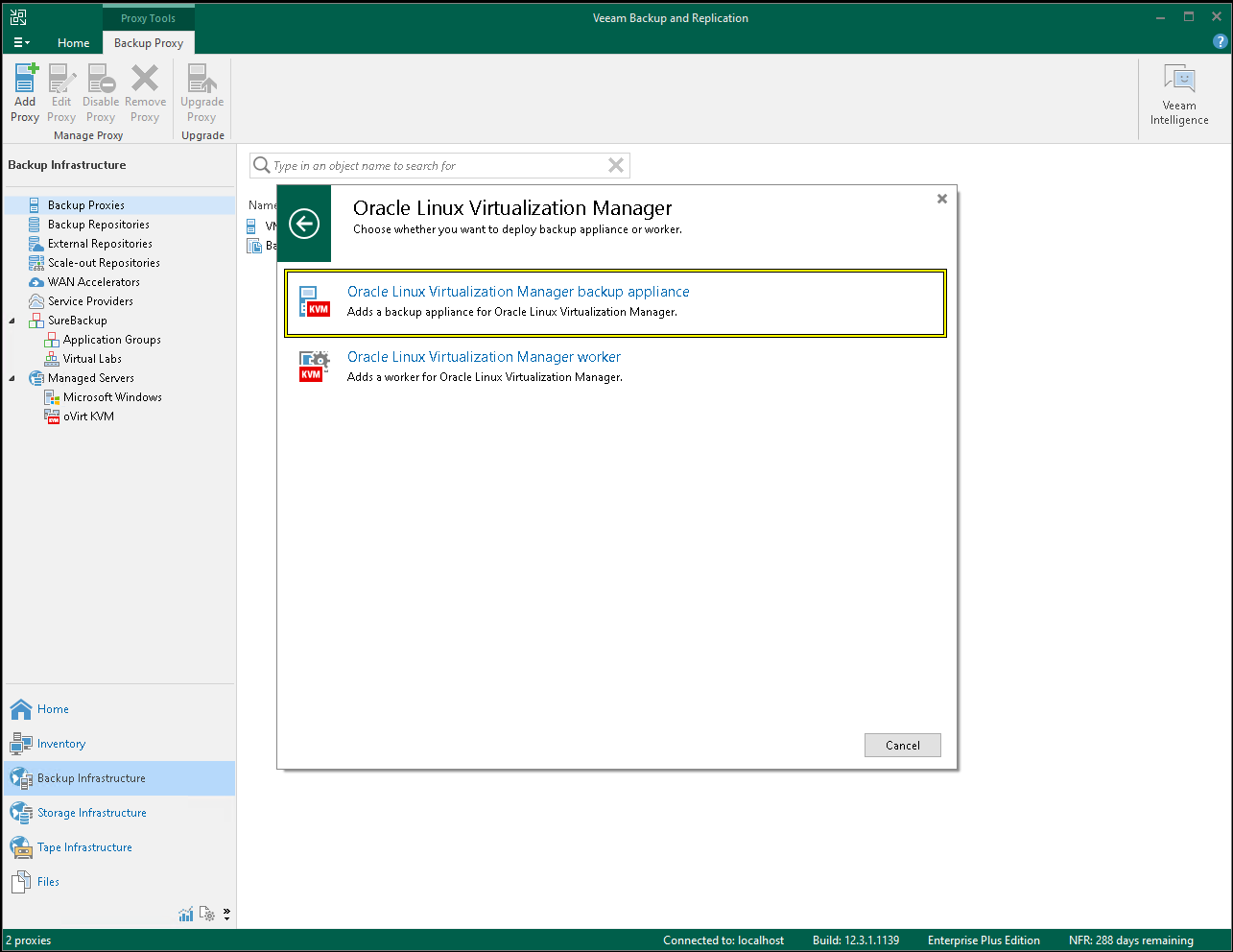
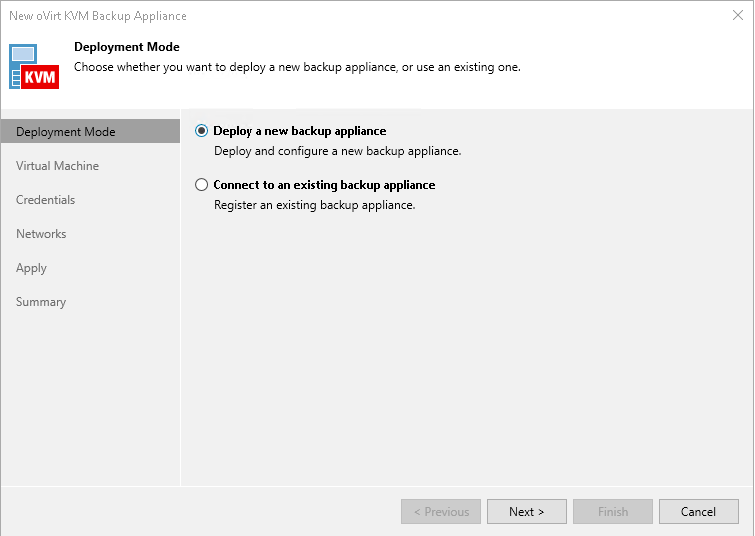
This will open a new wizard to deploy the appliance. You should choose to deploy a new appliance:
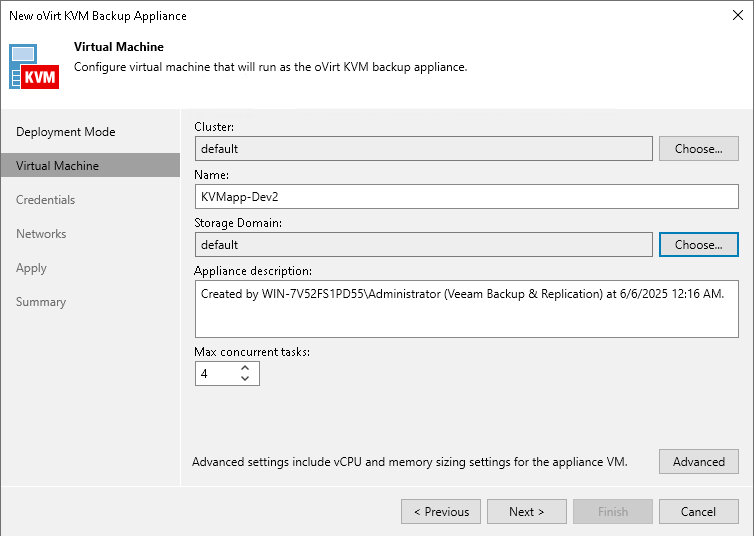
Next you should choose the cluster on which to deploy the appliance, as well as a name and the storage domain where the appliance image should be stored:
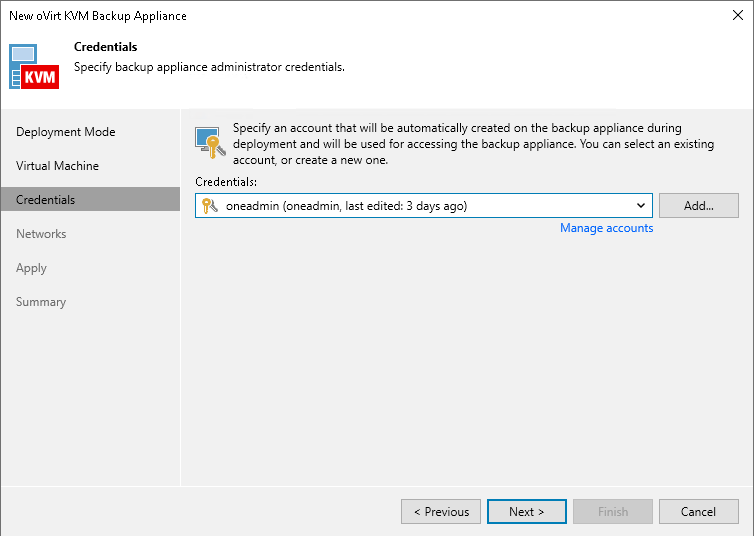
For the appliance credentials, you should choose the same ones that you set up when configuring the virtualization manager in the previous steps:
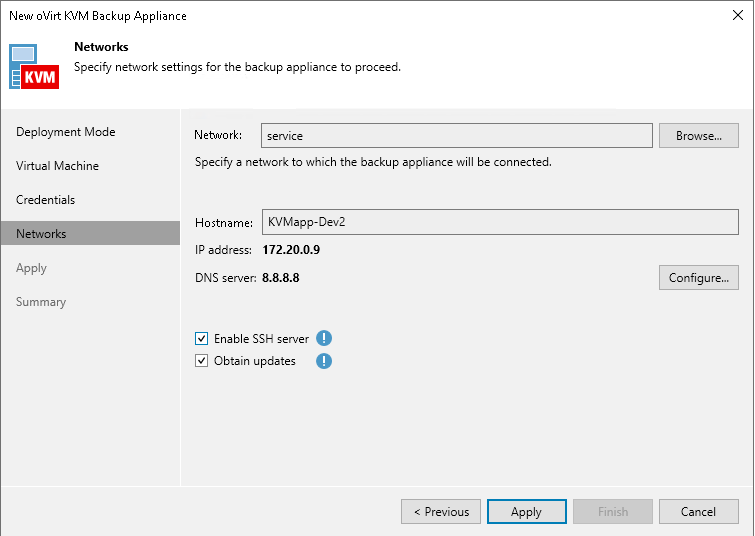
In the Network Settings tab, choose the management network that the appliance will use. It is recommended to manually choose the IP address configuration that the appliance will use. If no DHCP service is setup, use the first available free IP in the range of the management network.
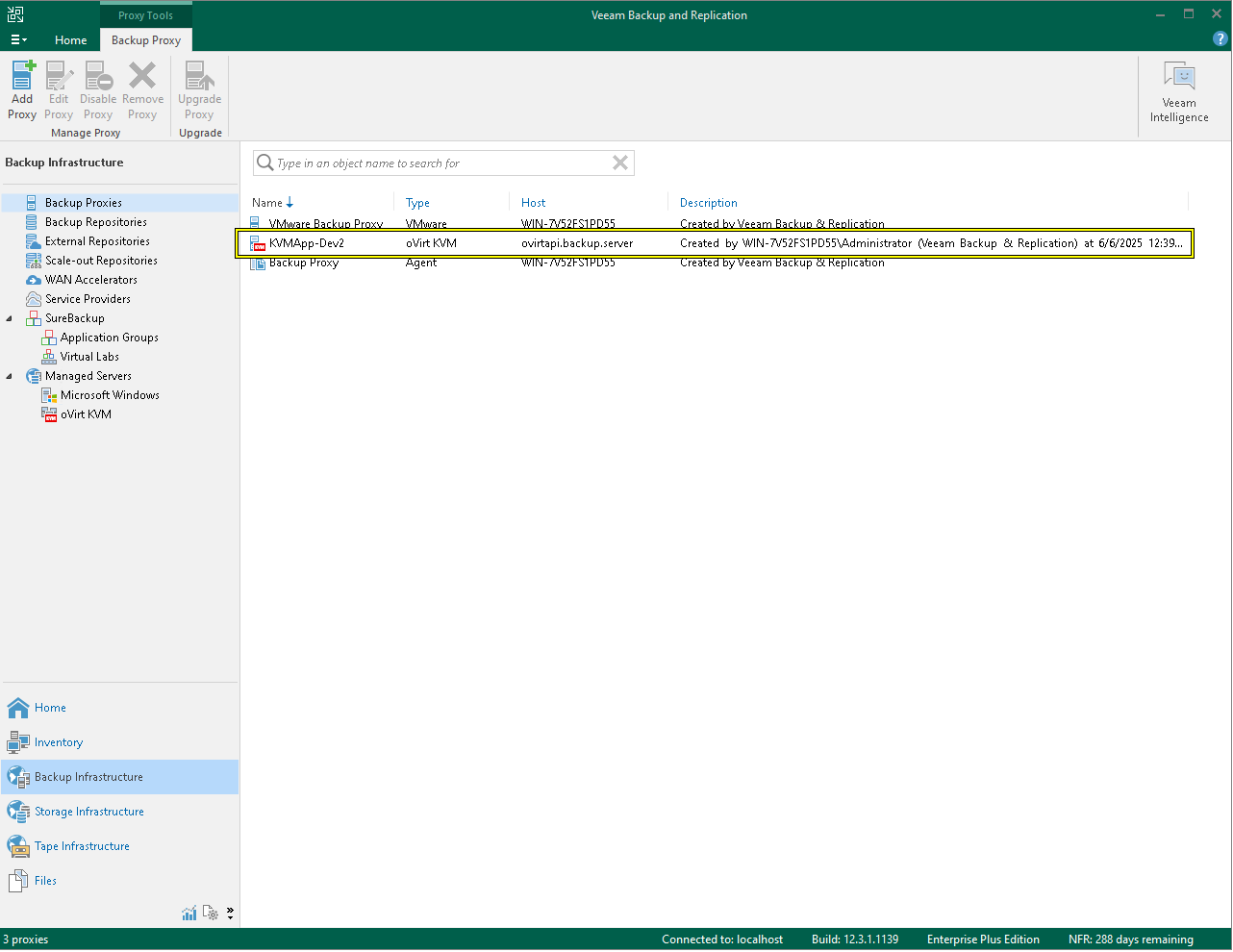
In the next step, Veeam will take care of deploying the appliance. Once finished, you should see it listed in the same tab:
4.3 Verification
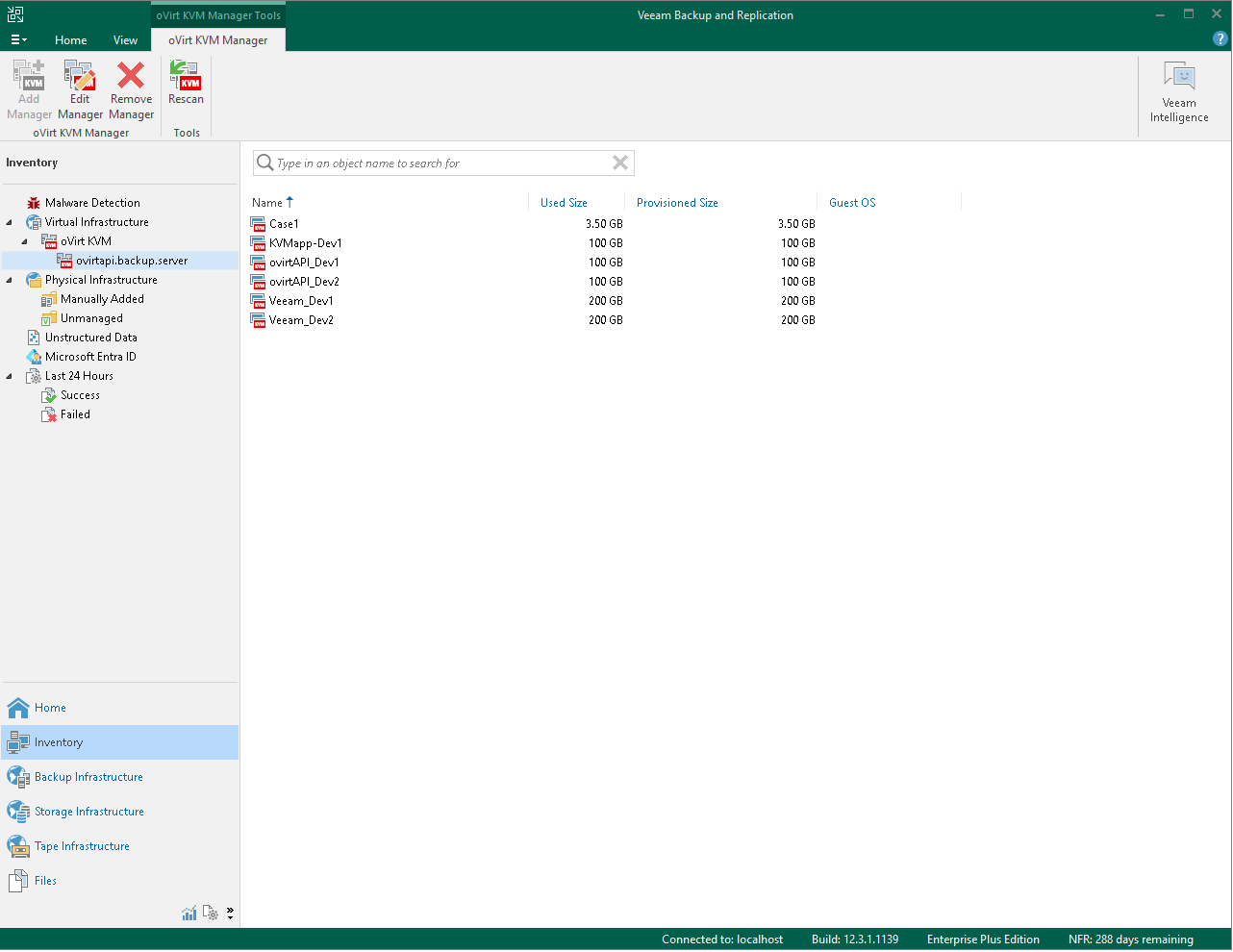
If everything is set properly, you should be able to see the available Virtual Machines in the Inventory tab under the Virtual Infrastructure -> oVirt KVM section.
Logging information
The ovirtapi server will generate logs in the following directory depending on the operating system used:
- Ubuntu/Debian:
/var/log/apache2 - Alma/RHEL:
/var/log/httpd
If you use the cleanup script provided at /usr/lib/one/ovirtapi-server/scripts/backup_clean.rb, the cleanup logs will be placed at /var/log/one/backup_cleaner_script.log.
Performance Improvements
To improve image transfer speed, you can increase the number of concurrent processes to better utilize the backup server’s resources. This is controlled by the PassengerMaxPoolSize parameter in your Apache configuration file.
After setting the PassengerMaxPoolSize, you must balance RAM and CPU availability.
Adjusting the Process Pool
The configuration file is available in the following locations depending on your distribution:
- Debian/Ubuntu:
/etc/apache2/sites-available/ovirtapi-server.conf - Alma/RHEL:
/etc/httpd/conf.d/ovirtapi-server.conf
After editing and saving the file, you must restart the webserver for the change to take effect:
- Debian/Ubuntu:
sudo systemctl restart apache2 - Alma/RHEL:
sudo systemctl restart httpd
Memory
Each active Passenger process consumes approximately 150-200 MB of RAM. You can use the following formula as a starting point to determine a safe maximum, leaving a 30% buffer for the OS and other services:
(TOTAL_SERVER_RAM_MB * 0.70) / 200 = Recommended MaxPoolSize
CPU
While increasing the pool size, monitor your CPU usage during active transfers. If the CPU load becomes the bottleneck (consistently high usage), adding more processes won’t increase speed and may even slow things down. In that case, you will need to increase the number of CPUs or vCPUs assigned to the backup server.
Interpreting Veeam Job Statistics
The Veeam job statistics window shows a breakdown of the load, which is crucial for identifying the true bottleneck in your backup chain.
- Source: This represents your backup server. A high load (e.g., 99%) here is ideal. It means your server is working at full capacity and that the bottleneck is correctly placed on the source, not on other components.
- Proxy: This is the KVM appliance deployed by Veeam. If its load is consistently high (e.g., >90%), it is the bottleneck and requires more resources (vCPU/RAM).
- Network: This indicates that the transfer speed is being limited by the available bandwidth on the management network connecting the components.
Volatile disk backups
To perform a backup of volatile disks, enable this functionality in the OpenNebula virtual machine configuration by setting the BACKUP_VOLATILE parameter to YES, otherwise the disk won’t be listed in Veeam. For more information regarding backups of volatile disks in OpenNebula please refer to the backup documentation page.
GIVE FEEDBACK
Was this resource helpful?
Glad to hear it
Sorry to hear that