Showback
The Showback toolset reports resource usage cost and allows the integration with Chargeback and billing platforms. The toolset generates Showback reports using the information retrieved from OpenNebula.
Set the VM Cost
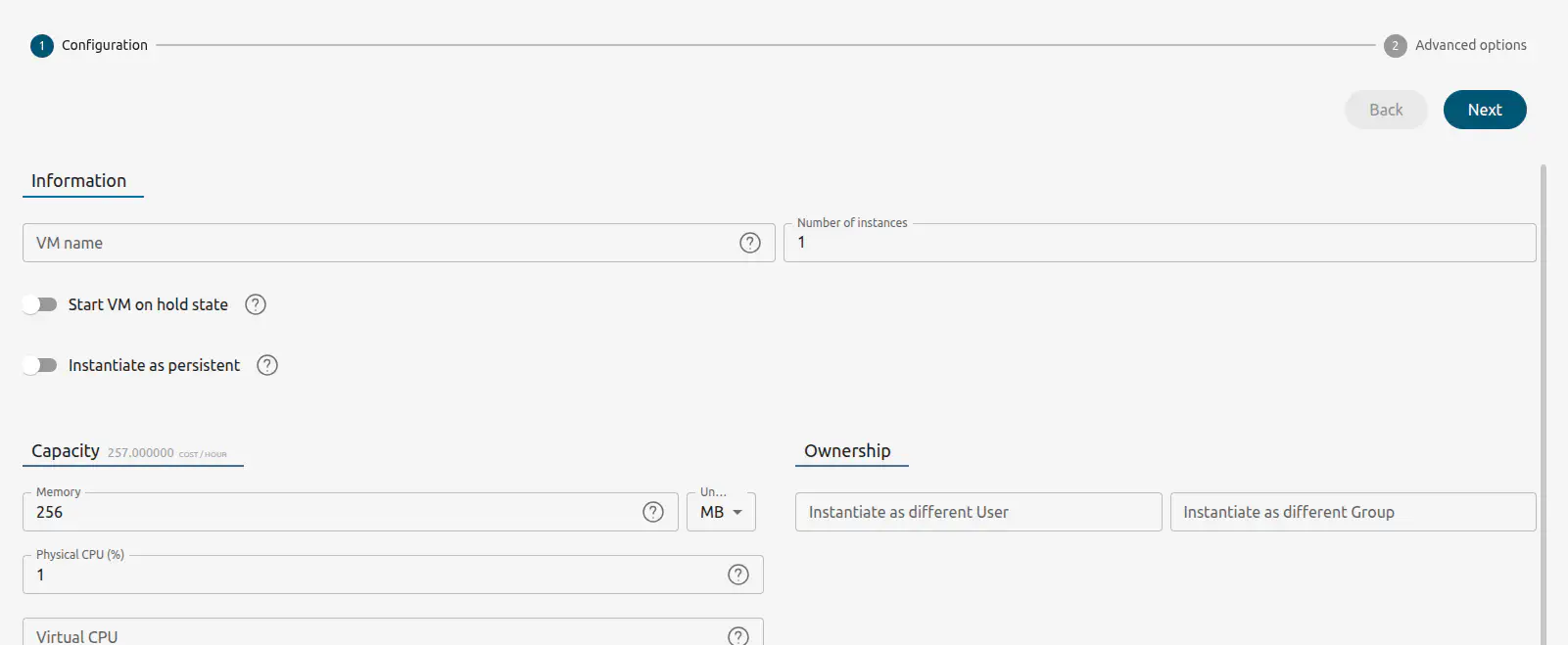
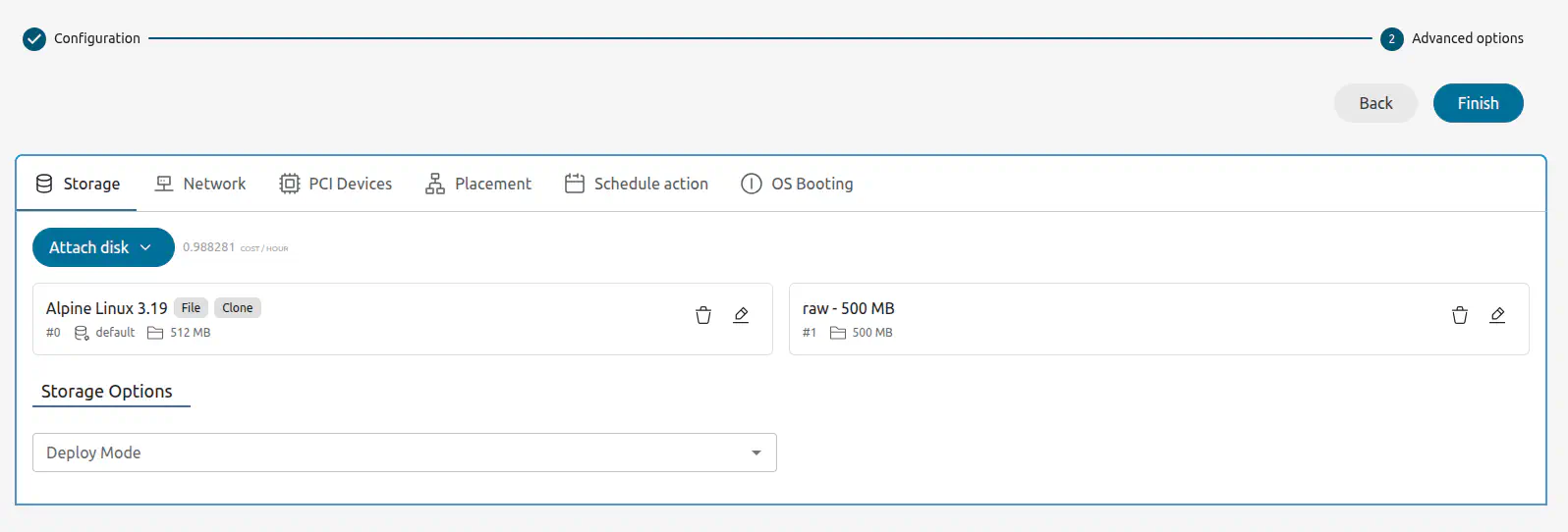
Each VM Template can optionally define a cost (see the syntax here). The cost is defined as cost per cpu per hour, and cost per memory MB per hour. The cost units are abstract and their equivalent to monetary or other cost metrics have to be defined in each deployment.
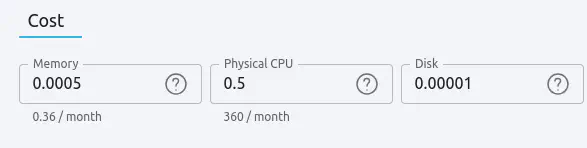
There is a default cost that will be applied to VM Templates without a cost defined. It can be set in the oned.conf file.
Using this cost schema allows users to resize the Virtual Machine instances.
Calculate Monthly Reports
Before the cost reports can be seen by the users, the administrator has to generate them. To create the monthly cost reports use Sunstone or the oneshowback command:
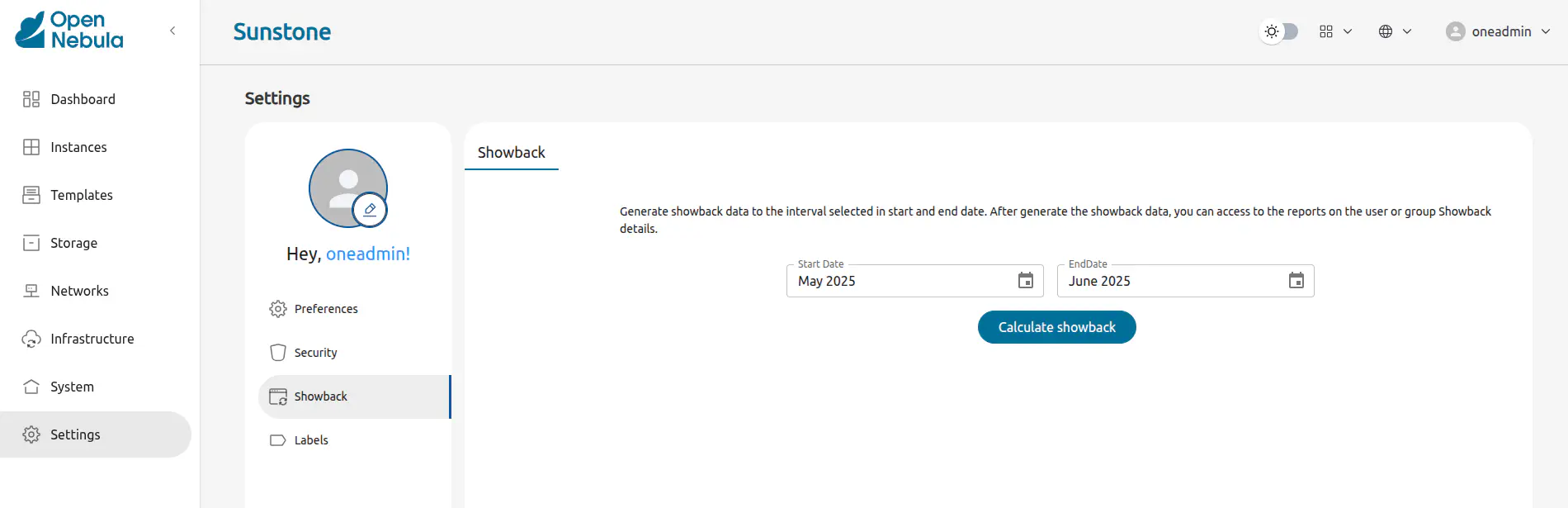
Log into Sunstone as an administrator user and go to the Settings section. Select a start date and a end date and press Calculate Showback button:
To calculate monthly reports, run the oneshowback commandas the oneadmin user.
oneshowback calculate -h
Usage: oneshowback [options]
    -s, --start TIME                 First month of the data
    -e, --end TIME                   Last month of the data
Some examples:
To calculate all records, starting from March up to today:
oneshowback calculate --start "03/2016"To calculate only September:
oneshowback calculate --start "09/2016" --end "09/2016"
When you run this command, the OpenNebula core reads all the accounting records and calculates the total cost for each month. The records include the total cost of the month, and basic information about the VM and its owner. This information is then stored in the database to be consumed with the oneshowback list command.
The monthly cost of each VM is calculated as the sum of:
CPU_COST*CPU*HOURSMEMORY_COST*MEMORY*HOURSDISK_COST*DISK_SIZE*HOURS
The number of hours is calculated as the total number of hours that a VM has been active. This accounts for every VM state that keeps Host resources secured, like poweroff or suspended, but not in stopped or undeploy.
Optionally, compute CPU and MEMORY cost only for VMs in running state, see SHOWBACK_ONLY_RUNNING in oned.conf file
Important considerations:
- If the time range includes the current month, OpenNebula will calculate the cost up to today’s date.
- There is a timer in the front-end, called
opennebula-showback.timerthat automatically calculates the Showback every day. Check the status by runningsystemctl status opennebula-showback.timer - Existing records can be re-calculated. This can be useful to update old records when a VM is renamed or the owner is changed. In this case, the cost of previous months will be also assigned to the new user.
Bear in mind that this is a resource intensive operation. For big deployments, add the --start option to process only the last missing months.
Retrieve Monthly Reports
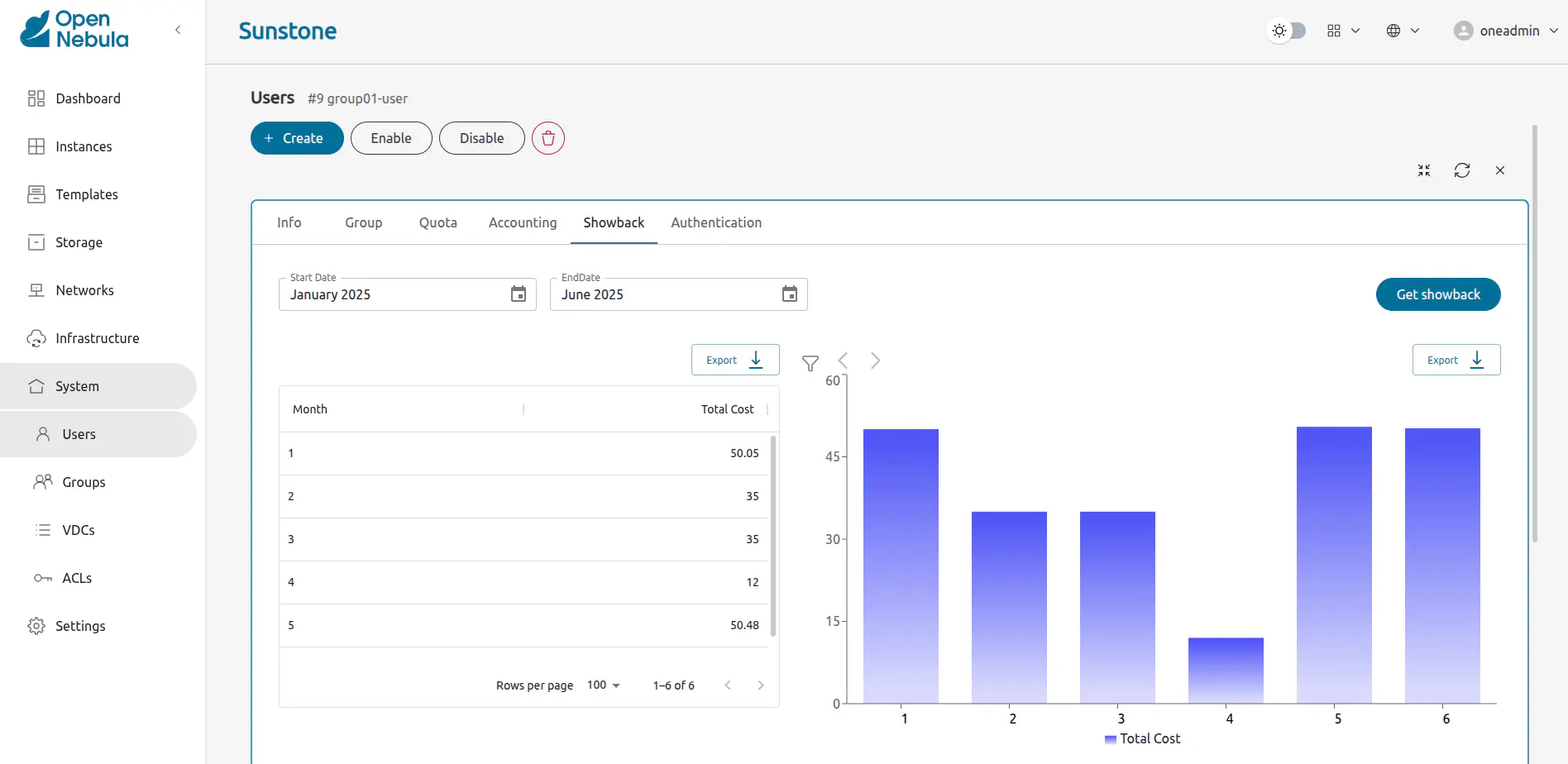
View, as an administrator or a regular user, your monthly Showback reports from Sunstone or the CLI:
- Log into Sunstone.
- Go to either Users or Groups.
- Click on a user or a group.
- Select the Showback tab.
## USAGE
list
        Returns the showback records
        valid options: start_time, end_time, userfilter, group, xml, json, verbose, help, version, describe, list, csv, user, password, endpoint

## OPTIONS
     -s, --start TIME          First month of the data
     -e, --end TIME            Last month of the data
     -u, --userfilter user     User name or id to filter the results
     -g, --group group         Group name or id to filter the results
     -x, --xml                 Show the resource in xml format
     -j, --json                Show the resource in json format
     -v, --verbose             Verbose mode
     -h, --help                Show this message
     -V, --version             Show version and copyright information
     --describe                Describe list columns
     -l, --list x,y,z          Selects columns to display with list command
     --csv                     Write table in csv format
     --user name               User name used to connect to OpenNebula
     --password password       Password to authenticate with OpenNebula
     --endpoint endpoint       URL of OpenNebula xmlrpc frontend
Disable Showback in Sunstone
Showback reports can be disabled in any of the Sunstone views by modifying the yaml file called user-tab.yaml in the corresponding view (See Sunstone views to get more information):
...
info-tabs:
  showback:
    enabled: false
Tuning and Extending
To integrate the Showback reports with external tools, you can get the CLI output as xml, json, or csv data.
oneshowback list -u cloud_user --list YEAR,MONTH,VM_ID,COST --csv
YEAR,MONTH,VM_ID,COST
2015,10,4258,1824279.62
2015,10,4265,433749.03
2015,11,4258,34248600
Developers interacting with OpenNebula using the Ruby bindings can use the VirtualMachinePool.showback method to retrieve Showback information and filter and order by multiple parameters.
GIVE FEEDBACK
Was this resource helpful?
Glad to hear it
Sorry to hear that