Kubernetes Cluster Lifecycle Management
This section describes the main lifecycle operations for OneKS K8s Clusters. It covers how to create, access, scale, upgrade, recover, and delete K8s Clusters.
A OneKS K8s Cluster lifecycle normally follows this sequence:
- Create a K8s Cluster: Provision the control plane and required infrastructure.
- Access the K8s Cluster: Retrieve the kubeconfig and validate Kubernetes API access.
- Add or Scale Worker Capacity: Create or resize node groups.
- Upgrade the K8s Cluster: Move the K8s Cluster to a supported Kubernetes version.
- Recover Failed Operations: Retry selected failed lifecycle actions.
- Delete the K8s Cluster: Deprovision the K8s Cluster and associated resources.
OneKS exposes these operations through Sunstone, the CLI, and the REST API, depending on the deployment and user permissions.
Creating a K8s Cluster
Creating a K8s Cluster provisions the Kubernetes control plane and the supporting OpenNebula infrastructure required by the selected K8s Cluster profile.
Before creating a K8s Cluster, verify that:
- OneKS Service: The OneKS service is configured and running.
- OneGate Service: OneGate is configured and reachable.
- Transparent Proxy:
tproxyis configured for the required OneGate and OpenNebula XML-RPC ports. - Networks: The OpenNebula public and private Virtual Network IDs are known.
- Profiles: The required family and flavour are available.
- Kubernetes Version: The target Kubernetes version is supported by the selected family.
- Images and Templates: Required VM images, VM templates, and runtime dependencies are available.
- Permissions: The user has permission to create and manage the required OneKS and OpenNebula resources.
From the left-hand navigation menu in Sunstone, go to Kubernetes -> K8S Clusters and click Create to start the K8s Cluster creation wizard.
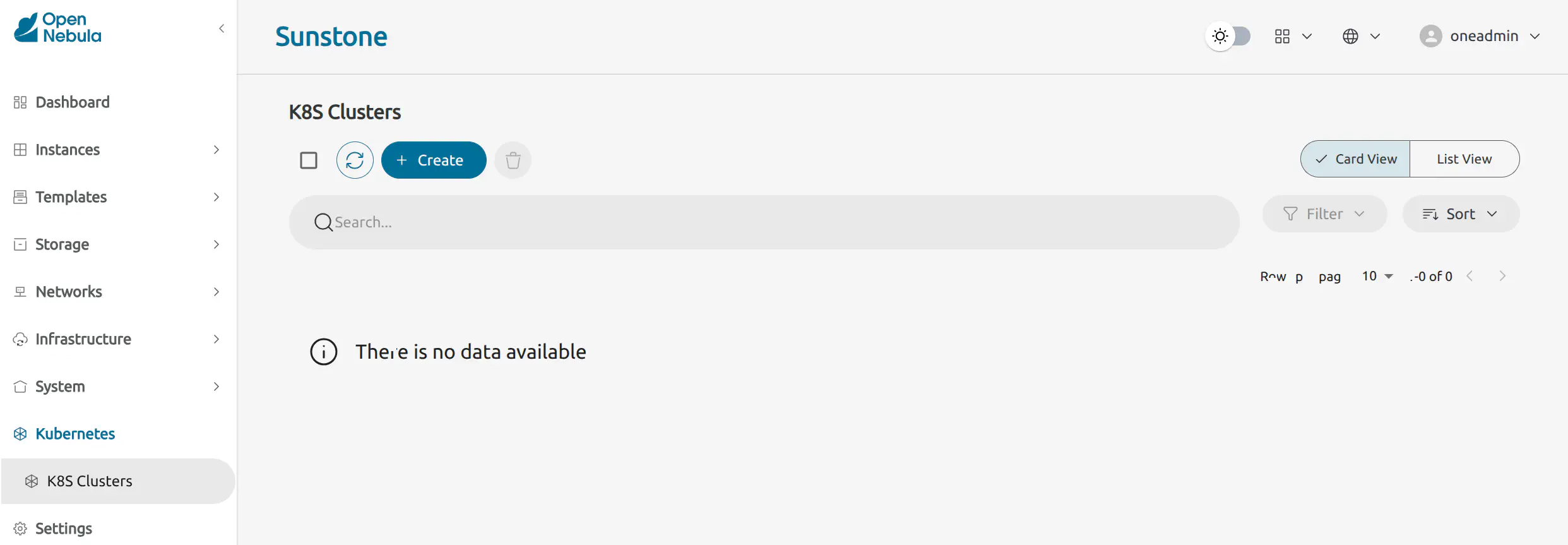
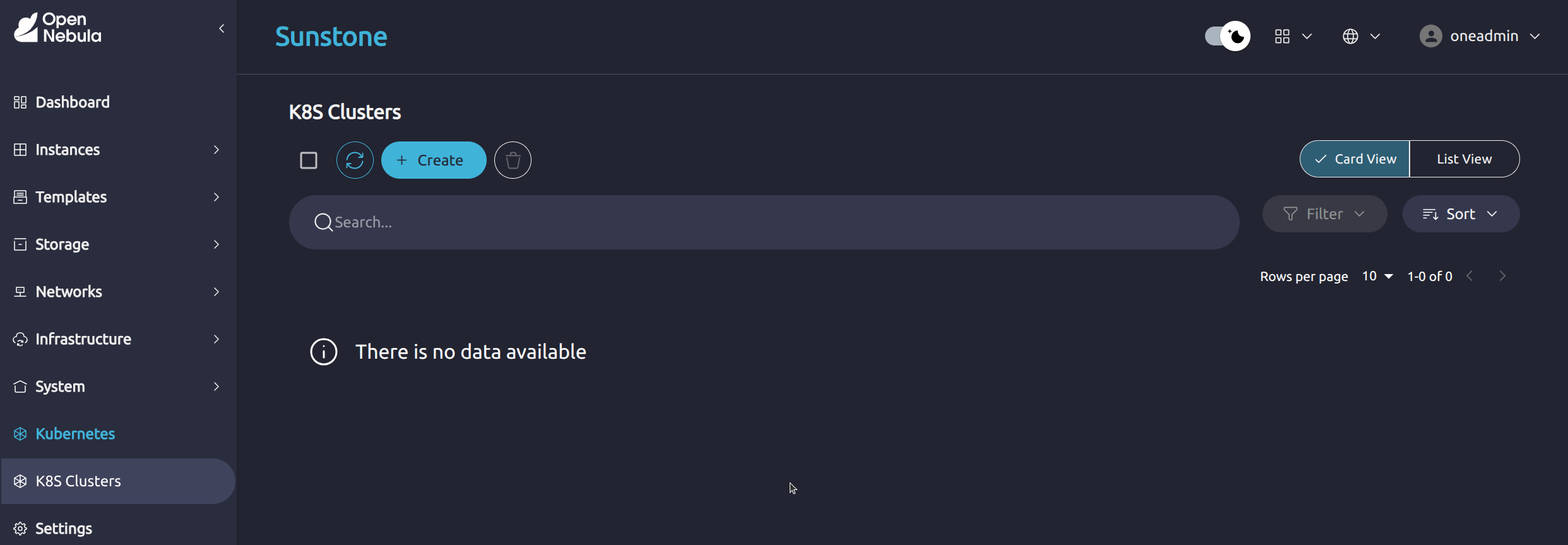
The wizard guides you through the required configuration steps:
- General: K8s Cluster name and optional description.
- Select a Public Virtual Network: Public network used for external connectivity and bootstrap paths.
- Select a Private Virtual Network: Private network used for internal K8s Cluster communication.
- Kubernetes Version: Kubernetes version to deploy.
- Flavours: Control-plane flavour to use.
- User Inputs: Remaining values required by the selected profile and flavour.
After completing the required fields, finish the wizard to start K8s Cluster creation. You will be redirected to the Kubernetes Logs view, where you can monitor the provisioning process.
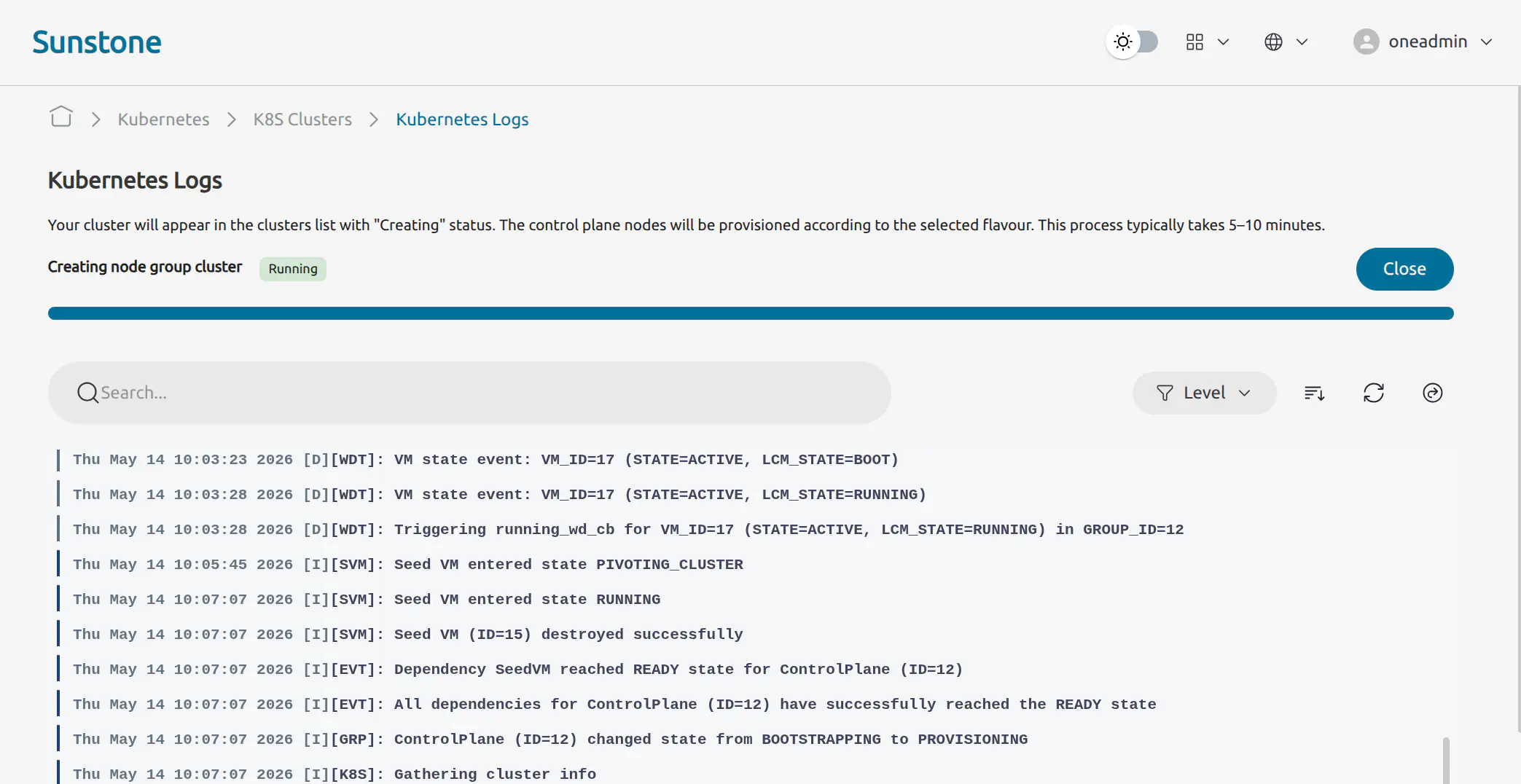
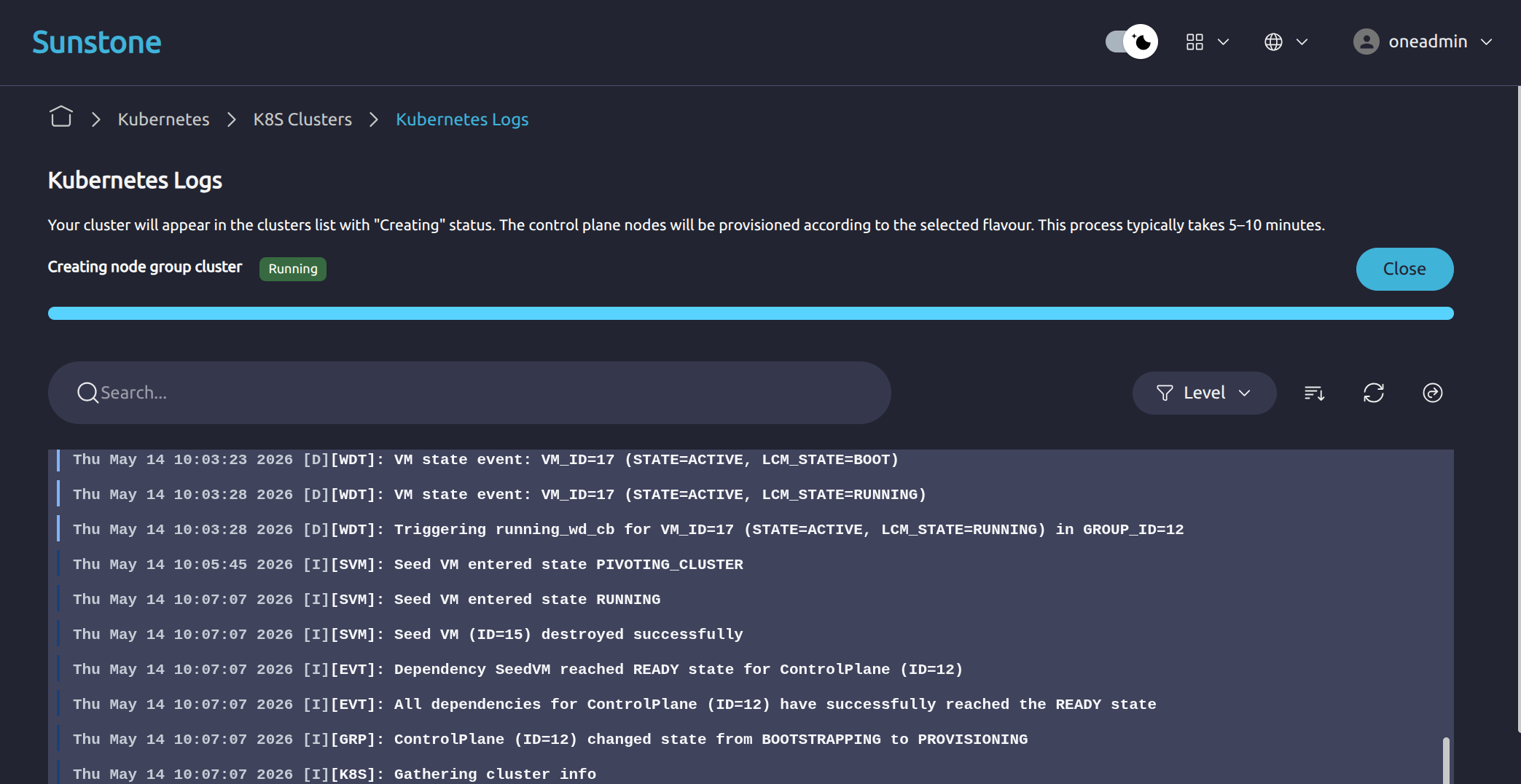
For a complete Sunstone walkthrough, see the OneKS Quick Start.
Before creating a K8s Cluster with the CLI, identify the IDs of the OpenNebula public and private Virtual Networks:
$ onevnet list
ID USER     GROUP    NAME         CLUSTERS   BRIDGE   STATE
 1 oneadmin oneadmin private      0          br1      rdy
 0 oneadmin oneadmin public       0          br1      rdy
Launch the interactive K8s Cluster creation command. You can add --wait to subscribe to the deployment logs and keep the command attached until the operation completes or reaches a terminal state:
oneks create cluster --wait
The interactive CLI flow asks for:
- K8s Cluster Name: The name used to identify the OneKS K8s Cluster.
- Kubernetes Version: The Kubernetes version to deploy.
- K8s Cluster Flavour: The control-plane flavour, such as
standaloneorha. - Public Network ID: The OpenNebula public Virtual Network used by the K8s Cluster.
- Private Network ID: The OpenNebula private Virtual Network used by the K8s Cluster.
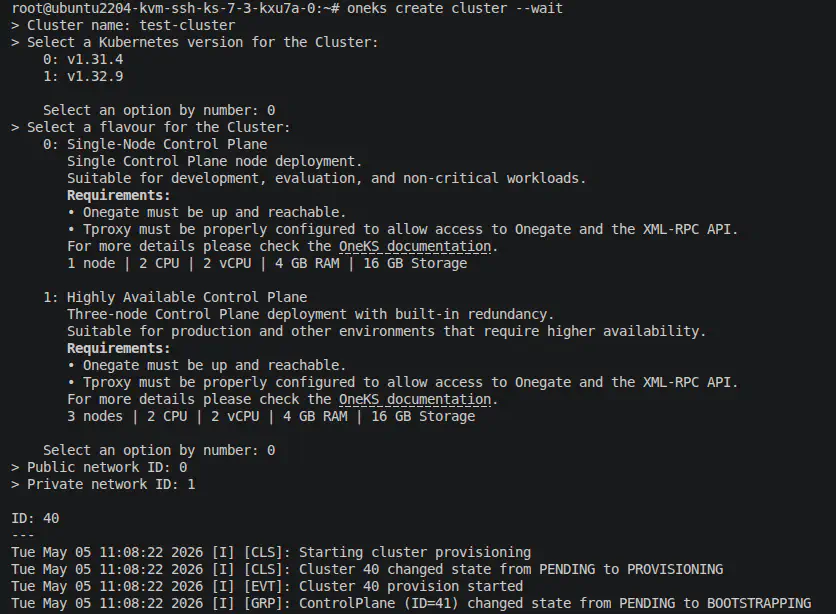
You can also create a K8s Cluster from a JSON specification:
oneks create cluster --file spec.json --wait
Example spec.json:
{
  "name": "prod-cluster",
  "description": "Production Kubernetes cluster",
  "kubernetes_version": "v1.32.9",
  "public_network": 12,
  "private_network": 34,
  "spec": {
    "flavour": "ha"
  }
}
After the K8s Cluster is created, wait until its status changes from PROVISIONING to RUNNING.
Use the following request to create a K8s Cluster:
curl -u "$(cat /var/lib/one/.one/one_auth)" \
  -X POST http://127.0.0.1:10780/api/v1/clusters \
  -H "Content-Type: application/json" \
  -d '{
    "name": "prod-cluster",
    "description": "Production Kubernetes cluster",
    "kubernetes_version": "v1.32.9",
    "public_network": 0,
    "private_network": 1,
    "spec": {
      "flavour": "ha"
    }
  }'
For further details about the API, see the OneKS REST API Reference.
Accessing a K8s Cluster
After the K8s Cluster reaches the RUNNING state, retrieve its kubeconfig. The kubeconfig contains the Kubernetes API endpoint and credentials required to access the K8s Cluster.
From Kubernetes -> K8S Clusters, open the target K8s Cluster. In the K8s Cluster detail view, select the Kubeconfig tab.
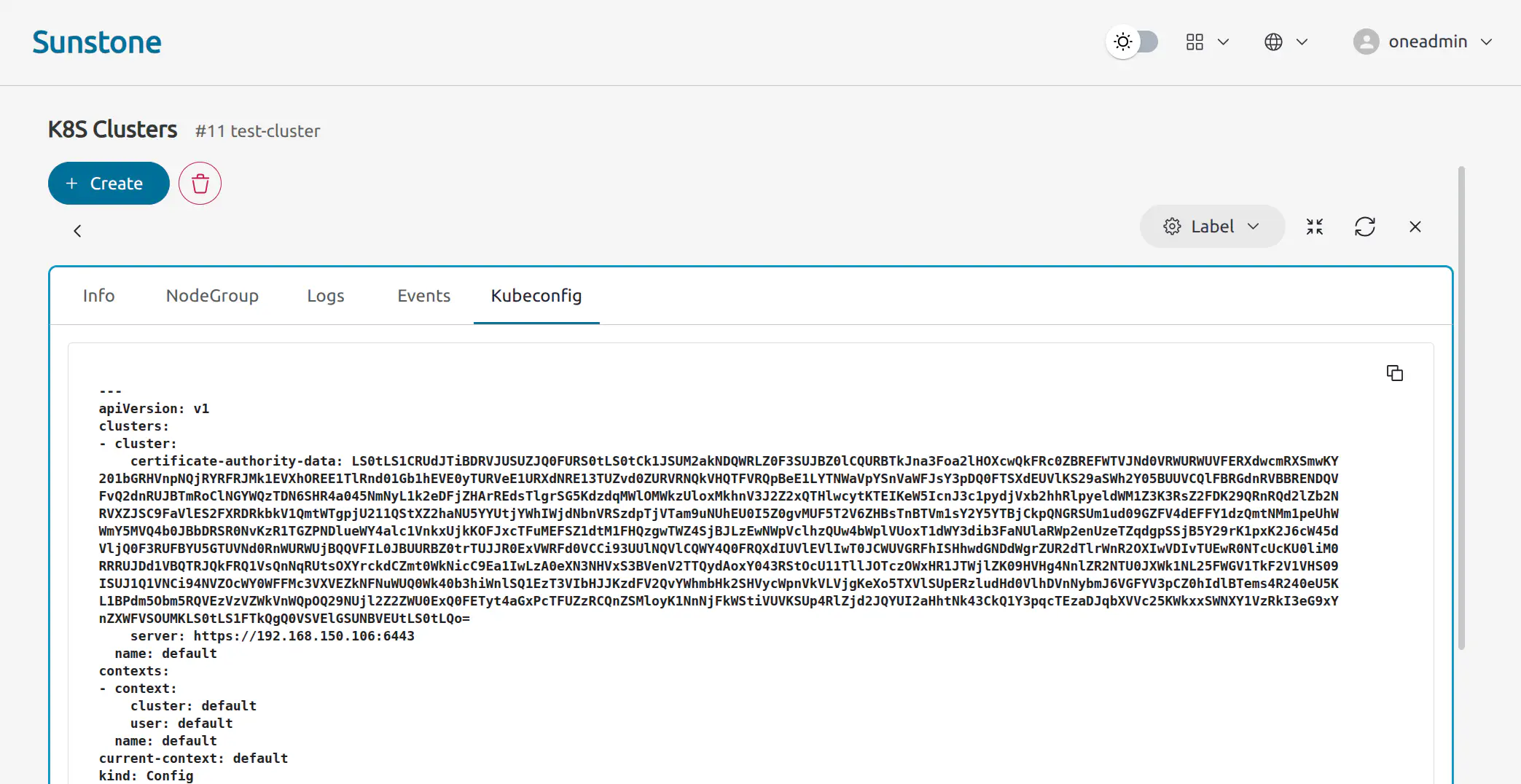
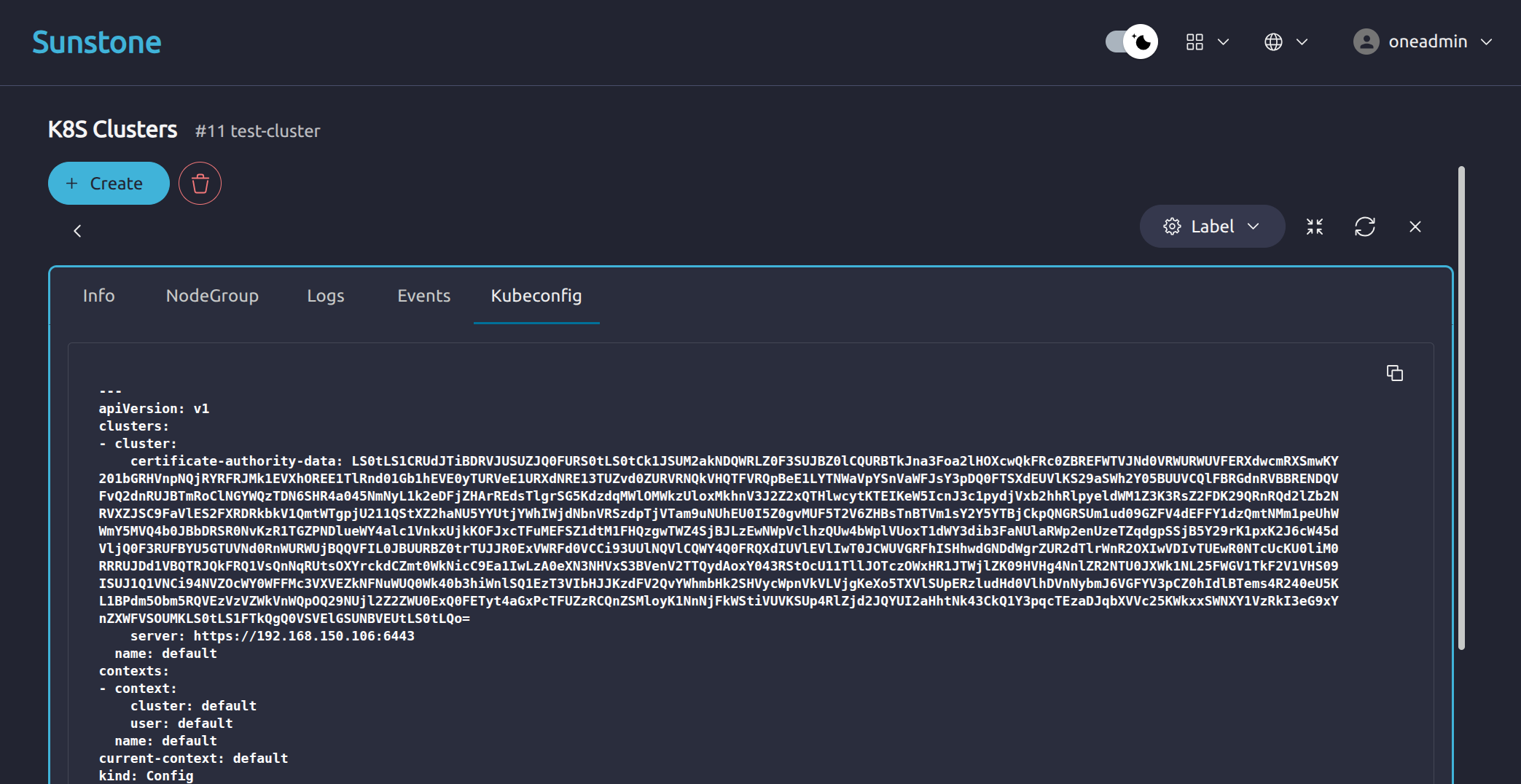
Copy the kubeconfig content and save it locally as a kubeconfig file.
Retrieve the kubeconfig with the CLI:
oneks show cluster <cluster_id> --kubeconfig > kubeconfig
Use the kubeconfig with standard Kubernetes commands:
$ KUBECONFIG=./kubeconfig kubectl get nodes
NAME                         STATUS   ROLES           AGE   VERSION
test-cluster-control-plane   Ready    control-plane   3m    v1.31.4
Retrieve the kubeconfig through the API and save it locally:
curl -u "$(cat /var/lib/one/.one/one_auth)" \
  http://<oneks-server>:10780/api/v1/clusters/<cluster_id>/kubeconfig \
  | jq -r '.kubeconfig' > kubeconfig
Use the saved kubeconfig with kubectl:
KUBECONFIG=./kubeconfig kubectl get nodes
For further details about the API, see the OneKS REST API Reference.
Scaling Worker Capacity
Scaling worker capacity is done by creating or resizing node groups.
Node groups are the main operational unit for managing worker capacity in OneKS. Scaling should be performed against node groups, not directly against the K8s Cluster control plane.
From Kubernetes -> K8S Clusters, open the target K8s Cluster. Select the NodeGroup tab, then click Add Node Group.
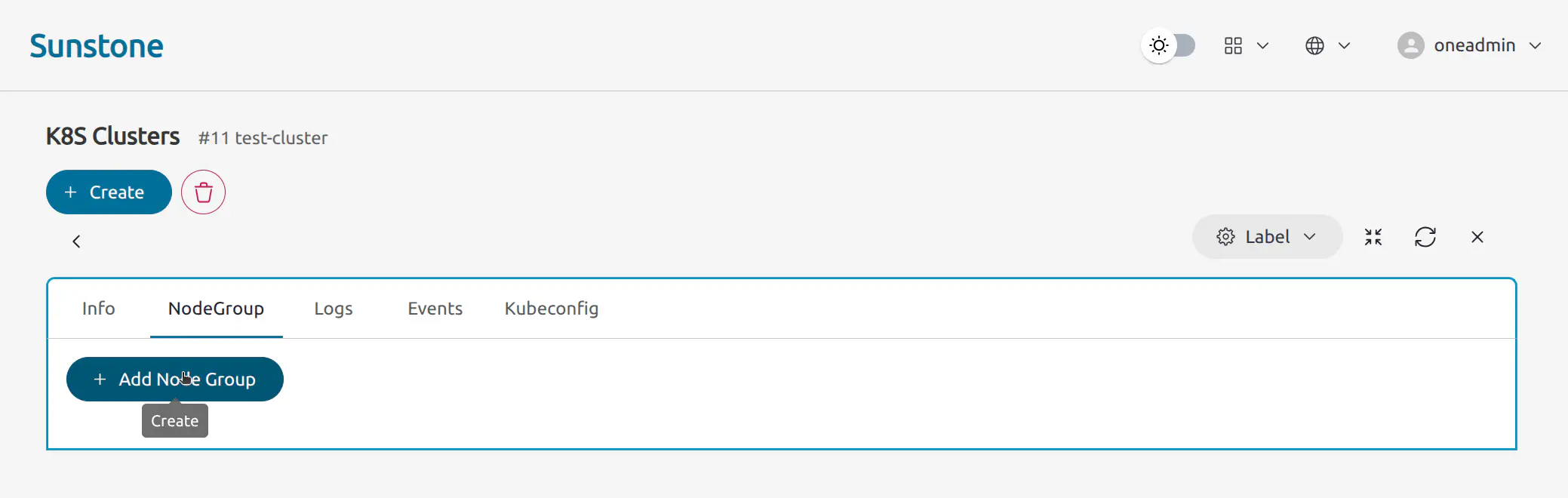
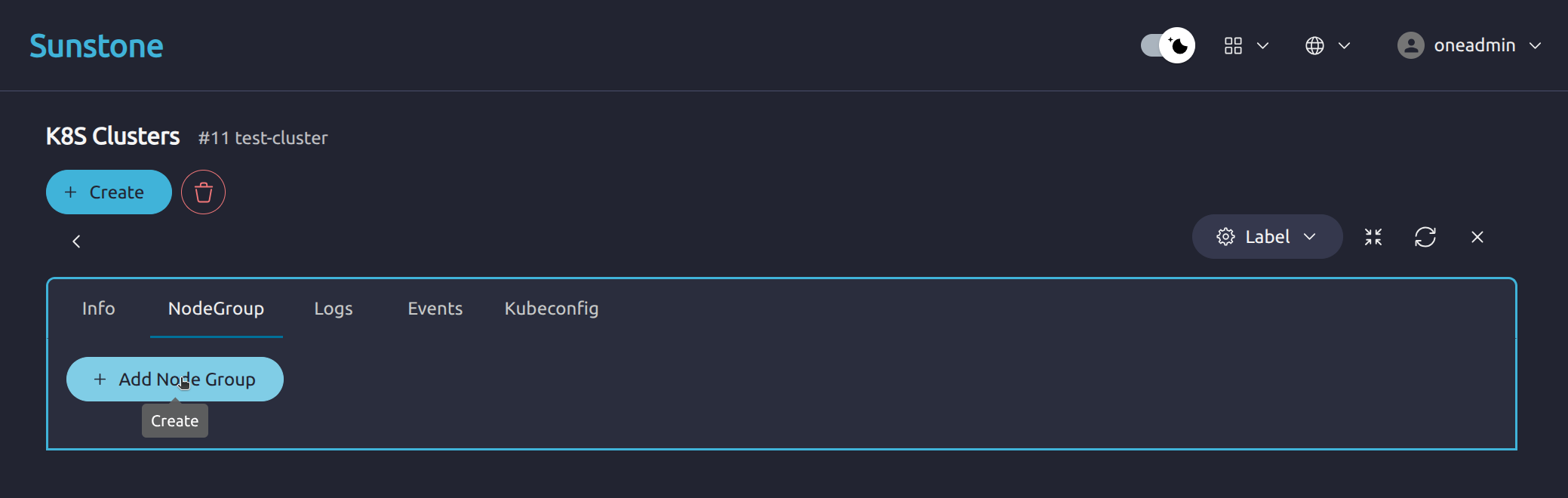
The node-group creation wizard guides you through:
- General: Node group name and optional description.
- Flavours: Worker node flavour.
- User Inputs: Node count and remaining values required by the selected flavour.
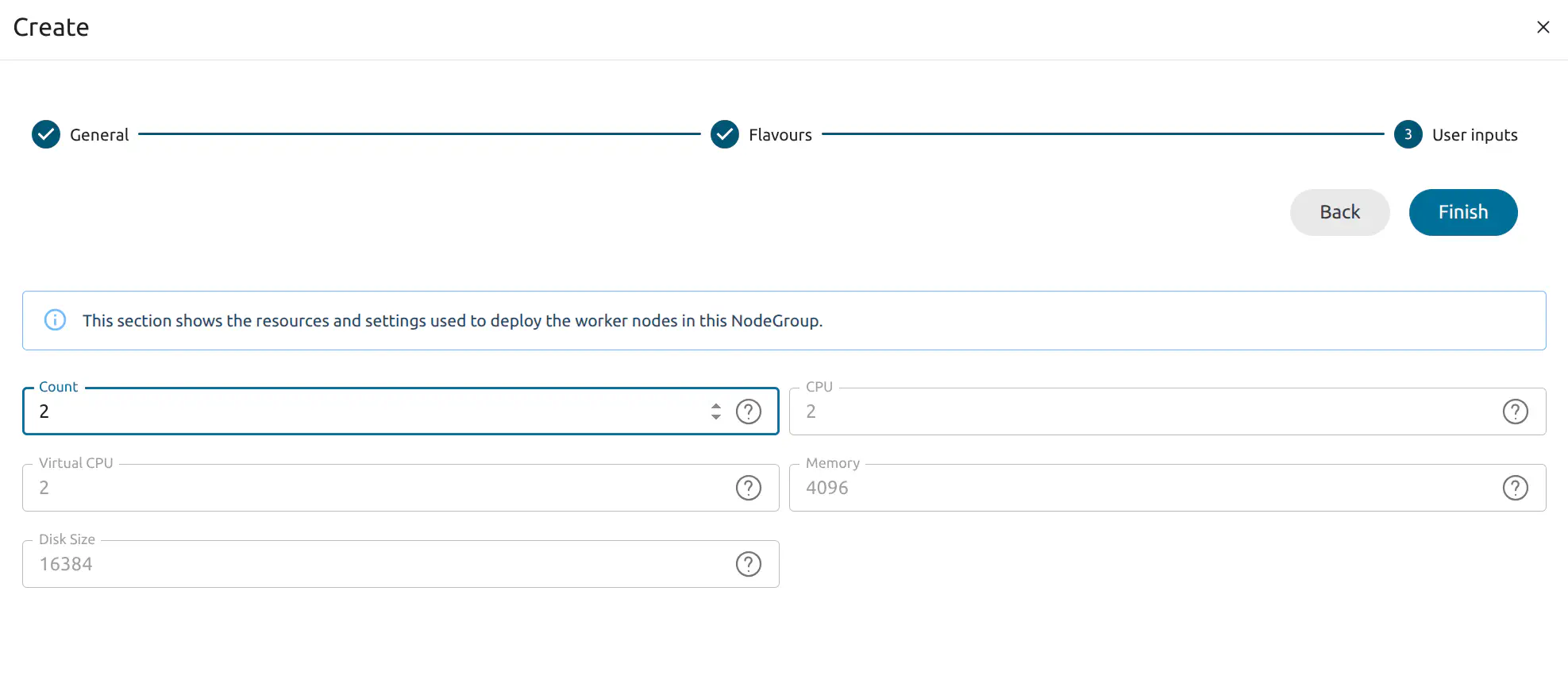
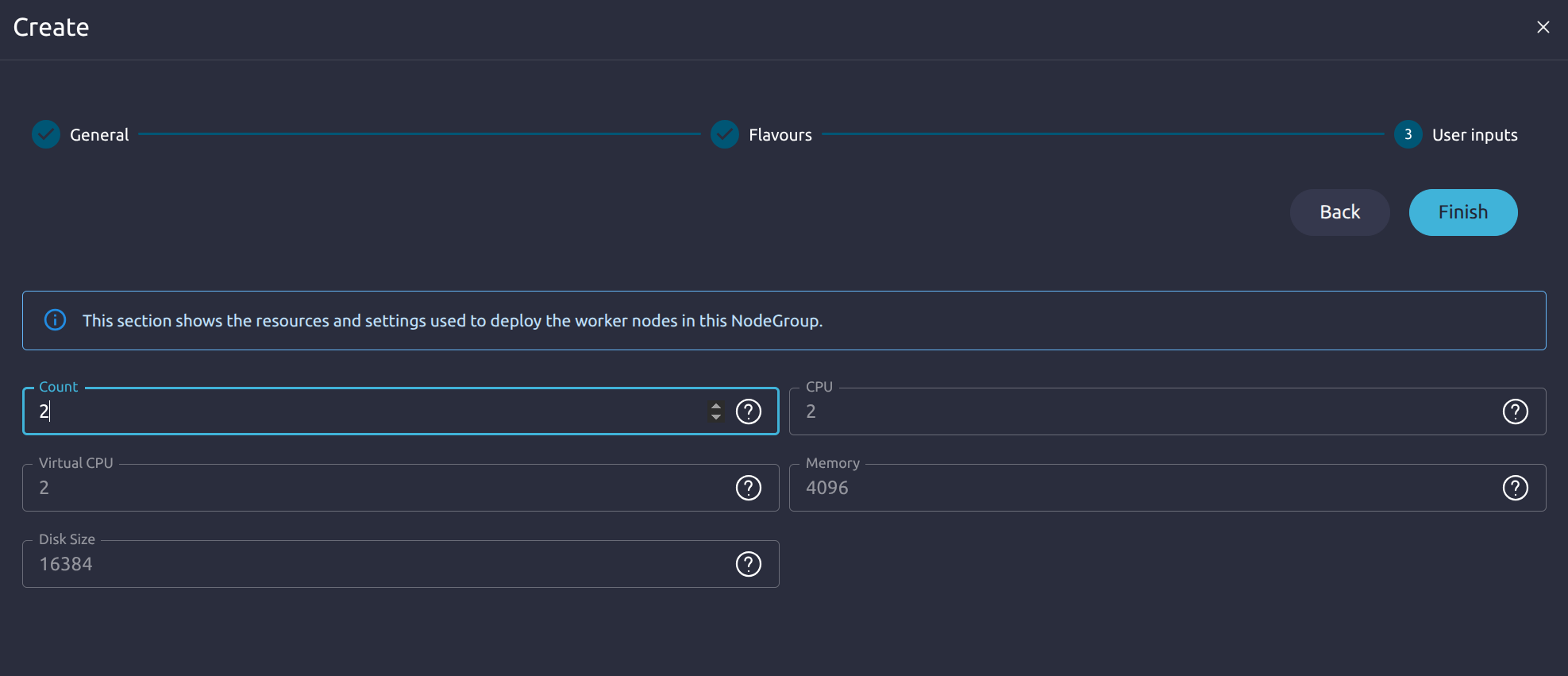
After finishing the wizard, monitor the K8s Cluster logs until the node group reaches RUNNING.
Create a node group:
oneks create nodegroup --cluster-id <cluster_id>
The command starts an interactive creation flow. You will be asked to provide:
- Nodegroup Name: The name used to identify the worker node group.
- Flavour: The worker node size profile to use.
- Count: The number of worker nodes to create.
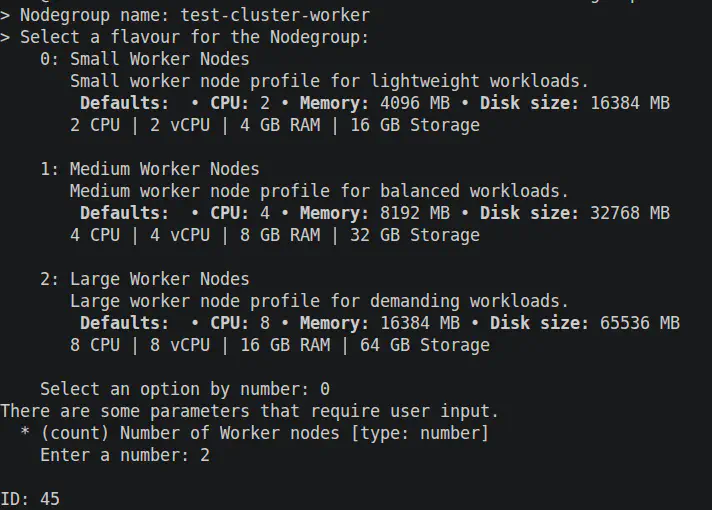
Scale a node group by specifying its ID and the desired number of worker nodes:
oneks scale nodegroup <nodegroup_id> --target <worker_count>
Example:
oneks scale nodegroup 7 --target 3
Validate the Kubernetes node list:
$ KUBECONFIG=./kubeconfig kubectl get nodes
NAME                         STATUS   ROLES           AGE   VERSION
test-cluster-control-plane   Ready    control-plane   9m    v1.31.4
test-cluster-worker-1        Ready    <none>          2m    v1.31.4
test-cluster-worker-2        Ready    <none>          2m    v1.31.4
test-cluster-worker-3        Ready    <none>          2m    v1.31.4
Create a node group:
curl -u "$(cat /var/lib/one/.one/one_auth)" \
  -X POST http://<oneks-server>:10780/api/v1/clusters/<cluster_id>/nodegroups \
  -H "Content-Type: application/json" \
  -d '{
    "name": "workers",
    "family": "general",
    "flavour": "small",
    "user_inputs_values": {
      "count": 2
    }
  }'
Scale an existing node group:
curl -u "$(cat /var/lib/one/.one/one_auth)" \
  -X POST http://<oneks-server>:10780/api/v1/clusters/<cluster_id>/nodegroups/<nodegroup_id>/scale \
  -H "Content-Type: application/json" \
  -d '{
    "target": 3
  }'
Validate the Kubernetes node list:
$ KUBECONFIG=./kubeconfig kubectl get nodes
NAME                         STATUS   ROLES           AGE   VERSION
test-cluster-control-plane   Ready    control-plane   9m    v1.31.4
test-cluster-worker-1        Ready    <none>          2m    v1.31.4
test-cluster-worker-2        Ready    <none>          2m    v1.31.4
test-cluster-worker-3        Ready    <none>          2m    v1.31.4
For further details about the API, see the OneKS REST API Reference.
Upgrading a K8s Cluster
OneKS supports Kubernetes version upgrades for versions supported by the selected profile family.
Before upgrading, verify that:
- Target Version: The target Kubernetes version is supported by the selected family.
- K8s Cluster State: The K8s Cluster is in a suitable operational state.
- Profiles: The selected profiles support the target version.
- Workloads: Running workloads have been reviewed according to the user’s upgrade policy.
- Backups: Any required backups or recovery procedures have been completed.
In the K8S Clusters view, select the K8s Cluster you want to upgrade. Open the Info tab and scroll to the Kubernetes Version field.
Use the dropdown menu to select the target Kubernetes version, then confirm the upgrade.
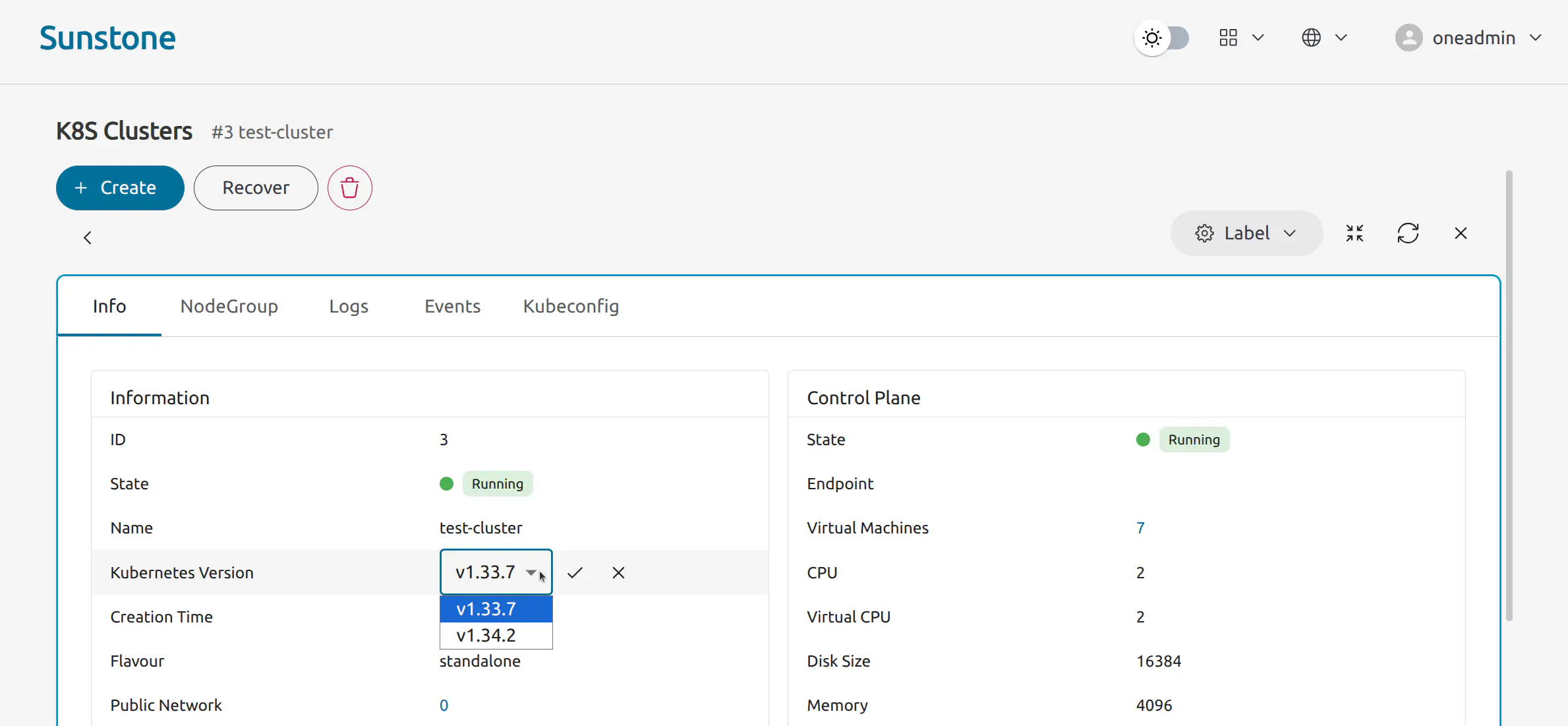
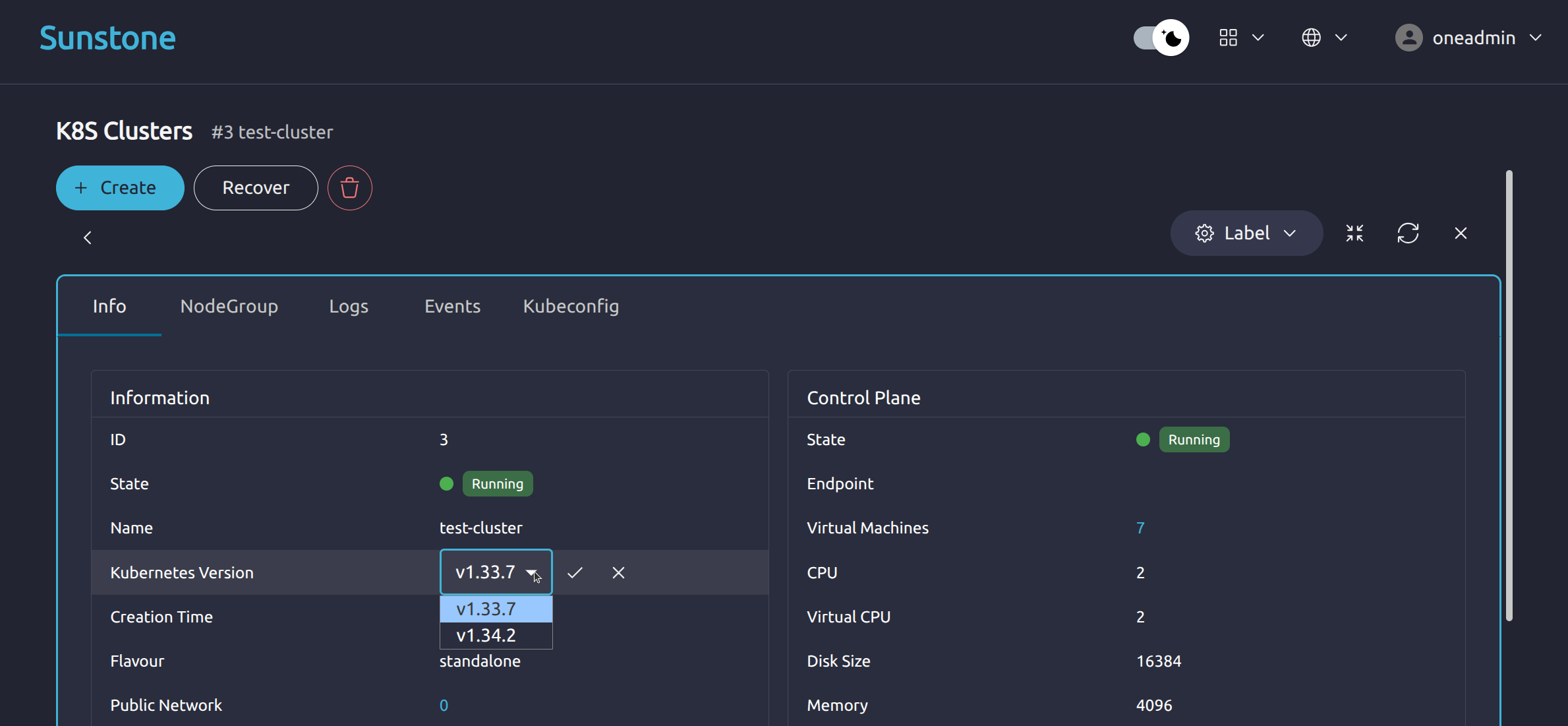
The selected version must be supported by the K8s Cluster profile. After starting the upgrade, monitor the K8s Cluster state and logs until the K8s Cluster returns to RUNNING.
Upgrade a K8s Cluster:
oneks upgrade cluster <cluster_id> --k8s-version <version>
Example:
oneks upgrade cluster 42 --k8s-version v1.32.9
After the upgrade starts, inspect the K8s Cluster state:
oneks show cluster 42
Validate the Kubernetes nodes:
KUBECONFIG=./kubeconfig kubectl get nodes -o wide
Upgrade a K8s Cluster:
curl -u "$(cat /var/lib/one/.one/one_auth)" \
  -X POST http://<oneks-server>:10780/api/v1/clusters/<cluster_id>/upgrade \
  -H "Content-Type: application/json" \
  -d '{
    "kubernetes_version": "v1.32.9"
  }'
For further details about the API, see the OneKS REST API Reference.
Recovering a K8s Cluster or Node Group
OneKS includes recovery actions for selected failure and warning states. Recovery retries the failed lifecycle operation where possible. It may also retry failed dependency actions.
Recovery is not a general rollback mechanism. It should not be assumed to fix every infrastructure, dependency, or Kubernetes-level failure.
In the K8S Clusters view, select the K8s Cluster that contains the affected node group. Open the NodeGroup tab and locate the node group you want to recover. Click the Recover Node Group action button on the node group row.
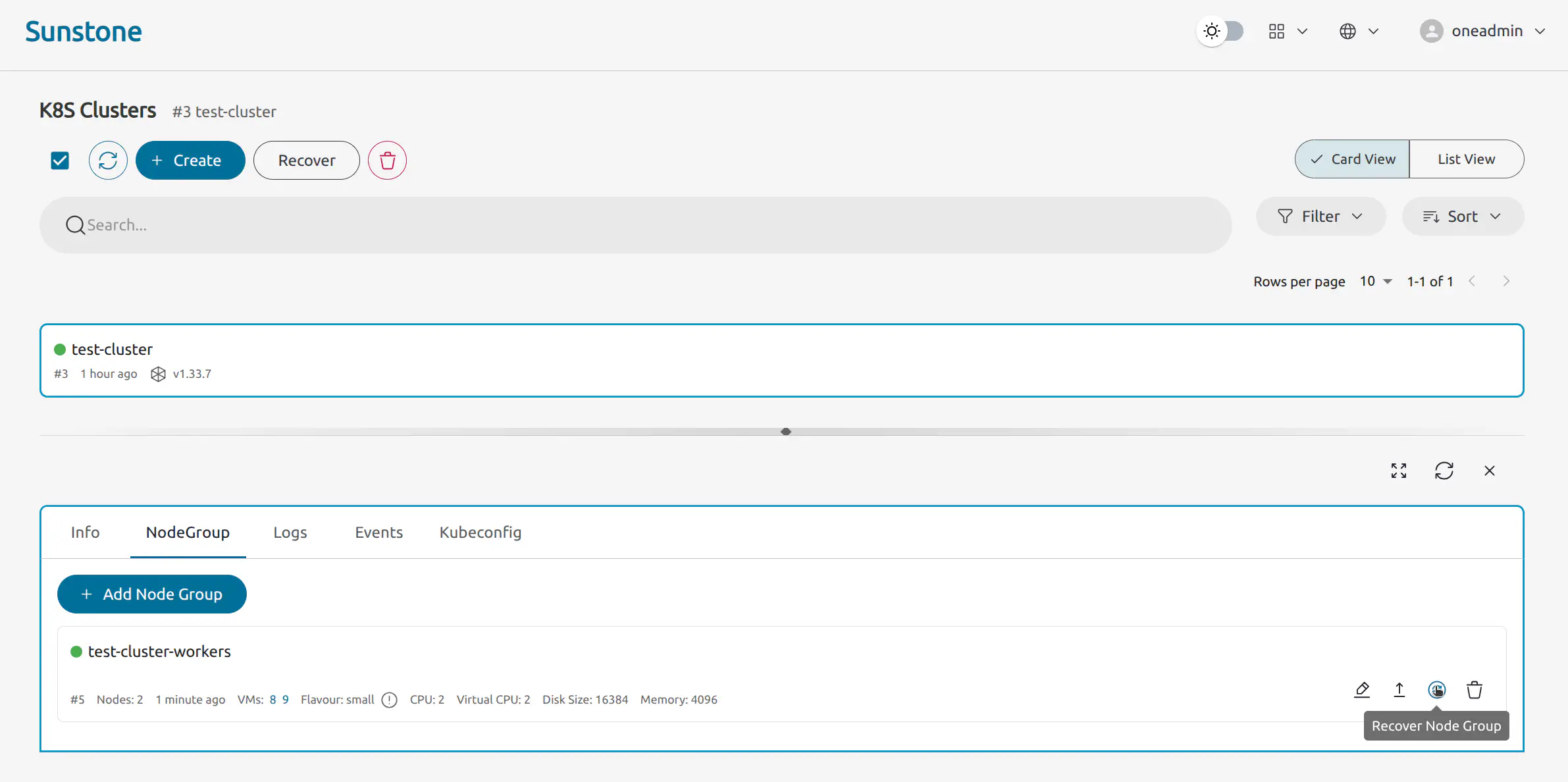
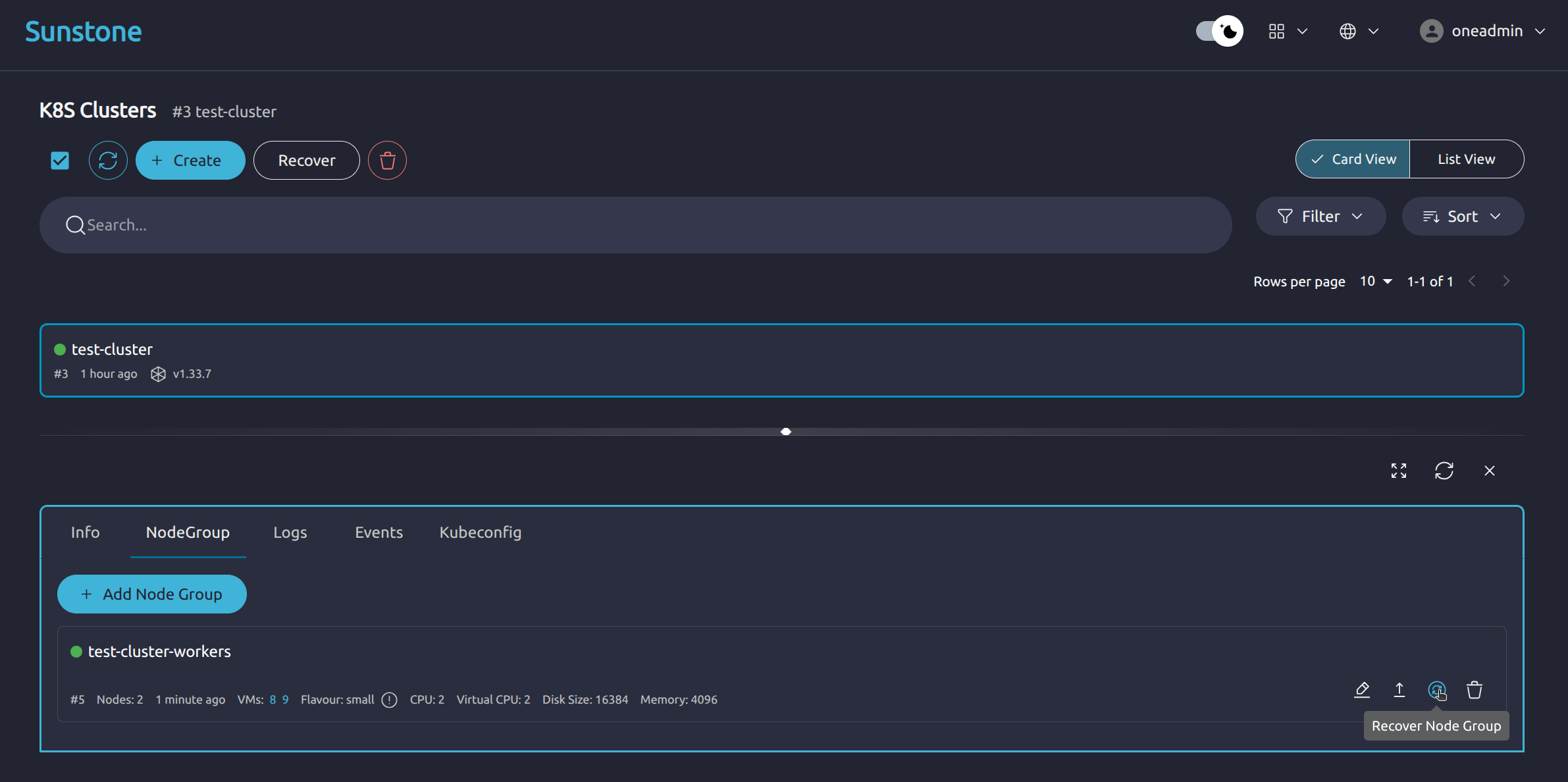
The recovery action retries the last failed lifecycle operation where possible. It is intended for node groups in a warning or failure state, such as PROVISIONING_FAILURE, SCALING_FAILURE, or WARNING.
Recover a K8s Cluster:
oneks recover cluster <cluster_id>
Recover a node group:
oneks recover nodegroup <nodegroup_id>
Then verify the recovery result:
oneks show cluster <cluster_id>
oneks show nodegroup <nodegroup_id>
oneks logs cluster <cluster_id>
Recover a K8s Cluster:
curl -u "$(cat /var/lib/one/.one/one_auth)" \
  -X POST http://<oneks-server>:10780/api/v1/clusters/<cluster_id>/recover
Recover a node group:
curl -u "$(cat /var/lib/one/.one/one_auth)" \
  -X POST http://<oneks-server>:10780/api/v1/clusters/<cluster_id>/nodegroups/<nodegroup_id>/recover
Then verify the recovery result:
oneks logs cluster <cluster_id>
For further details about the API, see the OneKS REST API Reference.
Deleting a K8s Cluster
Deleting a K8s Cluster deprovisions the OneKS K8s Cluster and its managed resources.
In the K8S Clusters view, select the K8s Cluster you want to delete. Click the red Delete button next to the Create button.
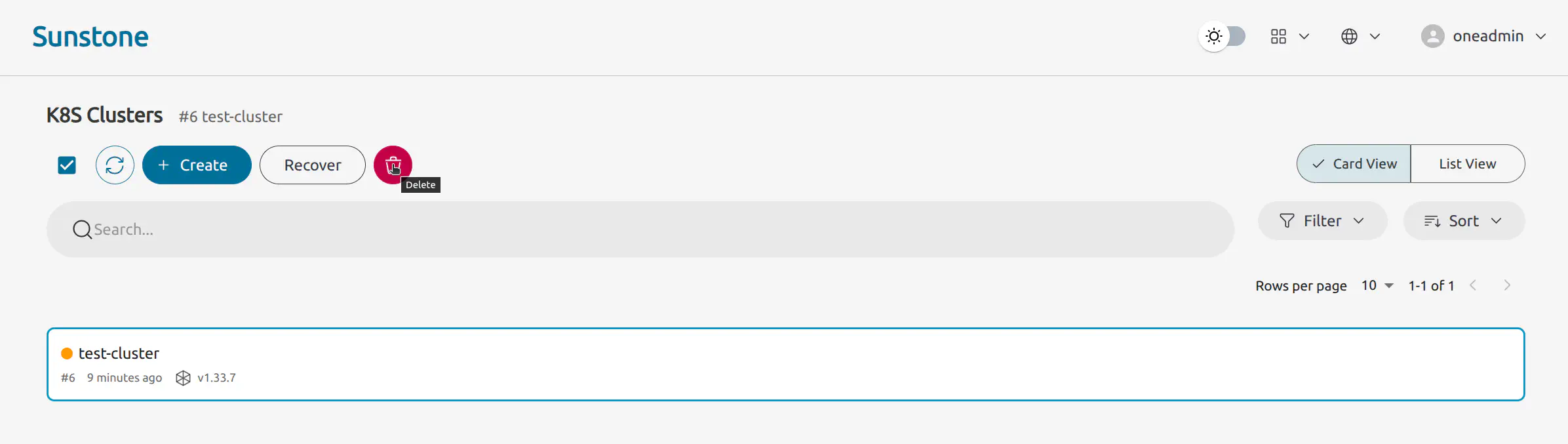
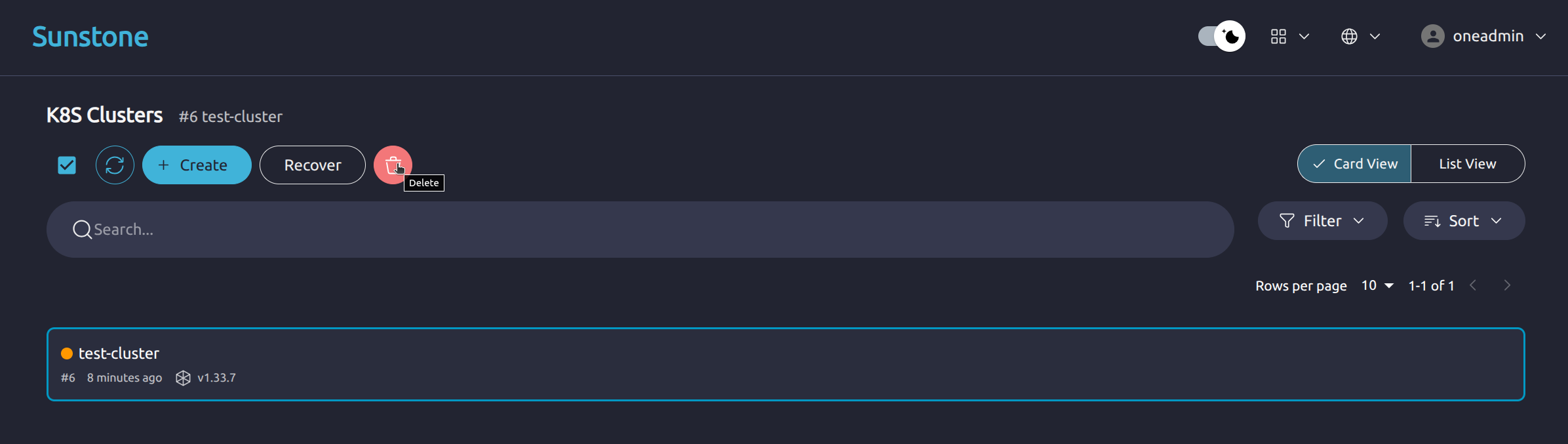
The deletion operation deprovisions the OneKS K8s Cluster and its managed resources, including the control plane and managed node groups. Referenced infrastructure, such as the public and private Virtual Networks selected during K8s Cluster creation, is not normally deleted by OneKS.
Delete a K8s Cluster:
oneks delete cluster <cluster_id>
Force deletion, if required:
oneks delete cluster <cluster_id> --force
After deletion, verify that the K8s Cluster no longer appears in OneKS:
oneks list clusters
Delete a K8s Cluster:
curl -u "$(cat /var/lib/one/.one/one_auth)" \
  -X DELETE "http://<oneks-server>:10780/api/v1/clusters/<cluster_id>"
Force deletion, if required:
curl -u "$(cat /var/lib/one/.one/one_auth)" \
  -X DELETE "http://<oneks-server>:10780/api/v1/clusters/<cluster_id>?force"
For further details about the API, see the OneKS REST API Reference.
GIVE FEEDBACK
Was this resource helpful?
Glad to hear it
Sorry to hear that