Migrating VMs with OneSwap
OpenNebula provides OneSwap, a command-line tool designed to simplify migrating Virtual Machines from vCenter to OpenNebula. OneSwap has been used in the field with a 96% success rate in converting VMs automatically, greatly simplifying and speeding up the migration process.
OneSwap supports importing Open Virtual Appliances (OVAs) previously exported from vCenter/ESXi environments. The Managing OVAs and VMDKs guide provides instructions, with complete examples.
Installation and requirements
The package opennebula-swap, provided on the official repositories, provides the command oneswap.
It can be installed in Ubuntu with
apt install opennebula-swap
And in AlmaLinux and RHEL with
dnf install opennebula-swap
Requirements and recommended settings
OneSwap requirements for virtual conversion from VMWare to OpenNebula are the following:
- OneSwap is only supported on Ubuntu 24.04 LTS and AlmaLinux/RHEL 9 servers. On previous versions of Ubuntu and AlmaLinux/RHEL some dependencies are outdated.
- A working OpenNebula environment with capacity enough to store imported images and VMs and a user with permissions on the destination datastores. Alternatively, conversion can be done with user
oneadminand set the right permissions in a posterior step. - A vCenter endpoint with valid credentials to export the VMs.
- The parameters
vcenter,vuser,vpassandportmust be specified. - If Delta conversion mode is being used, the user running
oneswapcommand must have ssh passwordless access to the ESXi host where the VMs to convert are running.
- The parameters
- If oneswap is ran on a different machine than OpenNebula frontend, then the following components must also be configured:
- Set up the transfer method options (oneswap parameters
http_transfer,http_hostandhttp_port).
- Set up the transfer method options (oneswap parameters
 OneSwap configuration
Most OneSwap parameters can be configured on the file /etc/one/oneswap.yaml but the user running oneswap must be able to run CLI commands on the destination OpenNebula frontend (i.e. being able to run onevm list). If oneswap is ran from the frontend as oneadmin user this works directly. OpenNebula CLI
If oneswap runs from a server different than OpenNebula frontend, check the documentation about installing the CLI commands and export the variables ONE_XMLRPC and ONE_AUTH accordingly.Normally that means populating the file
$HOME/.one/one_auth with username:password and adding export ONE_XMLRPC=http://opennebula_frontend:2633/RPC2 on the user profile, but it is recommended to check the documentation.Optional requirements and required tools
- VDDK library is recommended to improve disk transfer speeds. As of the moment of writing, the library can be downloaded from Broadcom developer portal. VDDK version MUST match the vCenter version.
- It is recommended to increase the vCenter API timeout to avoid request timeouts while converting big VMs. By default this value is 120 minutes and can be changed in vCenter at “Administration -> Deployment -> Client Configuration”, allowing values up to 1440 minutes (24 hours).
- The following libraries/programs must be installed
libguestfslibrary, version must be >= 1.50libvirtlibrary, version should be >= 8.7.0virt-v2v, stable version
Ubuntu 24.04 and AlmaLinux/RHEL 9 provide up to date versions of the packages
Required software for migrating Windows Virtual machines
There are two requirements to convert Windows Virtual Machines:
- VirtIO ISO drivers must be stored in the
/usr/local/share/virtio-windirectory. - RHsrvany, an Open Source srvany implementation to create the needed Windows services during the migration.
- In AlmaLinux and RHEL this package is a dependency of OneSwap and will be installed automatically
- In Ubuntu the package can be downloaded from fedoraproject.org.
For compatibility with older versions of virt2v the following symlinks are needed
ln -s /usr/share/virt-tools /usr/local/share/virt-tools
ln -s /usr/share/virtio-win /usr/local/share/virtio-win
Installing RHsrvany on Ubuntu
Github page for the project provides instructions about how to decompress the package for Ubuntu. At the moment of writing the procedure is
apt install -y rpm2cpio

wget -nd -O srvany.rpm https://kojipkgs.fedoraproject.org/packages/mingw-srvany/1.1/11.eln153/noarch/mingw-srvany-redistributable-1.1-11.eln153.noarch.rpm

rpm2cpio srvany.rpm | cpio -idmv \
  && mkdir /usr/share/virt-tools \
  && mv ./usr/i686-w64-mingw32/sys-root/mingw/bin/*exe /usr/share/virt-tools/
Migrating Virtual Machines
OneSwap supports two different modes for the migration of Virtual machines:
- Regular mode (non-delta)
- Requires VMs to be powered-off (neither suspended or hibernating)
- VMs to convert must not have any snapshot
- Delta mode is intended for low-downtime migrations (slower)
- VMs must be powered on
On Linux VMs
- The virtual machine must have the kernel headers installed. The name of the package may differ on each distribution, for instance, in Ubuntu the package to install is
linux-headersand in AlmaLinux iskernel-headers. - The guest kernel version must support virtio drivers (kernel 2.6.30 or greater, which was issued on 2009-07-09).
virt-v2vtool does not support updating GRUB2, if the following message is shown during the conversion process:
WARNING: could not determine a way to update the configuration of Grub2
booting the VM from a rescue CD and fixing grub may be necessary.
On Windows VMs
- Fast startup must be disabled (Control Panel -> Power Options -> Advanced power settings)
- Installing VirtIO Storage and Network drivers available at their github before the conversion will improve conversion times. If not, they will be injected later.
- Officially, Windows 2016 and onwards require UEFI boot.
- Windows VMs can only be converted with
virt-v2vstyle transfer (customandfallbackstyles will fail)
Virtual machines with UEFI BIOS
OneSwap normally detects if the VM boots in UEFI mode and sets up OpenNebula template accordingly, but in some strange cases autodetection may fail. In these cases, modify the following options on the OpenNebula template:
- CPU architecture:
x86_64 - Machine type:
q35 - UEFI firmware:
UEFI(for secure firmware the box must be checked)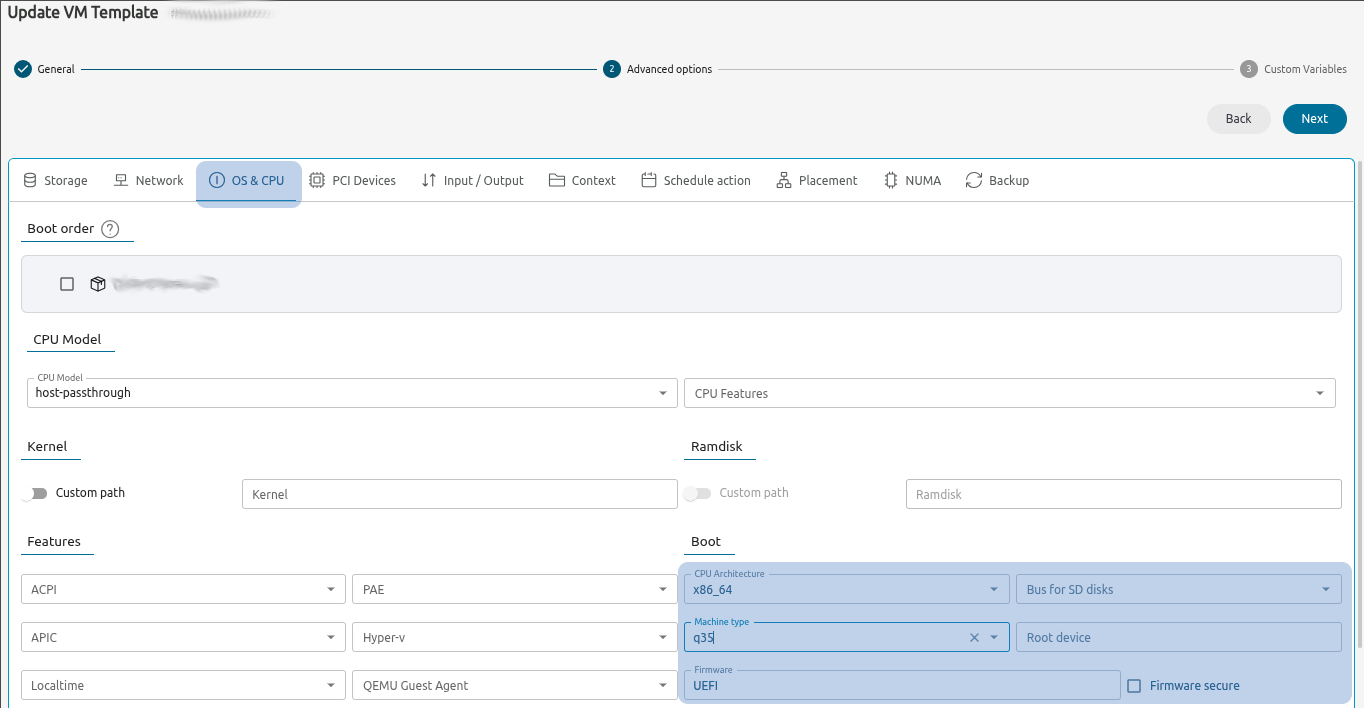
oneswap usage
Transfer methods
There are four methods to transfer the images from ESXi to OpenNebula. Ordered from faster to slowest:
- Hybrid
- Use RbVmomi2 library to download locally the image before importing to OpenNebula.
- Fast, but requires extra disk space as it copies the image.
- VDDK Library
- Use VMWare Virtual Disk Development Kit library.
- The parameter
--vddk /path/to/libmust be defined.
- ESXi Direct SSH transfer
- Copy the disk via SSH from the ESXi host. Incompatible with VDDK.
- Requires defining the options
--esxi,--esxi_userand--esxi_pass
- vCenter API
- The slowest option (vCenter API is used to download the image).
A custom conversion option is also provided, which is only recommended as a fallback, that does not use virt-v2v. It relies on RbVmomi2, using qemu-img and virt-customize/guestfish to prepare the image for OpenNebula.
Importing VMs
Before migrations, oneswap can query ESXi VMs and datacenters
| Command | Output |
|---|---|
oneswap list datacenters | Lists Datacenters |
oneswap list clusters [--datacenter DCName] | List clusters (can filter by datacenter) |
oneswap list vms [--datacenter DCName [--cluster ClusterName]] | List VMs on ESXi. Cluster needs the Datacenter name. |
For convenience, it is a good practice to populate the /etc/one/oneswap.yaml file with the values that will be applied for the most migrated VMs. If the user running oneswap has no permissions to edit the file, it can be copied, modified and oneswap be executed with the parameter --config-file NEW_CONFIG_FILE.yaml
We value your feedback
Was this information helpful?
Glad to hear it
Sorry to hear that