Deploy OpenNebula on-prem with miniONE
In this tutorial, we will install an OpenNebula Front-end in under ten minutes, using the miniONE installation tool provided by OpenNebula.
miniONE is a straightforward tool for deploying an evaluation version of OpenNebula. After running the miniONE script, all the OpenNebula services needed to use, manage and run a small cloud deployment will be installed on a single server.
This tutorial covers installation of a Front-end and KVM hypervisor node on a local machine with a screen attached. If you are installing miniONE on remote infrastructure you will need to use SSH and port forwarding to access user interfaces in your local browser, please refer to the port forwarding instructions before continuing.
During this tutorial we will complete the following steps:
- Ensure that the host server meets the installation requirements.
- Download and run the miniONE installation script.
- Verify the installation.
- Instantiate a Virtual Machine (VM) with Alpine Linux.
Once you have completed this tutorial, you will have an evaluation version of OpenNebula installed on your machine and you will understand how to use the Sunstone user interface to instantiate a VM.
Before Starting
It is recommended to perform the installation on a machine capable of running KVM virtualization. If KVM virtualization is not available, miniONE will automatically fall back on QEMU emulation; however, running in full emulation mode will decrease performance.
To quickly check that your machine is capable of KVM emulation, run the kvm-ok command:
kvm-ok
INFO: /dev/kvm exists
KVM acceleration can be used
On Debian-based Linux, install kvm-ok by installing the cpu-checker package:
sudo apt install cpu-checker
Step 1: Verify Installation Requirements
To run the miniONE script, you will need a physical server with a fresh installation of a supported operating system, with the latest software updates and without any customizations. The server will need a stable internet connection to download software packages during installation.
- Supported operating systems:
- RHEL/AlmaLinux 8 or 9
- Debian 11 or 12
- Ubuntu 22.04 or 24.04
- Minimum hardware:
- 32 GiB RAM
- 80 GiB free disk space
- Configuration:
- Access to the privileged user (root) account
- An SSH server running on port 22
- Open ports:
- 22 (SSH)
- 80 (for the web UI)
This tutorial was tested on on Ubuntu 22.04 and 24.04. We strongly advise to use a physical server rather than a Virtual Machine (VM). If you choose to follow this installation on a VM you may experience instability due to nested virtualization during the follow-up Kubernetes installation guides. You may also need to use port forwarding to access the Sunstone UI.
Step 2: Download and Install miniONE
Open a terminal and switch to the root user with the sudo command:
sudo -i
Download miniONE, run:
wget 'https://github.com/OpenNebula/minione/releases/download/v7.0.1/minione'
Make the minione script executable:
chmod +x minione
Now run the installation script:
./minione
--password option to enter a secure and memorable password of your own: ./minione --password <password>The miniONE script executes the installation while logging output to the terminal. Installation usually takes between one and three minutes on most machines. Once finished, miniONE displays a report in the terminal with connection parameters and login credentials:
### Report
OpenNebula 7.0 was installed
Sunstone is running on:
  http://192.168.1.130/
Use following to login:
  user: oneadmin
  password: ZMCoOWUsBg
Please take a note of the IP address and login credentials, you will need them later.
Finally update the localhost status:
sudo -u oneadmin onehost sync --force
This command might take 2-3 minutes to complete, check the status of the localhost periodically with sudo -u oneadmin onehost list until the STAT column of the localhost item reads on.
At this point, you have successfully installed miniONE. OpenNebula services should be running, and the system is ready for your first login.
Step 3: Verify the Installation
Now verify the installation by logging in to OpenNebula’s Sunstone UI.
Point your browser to the Edge IP and port provided by the miniONE report, in this case 192.168.1.130, or simply to http://localhost. You should be greeted with the Sunstone login screen:
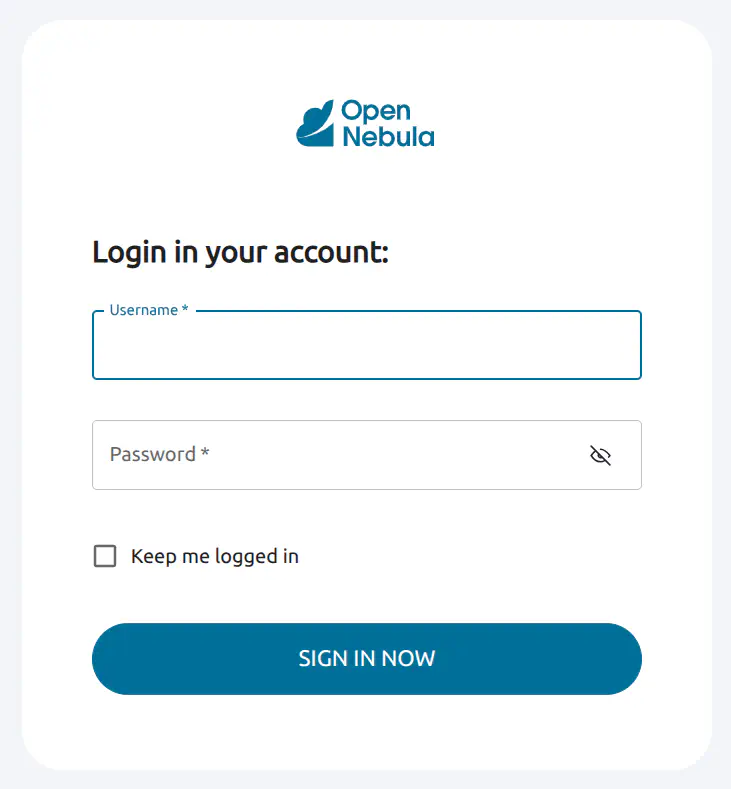
In the Username input field, type oneadmin. For Password, enter the password provided by miniONE at the end of the report (in this example, ZMCoOWUsBg) then press Enter or click SIGN IN NOW.
The screen will display the Sunstone Dashboard:
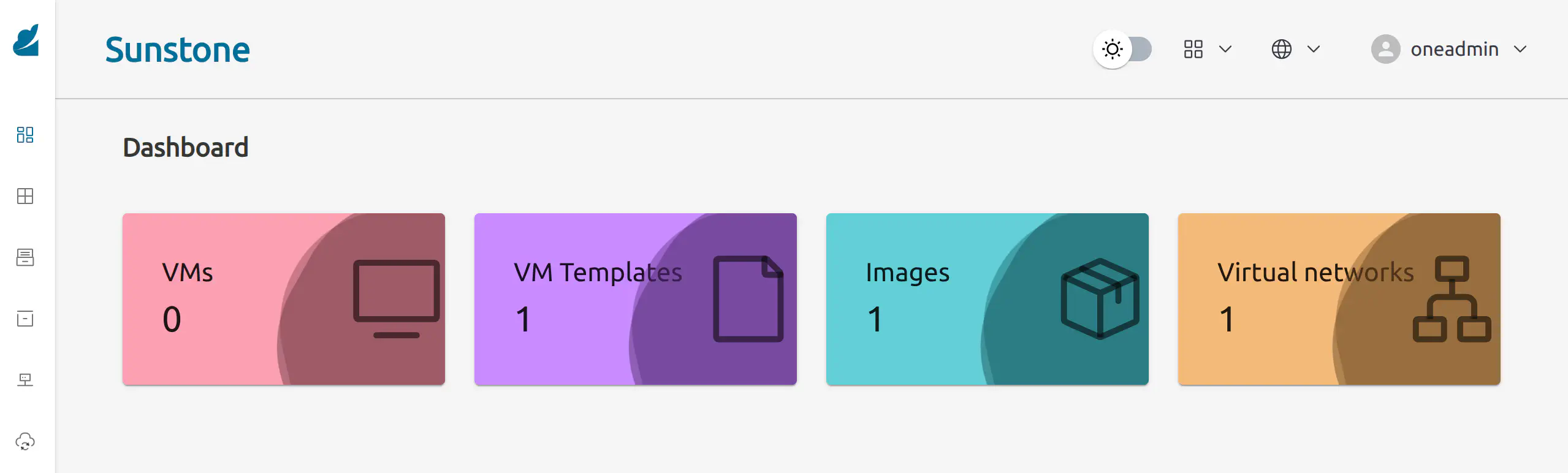
As you can see, the Dashboard indicates the following installed components:
- 1 VM template
- 1 image
- 1 Virtual Network
The existing Virtual Network is a bridged network attached to a local interface named vnet. To inspect this network, in Sunstone open the left-hand menu (hover the mouse over the left-hand sidebar), then click Networks –> Virtual Networks:
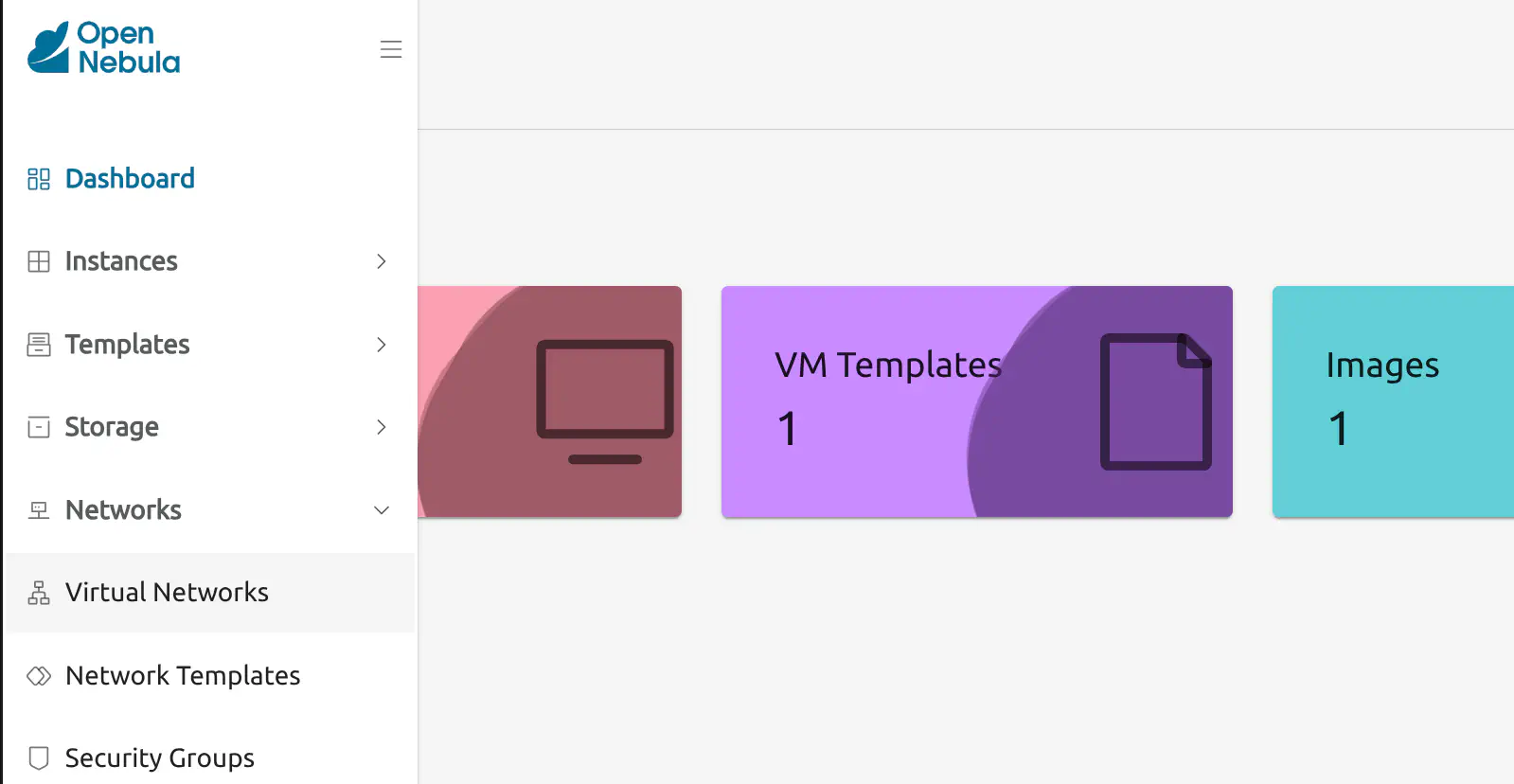
Sunstone will display the Virtual networks screen. Click the item labelled vnet to display information about this network:
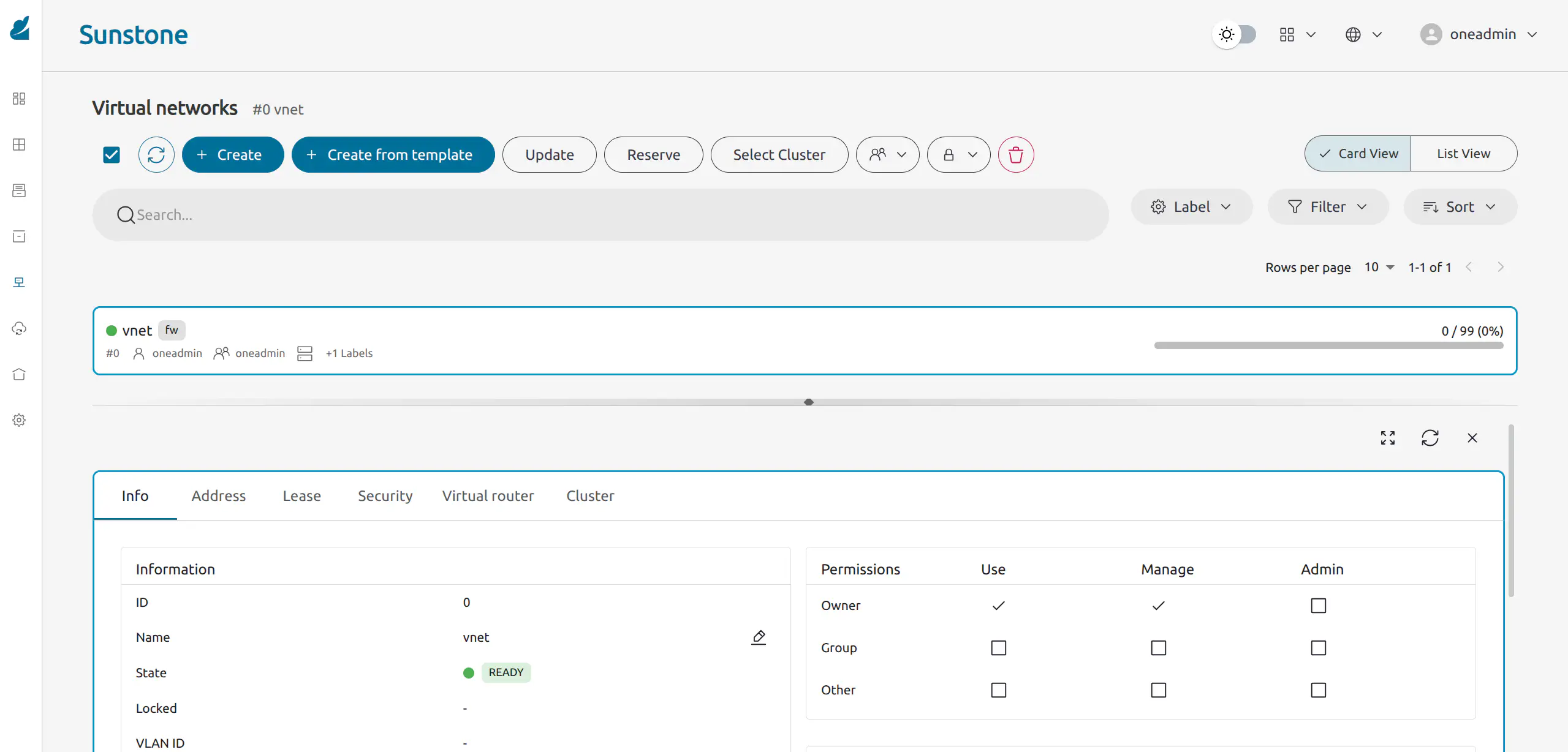
During installation, a KVM virtualization host was automatically configured on the local machine. To inspect the KVM host, in Sunstone open the left-hand menu, then click Infrastructure -> Hosts.
Step 4: Deploying a Virtual Machine Locally
miniONE automatically downloaded the template for a VM with Alpine Linux 3.20 preinstalled. Through the Sunstone UI, we can now instantiate this VM on the local KVM host with a few clicks.
To deploy the Alpine Linux VM, in the left-hand sidebar go to Templates -> VM Templates. This screen displays a list of all VM templates installed on the system. In this case, only the Alpine Linux 3.20 template is installed:
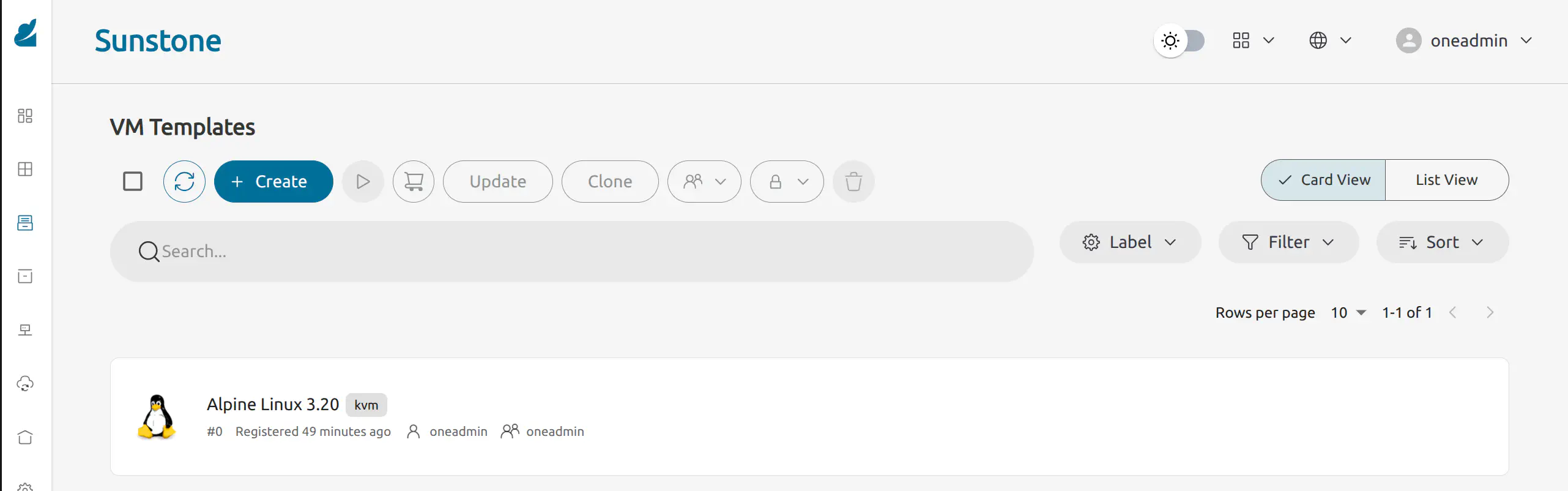
To instantiate the VM template, click the template item and click the Instantiate icon at the top.
Sunstone will display the first screen of the Instantiate VM Template wizard:
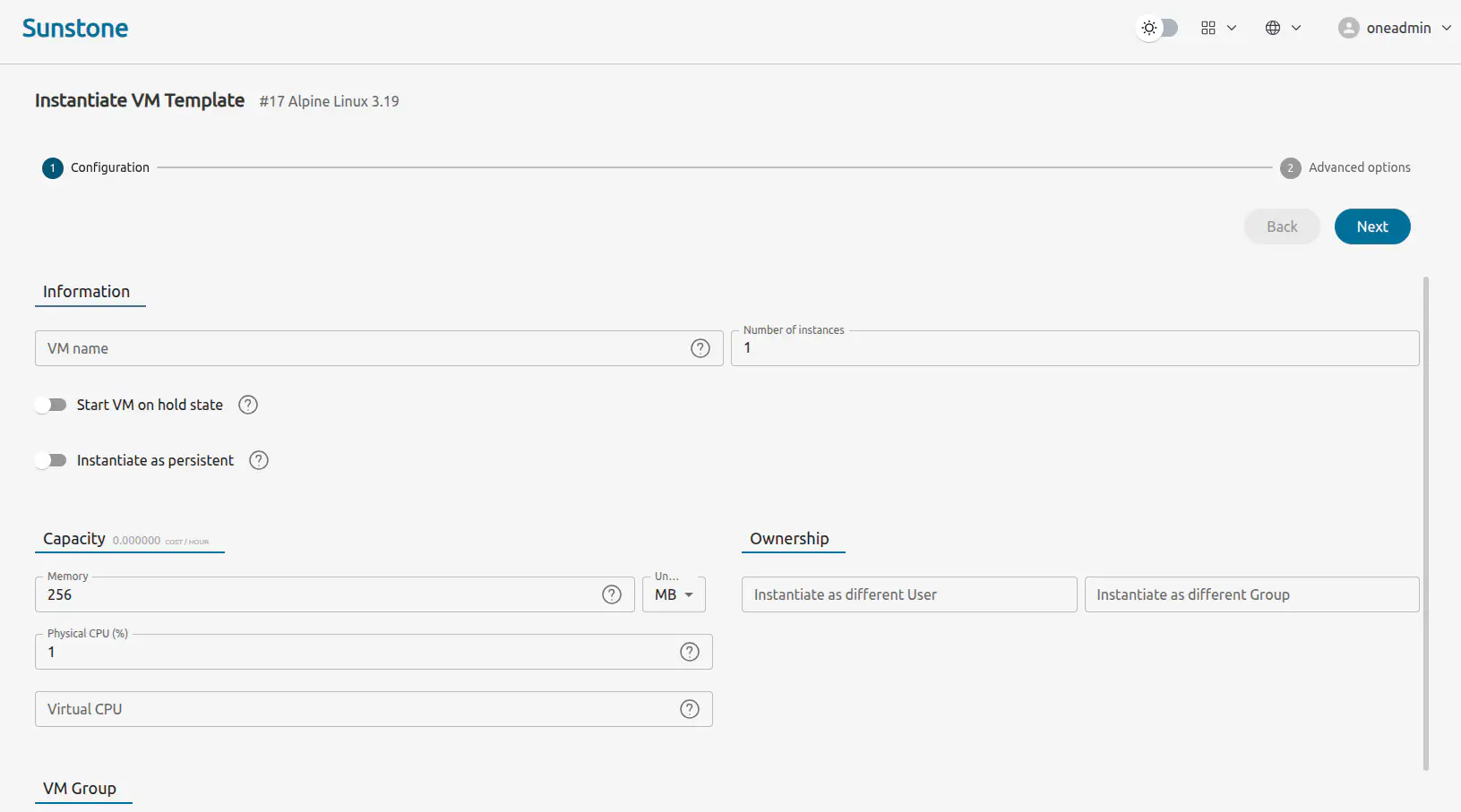
Leave the Capacity, Ownership and VM Group parameters with their default values. Click Next.
The next screen allows you to see and modify further parameters for the VM, including selecting the Virtual Network or scheduling actions.
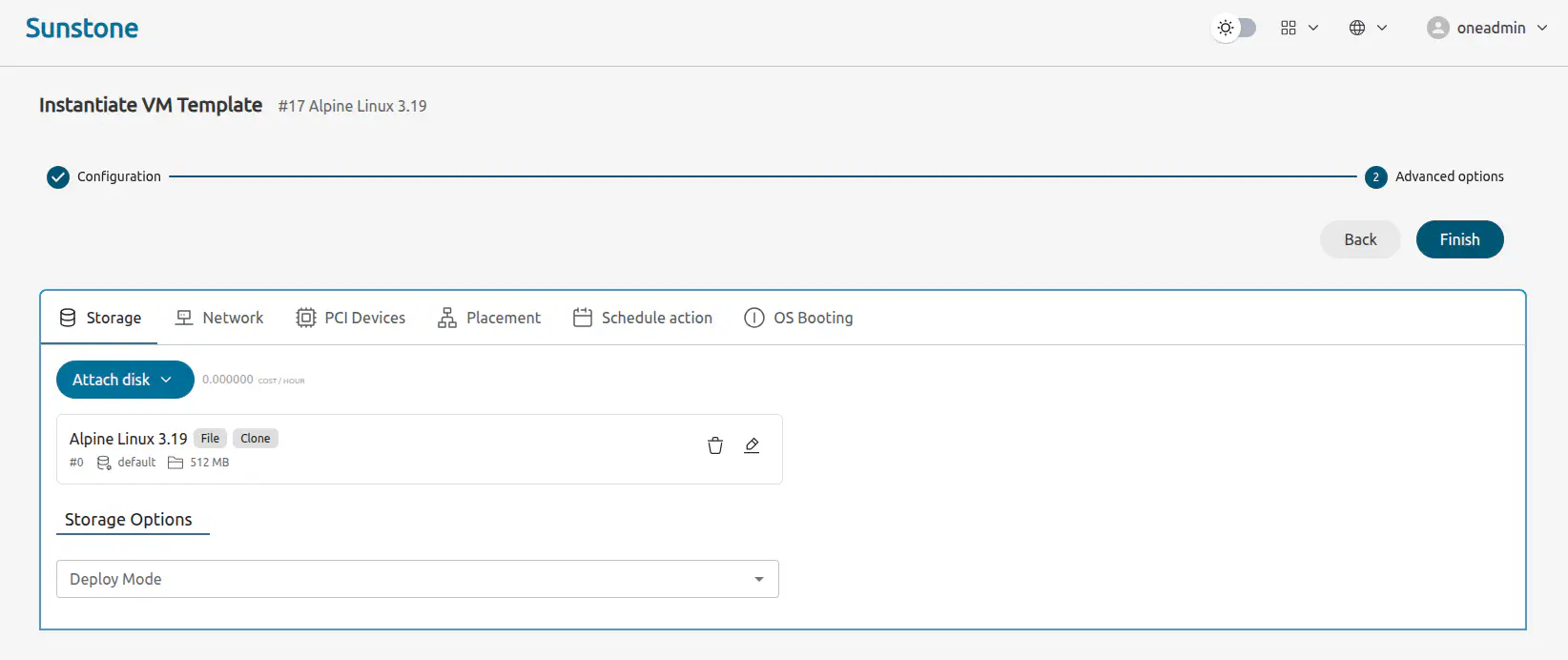
Click Finish.
OpenNebula will instantiate the VM template. For the Alpine Linux VM, this should take just a few seconds. Once instantiation is complete, Sunstone should display the Instances -> VMs screen, with the Alpine Linux VM as the sole instance:
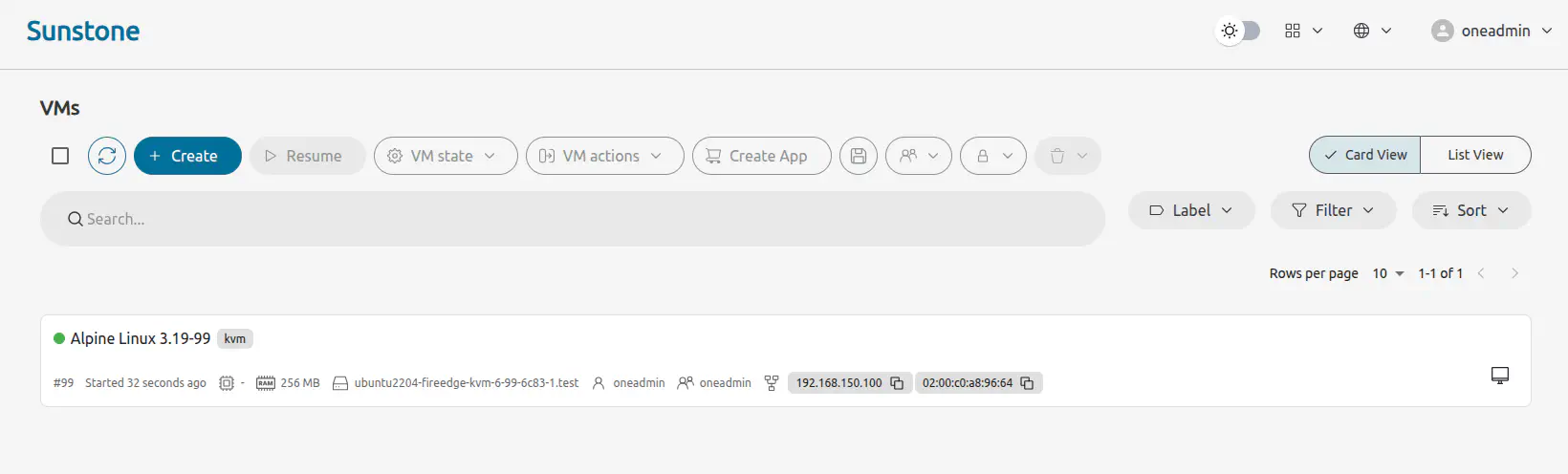
The green dot to the left of the VM name indicates that the VM is running. Note that you may need to click the Refresh icon
Logging in to the Virtual Machine
The quickest way to log into the VM is by VNC, available directly in Sunstone. Just click the VNC icon and Sunstone will display the VM boot messages screen directly in your browser in another tab.
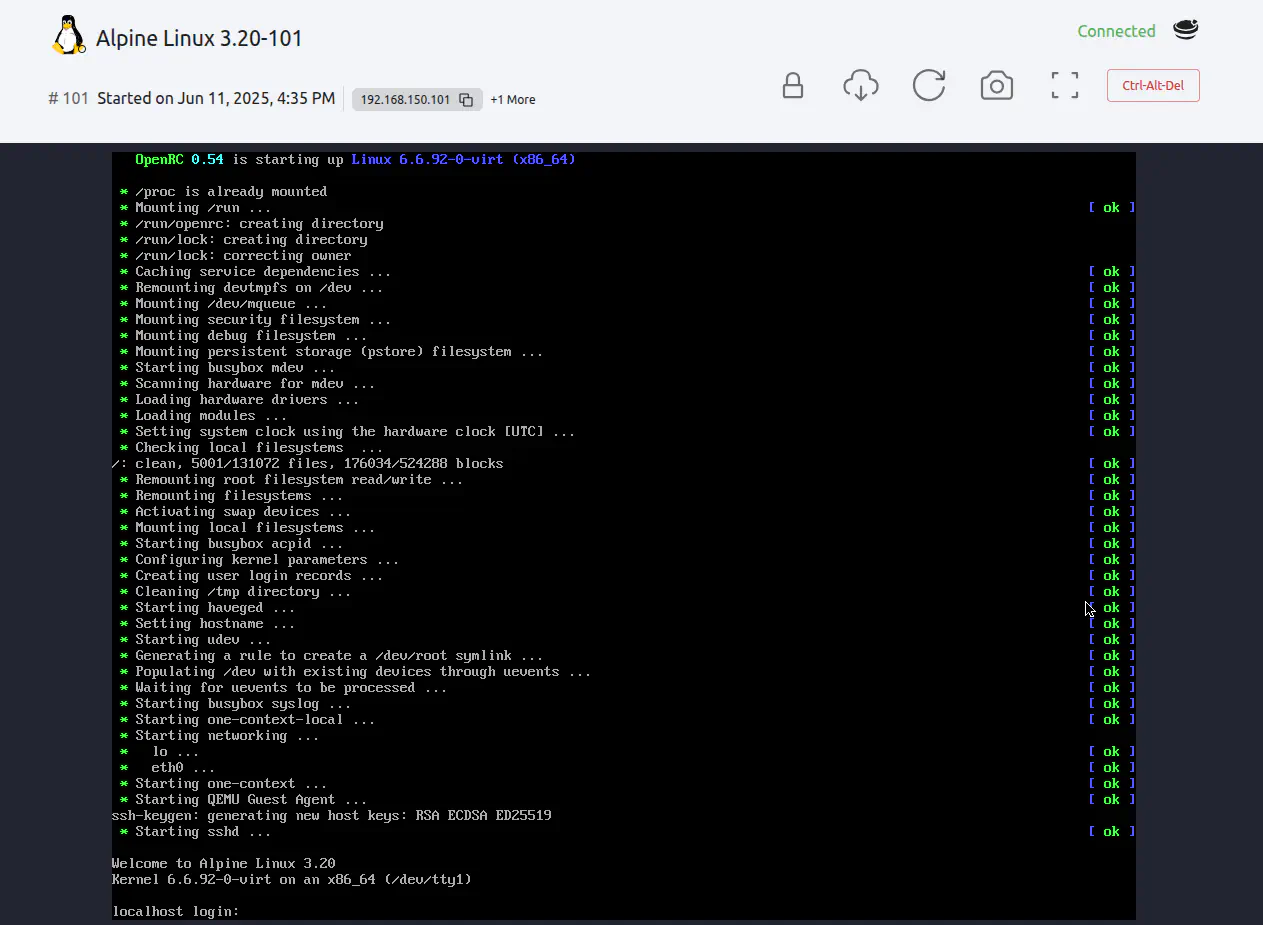
Log in as root with password opennebula. You can then use the command line to explore the VM and run processes:
- Try running
ping 1.1.1.1to test the internet connection - Try running
topto see the processes running on the machine
Congratulations! You’ve now installed an OpenNebula Front-end with a KVM hypervisor and Virtual Network, then deployed a VM.
Next Steps
Now that you have a working miniONE OpenNebula installation, we suggest that you explore OpenNebula’s functionality further with the following guides:
- Deploy a WordPress virtual machine
- Deploy a Kubernetes cluster with the OneKE appliance
- Deploy a Kubernetes cluster using Rancher and the Cluster API
- Further validate your miniONE installation and learn how to download appliances from the OpenNebula Marketplace
SSH and Port Forwarding
If you are deploying miniONE on remote infrastructure (or a VM) it is necessary to use SSH to tunnel into the remote server and access the command line. You also need to use port forwarding in order to access the Sunstone UI through your local browser.
In order to access the Sunstone UI, you will need to set up port forwarding on your remote machine. Choose a port that is available on your local machine, you can check this by running the following command:
lsof -i :8443
In this example we are choosing port 8443. This command should give no output. Any output suggests another process is using that port, Ctrl-C and choose another.
Open a terminal in your local machine and run the following command, inserting your chosen port (8443 in this case, 80 is the port to access Sunstone, do not change it):
ssh -L 8443:localhost:80 <username>@<REMOTE_IP_ADDRESS>
This command will take you to the command line of the remote server and establish the port forwarding. You can use this command prompt to run commands on the remote server, including the installation steps detailed above.
Now to access the Sunstone UI (after the successful installation of miniONE) direct your browser to localhost:8443, where you will find the Sunstone UI.
GIVE FEEDBACK
Was this resource helpful?
Glad to hear it
Sorry to hear that